UV stretching is one of the most common problems you may encounter when preparing a 3D model for texturing. Your geometry can look perfectly correct in the viewport, but as soon as you apply a checker pattern, wood grain, fabric weave, label, or other directional texture, parts of the material appear stretched, compressed, or uneven.
This problem is especially noticeable on game props, hard-surface assets, cylindrical objects, furniture, straps, handles, and curved surfaces. It can also become more difficult to fix once you have already started painting textures, baking normal maps, or preparing the asset for Unity, Unreal Engine, or a 3D marketplace.
The good news is that UV stretching is usually easy to diagnose when you follow a structured workflow. In this guide, you will learn what causes UV distortion, how to identify it in Blender, how to correct it, and how to prevent it from affecting the rest of your asset creation pipeline.
What Is UV Stretching?
UV stretching happens when the proportions of a surface in 3D space do not match its proportions in the two-dimensional UV map.
A UV map represents the surface of your 3D model as a collection of flat islands. These islands tell Blender and other software where each part of a texture should appear on the model.
Because a three-dimensional object must be flattened into a two-dimensional space, some distortion is often unavoidable. It is similar to trying to flatten the surface of an orange peel without cutting or stretching it. The more curved or complex the surface is, the more difficult it becomes to unwrap it without distortion.
The goal is therefore not always to create a mathematically perfect UV map. Your goal is to keep distortion low enough that it does not visibly damage the material.
UV stretching becomes a practical problem when square texture details become rectangular, circular details become oval, lines change thickness across the surface, patterns bend unexpectedly, painted details appear wider or narrower in certain areas, or some parts of the model receive noticeably more texture resolution than others.
It is also important to distinguish UV stretching from low texture resolution. A blurry texture may result from insufficient resolution or poor texel density, while a stretched texture is caused by distorted UV coordinates. Increasing the texture resolution will not correct the underlying deformation. If your issue is more about blurry or pixelated detail than geometric distortion, the guide on texture resolution for 3D assets can help you diagnose that problem separately.
How Can You Detect UV Stretching?
The fastest and most reliable way to identify UV distortion is to apply a checker texture.
A checker texture contains evenly spaced squares, often with numbers or different colors. When the UV map is working correctly, these squares should appear reasonably uniform across the model.
Generate a labeled test image with the UV Checker Generator, then apply the downloaded PNG to your material’s Base Color using the UV map you want to inspect. Letters and directional cues make rotation or mirroring easier to recognize alongside stretching.
If the squares become long rectangles, narrow strips, trapezoids, or irregular shapes, the UV map is distorting the texture.
A checker texture also helps you identify problems that may be difficult to see with a uniform material. A plain metal or plastic material can hide significant stretching because it does not contain strong directional details. Wood grain, fabric, bricks, labels, scratches, and ornamental patterns reveal the problem much more clearly.
In Blender, you can also use the Stretch visualization inside the UV Editor. Depending on the Blender version and workspace configuration, you can enable the stretching display from the UV Editor overlays.
The visualization usually allows you to examine distortion based on angle or area. Angle distortion shows how much the angles of the UV faces differ from the corresponding angles on the 3D mesh. Area distortion helps reveal where the relative size of a surface has changed significantly during the unwrap.
These tools are useful, but they should not completely replace visual testing. A UV island may show a small amount of mathematical distortion without producing any visible problem in the final material. Conversely, a directional pattern may reveal an issue that appears minor in the stretch overlay.
A practical UV evaluation should therefore combine three checks:
-
Inspect the checker pattern directly on the model.
-
Examine the UV islands in the UV Editor.
-
Test a material similar to the one you plan to use on the final asset.
For example, a slightly distorted island may work perfectly for a scratched painted-metal material, but the same island may be unsuitable for a geometric fabric pattern or a label with typography.
Why Do Textures Stretch in Blender?
UV stretching can be caused by several different issues. Identifying the correct cause is important because applying random UV tools rarely produces a consistent solution.
The object scale has not been applied
Non-uniform object scale is one of the first things you should check.
You may have scaled an object along one axis in Object Mode, making it longer, wider, or flatter without applying the transformation. The mesh may look correct, but Blender still stores the original object scale values.
Before creating the final unwrap, select the object and use:
Ctrl + A → Scale
After applying the scale, the X, Y, and Z scale values should return to 1.
Applying the scale does not automatically repair an existing UV map. In many cases, you should apply the scale first and then unwrap the model again.
The mesh does not have enough seams
A curved surface cannot always be flattened correctly as a single UV island. If the geometry is forced into an unsuitable shape, Blender must stretch or compress parts of the island.
A cylinder is a simple example. To unwrap the curved side as a flat rectangle, it usually needs one longitudinal seam. The top and bottom caps normally need additional seams separating them from the side.
Without these cuts, the unwrap algorithm has no logical way to open the surface.
The seams are in the wrong locations
Adding more seams does not automatically create better UVs. Their placement matters.
A seam should help the surface unfold while remaining as visually unobtrusive as possible. On a game prop, you may place seams along the underside, behind the object, inside a corner, beneath a handle, or along a natural material transition.
Poorly placed seams can still produce distorted islands, visible texture discontinuities, or inefficient packing.
The geometry is difficult to flatten
Highly curved surfaces, long thin triangles, irregular polygons, twisted quad strips, and complex intersections can make clean unwrapping more difficult.
UV problems may therefore be a symptom of a deeper mesh issue. Before spending too much time editing UV vertices manually, examine the underlying geometry.
Clean topology does not mean that every asset must use only perfect quad loops. It means that the topology should support the model’s shape, shading, deformation requirements, baking process, and UV layout. For a broader explanation, read the truth about clean topology.
The UV island has been scaled unevenly
You can create stretching manually by scaling a UV island along only one axis.
For example, if you compress an island horizontally in the UV Editor, the texture will appear stretched horizontally on the model. This sometimes happens accidentally while packing islands or trying to fit them into a limited UV space.
Always check whether the proportions of the island still correspond to the proportions of the surface.
The mesh changed after the unwrap
Adding edge loops, extruding new faces, changing proportions, applying modifiers, or editing the silhouette can invalidate parts of an existing UV map.
Small changes may not create obvious problems immediately, but they can alter the relationship between the 3D surface and the UV coordinates.
After making significant geometric changes, test the checker texture again.
For suitably related source and target meshes, UV transfer with Data Transfer can reuse an existing layout, but the result still needs a distortion check.
The projection method is unsuitable
Different shapes benefit from different unwrap methods.
A planar surface may work well with a planar projection. A cylindrical object may benefit from a cylindrical projection or a seam-based unwrap. A regular strip of quads may work better with Follow Active Quads.
Smart UV Project can be useful for quick prototypes, procedural assets, or objects where continuity is not important. However, it is not the best universal solution. It often creates many fragmented islands and does not necessarily produce the clean orientation or continuity required for professional texturing.
For objects that need controlled projected mapping, you may also find the UV Project Modifier in Blender useful.
How Do You Fix UV Stretching in Blender?
A reliable correction workflow begins with the mesh and moves progressively toward the UV layout. Avoid starting by dragging random UV vertices because this may hide the symptom without addressing the cause.
1. Apply the object scale
In Object Mode, select the object and apply its scale.
Use:
Ctrl + A → Scale
If the asset contains several separate objects, check each one. Different unapplied scales can produce inconsistent texture behavior across an asset set.
After applying the scale, perform a new unwrap rather than assuming the old UV map is still correct.
2. Inspect the geometry
Look for extremely thin triangles, overlapping faces, duplicate vertices, internal geometry, twisted quads, unnecessary n-gons on curved areas, uneven edge spacing, and topology that changes direction abruptly.
You do not need to rebuild the entire model whenever you see mild stretching. However, if an area cannot unfold logically, improving the topology may be faster than forcing the UV island into shape.
3. Mark appropriate seams
Think about how the surface would need to be cut if it were made from paper.
For a cylinder, create a seam along its length and separate the caps. For a box-like prop, place seams along selected corners. For a handle or strap, use a seam on the least visible side.
Do not try to keep the entire object in one island purely to reduce the island count. A few well-planned islands are often better than one severely distorted island.
4. Unwrap the model again
Select the relevant faces and use the standard Unwrap command.
After unwrapping, inspect the checker texture before packing the islands. This allows you to determine whether the unwrap itself is correct before other transformations complicate the layout.
If you are working with an organized strip of quads, Follow Active Quads can help produce a straighter and more regular UV island. This is particularly useful for straps, cables, cylindrical sections, belts, trims, and elongated surfaces.
5. Use Minimize Stretch carefully
Blender’s Minimize Stretch tool can improve an island by relaxing the UV vertices and reducing distortion.
It works best when the seams are already sensible, the overall island structure is correct, the topology is suitable, and the distortion is moderate.
It is not a replacement for proper seam placement.
If a spherical or cylindrical surface is forced into an impossible island shape, repeatedly running Minimize Stretch will not produce a professional result. You must first give the surface enough freedom to unfold.
You can also pin selected UV vertices before relaxing an island. Pinning helps preserve important boundaries, corners, or straight sections while the remaining vertices move.
6. Straighten only when appropriate
Straight UV edges are useful for many manufactured surfaces, trim sheets, repeating patterns, and hard-surface assets. However, forcing every boundary into a perfectly straight line can create distortion inside the island.
The UV shape should primarily preserve the surface proportions. Visual organization is important, but it should not come at the cost of visible texture stretching.
7. Test again with the checker texture
After every major correction, inspect the model again.
Rotate the model, view it from different distances, and pay special attention to curved transitions, corners, narrow sections, caps, intersections, areas where the material direction changes, and zones intended for labels or graphic details.
Do not wait until the texture is finished to perform this test.
For directional surfaces, a checker is only the first test. The furniture wood grain workflow shows how to orient separate legs, rails and panels after correcting distortion.
Where Should You Place UV Seams?
Good seam placement balances three requirements: low stretching, manageable islands, and limited visible discontinuities.
For cylindrical objects, a seam usually runs along the least visible side. The end caps can be separated from the side surface. This creates one rectangular or slightly curved island for the body and separate islands for the caps.
For box-like hard-surface props, seams can often follow selected sharp corners. You do not need to split every hard edge, but the UV layout should reflect how the object can unfold and how the material should flow across the surface.
For furniture and large environment props, seams can be hidden beneath the asset, behind panels, inside joints, or along existing construction lines. Natural material boundaries are also useful. A transition between wood, metal, rubber, leather, or fabric provides a logical location for a UV split.
For organic or rounded assets, place cuts in less visible areas and give the surface enough openings to relax. Trying to preserve a single continuous island may create more visible distortion than a carefully hidden seam.
Texture continuity should also influence your decision. If a wood grain must flow continuously across two adjacent faces, splitting those faces may create a visible interruption. In that case, you may accept a small amount of distortion or move the seam elsewhere.
There is no universal rule requiring the fewest possible islands. The correct island count depends on the model, material, camera distance, texture resolution, and production pipeline.
Are Texel Density and UV Stretching the Same Problem?
Texel density and UV stretching are related, but they are not the same thing.
UV stretching describes distortion within an island. Texel density describes how much texture resolution a surface receives relative to its size in 3D space.
Imagine two identical panels on a machine. If one panel occupies twice as much UV space as the other, it receives a higher texel density. Its texture details will appear sharper or smaller.
However, both panels can still have perfectly proportional checker squares. In that case, there is no stretching, but the texel density is inconsistent.
Blender’s Average Island Scale command can help resize UV islands according to the relative area of the corresponding surfaces. This creates a more consistent starting point before packing.
Consistent texel density is usually desirable for game props and modular environment assets because it helps materials maintain a predictable level of detail. It also simplifies asset documentation and texture production.
There are valid exceptions. You may intentionally give more UV space to a hero-facing surface, a detailed control panel, a character’s face, an area containing text or labels, or parts frequently viewed at close range.
This is a controlled density decision, not accidental stretching.
After adjusting island scale, pack the UVs with enough padding. Padding prevents neighboring islands from bleeding into one another at lower mipmap levels or when textures are compressed inside a game engine.
How Does UV Stretching Affect Texturing and Baking?
UV problems become more expensive to fix as the asset moves further through production.
In Substance 3D Painter, distorted UVs can affect painted details, masks, generators, procedural patterns, and materials. A stitch line may become wider on one side of a cushion. Wood grain may change thickness across a tabletop. A repeated fabric pattern may appear compressed near a curved section.
Some procedural effects rely partly on mesh maps rather than only on UV coordinates, but the final texture is still written into UV space. Poor UVs can therefore reduce the consistency and clarity of the exported result.
A stable UV layout is also an important part of a wider PBR workflow explained step by step. Clean base color, roughness, metallic, normal, and ambient occlusion maps cannot fully compensate for a distorted mapping foundation.
In Marmoset Toolbag, UV stretching can become obvious when you inspect the material under sharper lighting or apply detailed normal and roughness maps. Toolbag allows you to adjust tiling, rotation, and offset, but these controls cannot repair local distortion inside a UV island.
Baking also requires attention. UV stretching does not always directly cause a failed normal map bake, but poor island organization, insufficient padding, extreme compression, and badly planned seams can create visible artifacts.
If you are preparing normal maps, review perfect normal maps: mistakes to avoid in your 3D workflow before finalizing the asset.
In Unity and Unreal Engine, the engine reads the UV data that you provide. It does not automatically correct distorted texture coordinates.
A material may look different after import because of texture compression, mipmaps, filtering, shader configuration, or incorrect import settings, but genuine UV stretching will remain present.
It is therefore useful to distinguish UV distortion from other engine-related problems. If your textures appear blurry rather than geometrically deformed, the issue may instead be related to import resolution or filtering. The guide to pixelated textures in Unity explains several of these engine-side causes.
If the problem appears only after import, you may also want to check common Unity import settings problems before assuming the UVs are the only issue.
Unreal Engine assets may also use a separate UV channel for lightmaps. Texture UVs can contain intentional overlaps when mirrored or repeated details are required, but lightmap UVs normally need unique, non-overlapping space and sufficient padding.
Common UV Stretching Mistakes
One of the most common mistakes is increasing the texture resolution instead of fixing the UV map. A 4K texture can still look badly stretched if the UV coordinates are distorted. You will only create a higher-resolution version of the same problem.
Another frequent mistake is relying on Smart UV Project for every asset. It is fast, but the resulting islands may be fragmented, inconsistently oriented, or unsuitable for directional materials.
Artists also sometimes use Minimize Stretch repeatedly without changing the seams. Relaxation tools can improve an already reasonable layout, but they cannot solve an island that is fundamentally unable to unfold.
Ignoring object scale is another avoidable problem. If you create the final UV map before applying a strongly non-uniform scale, you may need to repeat part of the work later.
Over-fragmenting the UV map can be just as problematic as using too few seams. Hundreds of tiny islands create more padding waste, make painting harder, increase the risk of visible discontinuities, and complicate manual editing.
You should also avoid evaluating the asset only with a plain material. A smooth gray shader may make the model look finished while hiding severe distortion. Always use a checker map or a directional test texture.
Finally, do not modify the mesh after baking and assume the UVs remain valid. Changes to the geometry, island positions, seams, or proportions may require a new bake and updated textures.
On a trunk, the bark mapping workflow shows how taper, circumference and ridge direction influence seam placement. For architecture, the modular masonry UV workflow applies the same distortion checks while preserving course alignment across separate meshes.
UV Stretching Checklist
Before you start baking or texturing, verify the following:
-
The object scale has been applied.
-
The mesh does not contain accidental duplicate or overlapping faces.
-
The topology supports the surface shape.
-
Seams allow curved areas to unfold logically.
-
The unwrap has been updated after major geometry changes.
-
Checker squares remain reasonably uniform.
-
Important patterns maintain the correct direction.
-
UV islands have not been scaled unevenly.
-
Texel density is intentional and reasonably consistent.
-
The islands have enough padding.
-
Overlapping islands are intentional and suitable for the material.
-
Mirrored areas will not create unwanted repeated wear or text.
-
The model has been tested with a representative material.
-
The asset has been checked in the target renderer or game engine.
Before publishing the asset on a marketplace, inspect it at close range and test the included textures in the software listed in your product description.
A professional asset should not rely on carefully chosen promotional angles to hide UV problems. Buyers may use the model with different materials, lighting conditions, and camera distances.
For a broader technical review, use the checklist in how to know if a 3D model is really game-ready.
3DSkillUp Insight
Treat UV validation as a production checkpoint rather than a final cleanup task.
A practical asset workflow is:
Modeling → Apply Scale → Clean Topology → Mark Seams → Unwrap → Checker Test → Pack UVs → Bake → Texture → Engine Test
Run the checker test before baking and repeat it whenever you make an important change to the geometry.
Correcting one seam during the UV stage may take less than a minute. Discovering the same issue after completing the bake, texture set, renders, exports, and marketplace files can force you to repeat a large part of the production process.
You should also test the UVs using a texture that resembles the final material. A basic checker map reveals general distortion, but it does not test every material requirement.
For example, an island that works well for painted metal may still produce problems with wood grain, fabric patterns, typography, decorative borders, stitches, cables, tiles, brushed metal, or repeated mechanical details.
The final material should influence how strict your UV requirements need to be.
Final Thoughts
UV stretching is not simply a cosmetic issue inside Blender. It can affect texturing, normal map baking, material consistency, game-engine presentation, and the perceived quality of a commercial 3D asset.
The most reliable solution is to approach the problem in the correct order. Apply the object scale, inspect the geometry, place logical seams, create a new unwrap, evaluate it with a checker texture, and only then refine the island scale and packing.
Do not expect higher texture resolution, automatic projection methods, or relaxation tools to repair a structurally poor UV layout.
A clean UV map gives you more predictable materials, easier painting, better baking results, and fewer problems when the asset reaches Unity, Unreal Engine, Marmoset Toolbag, or a marketplace customer.
Explore more 3DSkillUp tutorials and resources to improve your Blender, baking, PBR texturing, and game-ready asset workflows, and discover professionally prepared 3D assets designed for real-time projects.
UV stretching is one of the most common problems you may encounter when preparing a 3D model for texturing. Your geometry can look perfectly correct in the viewport, but as soon as you apply a checker pattern, wood grain, fabric weave, label, or other directional texture, parts of the material appear stretched, compressed, or uneven.
This problem is especially noticeable on game props, hard-surface assets, cylindrical objects, furniture, straps, handles, and curved surfaces. It can also become more difficult to fix once you have already started painting textures, baking normal maps, or preparing the asset for Unity, Unreal Engine, or a 3D marketplace.
The good news is that UV stretching is usually easy to diagnose when you follow a structured workflow. In this guide, you will learn what causes UV distortion, how to identify it in Blender, how to correct it, and how to prevent it from affecting the rest of your asset creation pipeline.
What Is UV Stretching?
UV stretching happens when the proportions of a surface in 3D space do not match its proportions in the two-dimensional UV map.
A UV map represents the surface of your 3D model as a collection of flat islands. These islands tell Blender and other software where each part of a texture should appear on the model.
Because a three-dimensional object must be flattened into a two-dimensional space, some distortion is often unavoidable. It is similar to trying to flatten the surface of an orange peel without cutting or stretching it. The more curved or complex the surface is, the more difficult it becomes to unwrap it without distortion.
The goal is therefore not always to create a mathematically perfect UV map. Your goal is to keep distortion low enough that it does not visibly damage the material.
UV stretching becomes a practical problem when:
-
square texture details become rectangular;
-
circular details become oval;
-
lines change thickness across the surface;
-
patterns bend unexpectedly;
-
painted details appear wider or narrower in certain areas;
-
some parts of the model receive noticeably more texture resolution than others.
It is also important to distinguish UV stretching from low texture resolution. A blurry texture may result from insufficient resolution or poor texel density, while a stretched texture is caused by distorted UV coordinates. Increasing the texture resolution will not correct the underlying deformation.
How Can You Detect UV Stretching?
The fastest and most reliable way to identify UV distortion is to apply a checker texture.
A checker texture contains evenly spaced squares, often with numbers or different colors. When the UV map is working correctly, these squares should appear reasonably uniform across the model.
If the squares become long rectangles, narrow strips, trapezoids, or irregular shapes, the UV map is distorting the texture.
A checker texture also helps you identify problems that may be difficult to see with a uniform material. A plain metal or plastic material can hide significant stretching because it does not contain strong directional details. Wood grain, fabric, bricks, labels, scratches, and ornamental patterns reveal the problem much more clearly.
In Blender, you can also use the Stretch visualization inside the UV Editor. Depending on the Blender version and workspace configuration, you can enable the stretching display from the UV Editor overlays.
The visualization usually allows you to examine distortion based on angle or area.
Angle distortion shows how much the angles of the UV faces differ from the corresponding angles on the 3D mesh. Area distortion helps reveal where the relative size of a surface has changed significantly during the unwrap.
These tools are useful, but they should not completely replace visual testing. A UV island may show a small amount of mathematical distortion without producing any visible problem in the final material. Conversely, a directional pattern may reveal an issue that appears minor in the stretch overlay.
A practical UV evaluation should therefore combine three checks:
-
Inspect the checker pattern directly on the model.
-
Examine the UV islands in the UV Editor.
-
Test a material similar to the one you plan to use on the final asset.
For example, a slightly distorted island may work perfectly for a scratched painted-metal material, but the same island may be unsuitable for a geometric fabric pattern or a label with typography.
Why Do Textures Stretch in Blender?
UV stretching can be caused by several different issues. Identifying the correct cause is important because applying random UV tools rarely produces a consistent solution.
The object scale has not been applied
Non-uniform object scale is one of the first things you should check.
You may have scaled an object along one axis in Object Mode, making it longer, wider, or flatter without applying the transformation. The mesh may look correct, but Blender still stores the original object scale values.
Before creating the final unwrap, select the object and use:
Ctrl + A → Scale
After applying the scale, the X, Y, and Z scale values should return to 1.
Applying the scale does not automatically repair an existing UV map. In many cases, you should apply the scale first and then unwrap the model again.
The mesh does not have enough seams
A curved surface cannot always be flattened correctly as a single UV island. If the geometry is forced into an unsuitable shape, Blender must stretch or compress parts of the island.
A cylinder is a simple example. To unwrap the curved side as a flat rectangle, it usually needs one longitudinal seam. The top and bottom caps normally need additional seams separating them from the side.
Without these cuts, the unwrap algorithm has no logical way to open the surface.
The seams are in the wrong locations
Adding more seams does not automatically create better UVs. Their placement matters.
A seam should help the surface unfold while remaining as visually unobtrusive as possible. On a game prop, you may place seams along the underside, behind the object, inside a corner, beneath a handle, or along a natural material transition.
Poorly placed seams can still produce distorted islands, visible texture discontinuities, or inefficient packing.
The geometry is difficult to flatten
Highly curved surfaces, long thin triangles, irregular polygons, twisted quad strips, and complex intersections can make clean unwrapping more difficult.
UV problems may therefore be a symptom of a deeper mesh issue. Before spending too much time editing UV vertices manually, examine the underlying geometry.
Clean topology does not mean that every asset must use only perfect quad loops. It means that the topology should support the model’s shape, shading, deformation requirements, baking process, and UV layout. For a broader explanation, read The Truth About Clean Topology.
The UV island has been scaled unevenly
You can create stretching manually by scaling a UV island along only one axis.
For example, if you compress an island horizontally in the UV Editor, the texture will appear stretched horizontally on the model. This sometimes happens accidentally while packing islands or trying to fit them into a limited UV space.
Always check whether the proportions of the island still correspond to the proportions of the surface.
The mesh changed after the unwrap
Adding edge loops, extruding new faces, changing proportions, applying modifiers, or editing the silhouette can invalidate parts of an existing UV map.
Small changes may not create obvious problems immediately, but they can alter the relationship between the 3D surface and the UV coordinates.
After making significant geometric changes, test the checker texture again.
The projection method is unsuitable
Different shapes benefit from different unwrap methods.
A planar surface may work well with a planar projection. A cylindrical object may benefit from a cylindrical projection or a seam-based unwrap. A regular strip of quads may work better with Follow Active Quads.
Smart UV Project can be useful for quick prototypes, procedural assets, or objects where continuity is not important. However, it is not the best universal solution. It often creates many fragmented islands and does not necessarily produce the clean orientation or continuity required for professional texturing.
For objects that need controlled projected mapping, you may also find the UV Project Modifier in Blender useful.
How Do You Fix UV Stretching in Blender?
A reliable correction workflow begins with the mesh and moves progressively toward the UV layout. Avoid starting by dragging random UV vertices because this may hide the symptom without addressing the cause.
1. Apply the object scale
In Object Mode, select the object and apply its scale.
Use:
Ctrl + A → Scale
If the asset contains several separate objects, check each one. Different unapplied scales can produce inconsistent texture behavior across an asset set.
After applying the scale, perform a new unwrap rather than assuming the old UV map is still correct.
2. Inspect the geometry
Look for:
-
extremely thin triangles;
-
overlapping faces;
-
duplicate vertices;
-
internal geometry;
-
twisted quads;
-
unnecessary n-gons on curved areas;
-
uneven edge spacing;
-
topology that changes direction abruptly.
You do not need to rebuild the entire model whenever you see mild stretching. However, if an area cannot unfold logically, improving the topology may be faster than forcing the UV island into shape.
3. Mark appropriate seams
Think about how the surface would need to be cut if it were made from paper.
For a cylinder, create a seam along its length and separate the caps. For a box-like prop, place seams along selected corners. For a handle or strap, use a seam on the least visible side.
Do not try to keep the entire object in one island purely to reduce the island count. A few well-planned islands are often better than one severely distorted island.
4. Unwrap the model again
Select the relevant faces and use the standard Unwrap command.
After unwrapping, inspect the checker texture before packing the islands. This allows you to determine whether the unwrap itself is correct before other transformations complicate the layout.
If you are working with an organized strip of quads, Follow Active Quads can help produce a straighter and more regular UV island. This is particularly useful for straps, cables, cylindrical sections, belts, trims, and elongated surfaces.
5. Use Minimize Stretch carefully
Blender’s Minimize Stretch tool can improve an island by relaxing the UV vertices and reducing distortion.
It works best when:
-
the seams are already sensible;
-
the overall island structure is correct;
-
the topology is suitable;
-
the distortion is moderate.
It is not a replacement for proper seam placement.
If a spherical or cylindrical surface is forced into an impossible island shape, repeatedly running Minimize Stretch will not produce a professional result. You must first give the surface enough freedom to unfold.
You can also pin selected UV vertices before relaxing an island. Pinning helps preserve important boundaries, corners, or straight sections while the remaining vertices move.
6. Straighten only when appropriate
Straight UV edges are useful for many manufactured surfaces, trim sheets, repeating patterns, and hard-surface assets. However, forcing every boundary into a perfectly straight line can create distortion inside the island.
The UV shape should primarily preserve the surface proportions. Visual organization is important, but it should not come at the cost of visible texture stretching.
7. Test again with the checker texture
After every major correction, inspect the model again.
Rotate the model, view it from different distances, and pay special attention to:
-
curved transitions;
-
corners;
-
narrow sections;
-
caps;
-
intersections;
-
areas where the material direction changes;
-
zones intended for labels or graphic details.
Do not wait until the texture is finished to perform this test.
Where Should You Place UV Seams?
Good seam placement balances three requirements: low stretching, manageable islands, and limited visible discontinuities.
For cylindrical objects, a seam usually runs along the least visible side. The end caps can be separated from the side surface. This creates one rectangular or slightly curved island for the body and separate islands for the caps.
For box-like hard-surface props, seams can often follow selected sharp corners. You do not need to split every hard edge, but the UV layout should reflect how the object can unfold and how the material should flow across the surface.
For furniture and large environment props, seams can be hidden beneath the asset, behind panels, inside joints, or along existing construction lines. Natural material boundaries are also useful. A transition between wood, metal, rubber, leather, or fabric provides a logical location for a UV split.
For organic or rounded assets, place cuts in less visible areas and give the surface enough openings to relax. Trying to preserve a single continuous island may create more visible distortion than a carefully hidden seam.
Texture continuity should also influence your decision. If a wood grain must flow continuously across two adjacent faces, splitting those faces may create a visible interruption. In that case, you may accept a small amount of distortion or move the seam elsewhere.
There is no universal rule requiring the fewest possible islands. The correct island count depends on the model, material, camera distance, texture resolution, and production pipeline.
Are Texel Density and UV Stretching the Same Problem?
Texel density and UV stretching are related, but they are not the same thing.
UV stretching describes distortion within an island. Texel density describes how much texture resolution a surface receives relative to its size in 3D space.
Imagine two identical panels on a machine. If one panel occupies twice as much UV space as the other, it receives a higher texel density. Its texture details will appear sharper or smaller.
However, both panels can still have perfectly proportional checker squares. In that case, there is no stretching, but the texel density is inconsistent.
Blender’s Average Island Scale command can help resize UV islands according to the relative area of the corresponding surfaces. This creates a more consistent starting point before packing.
Consistent texel density is usually desirable for game props and modular environment assets because it helps materials maintain a predictable level of detail. It also simplifies asset documentation and texture production.
There are valid exceptions. You may intentionally give more UV space to:
-
a hero-facing surface;
-
a detailed control panel;
-
a character’s face;
-
an area containing text or labels;
-
parts frequently viewed at close range.
This is a controlled density decision, not accidental stretching.
After adjusting island scale, pack the UVs with enough padding. Padding prevents neighboring islands from bleeding into one another at lower mipmap levels or when textures are compressed inside a game engine.
How Does UV Stretching Affect Texturing and Baking?
UV problems become more expensive to fix as the asset moves further through production.
In Substance 3D Painter, distorted UVs can affect painted details, masks, generators, procedural patterns, and materials. A stitch line may become wider on one side of a cushion. Wood grain may change thickness across a tabletop. A repeated fabric pattern may appear compressed near a curved section.
Some procedural effects rely partly on mesh maps rather than only on UV coordinates, but the final texture is still written into UV space. Poor UVs can therefore reduce the consistency and clarity of the exported result.
A stable UV layout is also an important part of a wider PBR workflow. Clean base color, roughness, metallic, normal, and ambient occlusion maps cannot fully compensate for a distorted mapping foundation.
In Marmoset Toolbag, UV stretching can become obvious when you inspect the material under sharper lighting or apply detailed normal and roughness maps. Toolbag allows you to adjust tiling, rotation, and offset, but these controls cannot repair local distortion inside a UV island.
Baking also requires attention. UV stretching does not always directly cause a failed normal map bake, but poor island organization, insufficient padding, extreme compression, and badly planned seams can create visible artifacts.
If you are preparing normal maps, review Perfect Normal Maps: Mistakes to Avoid in Your 3D Workflow before finalizing the asset.
In Unity and Unreal Engine, the engine reads the UV data that you provide. It does not automatically correct distorted texture coordinates.
A material may look different after import because of texture compression, mipmaps, filtering, shader configuration, or incorrect import settings, but genuine UV stretching will remain present.
It is therefore useful to distinguish UV distortion from other engine-related problems. If your textures appear blurry rather than geometrically deformed, the issue may instead be related to import resolution or filtering. The guide to pixelated textures in Unity explains several of these engine-side causes.
Unreal Engine assets may also use a separate UV channel for lightmaps. Texture UVs can contain intentional overlaps when mirrored or repeated details are required, but lightmap UVs normally need unique, non-overlapping space and sufficient padding.
Common UV Stretching Mistakes
One of the most common mistakes is increasing the texture resolution instead of fixing the UV map. A 4K texture can still look badly stretched if the UV coordinates are distorted. You will only create a higher-resolution version of the same problem.
Another frequent mistake is relying on Smart UV Project for every asset. It is fast, but the resulting islands may be fragmented, inconsistently oriented, or unsuitable for directional materials.
Artists also sometimes use Minimize Stretch repeatedly without changing the seams. Relaxation tools can improve an already reasonable layout, but they cannot solve an island that is fundamentally unable to unfold.
Ignoring object scale is another avoidable problem. If you create the final UV map before applying a strongly non-uniform scale, you may need to repeat part of the work later.
Over-fragmenting the UV map can be just as problematic as using too few seams. Hundreds of tiny islands create more padding waste, make painting harder, increase the risk of visible discontinuities, and complicate manual editing.
You should also avoid evaluating the asset only with a plain material. A smooth gray shader may make the model look finished while hiding severe distortion. Always use a checker map or a directional test texture.
Finally, do not modify the mesh after baking and assume the UVs remain valid. Changes to the geometry, island positions, seams, or proportions may require a new bake and updated textures.
UV Stretching Checklist
Before you start baking or texturing, verify the following:
-
The object scale has been applied.
-
The mesh does not contain accidental duplicate or overlapping faces.
-
The topology supports the surface shape.
-
Seams allow curved areas to unfold logically.
-
The unwrap has been updated after major geometry changes.
-
Checker squares remain reasonably uniform.
-
Important patterns maintain the correct direction.
-
UV islands have not been scaled unevenly.
-
Texel density is intentional and reasonably consistent.
-
The islands have enough padding.
-
Overlapping islands are intentional and suitable for the material.
-
Mirrored areas will not create unwanted repeated wear or text.
-
The model has been tested with a representative material.
-
The asset has been checked in the target renderer or game engine.
Before publishing the asset on a marketplace, inspect it at close range and test the included textures in the software listed in your product description.
A professional asset should not rely on carefully chosen promotional angles to hide UV problems. Buyers may use the model with different materials, lighting conditions, and camera distances.
For a broader technical review, use the checklist in How to Know if a 3D Model Is Really Game-Ready.
3DSkillUp Insight
Treat UV validation as a production checkpoint rather than a final cleanup task.
A practical asset workflow is:
Modeling → Apply Scale → Clean Topology → Mark Seams → Unwrap → Checker Test → Pack UVs → Bake → Texture → Engine Test
Run the checker test before baking and repeat it whenever you make an important change to the geometry.
Correcting one seam during the UV stage may take less than a minute. Discovering the same issue after completing the bake, texture set, renders, exports, and marketplace files can force you to repeat a large part of the production process.
You should also test the UVs using a texture that resembles the final material. A basic checker map reveals general distortion, but it does not test every material requirement.
For example, an island that works well for painted metal may still produce problems with:
-
wood grain;
-
fabric patterns;
-
typography;
-
decorative borders;
-
stitches;
-
cables;
-
tiles;
-
brushed metal;
-
repeated mechanical details.
The final material should influence how strict your UV requirements need to be.
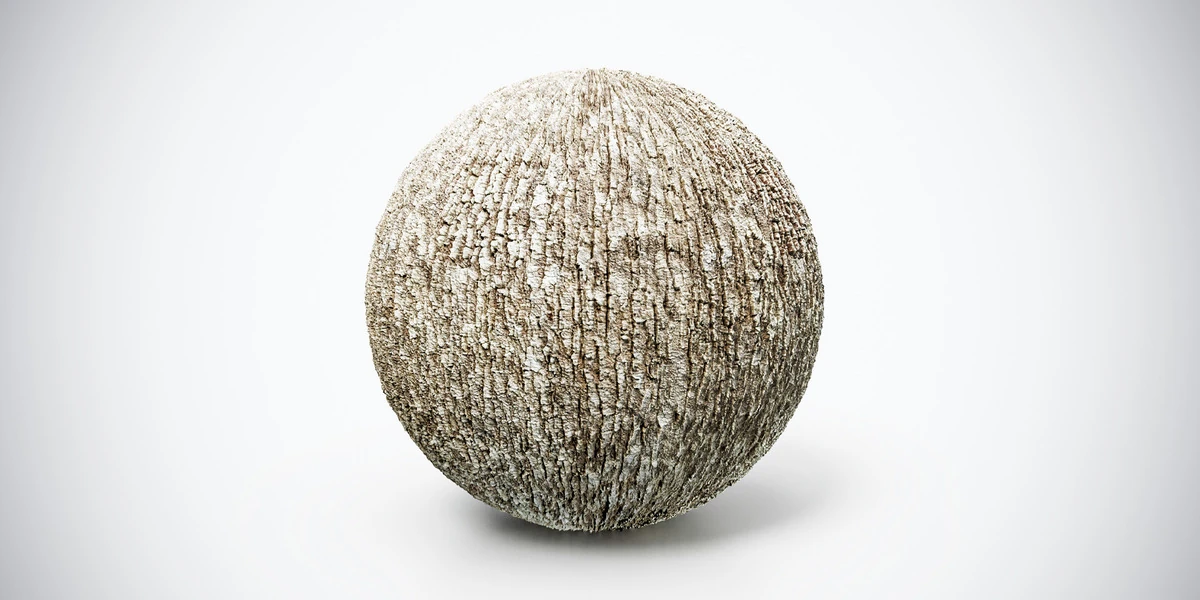
Directional surfaces such as the fine-groove tree bark texture make uneven stretching easier to notice: follow the spacing of the vertical grooves around the trunk rather than judging only the overall color.
Final Thoughts
UV stretching is not simply a cosmetic issue inside Blender. It can affect texturing, normal map baking, material consistency, game-engine presentation, and the perceived quality of a commercial 3D asset.
The most reliable solution is to approach the problem in the correct order. Apply the object scale, inspect the geometry, place logical seams, create a new unwrap, evaluate it with a checker texture, and only then refine the island scale and packing.
Do not expect higher texture resolution, automatic projection methods, or relaxation tools to repair a structurally poor UV layout.
A clean UV map gives you more predictable materials, easier painting, better baking results, and fewer problems when the asset reaches Unity, Unreal Engine, Marmoset Toolbag, or a marketplace customer.
Explore more 3DSkillUp tutorials and resources to improve your Blender, baking, PBR texturing, and game-ready asset workflows, and discover professionally prepared 3D assets designed for real-time projects.
Ready to Upgrade Your 3D Projects?
Explore game-ready 3D models, PBR materials, textures, and production-ready assets designed to help you build better scenes and save valuable development time.