The Data Transfer Modifier in Blender is one of those tools that can look technical at first, but it becomes extremely useful once you understand what it actually does.
Instead of changing the visible shape of an object, the Data Transfer Modifier allows you to copy specific mesh data from one object to another. This can include custom normals, UV maps, vertex groups, color attributes, edge data, and face corner data.
In practical 3D production, this can save a lot of time. You may have a high-poly mesh with clean shading and a low-poly version that needs to look smoother. You may have one model with correct UVs and another similar version that needs the same UV layout. Or you may have a rigged character body and a separate clothing mesh that needs to inherit vertex groups for deformation.
This guide explains how the Data Transfer Modifier works, when to use it, and how it can improve real production workflows for retopology, game-ready assets, UV transfer, custom normals, and rigging data.
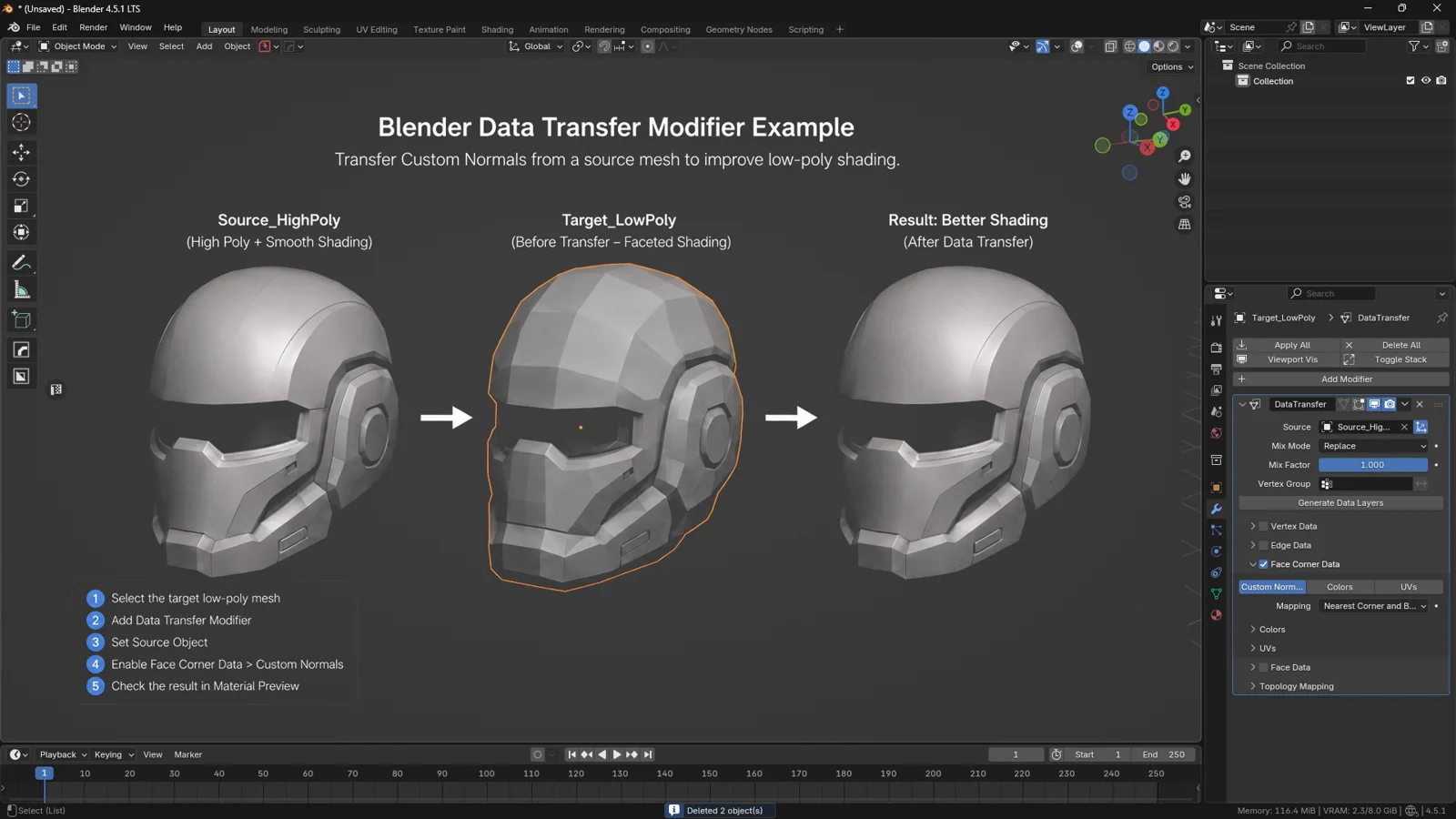
Example of the Blender Data Transfer Modifier used to transfer custom normals from a high poly source mesh to a low poly model, improving the final shading result.
What Is the Data Transfer Modifier in Blender?
The Data Transfer Modifier transfers selected data layers from a source mesh to a target mesh.
The important point is that it does not copy the object’s shape like a duplication tool. It copies information associated with the mesh. This information can describe how the mesh is shaded, how it is unwrapped, how it deforms, or how certain attributes are stored.
For example, the modifier can transfer custom normals to improve shading, UV maps to reuse a layout, vertex groups for rigging and deformation, or color attributes for specific look-development workflows.
This makes the modifier especially useful when two meshes are related but not identical. They may share a similar form, occupy the same space, or come from the same original model, even if their topology is different.
The quality of the transfer depends heavily on how Blender maps the source mesh to the target mesh. This is controlled through the mapping method, which tells Blender how to find a relationship between vertices, faces, or face corners on both objects.
For this reason, Data Transfer works best when the source and target meshes are aligned, similar in shape, and clearly prepared before the modifier is added.
Why the Data Transfer Modifier Is Useful
The Data Transfer Modifier is not just a technical tool hidden inside Blender. It solves real production problems.
When creating 3D assets, especially for games or real-time engines, a lot of work goes into maintaining technical data. A model is not only geometry. It also includes normals, UVs, weights, vertex groups, and other data that affects how the asset looks and behaves.
Recreating this data manually can be slow and repetitive. Data Transfer helps you reuse information that already exists on another mesh.
This is especially valuable when working on low-poly assets, retopology, modular kits, LODs, character clothing, props, vehicles, furniture, weapons, and environment pieces.
For game-ready production, the modifier can be a major time saver. You can keep the model lightweight while improving the final visual result through transferred shading data or reused UV information.
When Should You Use Data Transfer?
The Data Transfer Modifier is most useful when you have two objects that are visually or structurally related.
A common case is retopology. You may start with a detailed high-poly sculpt or model and then create a cleaner low-poly version for animation, games, or marketplace delivery. The low-poly model is optimized, but its shading may look harsh because it has fewer polygons. By transferring custom normals from a cleaner source mesh, you can improve the way light behaves on the low-poly surface without adding extra geometry.
However, it is important to understand that Data Transfer does not replace normal map baking. Transferring custom normals can improve the surface shading of the low-poly mesh, but it does not capture high-frequency details such as sculpted cracks, bevel details, pores, engravings, fabric texture, dents, or small surface relief. For those details, you still need a proper high-poly to low-poly baking workflow using normal maps.
In other words, Data Transfer is best used as a shading and data-copying tool, while normal map baking is still the standard method for transferring detailed surface information from a high-poly model to a low-poly game-ready asset.
Another important use case is game-ready asset production. In real-time workflows, performance matters. You cannot always add more subdivisions just to make the asset look smoother. Data Transfer allows you to preserve a low triangle count while improving the perceived quality of the shading.
The modifier can also help with UV reuse. If two meshes are very similar, transferring UVs can give you a strong starting point instead of unwrapping everything again from scratch. It will not always produce a perfect result, but it can save time when the target mesh is close enough to the source.
Finally, Data Transfer is useful in rigging and vertex group workflows. If a character body already has vertex groups and you add a shirt, jacket, armor piece, or accessory, you can transfer those groups to the new mesh and then refine the weights manually.
Preparing the Scene Before Using Data Transfer
Before adding the modifier, it is worth preparing the scene carefully. Many Data Transfer problems come from simple setup issues: the wrong object is selected, transforms are not applied, objects are not aligned, or the source mesh does not actually contain the data you want to transfer.
Start by identifying the source mesh. This is the object that already contains the data you want to reuse. It could be a high-poly model with better shading, a previous version of the asset with correct UVs, a rigged mesh with vertex groups, or a painted mesh with useful color attributes.
Then identify the target mesh. This is the object that will receive the transferred data. The Data Transfer Modifier must be added to this object.
A simple rule is: the modifier goes on the object that receives the data.
If your low-poly mesh needs to receive custom normals from a high-poly mesh, select the low-poly mesh and add the Data Transfer Modifier there.
The two objects should usually occupy the same or a very similar position in 3D space. If they are far apart or have very different proportions, Blender may not be able to map the data correctly.
Before transferring, it is good practice to apply rotation and scale using Ctrl + A > Rotation & Scale. This is especially important when working with imported models, duplicated objects, or assets that have been resized in Object Mode.
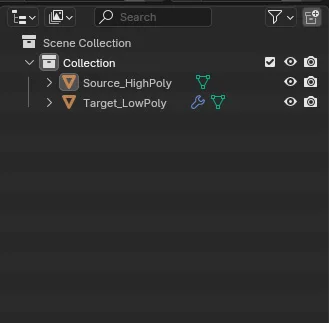
Blender Outliner setup with a Source_HighPoly mesh and Target_LowPoly mesh prepared for the Data Transfer Modifier custom normals workflow.
How to Add the Data Transfer Modifier
Select the target object and go to:
Properties Panel > Modifiers > Add Modifier > Modify > Data Transfer
After adding the modifier, use the Source field to choose the object that contains the data you want to transfer.
At this point, Blender knows which object receives the data and which object provides it. The next step is choosing the specific type of data you want to transfer.
It is usually better to enable only one type of data at a time. This makes the result easier to evaluate and prevents confusion when something does not work as expected.
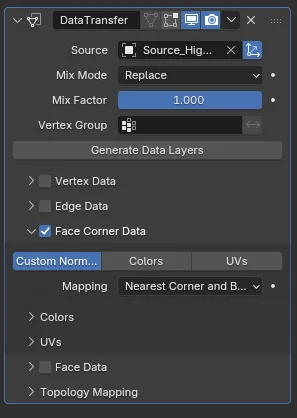
Blender Data Transfer Modifier settings showing a source mesh assigned, Mix Mode set to Replace, Mix Factor at 1.000, and Custom Normals enabled under Face Corner Data.
Understanding Data Types in the Data Transfer Modifier
The Data Transfer Modifier organizes transferable data into several categories. You do not need to understand every option immediately, but it helps to know which areas are most useful in common production workflows.
Vertex Data
Vertex Data is information associated with the vertices of the mesh. One of the most useful options in this section is Vertex Groups.
Vertex groups are commonly used for rigging, weight painting, deformation, masks, modifiers, and procedural effects. If two meshes are similar, transferring vertex groups can give you a strong starting point for rigging or deformation workflows.
Edge Data
Edge Data refers to information stored on edges. This can be useful in specific technical workflows, but it is not usually the first section you will use as a beginner or intermediate Blender artist.
In most practical cases, you will probably work more often with Vertex Data and Face Corner Data. A good rule is to avoid transferring edge data unless you know exactly why you need it.
Face Corner Data
Face Corner Data is one of the most important categories in the Data Transfer Modifier. It includes data such as Custom Normals, UVs, and Color Attributes.
This category matters because some mesh data is not stored only on vertices or faces. UVs and custom normals often depend on the corner of a face. The same vertex can have different UV coordinates depending on which face is using it, which is why UV information is often treated as face corner data.
Practical Example 1: Transfer Custom Normals to Improve Shading
One of the most valuable uses of the Data Transfer Modifier is transferring custom normals to improve the shading of low-poly models.
When a mesh has a low polygon count, it can show visible facets, broken highlights, or rough shading. The obvious solution may seem to be adding more geometry, but that is not always ideal.
If you are creating assets for Unity, Unreal Engine, or a 3D marketplace, you often need to keep the model optimized. Adding geometry increases the polygon count and can make the asset heavier than necessary.
Custom normals offer a smarter solution. They do not change the silhouette of the model and they do not add real geometry. Instead, they control how light is interpreted across the surface. This can make a low-poly model appear smoother and more polished while keeping the asset lightweight.
To transfer custom normals, select the low-poly target mesh, add the Data Transfer Modifier, and assign the source object. Then enable Face Corner Data and activate Custom Normals.
After that, choose a suitable mapping method and check the result in Material Preview. If the shading looks strange, test different mapping methods, adjust the Mix Factor, or use Max Distance to control where Blender samples the data from.
For custom normals, proximity-based or face-interpolated methods often work well, especially when the source and target objects are aligned in the same space. If the meshes have different topology, topology-based mapping is usually not the best choice.
3DSkillUp Pro Tip: If the shading looks broken after transferring custom normals, do not immediately assume the model is wrong. In many cases, the source data is useful, but Blender is sampling it from the wrong area. Try a different mapping method before rebuilding the mesh.
Practical Example 2: Transfer UV Maps
Another useful application of the Data Transfer Modifier is transferring UV maps from one mesh to another.
This can save time when two meshes are very similar and you want to reuse an existing UV layout. It is especially helpful when you have created a variation of an asset and do not want to unwrap it again from scratch.
For UV transfer to work reliably, the source and target meshes should share the same or a very similar topology. In this kind of workflow, the best choice is usually Topology mapping, because Blender uses the mesh structure itself to match the UV data correctly from one object to the other.
This means the transfer works best when both objects are based on the same mesh, have matching polygon flow, and keep a consistent structure. If the topology is too different, the UV transfer may fail or produce stretched, distorted, or unusable results.
To transfer UVs, select the target mesh and add the Data Transfer Modifier. Set the source object, enable Face Corner Data, and activate UVs. Then set the Mapping method to Topology. If your object has more than one UV layer, make sure the correct layer is selected.
After the transfer, inspect the result in the UV Editor and apply a checker texture to the model. A checker texture helps you detect stretching, uneven texel density, flipped islands, or rotation issues.
3DSkillUp Pro Tip:
Use a checker texture with numbers or letters, not only square patterns. Squares reveal stretching, but numbers and letters also make flipped or rotated UV islands much easier to spot.
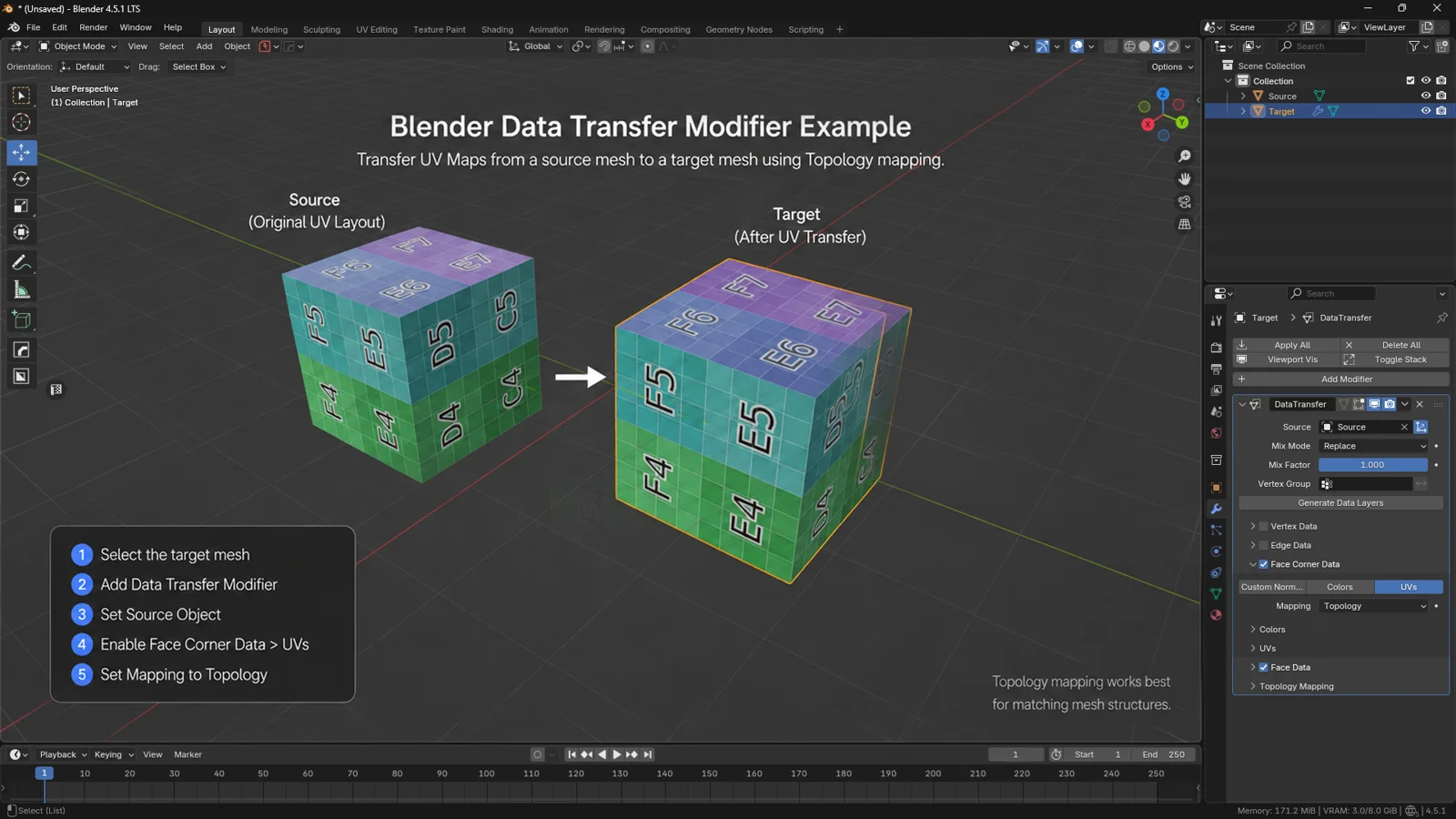
Example of transferring UV maps in Blender with the Data Transfer Modifier, using a source mesh, target mesh, Face Corner Data UVs, and Topology mapping for matching mesh structures.
Practical Example 3: Transfer Vertex Groups
Vertex groups are essential in many Blender workflows. They can control deformation, rigging weights, cloth simulation areas, particle distribution, modifier influence, and procedural masks.
If one mesh already has useful vertex groups, you can transfer them to another similar mesh instead of creating everything manually.
This is especially useful for character clothing, accessories, mesh variations, optimized models, duplicated assets, or any object that needs to inherit deformation behavior from another mesh.
To transfer vertex groups, select the target mesh, add the Data Transfer Modifier, and assign the source object. Then enable Vertex Data and activate Vertex Groups.
Choose a mapping method and inspect the result in Weight Paint Mode. The result may not be perfect, especially if the two meshes have different topology or proportions, but it can still give you a strong base to refine manually.
This is important: vertex group transfer is often not a final solution. It is a shortcut that removes a large amount of repetitive work.
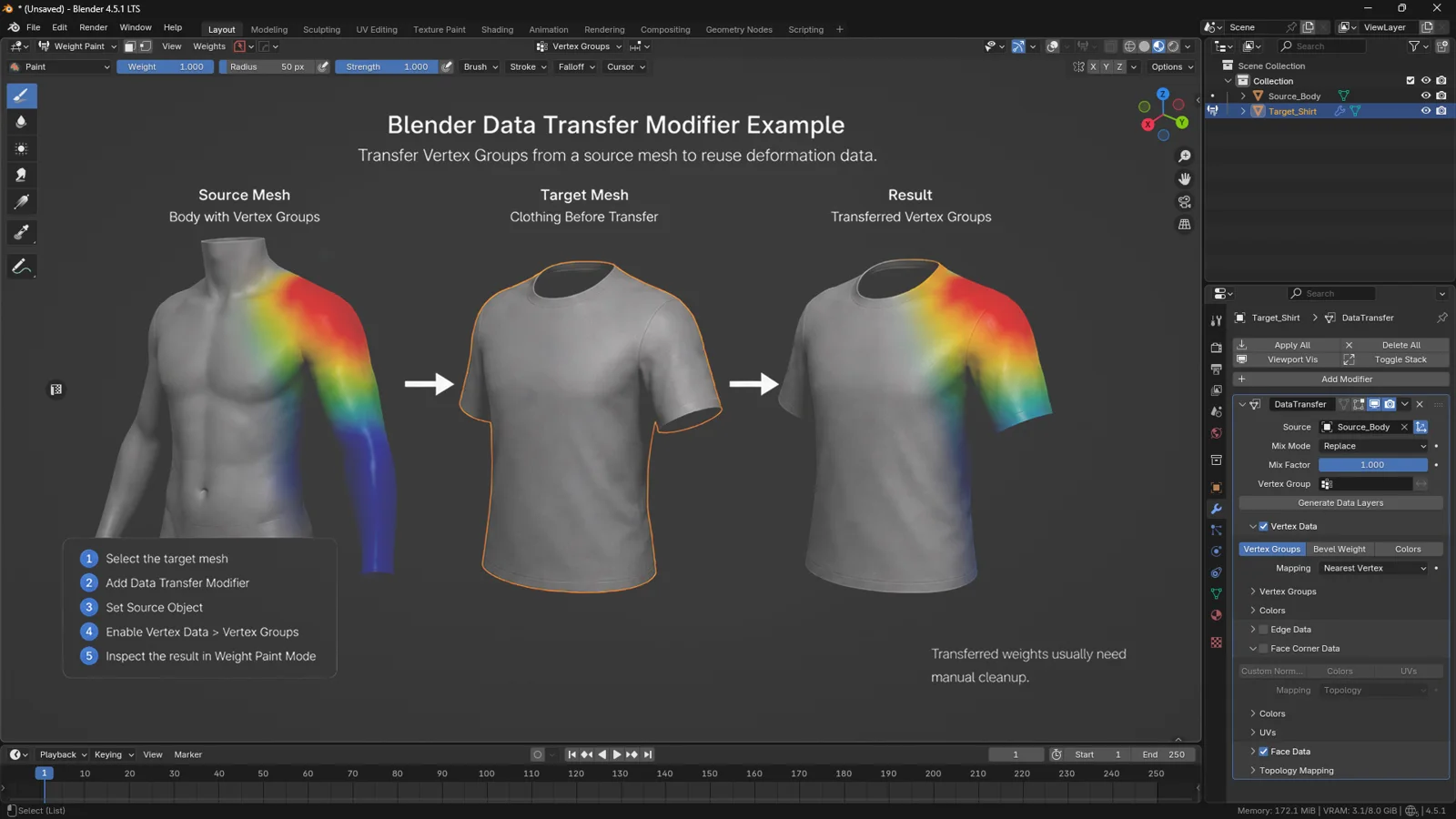
Example of transferring vertex groups in Blender with the Data Transfer Modifier, showing a source body mesh, a target short-sleeve shirt, and the transferred weight paint result.
Understanding Mapping Methods
Mapping is the core of the Data Transfer Modifier. It tells Blender how to match the data from the source mesh to the target mesh.
If the result looks wrong, the issue is often not the data itself. The problem is usually the mapping method.
Topology Mapping
Topology mapping works best when the source and target meshes have the same or very similar topology. This is ideal for duplicated meshes, slightly edited versions of the same object, shape variations from the same base mesh, or models with matching vertex order.
However, if the meshes have different topology, this method may fail or produce poor results.
Nearest Vertex and Nearest Face
Nearest-based methods search for the closest element on the source mesh. These methods are useful when the objects are aligned and occupy the same space, even if their topology is different.
They are often useful for custom normals, vertex groups, low-poly to high-poly transfer setups, and similar mesh variations.
The main risk is that Blender may sample data from the wrong area if parts of the mesh are very close together. Fingers, folds, thin panels, overlapping surfaces, or dense mechanical details can create this kind of problem.
Projected Face Interpolated
Projected and interpolated methods can work well when the target mesh follows the source mesh closely. They are often useful for UVs or custom normals when the source object has a clean data structure.
The result depends heavily on alignment and shape similarity, so you may need to test different options before choosing the best one.
3DSkillUp Pro Tip: When a transfer looks broken, test mapping methods before changing the model. Many Data Transfer problems can be fixed by choosing a better mapping mode or limiting the transfer distance.
Important Data Transfer Settings
The Data Transfer Modifier includes several settings that help you control the final result. Understanding these options makes your transfers much more predictable.
Mix Mode
Mix Mode controls how the transferred data is combined with the existing data on the target mesh.
In many cases, you will use a mode that replaces the existing data. However, mixing can be useful when you want a subtler result.
For example, when transferring custom normals, you may not want the transferred normals to completely override the current shading behavior. A mixed result can sometimes look more natural.
Mix Factor
Mix Factor controls the strength of the transfer. A value of 1.000 applies the transferred data fully. Lower values reduce the influence.
This is useful for testing and fine-tuning the effect without disabling the modifier completely.
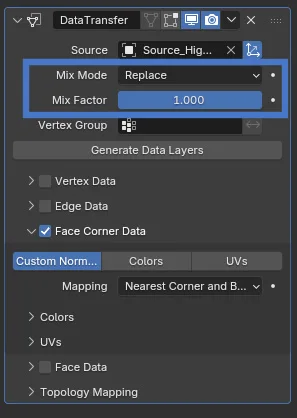
Close-up of the Blender Data Transfer Modifier panel highlighting Mix Mode, Mix Factor, source mesh selection, and Face Corner Data settings used for transferring mesh data.
Max Distance
Max Distance limits how far Blender searches for matching data on the source mesh.
This setting is extremely useful when the source and target meshes have parts that are close together. Without a distance limit, Blender may transfer data from the wrong area.
For example, on a character hand, one finger may accidentally receive data from a neighboring finger. On a hard-surface object, one panel may sample data from another nearby panel.
Using Max Distance helps keep the transfer local and predictable.
3DSkillUp Pro Tip: If your mesh has many close surfaces, enable and adjust Max Distance. It is one of the best ways to reduce artifacts and incorrect data sampling.
Data Transfer and Modifier Stack Order
The order of modifiers in Blender matters. Since Data Transfer is evaluated as part of the modifier stack, its position can change the final result.
For example, if your object also uses Mirror, Shrinkwrap, Subdivision Surface, Weighted Normal, or Armature modifiers, you need to decide whether Data Transfer should happen before or after those operations.
A practical rule is this: if you want to transfer data onto the final shaped mesh, place Data Transfer after the modifiers that change the geometry. If you want to transfer data onto the base mesh before deformation, place it earlier in the stack.
There is no universal answer. The correct order depends on your goal and on how your asset is built.
Should You Apply the Data Transfer Modifier?
Whether you should apply the Data Transfer Modifier depends on your workflow.
Keep it non-destructive while you are still testing the result, adjusting mapping methods, changing the source mesh, or developing the asset. This gives you flexibility and allows you to refine the transfer later.
Apply the modifier only when the asset is ready for export, delivery, or final cleanup. This may be necessary if the transferred data must become permanent or if your pipeline requires applied mesh data.
For game-ready assets, always test the exported result in the target software. Do not assume that everything visible in Blender will automatically behave the same way in Unity, Unreal Engine, or another 3D application.
3DSkillUp Pro Tip: Before applying the modifier, duplicate the object with Shift + D or save a backup version in a hidden collection. This gives you a safe version to return to if the transfer needs further adjustment.
Common Problems and How to Fix Them
Even when the setup looks correct, Data Transfer can produce unexpected results. Most issues are caused by object setup, mapping, transforms, or missing source data.
If the transfer does not work, first check that the modifier is on the target object and that the correct source object is assigned. Then make sure the right data type is enabled, the objects are aligned, scale and rotation are applied, and the source mesh actually contains the data you want to transfer.
If transferred custom normals create shading artifacts, try changing the mapping method, enabling Max Distance, checking the source mesh normals, applying Rotation & Scale, and temporarily disabling other normal-related modifiers. Also inspect the model for duplicate faces or overlapping geometry.
If transferred UVs are distorted, the source and target meshes may be too different. Try another mapping method, inspect the result in the UV Editor, and use a checker texture to identify the problem areas. In some cases, UV transfer is best used as a starting point rather than a finished solution.
If vertex groups are not accurate, refine them manually in Weight Paint Mode. This is common when two meshes have different topology or slightly different proportions. Even then, the transfer can still save a lot of time compared to painting everything from scratch.
Recommended Workflow for Game-Ready Assets
For low-poly and game-ready production, a simple and reliable workflow is to begin with a clean source mesh. This could be a high-poly version, a clean shading mesh, or a model that already contains the correct UVs, normals, or vertex groups.
Rename it clearly, for example Source_HighPoly.
Then prepare the target mesh. This is usually the optimized low-poly version that will receive the transferred data. Rename it something clear, such as Target_LowPoly.
Align both meshes in the same space and apply Rotation & Scale if needed. Add the Data Transfer Modifier to the target mesh, assign the source object, and enable only the data you need.
For a custom normals workflow, enable:
Face Corner Data > Custom Normals
At this point, it is important to understand that the Data Transfer Modifier does not replace normal map baking. A baked normal map is still the standard way to capture high-poly surface details such as bevels, small scratches, dents, panels, ornaments, and fine sculpted information onto a low-poly model.
Data Transfer works differently. It can help improve the shading behavior of the low-poly mesh by transferring custom normals or other mesh data from a cleaner source. This is useful for reducing faceted shading, fixing unwanted highlights, improving surface continuity, or solving specific low-poly shading artifacts.
In other words, normal map baking captures surface detail, while Data Transfer can help control how the low-poly mesh reacts to light.
Next, test different mapping methods until the shading looks clean. Use Material Preview to evaluate highlights, faceting, and surface continuity. If the asset will be exported to a game engine, test the result there as well, because viewport shading in Blender and realtime shading in Unity or Unreal Engine may not always behave identically.
Keep the modifier live while you are still checking the result. Apply it only when the asset is ready for final export or delivery.
3DSkillUp Pro Tip:
Think of Data Transfer as a shading cleanup tool, not as a replacement for baking. For a polished game-ready asset, you may often use both: bake the normal map for high-poly details, then use transferred custom normals to improve the low-poly shading foundation.
Why Data Transfer Matters in a Professional Blender Workflow
The Data Transfer Modifier matters because it saves time on technical repetition.
In a professional 3D workflow, you do not want to manually recreate data that already exists somewhere else. If one mesh already has good normals, clean UVs, useful vertex groups, or color attributes, it makes sense to reuse that data when possible.
This is especially important for retopology, low-poly optimization, modular assets, LOD creation, game props, rigged meshes, and asset variations.
Data Transfer is not a flashy modifier. It does not create an obvious visual effect like a bevel, subdivision, or displacement modifier. But it is a powerful production tool that helps you work faster, keep assets consistent, and improve visual quality without unnecessary geometry.
Mistakes to Avoid
One common mistake is enabling too many data types at once. If you transfer custom normals, UVs, vertex groups, and other data all together, it becomes difficult to understand what is causing a problem. Start with one type of data, test the result, and then add more only if needed.
Another mistake is using unclear object names. Names like Cube.001, Object_Final_New_03, or Mesh_Copy_Copy make the scene harder to manage. Clear names such as Source_HighPoly, Target_LowPoly, LowPoly_DataTransfer, and Backup_BeforeTransfer make the workflow easier to understand.
You should also avoid forgetting to apply scale and rotation. Unapplied transforms can create unpredictable behavior, especially with imported assets. Before important transfers, use Ctrl + A > Rotation & Scale.
Finally, do not expect perfect results when the source and target meshes are very different. Data Transfer works best when there is a clear relationship between the two objects. If the meshes differ too much, the result may still be useful, but it will probably require manual cleanup.
Final Checklist
Before finishing your Data Transfer setup, check that the modifier is on the target object and the correct source object is assigned. Make sure only the necessary data type is enabled, the objects are aligned, and scale and rotation are applied.
Then test the mapping method, adjust Max Distance if needed, and confirm that the modifier stack order makes sense. Inspect the result manually in the viewport, UV Editor, Weight Paint Mode, or target game engine depending on the type of data you transferred.
Before applying the modifier, keep a backup copy of the asset. This is especially important if you are preparing a final file for export, marketplace delivery, or client work.
Conclusion
The Data Transfer Modifier in Blender is a powerful tool for transferring mesh data such as custom normals, UV maps, vertex groups, and color attributes from one object to another.
It is especially useful for low-poly assets, retopology, game-ready models, rigging workflows, and optimized 3D production pipelines.
The key is to understand that Data Transfer depends on the relationship between the source and target mesh. The closer, cleaner, and better aligned that relationship is, the better the result will be.
Use a clean source mesh, apply the modifier to the target mesh, transfer only the data you need, test different mapping methods, and inspect the result carefully before applying.
Once you understand how it works, Data Transfer becomes one of those quiet but essential Blender tools that can make your workflow faster, cleaner, and more professional.
Ready to Upgrade Your 3D Projects?
Explore game-ready 3D models, PBR materials, textures, and production-ready assets designed to help you build better scenes and save valuable development time.