Introduction: Control is Everything
Have you ever downloaded a free 3D model or imported an asset, only to discover it’s one giant, unmanageable blob of geometry? Or conversely, have you found yourself drowning in a scene clutter of thousands of tiny objects that really should be one?
Today, we’re talking about mesh organization and management. This isn’t just about being “tidy” for the sake of it. Knowing precisely when to separate an object into distinct parts or when to join them is crucial for efficient texturing, rigging, and scene optimization.
Imagine you have modeled a complete car wheel: you have the rubber tire and the metal rim. Often, you might model them as a single object for convenience, but when the time comes to apply materials or animate the rotation, you’ll likely need to split them up. Let’s break down how to do this intelligently, analyzing not just the commands, but the logic behind them.
1. Separating Geometry: The ‘P’ Key
When you are in Edit Mode, your magic shortcut is P. This opens the Separate menu. Blender offers us three specific ways to divide our mesh, and each serves a distinct purpose in your workflow.
A. Separate by Selection (The Precision Method)
This is the most surgical approach. It is perfect when you want to isolate a specific part you have modeled within a single object.
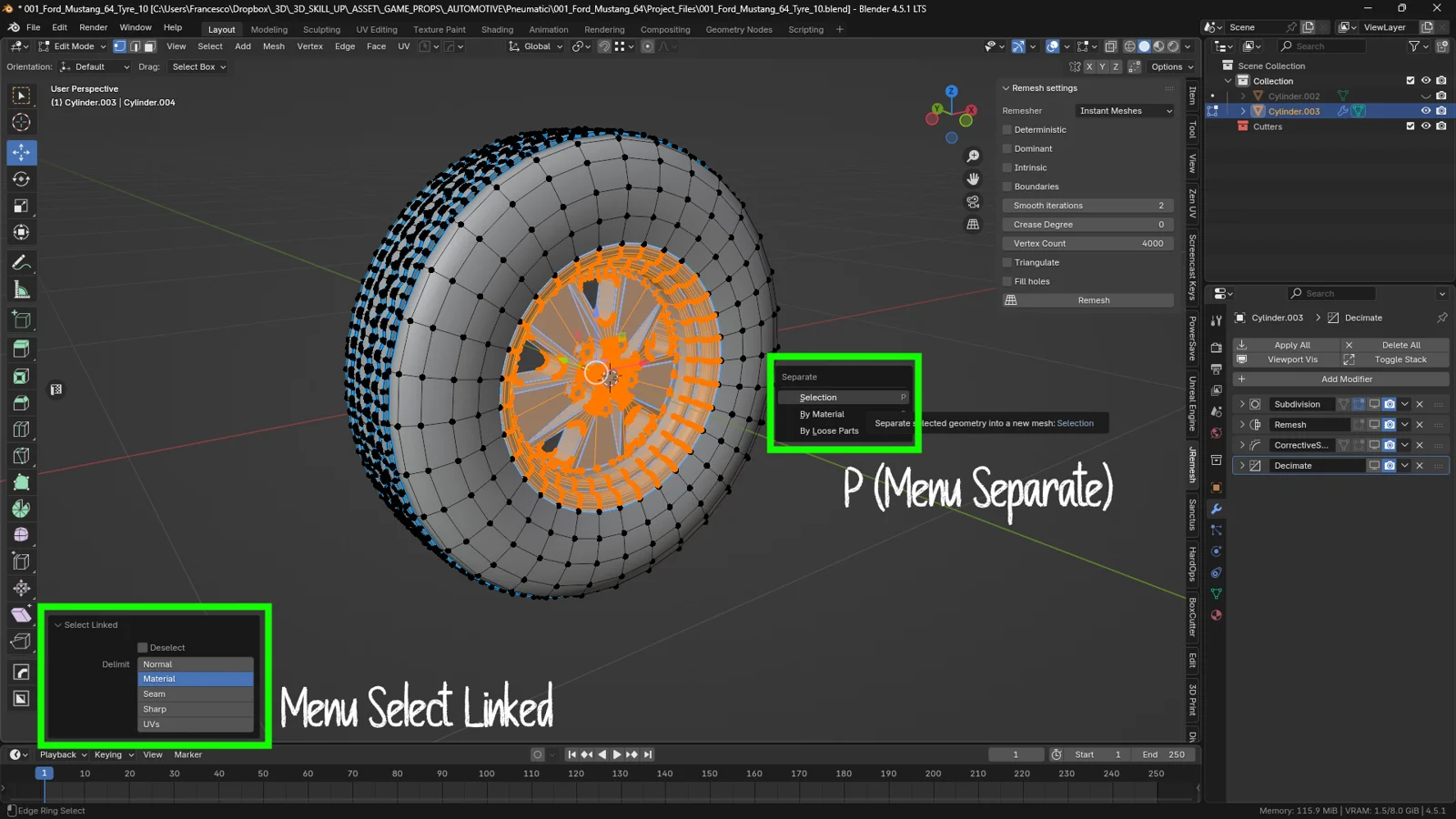
The Practical Case: You have your “Wheel” object. You enter Edit Mode and need to separate the metal rim from the rubber tire. Instead of manually selecting polygons one by one—and risking your sanity—use this workflow booster: if the rim and the tire are physically disconnected meshes (even if they belong to the same object), simply hover your mouse cursor over the rim and press L. Blender will instantly select all connected geometry (Linked). Once selected, simply press P > Selection.
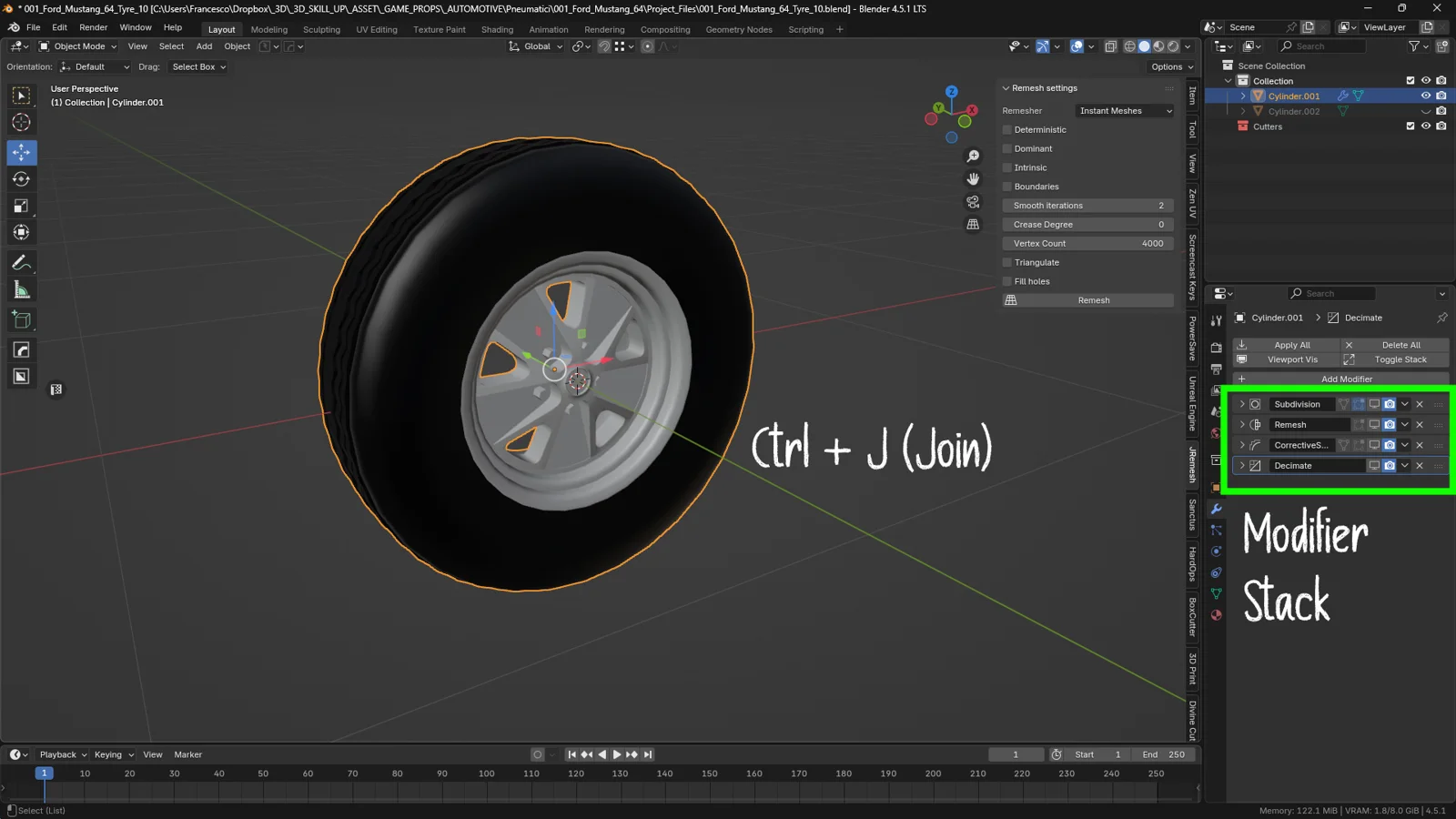
Why do this? By separating the rim from the tire, you create two distinct objects in the Outliner. This allows you to manage modifiers independently. Note: If the original object had a Subdivision Surface modifier, the new object (the separated rim) will inherit that same modifier. Blender is smart enough to maintain visual continuity.
B. Separate by Loose Parts (The Exploded View)
This option is a lifesaver when you have imported a complex model that has been “collapsed” into a single mesh, but whose geometries aren’t physically welded together.
The Practical Case: Let’s say your wheel also includes 5 lug nuts (bolts). If these bolts are standalone meshes (vertices not merged with the rim), you don’t need to select them individually. Just press P > By Loose Parts.
The Result: Blender will “explode” the object into as many new objects as there are independent islands of geometry. In one click, you’ll have the tire, the rim, and the 5 bolts as separate objects in your Outliner.
💡 3DSkillUp Pro Tip: Be careful when using Loose Parts on very complex objects (like raw 3D scans or dense vegetation). You might end up with thousands of objects in your Outliner, which can drastically slow down your viewport!
C. Separate by Material (The Texture Workflow)
This is an often-underrated but powerful option for the texturing pipeline.
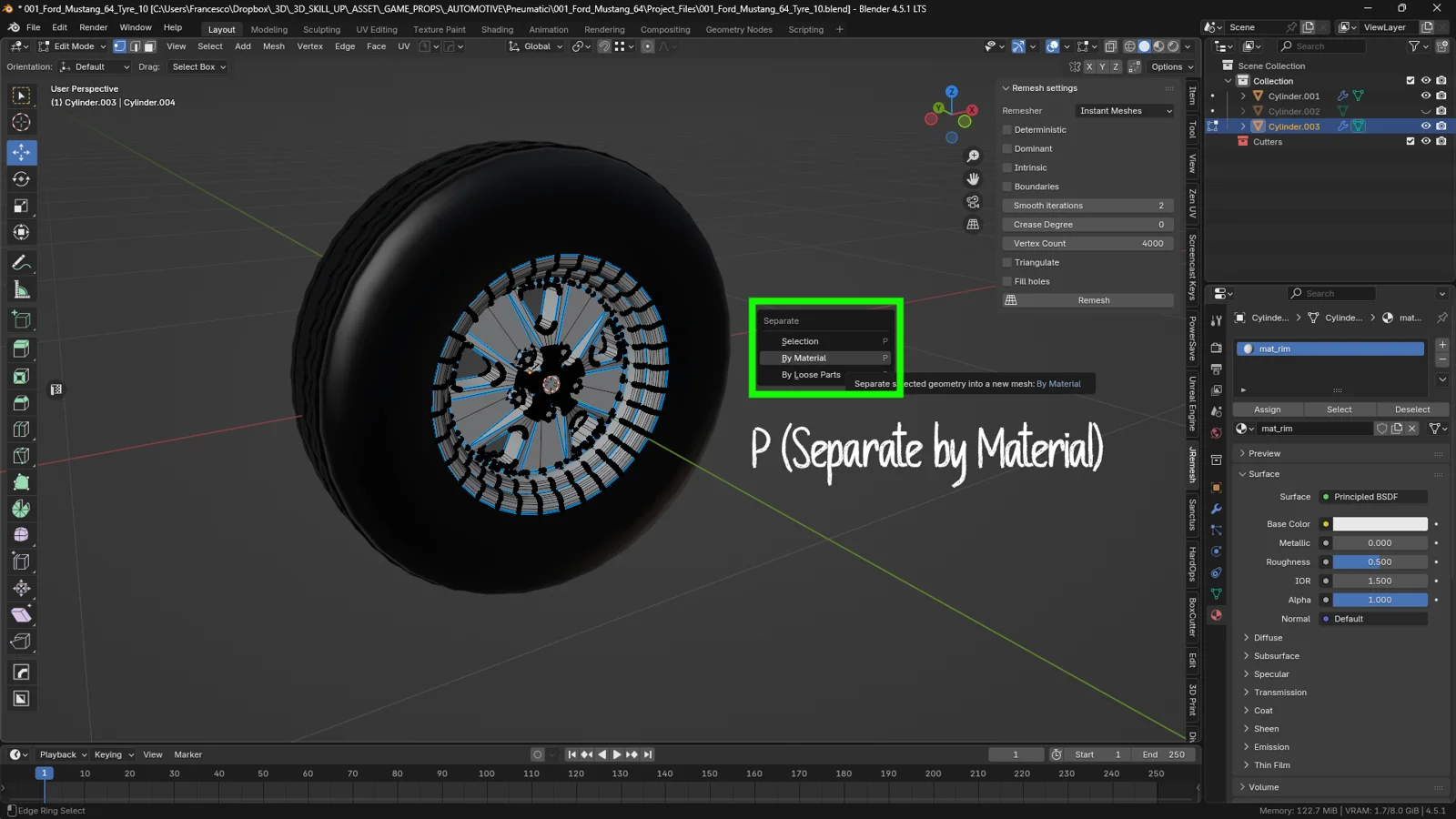
The Practical Case: Suppose you assigned a “Rubber_Mat” to the tire polygons and a “Chrome_Mat” to the rim, but they are still technically the same object. By pressing P > By Material, Blender detects the different material slots and slices the mesh exactly where the material changes.
Why is it useful? This is critical when exporting to game engines (like Unity or Unreal) or texturing software (like Substance Painter), which sometimes handle separate objects better based on Material IDs.
2. Joining Objects: The Power of Ctrl + J
The reverse process is just as vital. Sometimes you need to fuse multiple objects to simplify your scene or prepare a model for rigging.
To join two or more objects, you must be in Object Mode.
-
Select the first object.
-
Hold
Shiftand select the object you want to join it to (e.g., the rim). -
Press Ctrl + J (Join).
The “Active Object” Rule
Here is where many beginners make mistakes. In Blender, the order of selection matters.
The last object you select becomes the Active Object (highlighted in bright yellow, while the others are dark orange). When you join objects, all other objects are merged INTO the Active Object.
Why is this crucial? The final object will inherit:
-
The Origin Point (Pivot).
-
The Modifiers.
-
The Name of the active object.
Practical Example: If your rim has a Bevel modifier and the bolts do not:
-
If you select the bolts first and the rim last -> The bolts are absorbed into the rim and automatically receive the Bevel modifier.
-
If you do the reverse -> You lose the rim’s modifier because the bolts (which didn’t have one) “win.”
💡 3DSkillUp Pro Tip: Did you mess up the origin points after joining? Don’t panic. Right-click on the new joined object and choose Set Origin > Origin to Geometry to recalculate the center of mass for the new mesh.
Conclusion
Knowing how and when to use P and Ctrl+J gives you total control over your scene’s topology. Whether you are prepping an asset for a video game or organizing a complex architectural scene, always remember to check which object is “Active” before joining, and choose the separation method that best fits your goal.
Now it’s your turn: take that car model you’ve been working on and try separating the moving parts from the chassis using the ‘L’ selection trick.
Happy Blending!
You might also like The Ultimate Guide to Delete, Dissolve, and Clean Topology in Blender