How many times have you wanted to remove a single edge, only to end up with a massive hole in your model? Or tried to simplify your geometry, only to destroy the object’s overall shape?
Pressing the X key in Edit Mode seems like the most trivial action in the world, but behind that simple dropdown menu lies a set of precision tools that can completely transform your workflow. It’s not just about “deleting stuff”; it’s about manipulating topology to achieve clean flows, perfect quads, and artifact-free surfaces.
In this article, we won’t just look at how to delete a vertex. We’ll explore the why behind choosing one option over another, and how tools like Dissolve or Edge Collapse can become your best allies in daily modeling.
Let’s set the scene: create a cube, subdivide it a couple of times, and follow along.
1. Standard Delete: Understanding Destruction
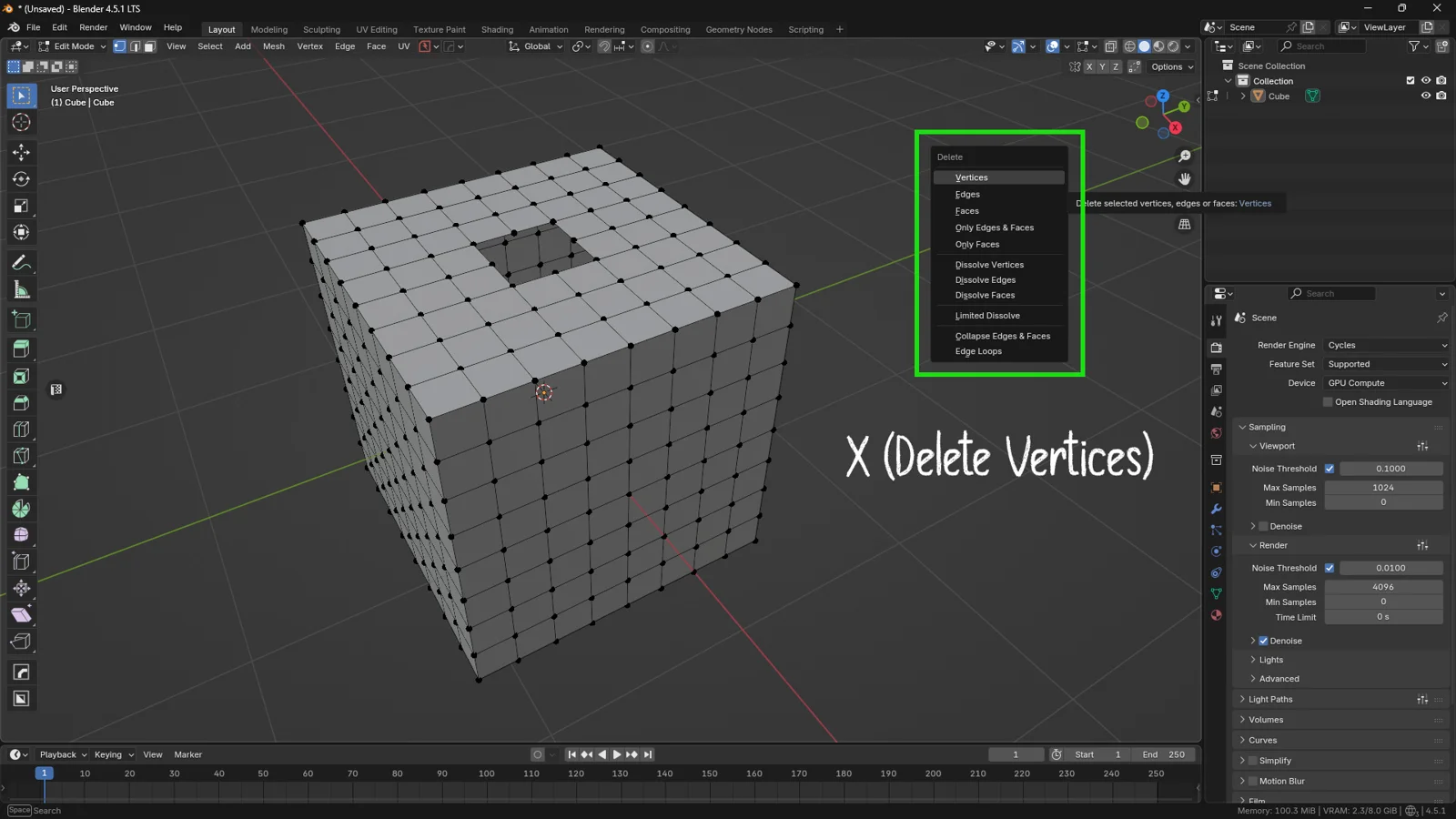
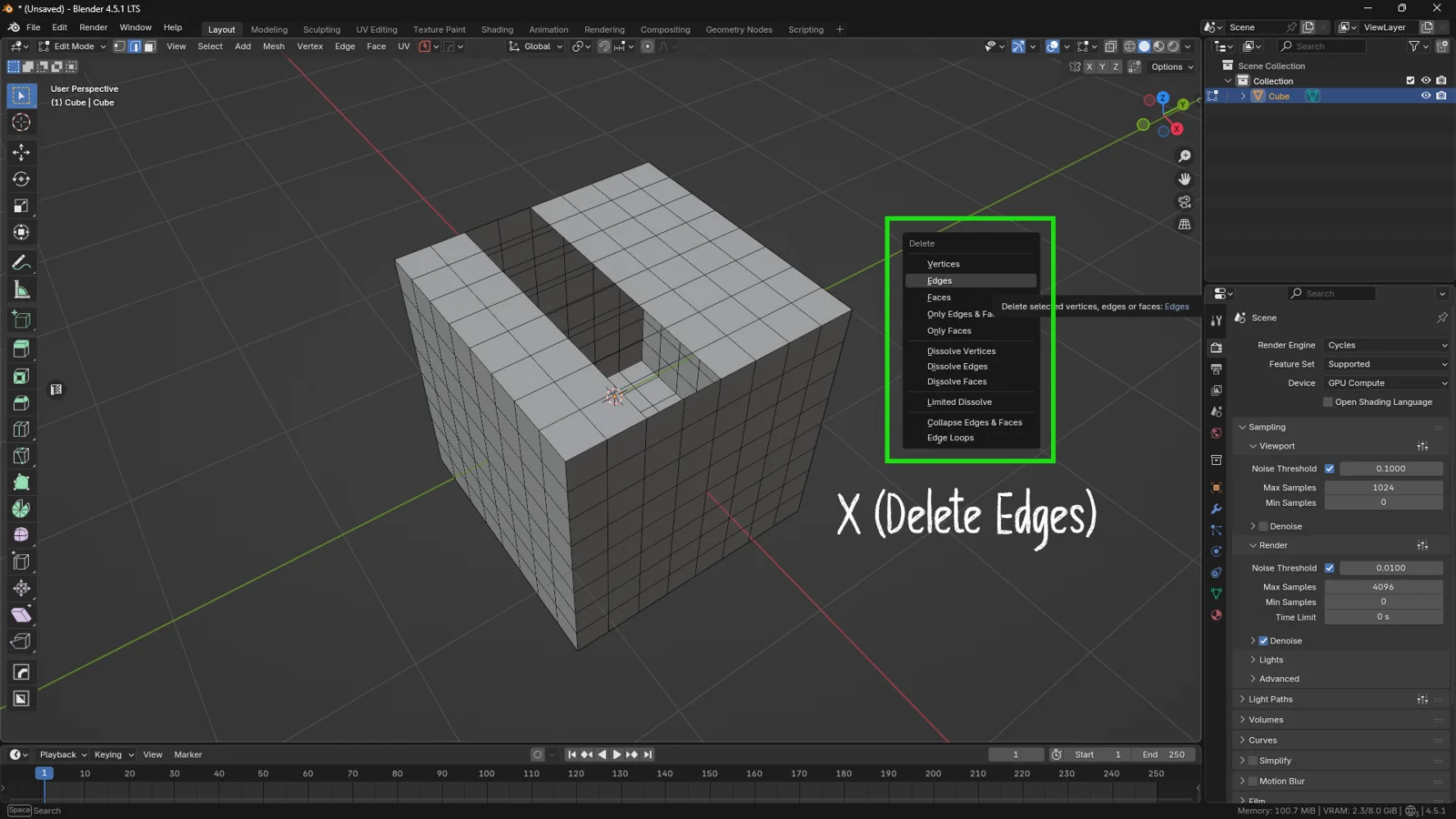
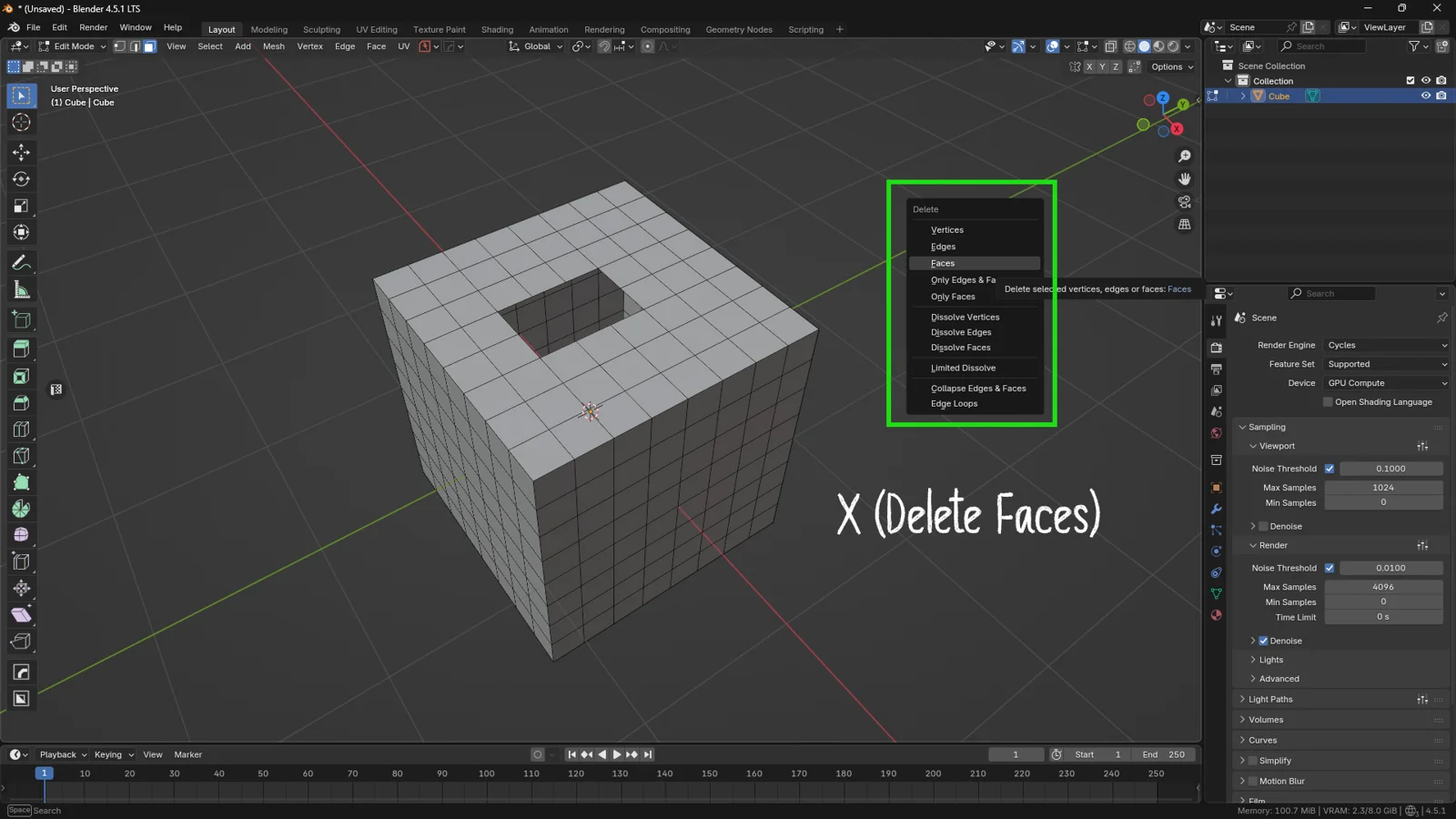
When you’re in Edit Mode and press X, the first options you see (Vertices, Edges, Faces) are the most destructive. It is crucial to understand the hierarchy of geometry to avoid nasty surprises.
Vertices, Edges, and Faces
-
Delete Vertices: This is the “nuclear” option. If you delete a vertex, Blender is forced to also eliminate any edge or face that relies on that vertex to exist. The result? Massive holes.
-
Delete Edges: Removes the selected edges and adjacent faces, but leaves the vertices at the ends intact (if those vertices are connected to other geometry).
-
Delete Faces: Removes the surface, emptying the inside of the selection.
Only Edges & Faces
There is a lesser-known option: Only Edges & Faces. What is it for? Imagine you want to keep a “point cloud” (the vertices) but delete all the geometry connecting them. This function cleans up the structure, leaving the orphan vertices intact.
2. The Power of “Dissolve”: Cleaning Without Holes
This is where we graduate from beginners to conscious modelers. The Dissolve options are designed to remove geometry without creating holes in the mesh.
How does it work?
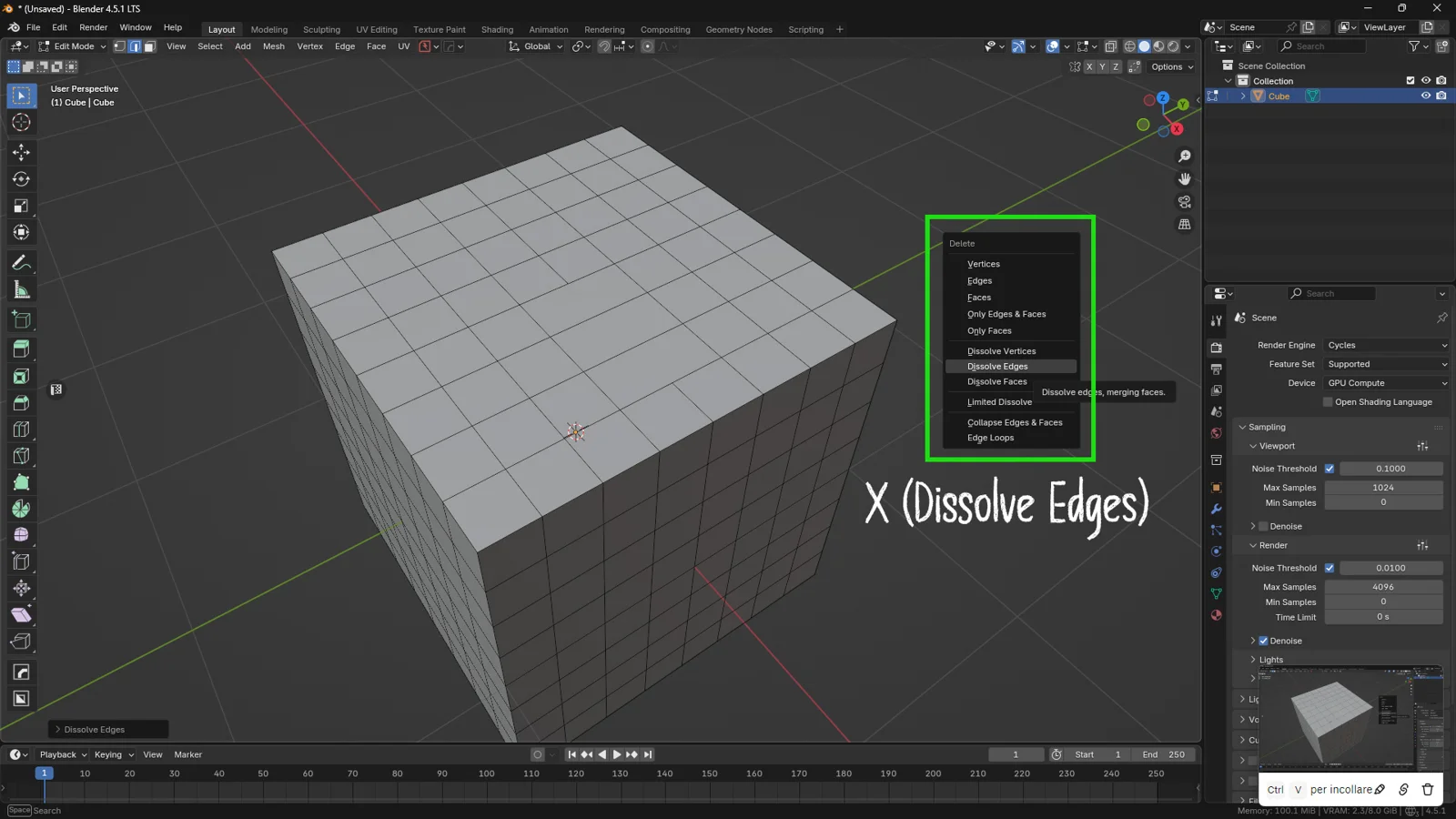
When you “dissolve” a vertex, edge, or face, Blender removes the selected element and merges the surrounding geometry to close the gap.
-
Dissolve Vertices/Edges: Removing a vertex or edge in the middle of a flat surface causes Blender to create a single large polygon.
-
Watch out for N-Gons: The result of a dissolve is often an N-gon (a face with more than 4 vertices). While we try to avoid them in organic modeling, they are incredibly useful in the early stages or on flat surfaces (hard surface) to clean up the scene.
3. Managing Angles: Limited Dissolve
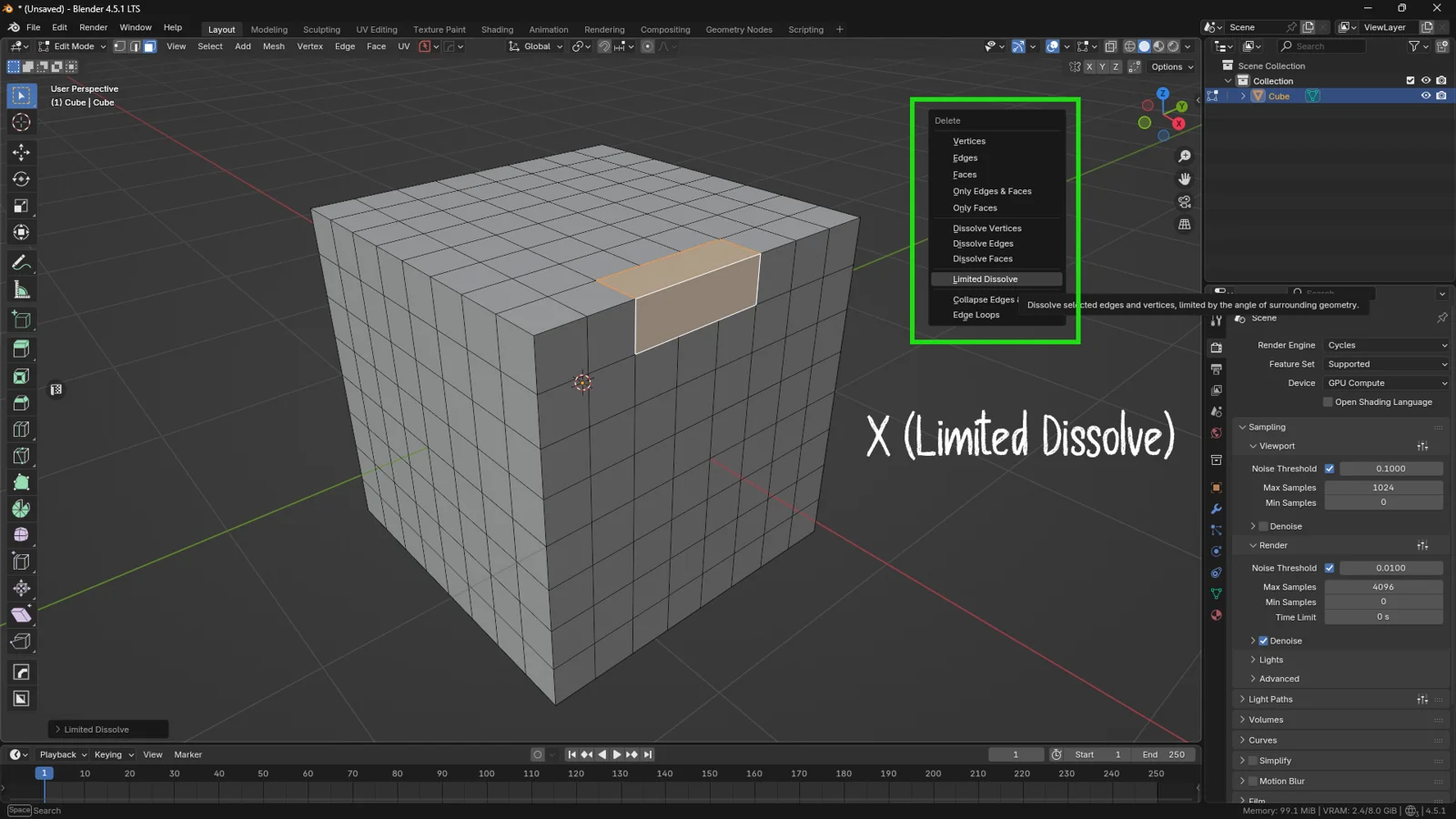
The Dissolve command is fantastic, but it has a flaw: if you try to dissolve faces that define a sharp angle (like the 90° corner of a cube), you will destroy the shape of the object, creating terrible shading artifacts.
The solution is Limited Dissolve. This tool analyzes the angle between faces. If the angle is below a certain degree (adjustable in the Operator Panel at the bottom left), Blender will merge the faces. If the angle is sharp, it protects it and leaves it alone.
Why use it? It is perfect when importing CAD models or dense 3D scans and you want to reduce the polygon count on flat parts while keeping sharp edges intact.
4. Practical Application: Rerouting Topology
Let’s look at a real-world use case. Let’s say you want to change the polygon flow from a square grid to a diagonal flow.
-
Select two diagonal vertices and press J to join them. Repeat for the next pair.
-
Now you have diagonal cuts, but the mesh is full of messy triangles because of the old vertical/horizontal edges.
-
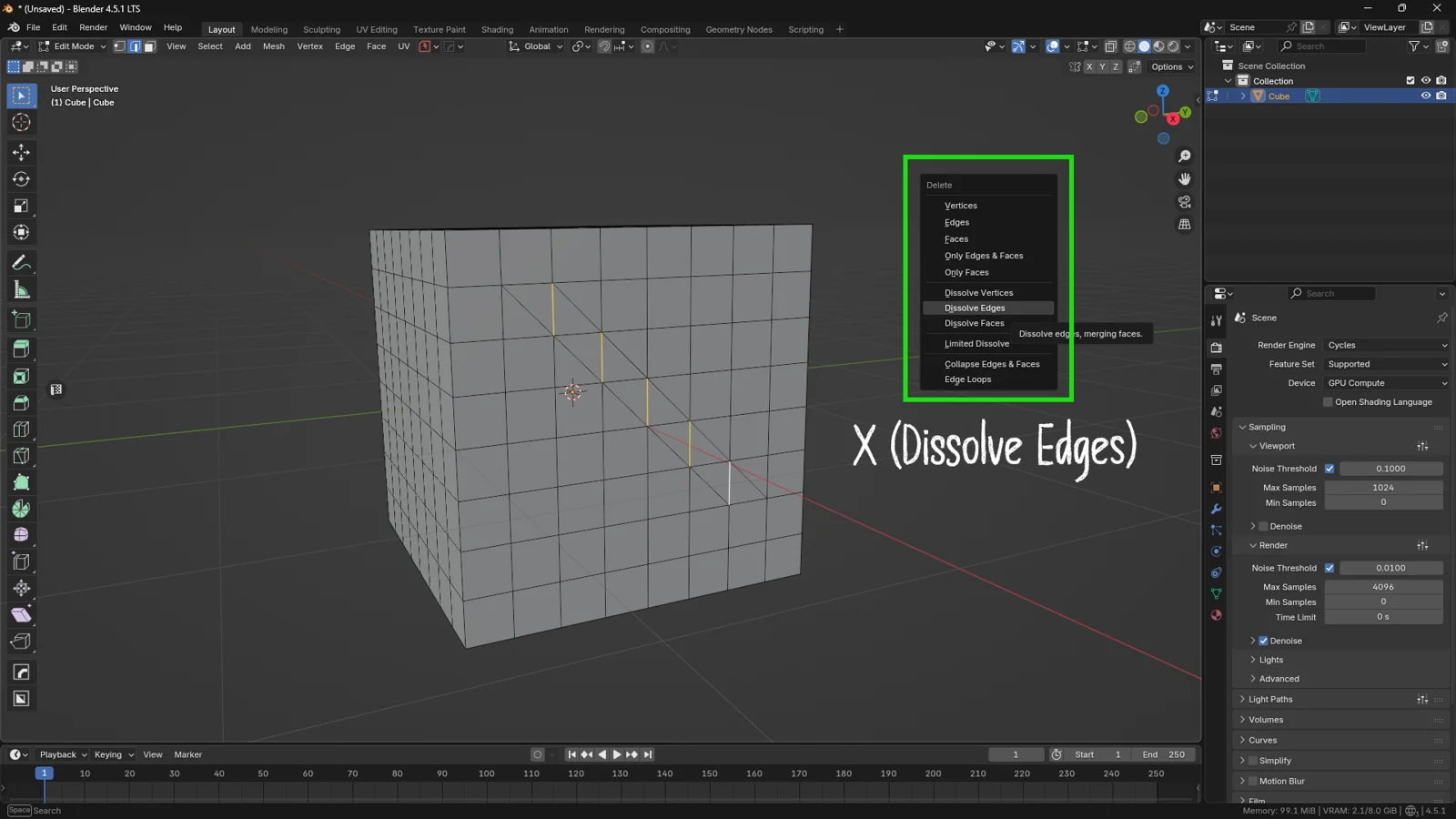
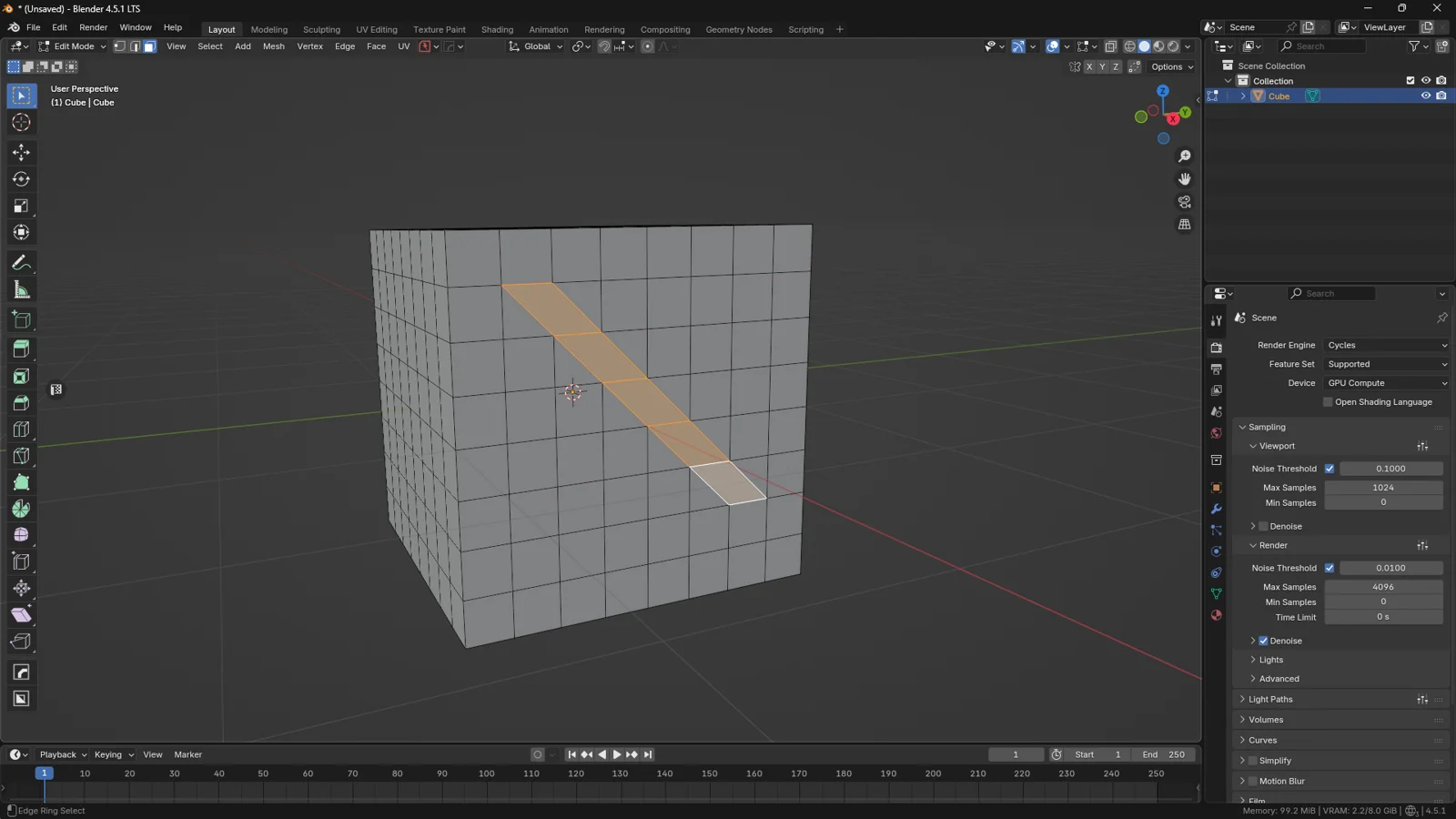
Select the old edges that “cut” through your new diamonds.
-
Press
X> Dissolve Edges.
Voilà! The old edges disappear, and the two triangles merge into a perfect diagonally oriented Quad. This is the true power of Dissolve: modifying the flow without altering the volume.
5. Edge Collapse & Delete Edge Loops
Let’s wrap up with two essential speed tools.
Edge Collapse
Do you want an entire edge or face to collapse into a single central point? Edge Collapse does exactly that. It is extremely useful when you are blocking out and want to quickly close a section or create a point starting from a square base.
Delete Edge Loops (The Savior)
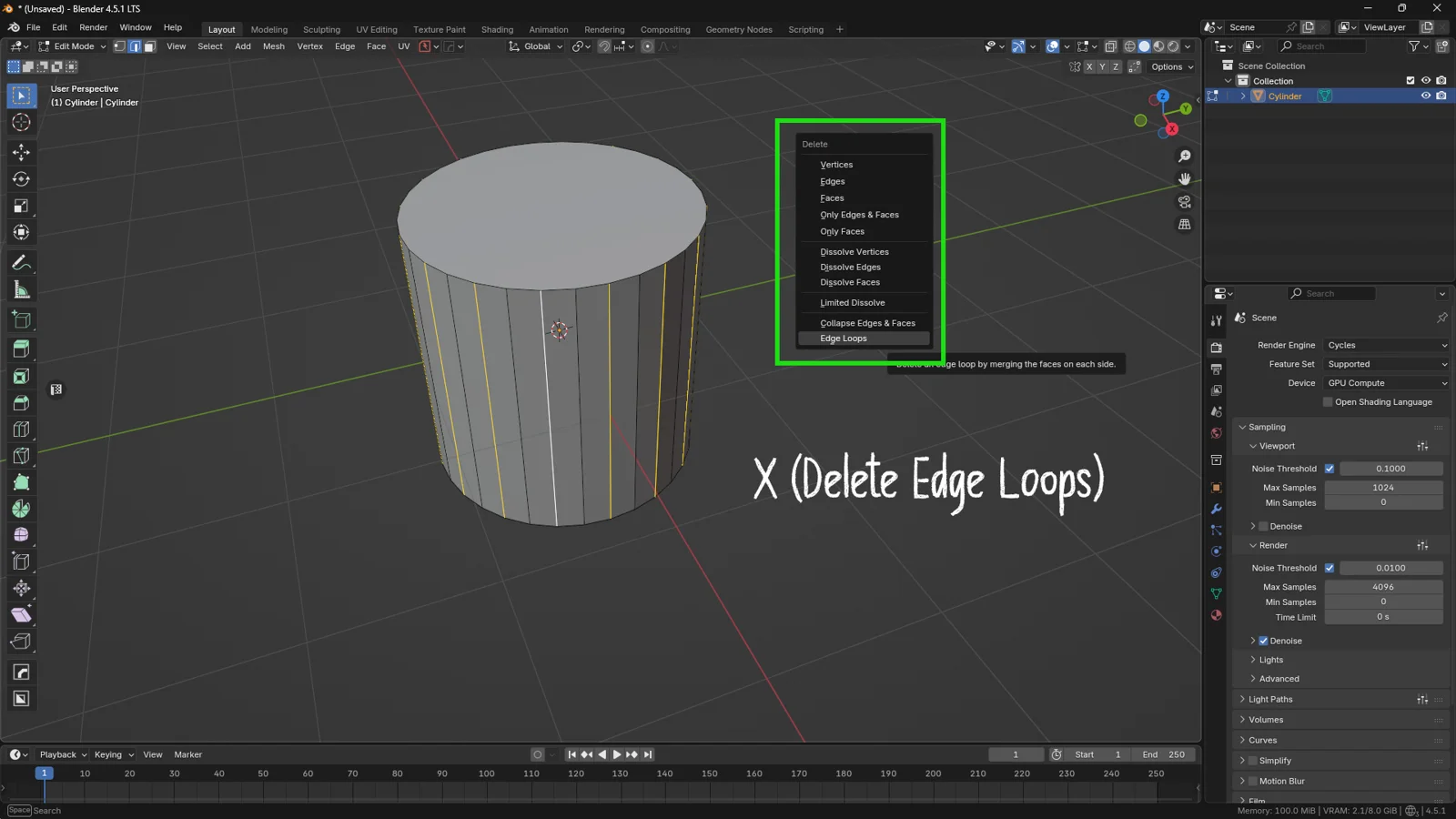
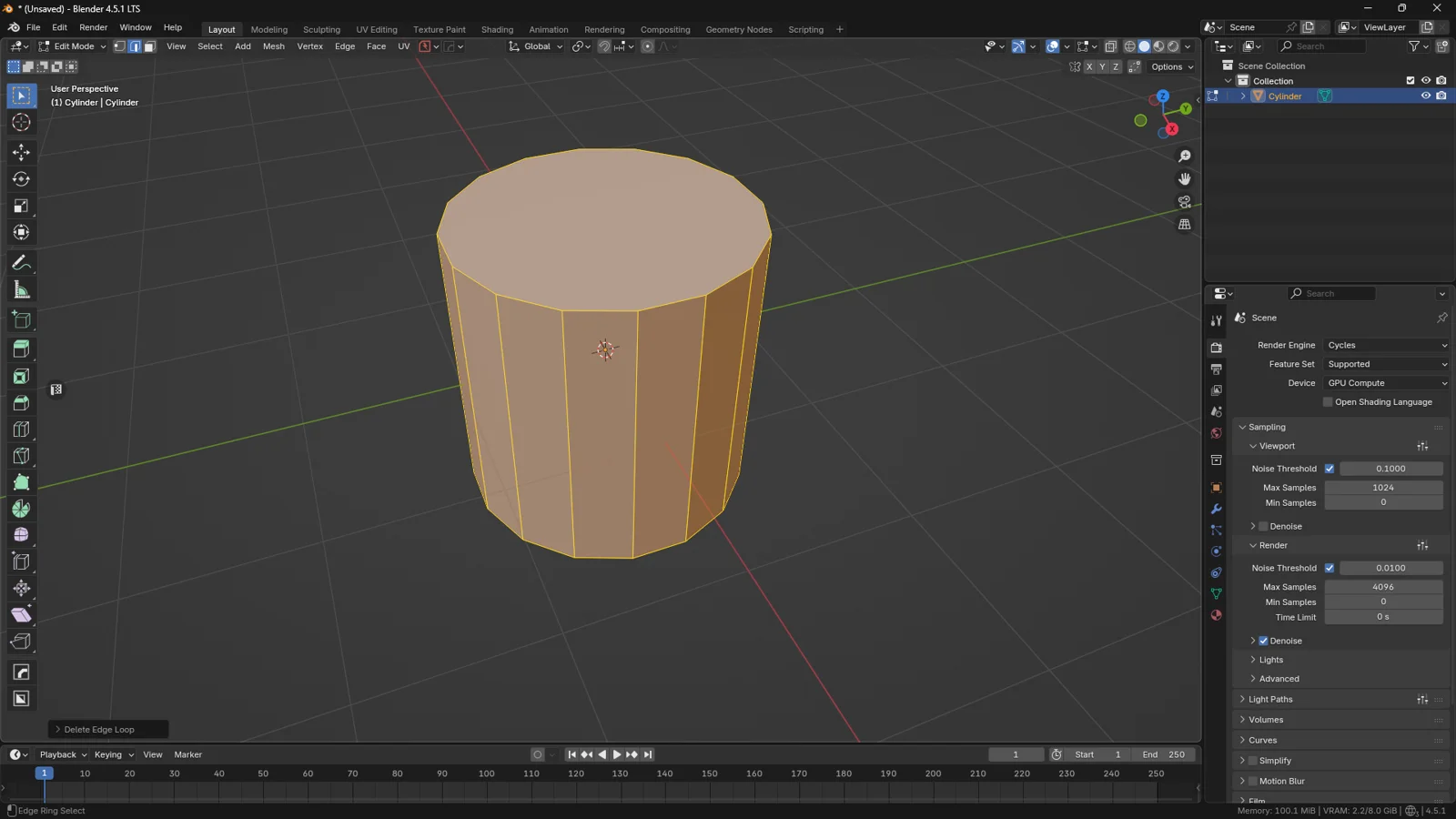
This is probably the command you will use the most. Imagine you have a cylinder with too many subdivisions (loops) that don’t contribute to the silhouette. If you use Delete Edges, you will cut the cylinder in half. If you use Delete Edge Loops, Blender removes the ring of edges and “stitches” the remaining vertices back together.
It is the cleanest method to optimize a mesh, reducing the poly-count while keeping the shape intact.
Conclusion
The X menu in Blender isn’t just a trash can; it’s a set of scalpels for polygonal surgery.
-
Use Delete when you want to create openings or remove entire parts.
-
Use Dissolve when you want to simplify topology while keeping the surface closed.
-
Use Edge Loops to optimize mesh density.
The next time you model, before blindly deleting, ask yourself: “Do I want to make a hole, or do I want to clean the mesh?” The answer will radically change the command you choose.
You might also like 3D Workflow Boost: Master Advanced Transform Tools for Faster Modeling