
Have you ever found yourself modeling an object and feeling like you’re taking way too many steps to achieve a simple shape? As 3D artists, we often fall back on the basics: Move, Rotate, Scale. Sure, they are the pillars of Blender, but sticking only to them is like driving a Ferrari in first gear.
In this article, we won’t just rehash the basics. We are going to hunt down those powerful transformation tools hidden within the Edit Mode menus. Why does this matter? Because mastering tools like Shear, Bend, or Shrink/Fatten doesn’t just speed up your workflow—it allows you to solve complex topological problems with a single click, rather than hours of manual vertex pushing.
Ready to upgrade your modeling arsenal? Let’s dive in.
The “Big Three” and the Power of Axes (Advanced Recap)
Before we jump into the advanced features, let’s do a quick check on the foundations. In Edit Mode, the G (Move), R (Rotate), and S (Scale) keys work exactly as they do in Object Mode. However, the real secret lies in Axis Control.
When you press R followed by X, you lock rotation to the global X-axis. But what if your object is already rotated in space, and you want to modify it according to its own orientation?
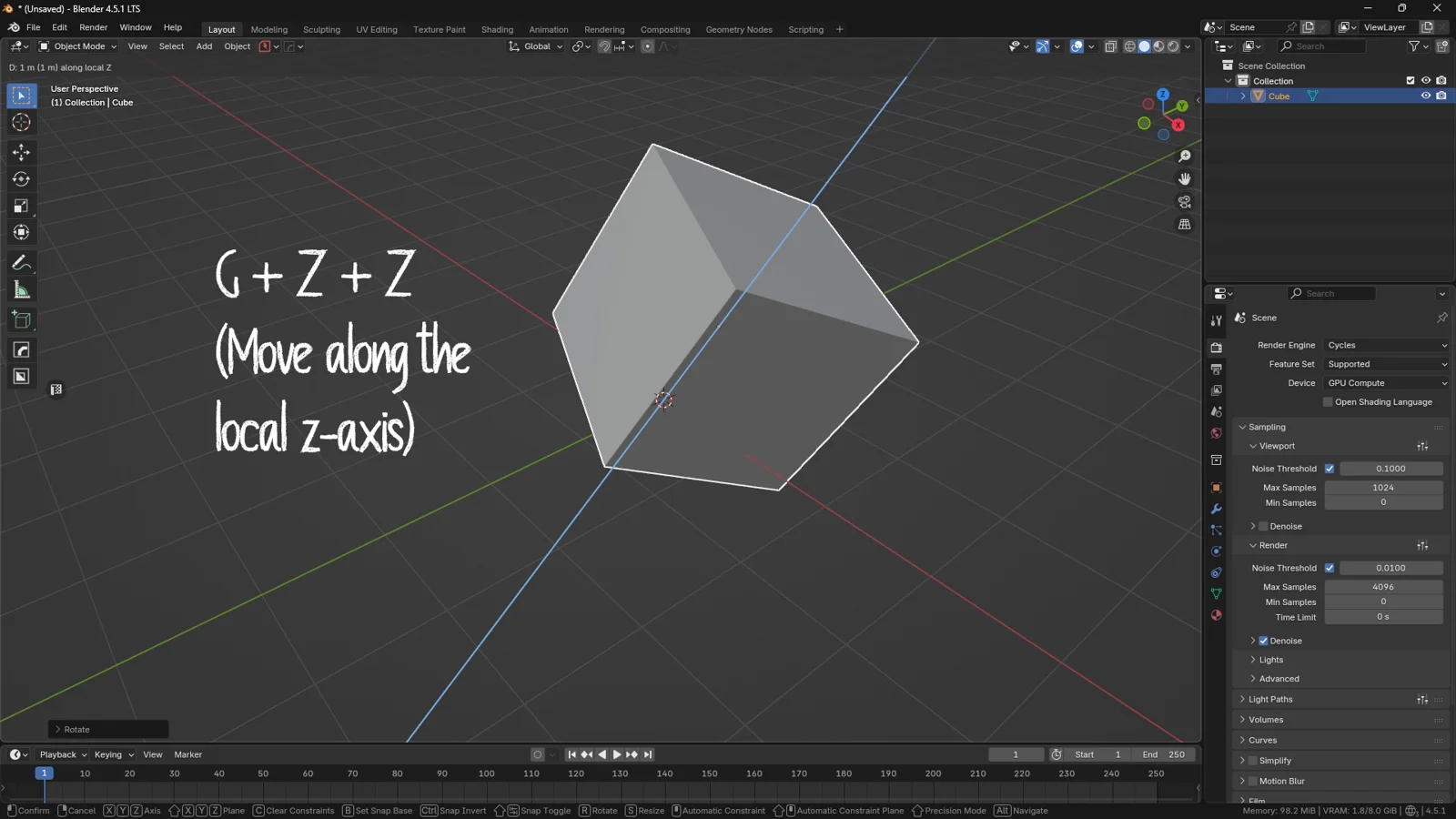
This is where Local Axes come into play. By pressing the axis key twice (e.g., G + Z + Z), you tell Blender to ignore the external world and move the selection along the object’s local Z-axis. This is a lifesaver when modeling inclined mechanical parts or character limbs.
💡 3DSkillUp Pro Tip
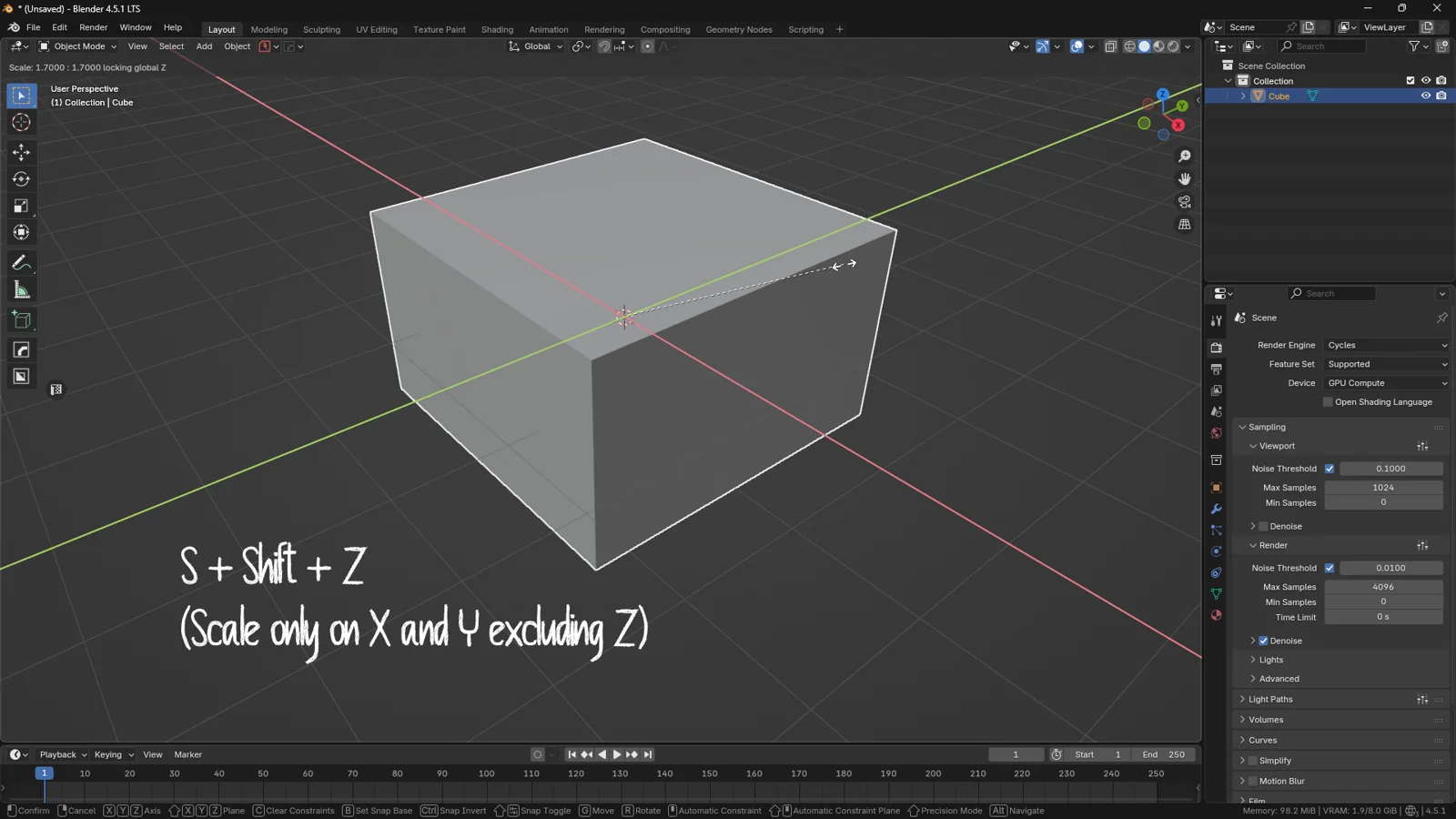
Want to scale an object on all axes except one? This is incredibly useful for making an object taller without making it wider. Press S (scale), then Shift + Z. This locks the height (Z) and scales only on X and Y. This works with any axis combination!
Also, don’t forget the Middle Mouse Click: while moving a vertex, tap the scroll wheel to automatically “snap” the movement to the axis closest to your mouse cursor.
The “Mesh > Transform” Menu: Tools That Change the Game
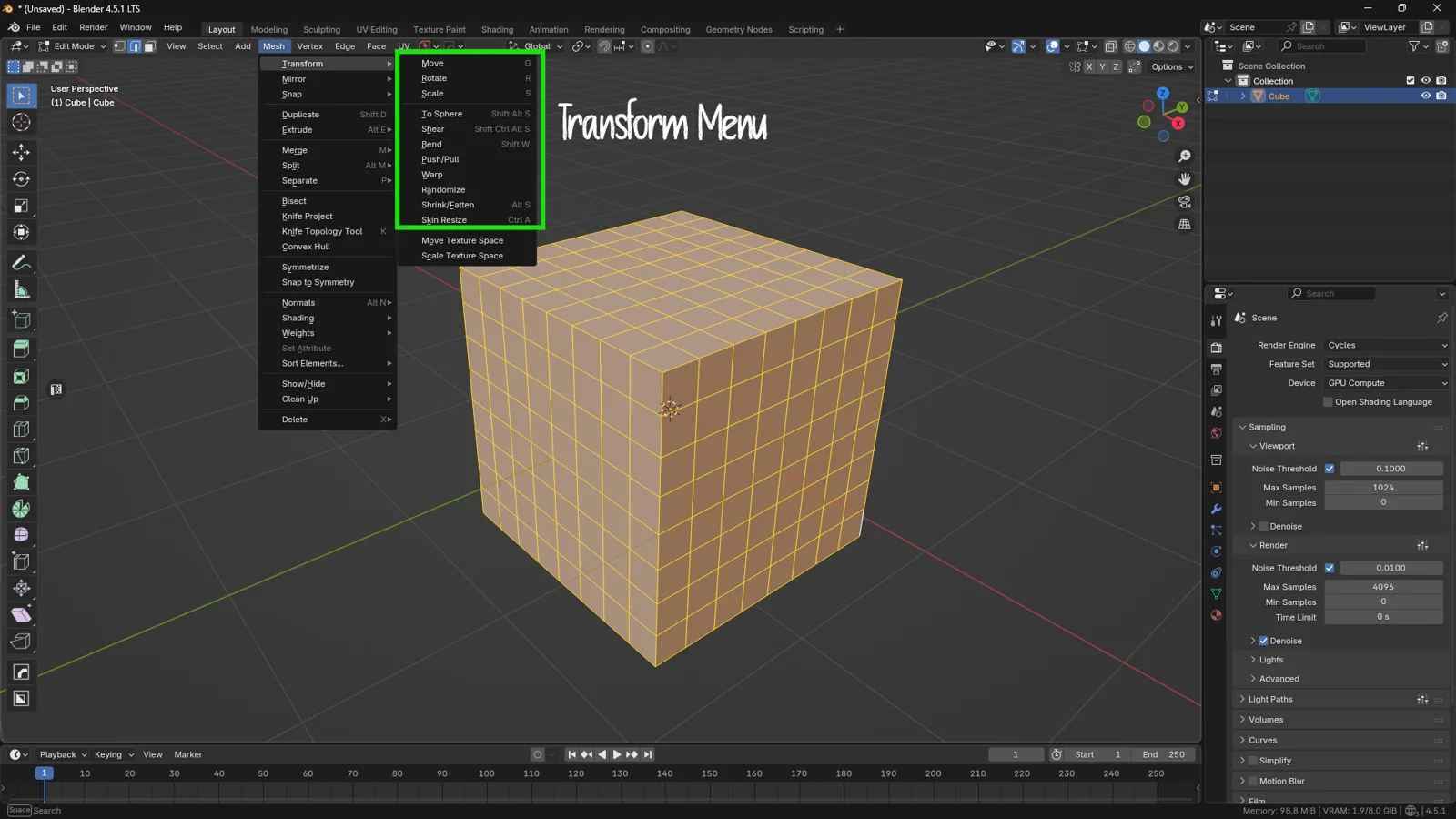
Now, let’s get to the good stuff. Make sure you are in Edit Mode (press Tab if you aren’t already). If you then open the Mesh menu at the top of the viewport and navigate to Transform, you’ll find a goldmine of specialized tools. Let’s break down the most powerful ones.
To Sphere
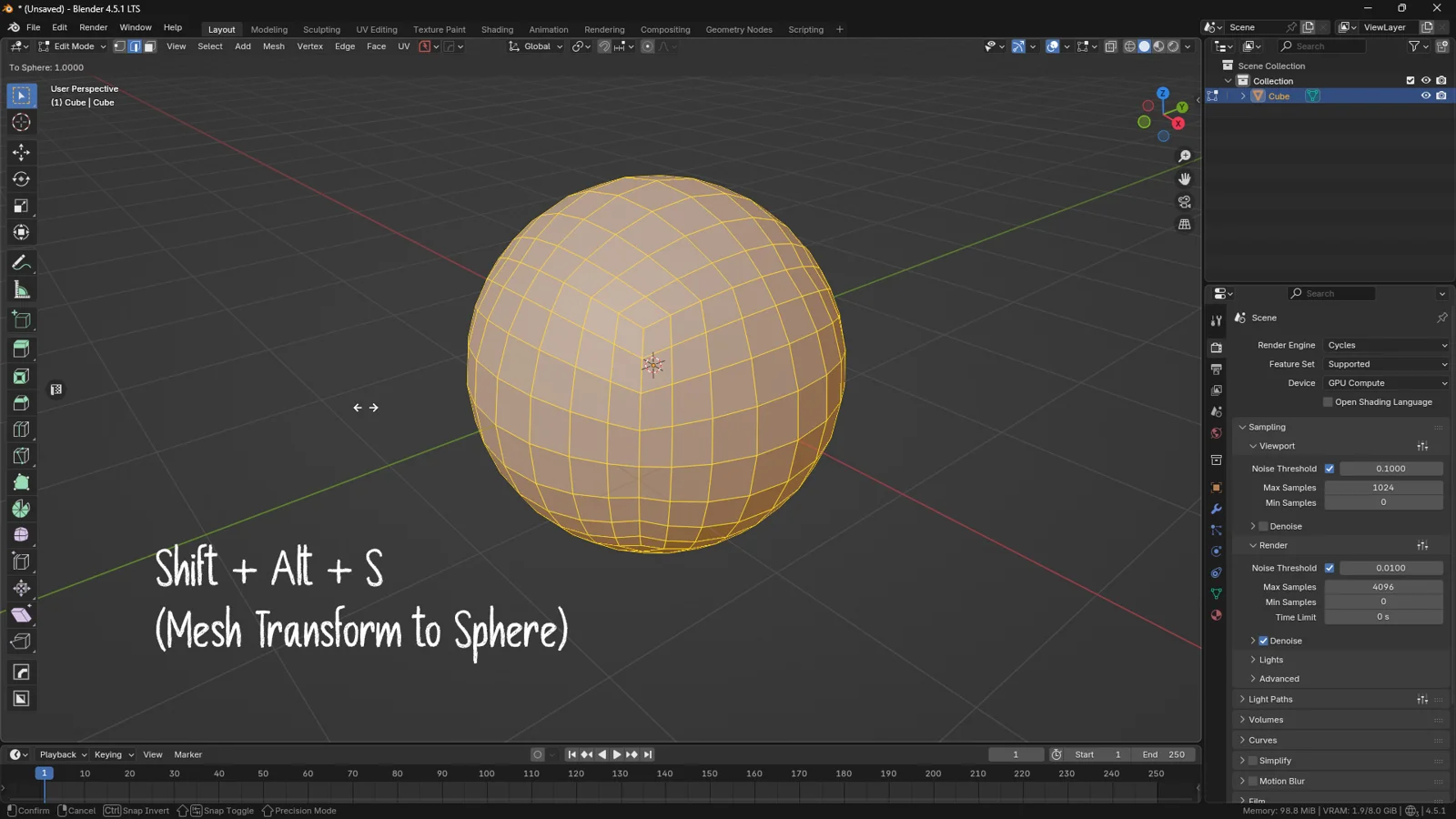
Do you have a subdivided cube that you want to turn into a perfect ball? Or perhaps you need to round off a square section of a pipe? To Sphere projects selected vertices into an ideal spherical shape.
-
Shortcut:
Shift + Alt + S -
Why use it: It’s the fastest way to create organic shapes starting from cubic “hard surface” topology.
Shear
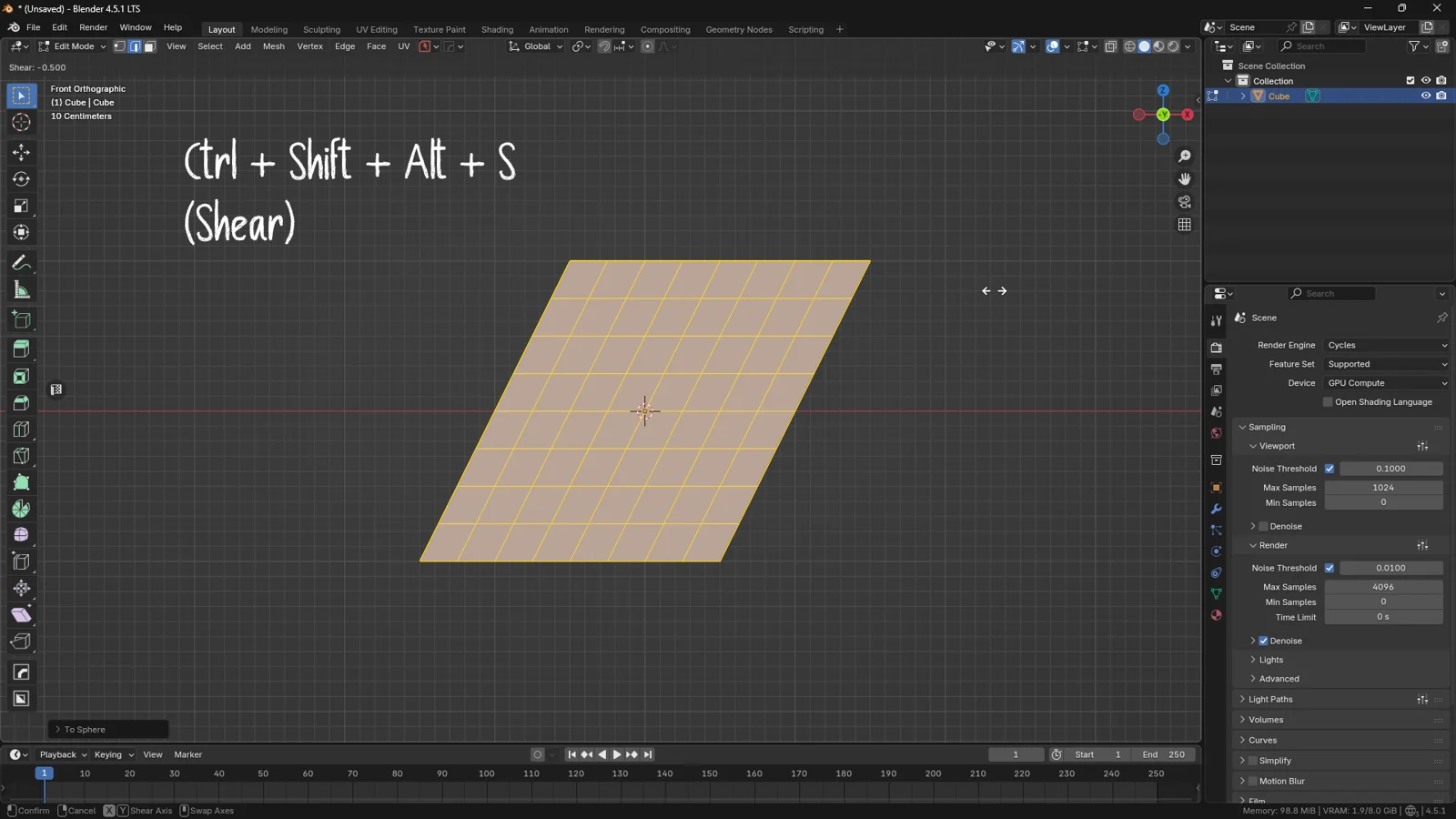
Imagine you need to create a slanted frame or beam, but you want the top and bottom faces to remain parallel to the ground. If you just rotate it, everything goes out of alignment. Shear slides vertices along an axis while keeping the base parallel.
-
Shortcut:
Ctrl + Alt + Shift + S(Yes, it’s a finger-twister, but worth it). -
How it works: You can press X or Y during the operation to change the direction of the slant.
Bend
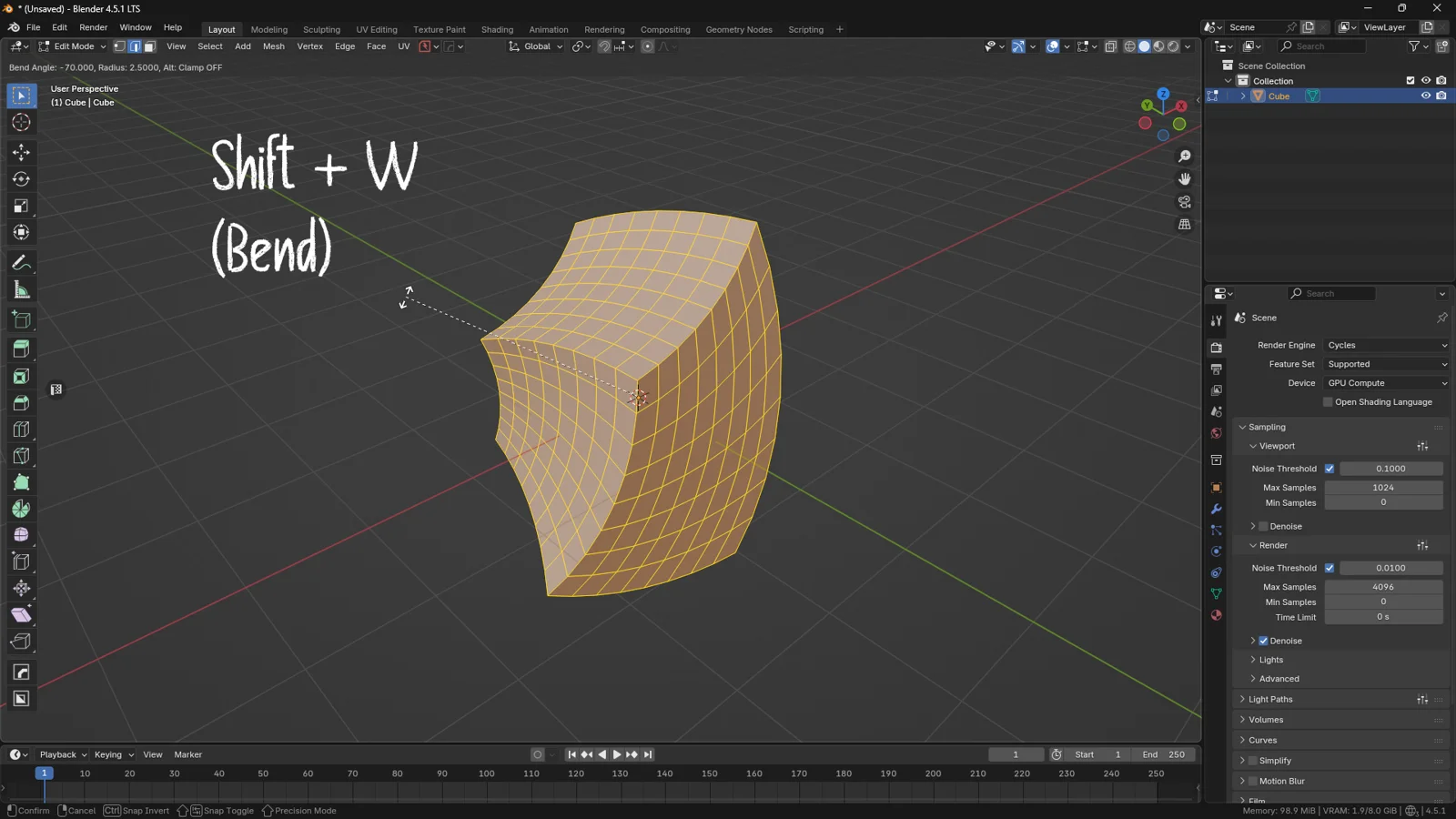
This tool acts like magic, but it requires understanding the 3D Cursor. The Bend command warps geometry based on the position of your mouse cursor relative to the 3D Cursor.
-
Shortcut:
Shift + W -
The Trick: Place the 3D Cursor (
Shift + Right Click) where you want the bend to pivot (the hinge point). Then, move your mouse away and press the shortcut. This is essential for creating curved pipes, arches, or exaggerated cartoon styles.
Push/Pull
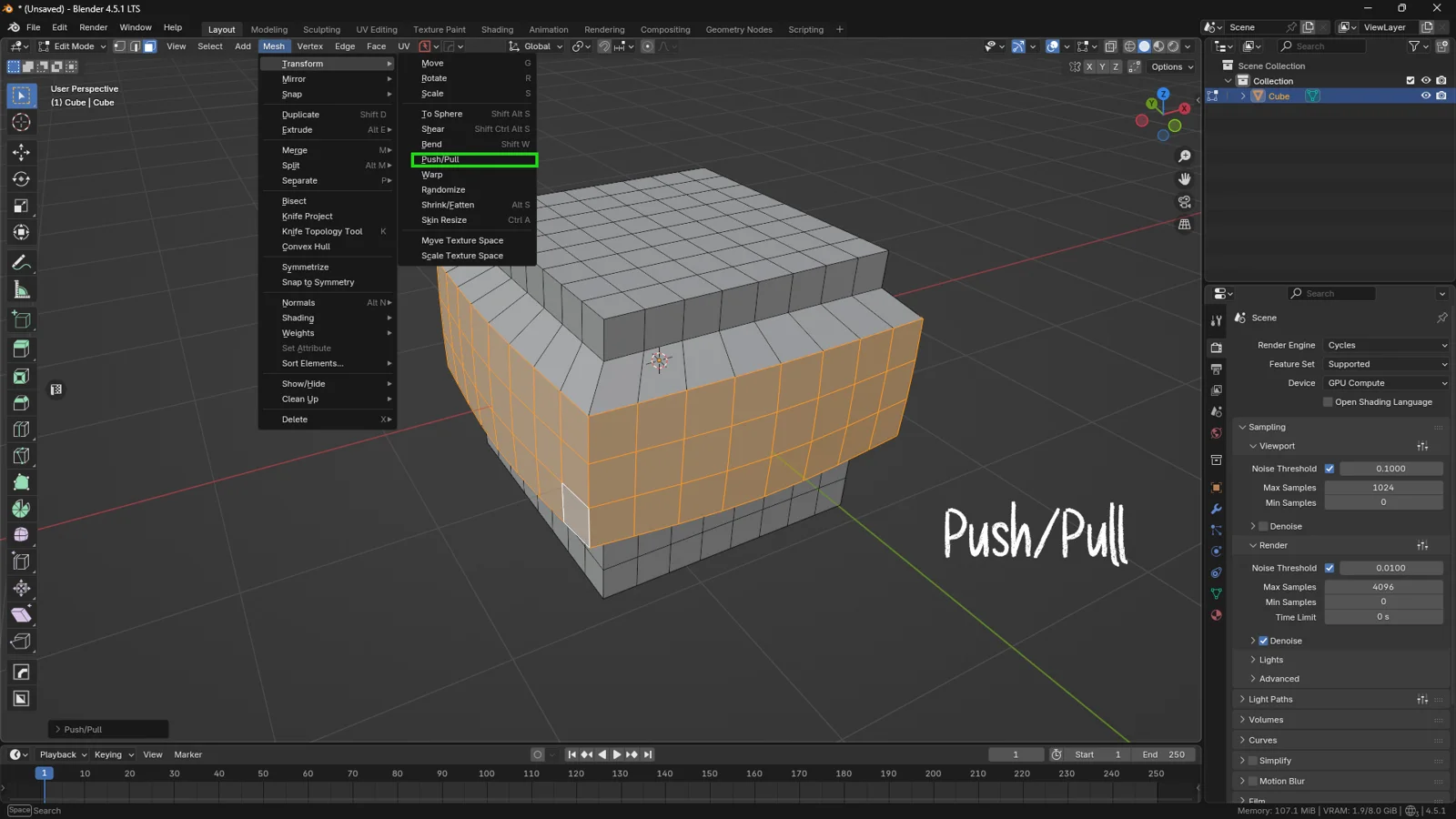
Simple but effective. This tool takes selected vertices and moves them closer together (Push) or further apart (Pull) from the center of the selection.
- Use Case: Great for quickly adjusting the width of an object without altering its general shape too drastically.
Warp
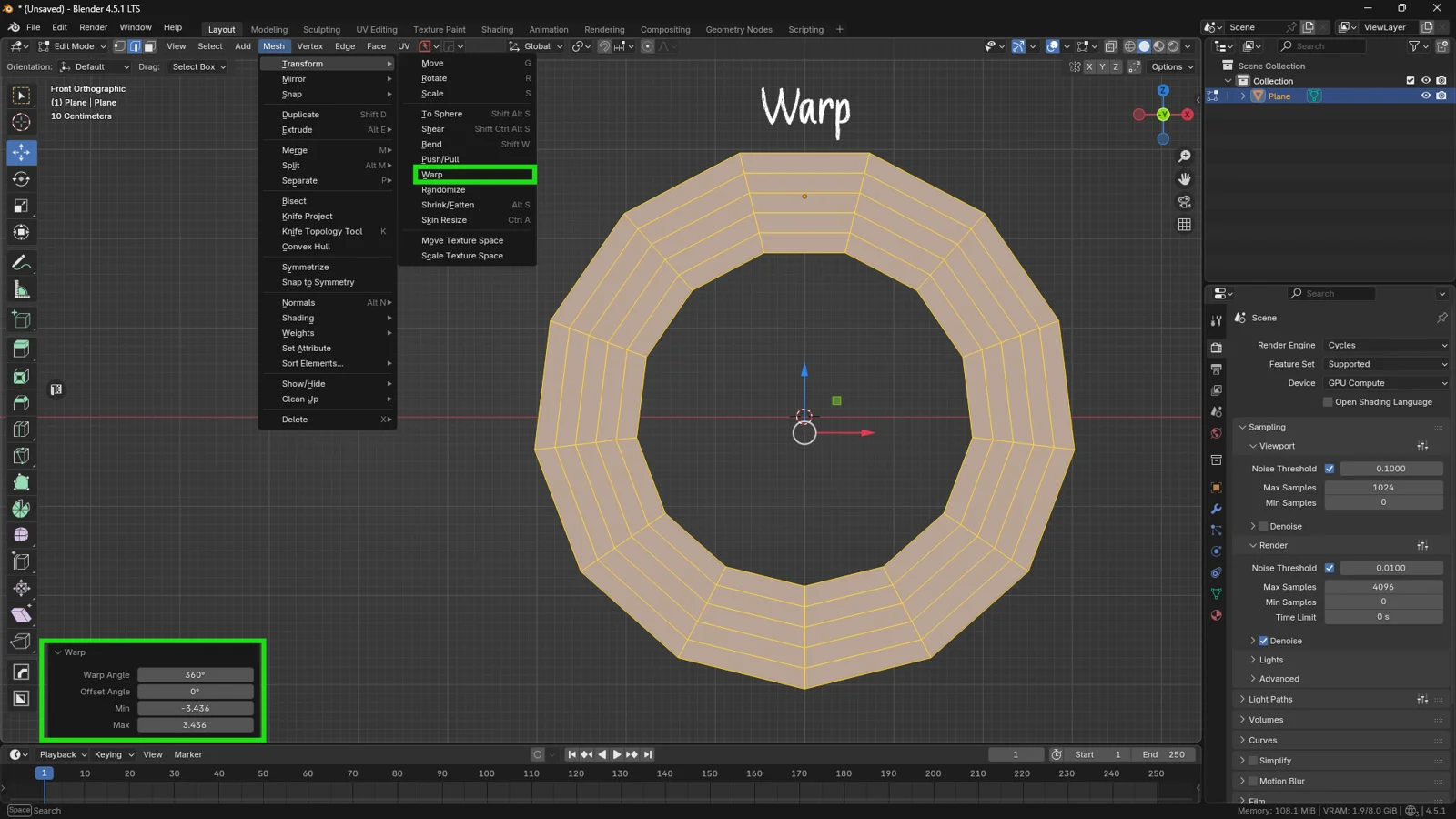
Want to wrap text or a mesh around an imaginary circle? Warp rotates vertices around the 3D Cursor. Think of it like bending a flat sheet of paper to form a cylinder.
-
Location: Menu Mesh > Transform > Warp.
-
Tip: Play with the angle in the operator panel (bottom left) to decide how much to wrap the object (e.g., 180° or 360°).
Randomize: The Art of Controlled Chaos
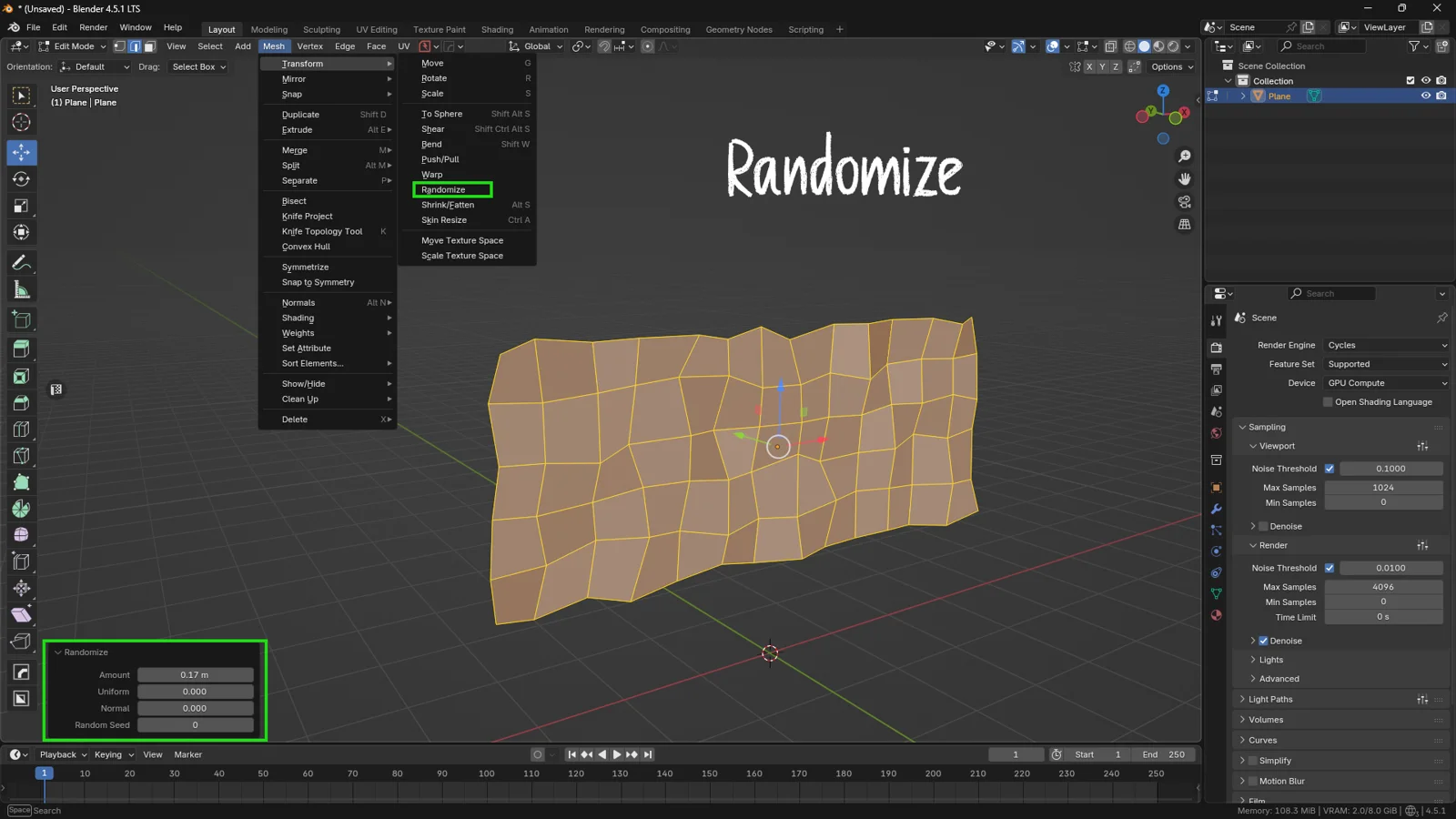
Perfection in 3D often looks fake. In the real world, nothing is perfectly straight or smooth. The Randomize tool shifts vertices in random directions.
-
Why use it: To create terrain, rocks, or simply to “break up” the perfection of a model that looks too rigid.
-
The “Normal” Option: In the settings panel, if you increase the “Normal” value, vertices will only move along their normals (up and down relative to the surface). This prevents the mesh from crumpling into itself in weird ways.
Shrink/Fatten
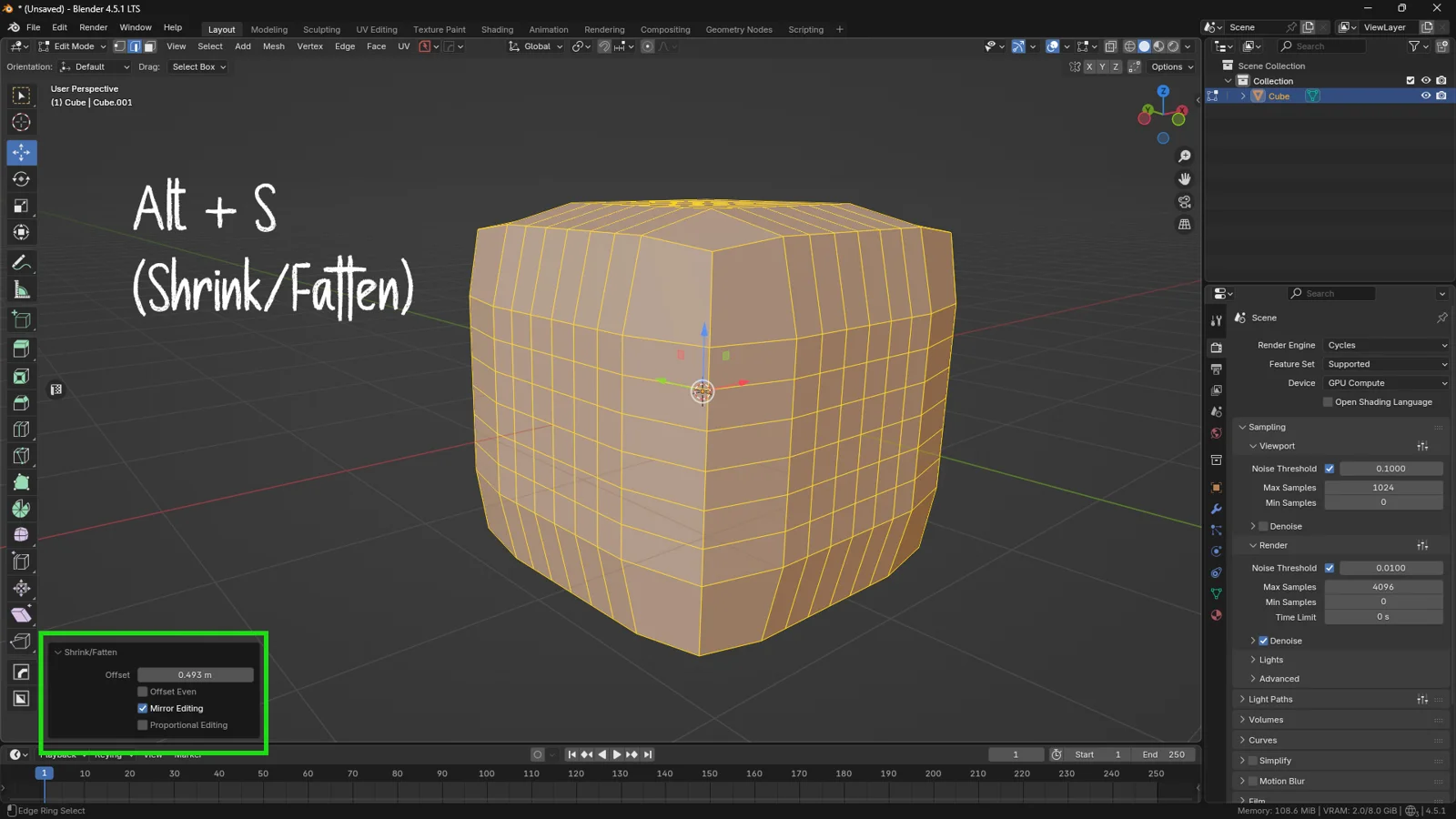
Let’s conclude with one of my absolute favorites: Shrink/Fatten. You might be thinking: “Isn’t that the same as scaling?” No. When you Scale (S), vertices move away from the center of the object. When you use Shrink/Fatten (Alt + S), every face moves along its own Normal (the direction the face is “looking”).
-
Shortcut:
Alt + S -
The Classic Example: Imagine modeling a character. If you want to make them more muscular or thinner, using
S(Scale) would distort the proportions.Alt + S, however, “inflates” or “deflates” the volume uniformly, respecting the surface shape. It is fundamental for creating tight-fitting clothes or quick body variations.
💡 3DSkillUp Pro Tip
When using
Alt + S, hold down Shift for slower, more precise control. This helps prevent “exploding” the mesh with mouse movements that are too sudden.
Conclusion
We’ve seen that Blender offers much more than just simple G, R, and S commands. Integrating tools like Shear, Bend, and Shrink/Fatten into your daily workflow isn’t just about technique—it’s about mental efficiency: less time wasted moving vertices one by one, and more time dedicated to creativity.
Your Next Step: Open Blender right now. Add a cube, subdivide it a few times, and try to deform it using only the tools we covered today, without ever touching the standard Scale command.
You might also like Master Selections in Blender: The Essential Tools Every 3D Artist Must Know
Upgrade Your Asset Library Stop wasting time searching for low-quality resources. Speed up your workflow with our exclusive collection of HDRis, PBR Textures, and Game Props. 👉 Visit the 3DSkillUp Store on Superhive
When a change needs to remain adjustable, a non-destructive modifier workflow can complement these direct mesh transformations.