
If you want to model faster in Blender, stop thinking only about extrude, bevel, and loop cuts — the real secret to efficiency lies in how you select geometry.
Selection tools determine:
-
how fast you can isolate and edit details
-
whether you work with precision or chaos
-
how clean and intentional your modeling becomes
In this guide, we’ll go through the most important Edit Mode selection tools in Blender, with step-by-step explanations, pro shortcuts, and real-world use cases every 3D artist should master.
Selection Modes – The Foundation of Edit Mode
In Blender Edit Mode, selection defines what you are actually editing. Before moving, scaling, or extruding anything, you must first decide which type of geometry you want to work on.
Blender gives you three fundamental selection modes, each designed for a specific level of control over your mesh.
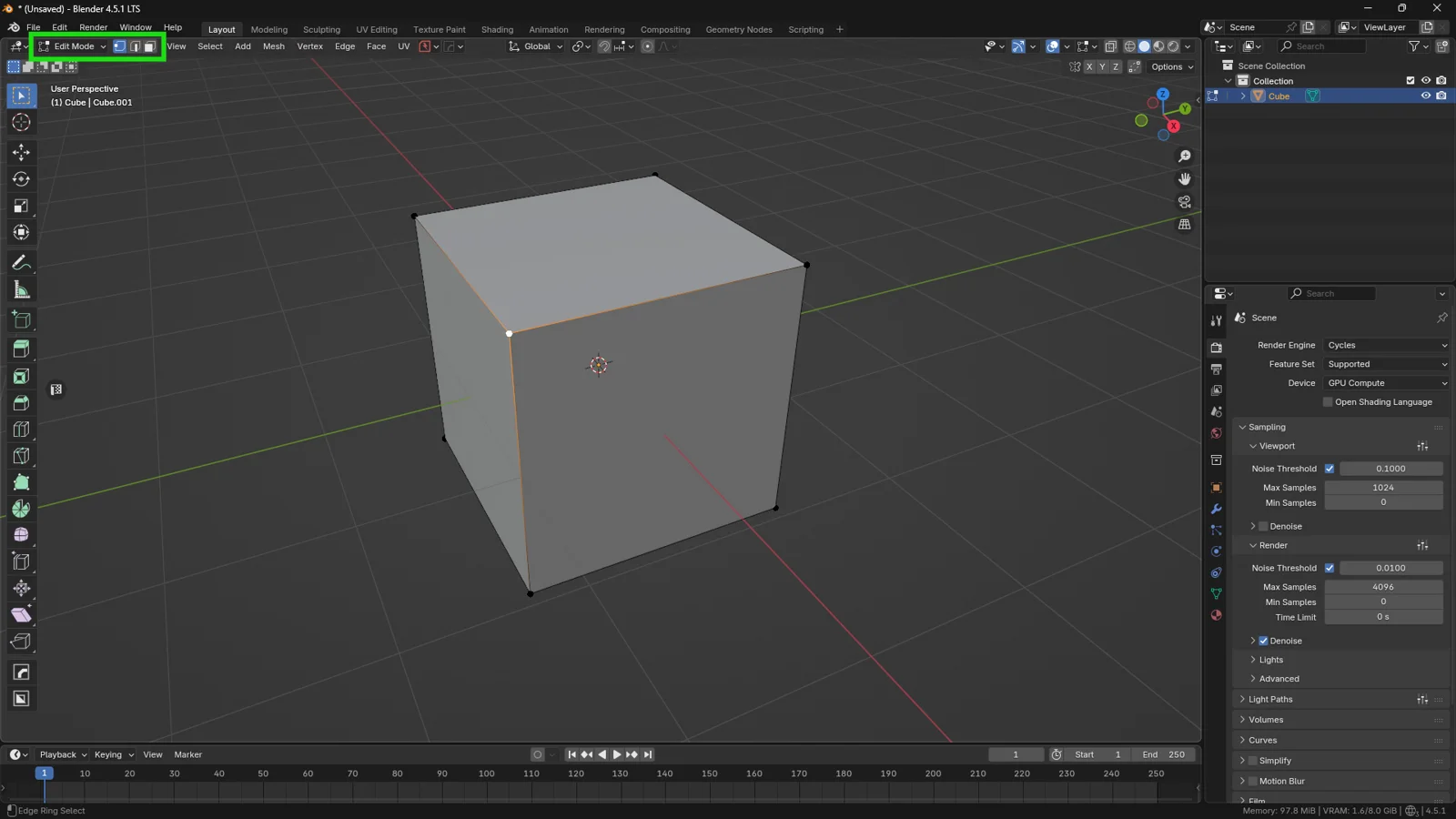
Vertex Select allows you to work with individual points. This mode is ideal when you need maximum precision — for example, when fine-tuning proportions, correcting shading issues, or adjusting subtle shape details that would be impossible to control at a higher level.
Edge Select lets you select the edges that connect vertices. This mode is essential for shaping silhouettes, controlling edge flow, and preparing geometry for bevels, loop cuts, and hard-surface modeling. If your goal is to define structure and sharpness, Edge Select will be your go-to option.
Face Select focuses on entire polygon surfaces. It’s the fastest way to manipulate large areas of your model, making it perfect for extrusions, panel creation, blocking out shapes, or performing broad structural edits early in the modeling process.
🎹 Keyboard Shortcuts
You can switch between selection modes instantly using the number row:
-
1 → Vertex Select
-
2 → Edge Select
-
3 → Face Select
💡 3DSkillUp Pro Tip
You don’t have to choose just one mode. Hold Shift and click multiple selection icons to enable mixed-mode selection (for example, Vertex + Face). This allows you to make small, precise adjustments without losing your main face selection — a huge time-saver when refining complex models.
Path Select – Selecting Geometry Between Two Points
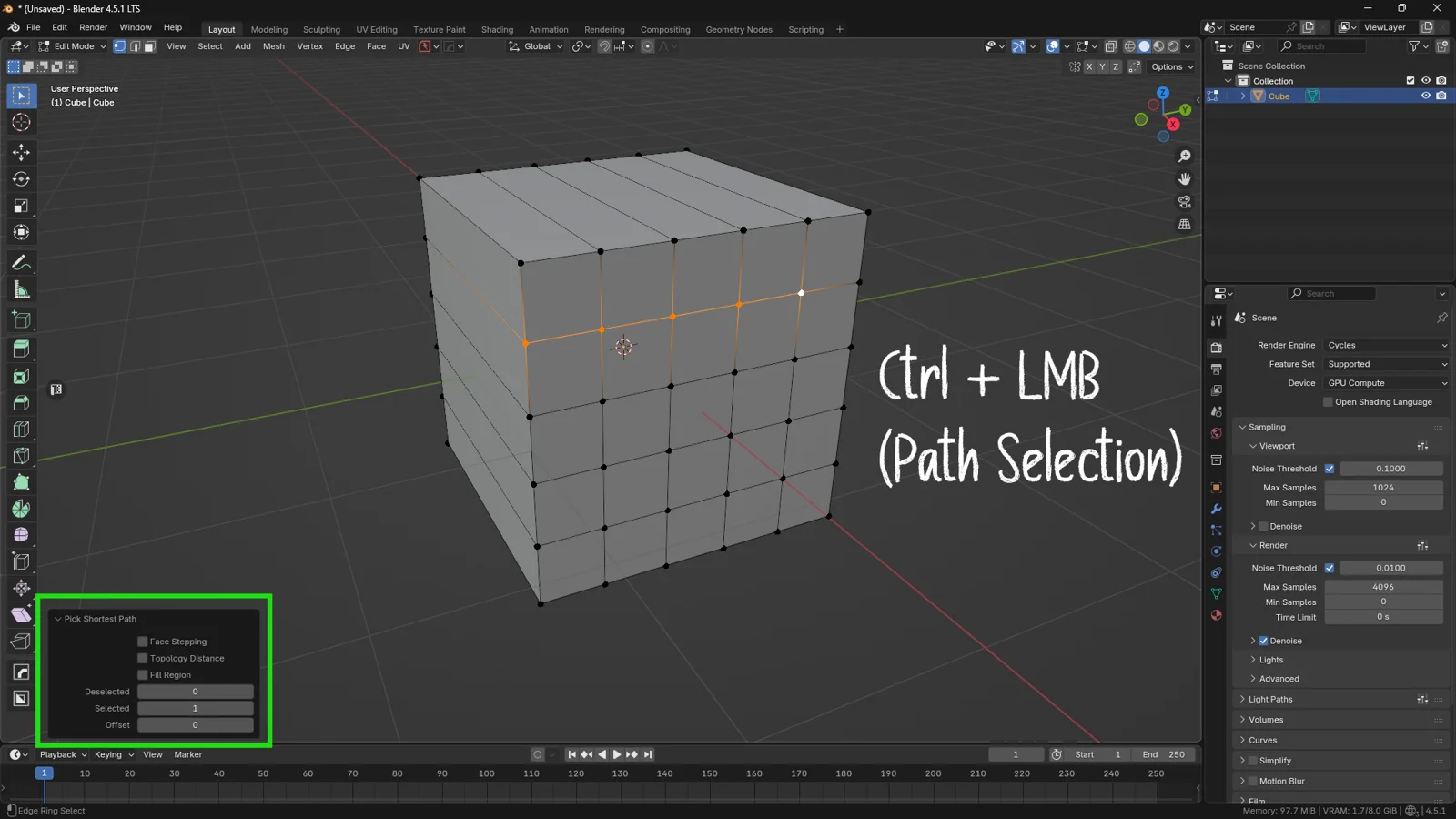
Instead of clicking one vertex at a time, you can let Blender auto-trace a path.
👉 Click a vertex → Ctrl + Click another → Blender auto-selects everything in between.
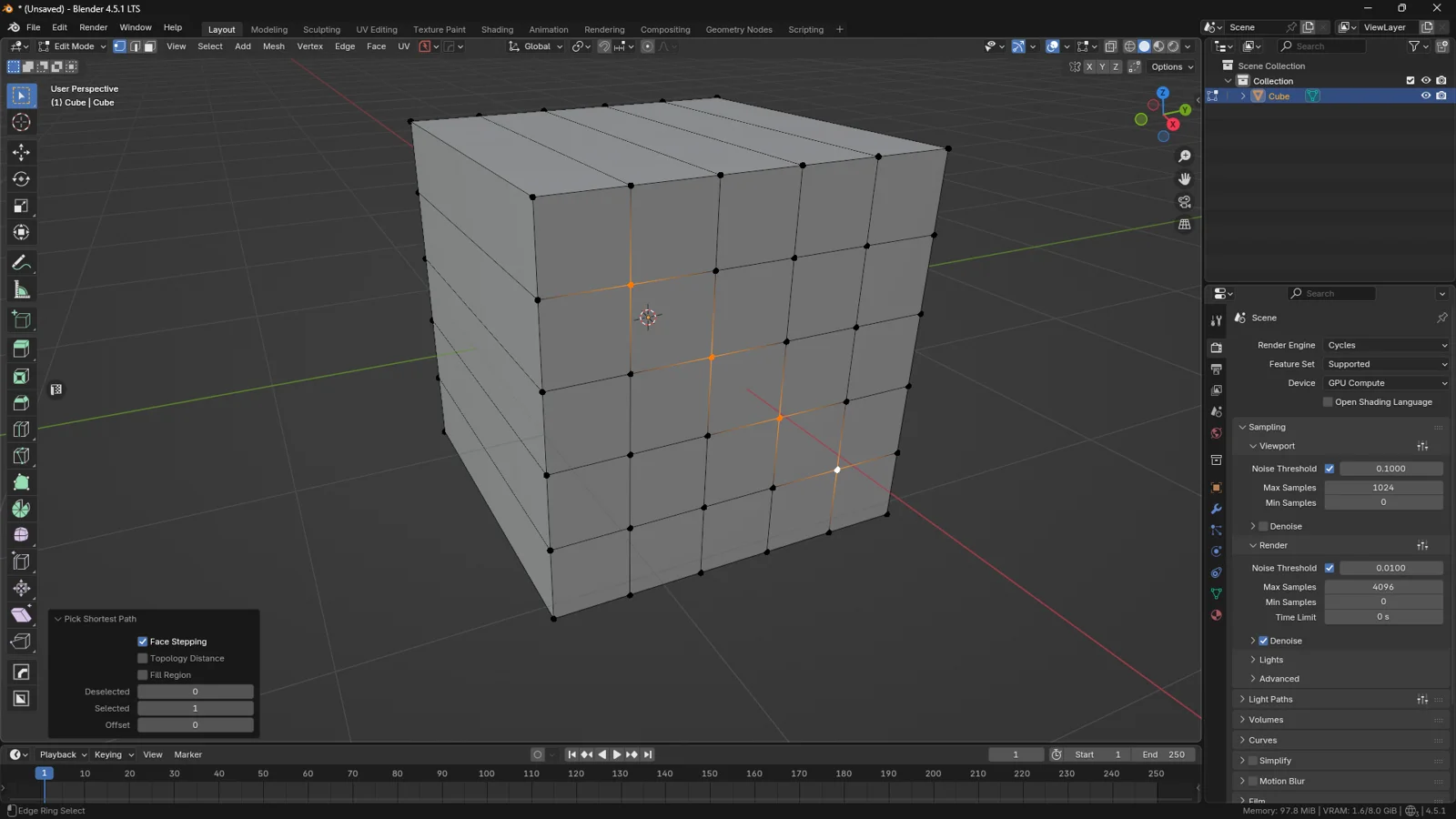
Operator panel options:
-
Face Stepping → lets the path cut diagonally through faces
-
Topology Distance → finds the shortest topological path
-
Fill Region → selects the full rectangular area between two points
🎹 Hotkeys
-
Path Select: Ctrl + Click
-
Regional Fill: Ctrl + Shift + Click
💡 3DSkillUp Pro Tip
When deleting internal faces Ctrl + Shift + Click lets you isolate entire mesh sections instantly.
Linked Selection – Select Entire Islands Instantly
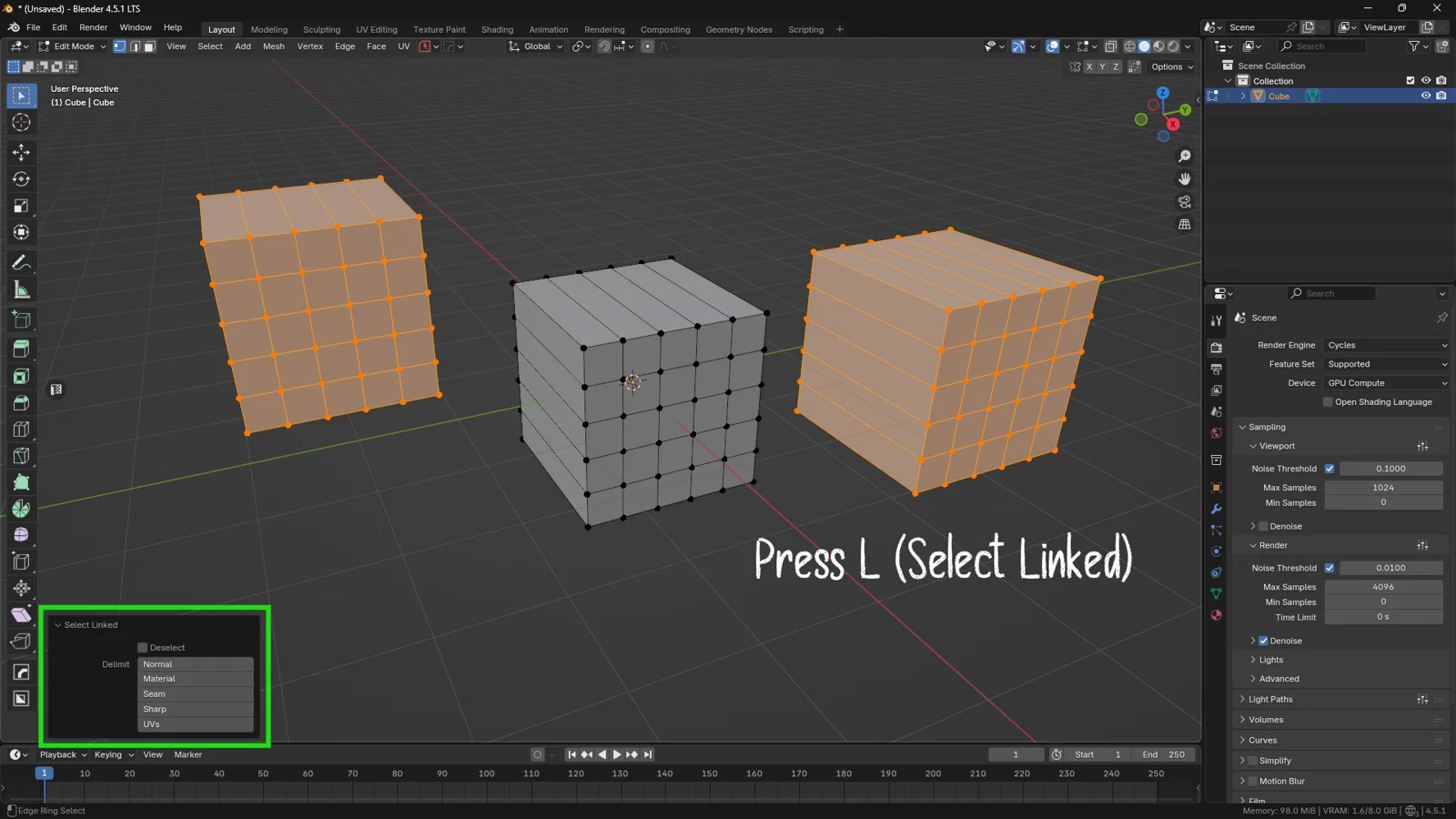
If your object contains multiple disconnected pieces (example: 3 cubes shapes inside one mesh), pressing A selects everything — too broad.
Instead:
👉 Hover your mouse over a mesh island → press L
→ Blender selects only that connected geometry.
Additional shortcut:
- Ctrl + L → expands selection to everything connected to currently selected vertices
After isolating an island, the Separate and Join commands determine whether it remains part of the same object.
Loop Selection – Your Fastest Modeling Tool
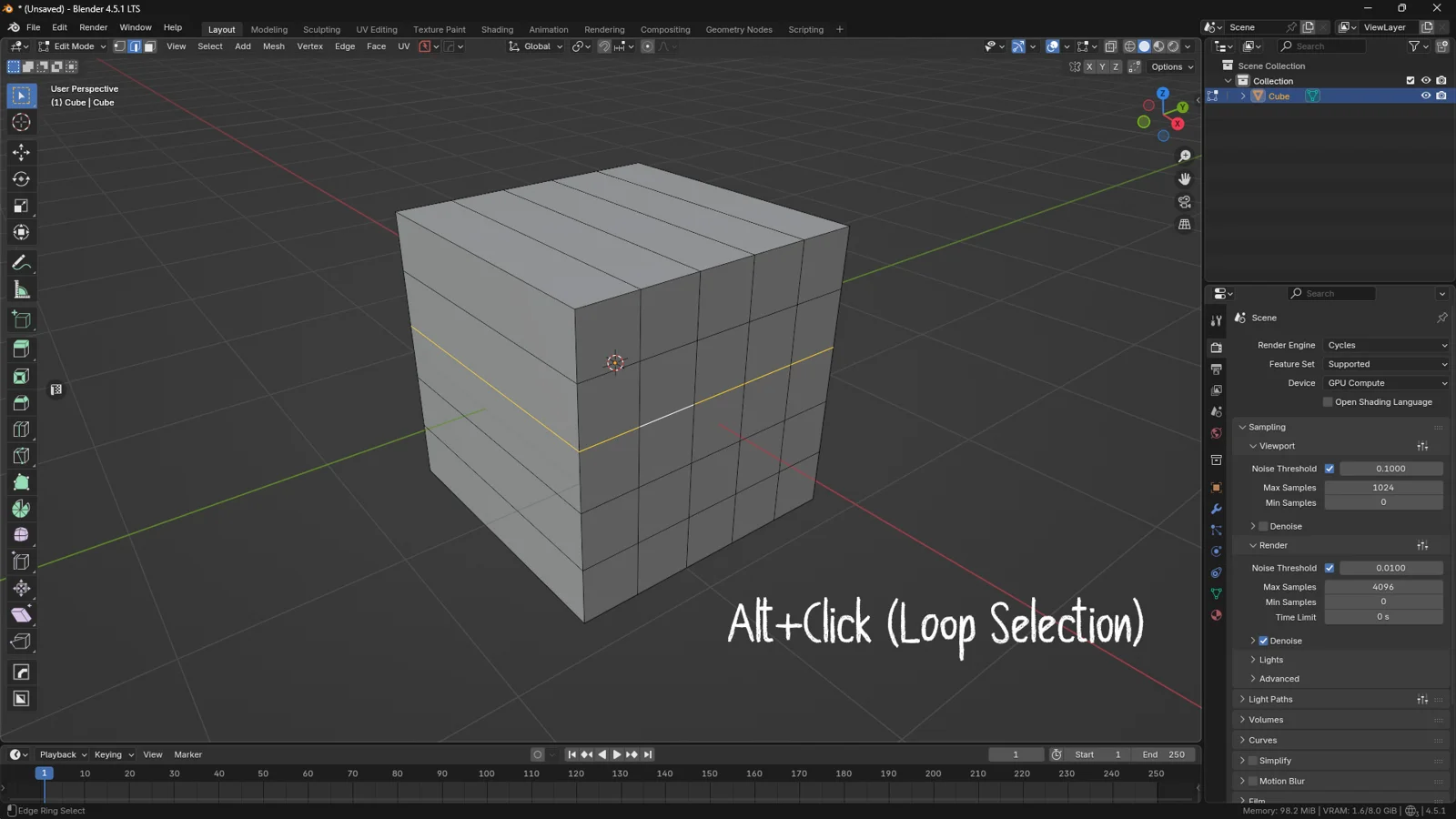
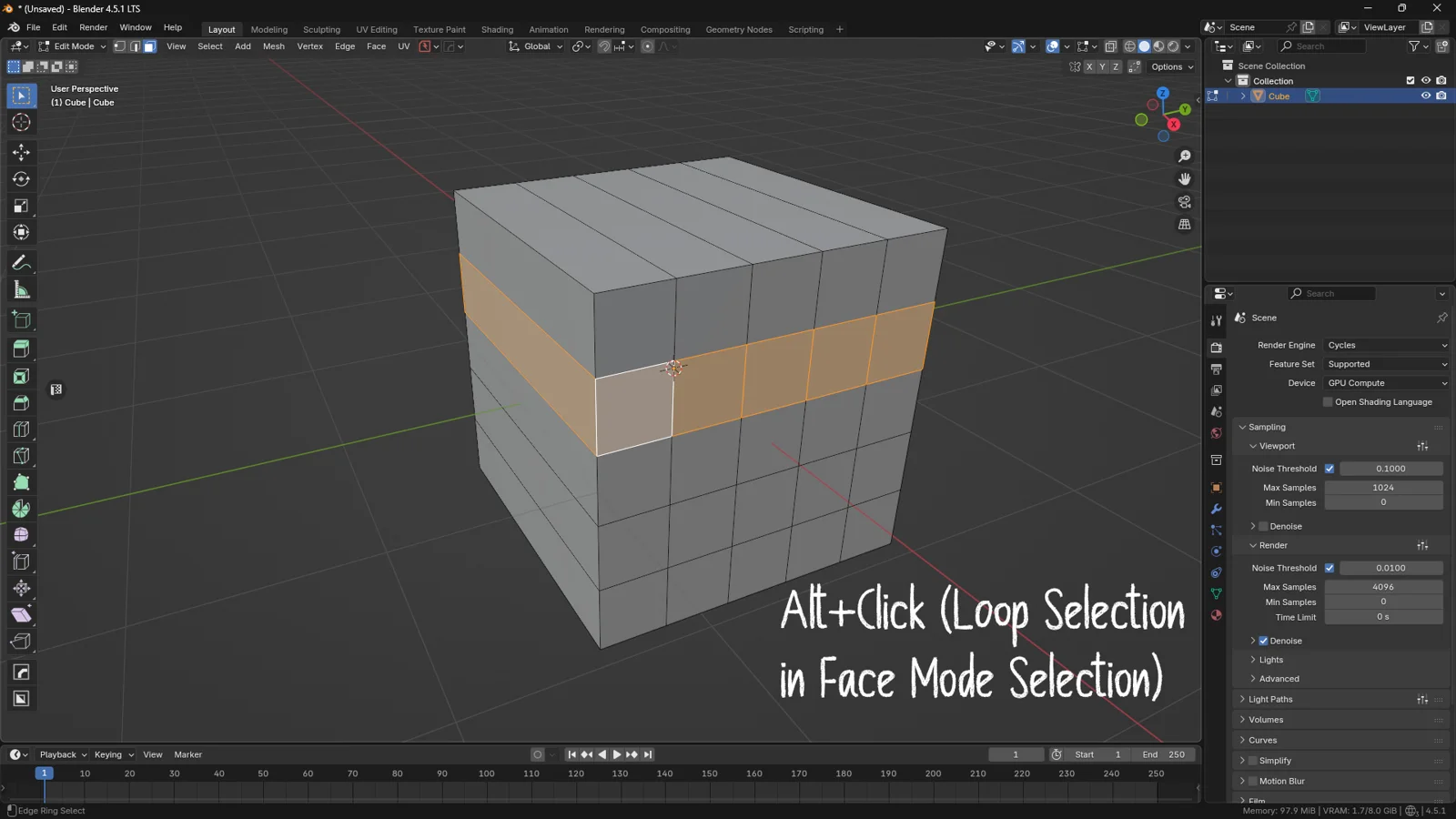
Loop selection allows you to select a circular chain of edges in one click.
👉 Alt + Click an edge → selects the entire loop running in one direction.
📌 Loop stops when encountering triangles or poles — Blender can’t guess direction through irregular topology.
💡 3DSkillUp Pro Tip
If loop-select doesn’t work, check your topology:
◆ N-gons and triangles disrupt loop flow
Advanced: Boundary, Expand & Shrink Selections
Once a region is selected, refine it using:
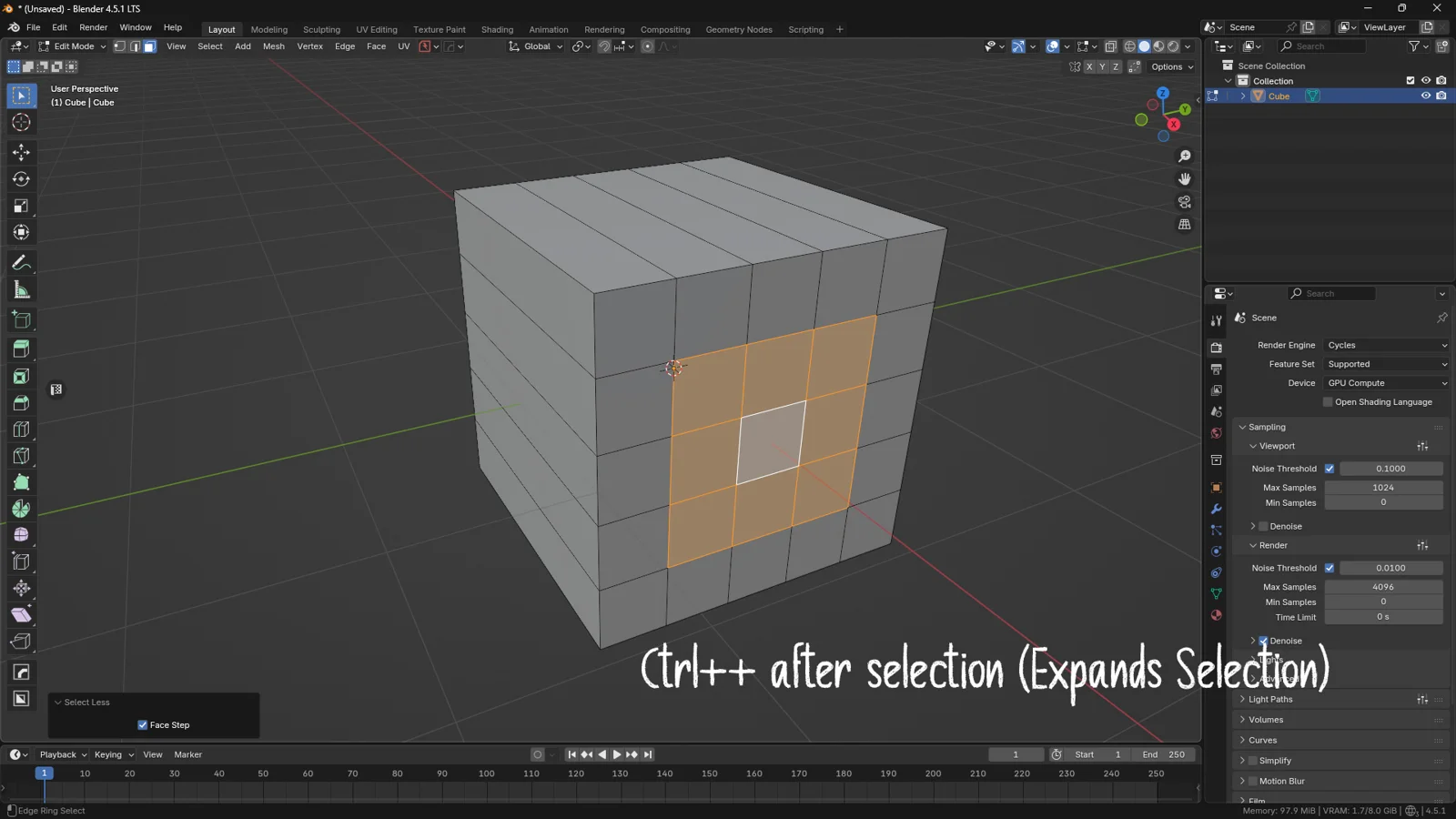
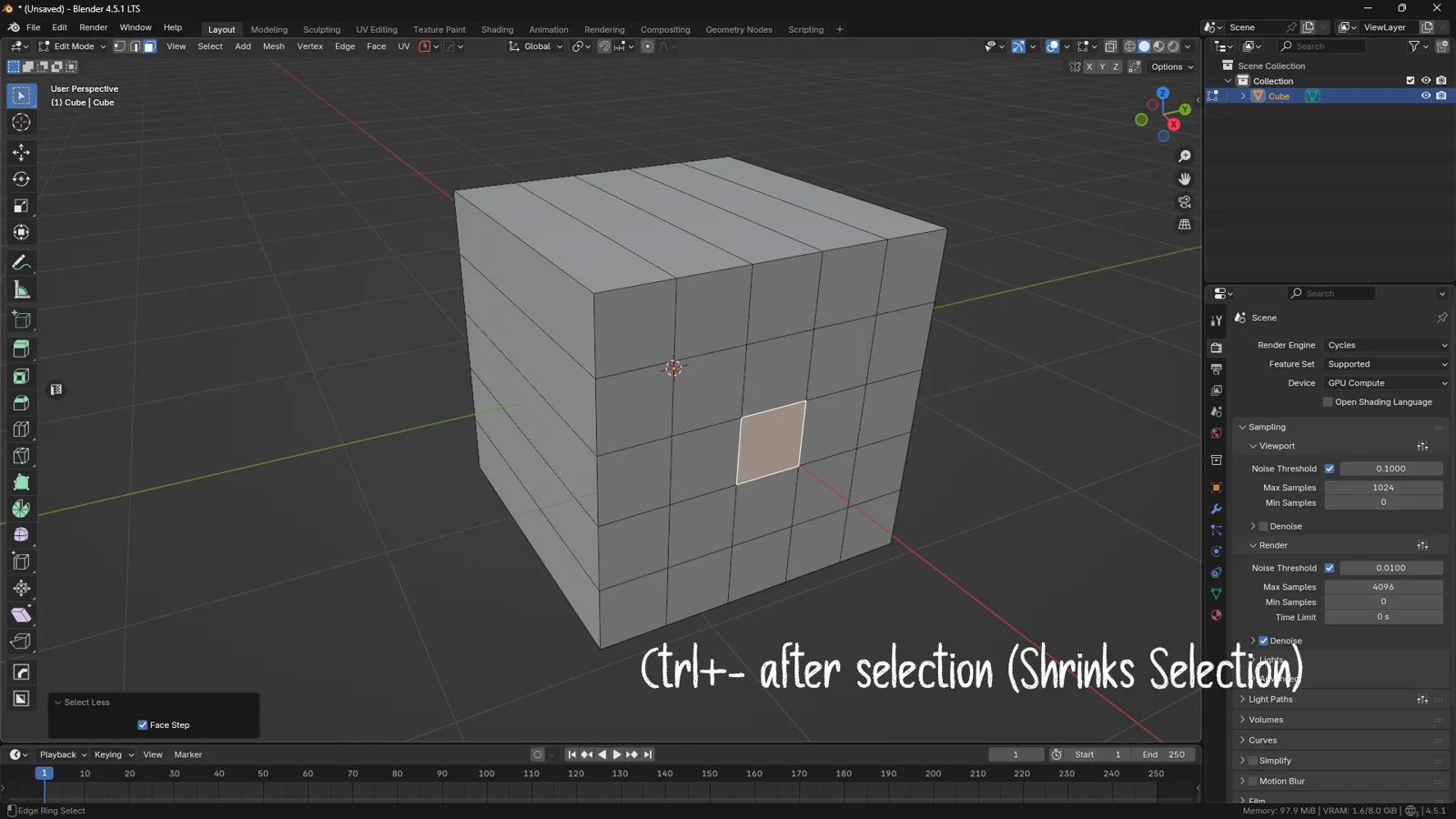
🧩 Selection Expansion
-
Ctrl + + (numpad) → expands your current selection outward
-
Ctrl + − → shrinks the selection
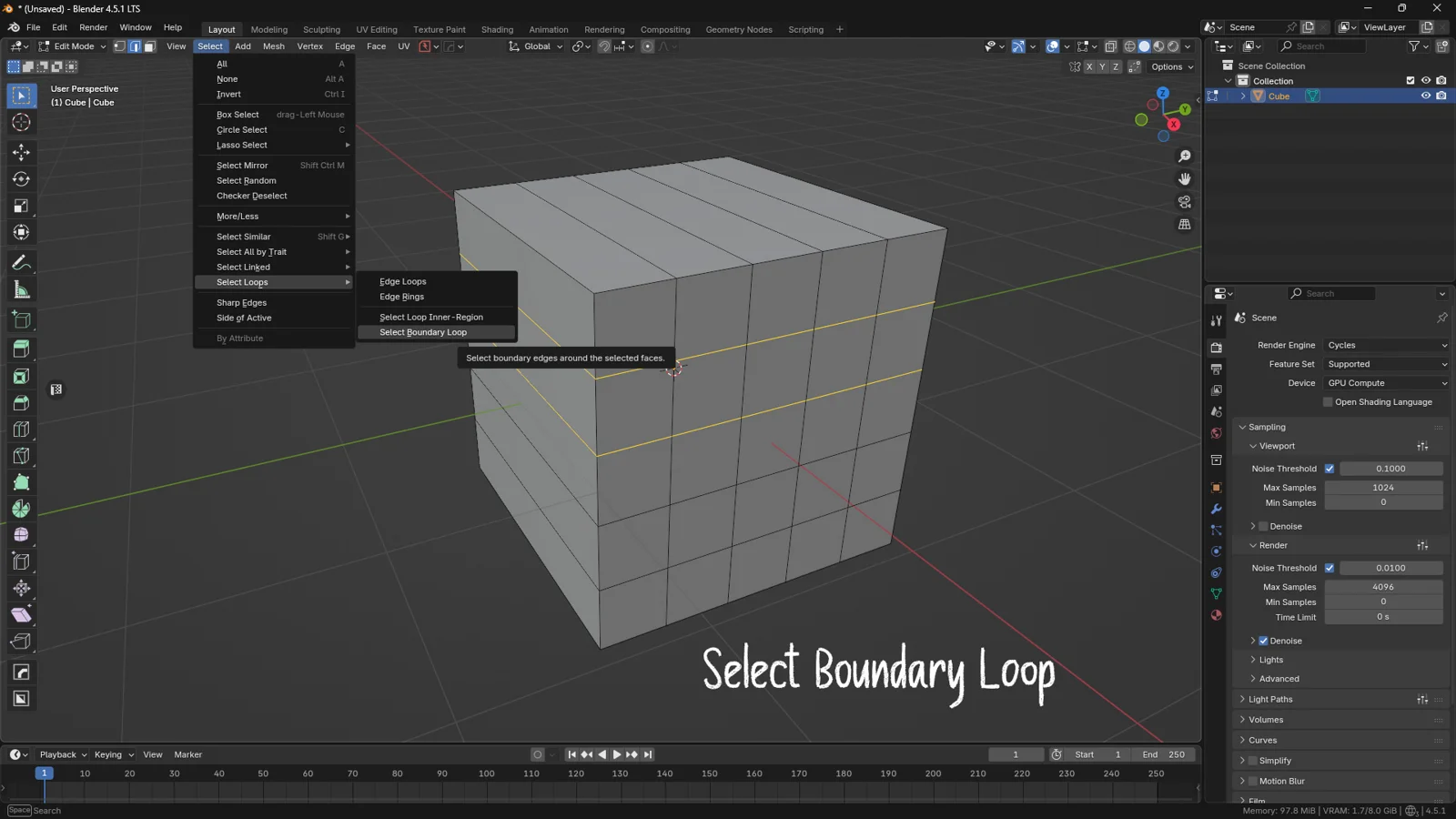
🧱 Boundary Loop
Select → Select Loops → Boundary Loop
→ selects only the perimeter of a selection (great for creating bevel edges)
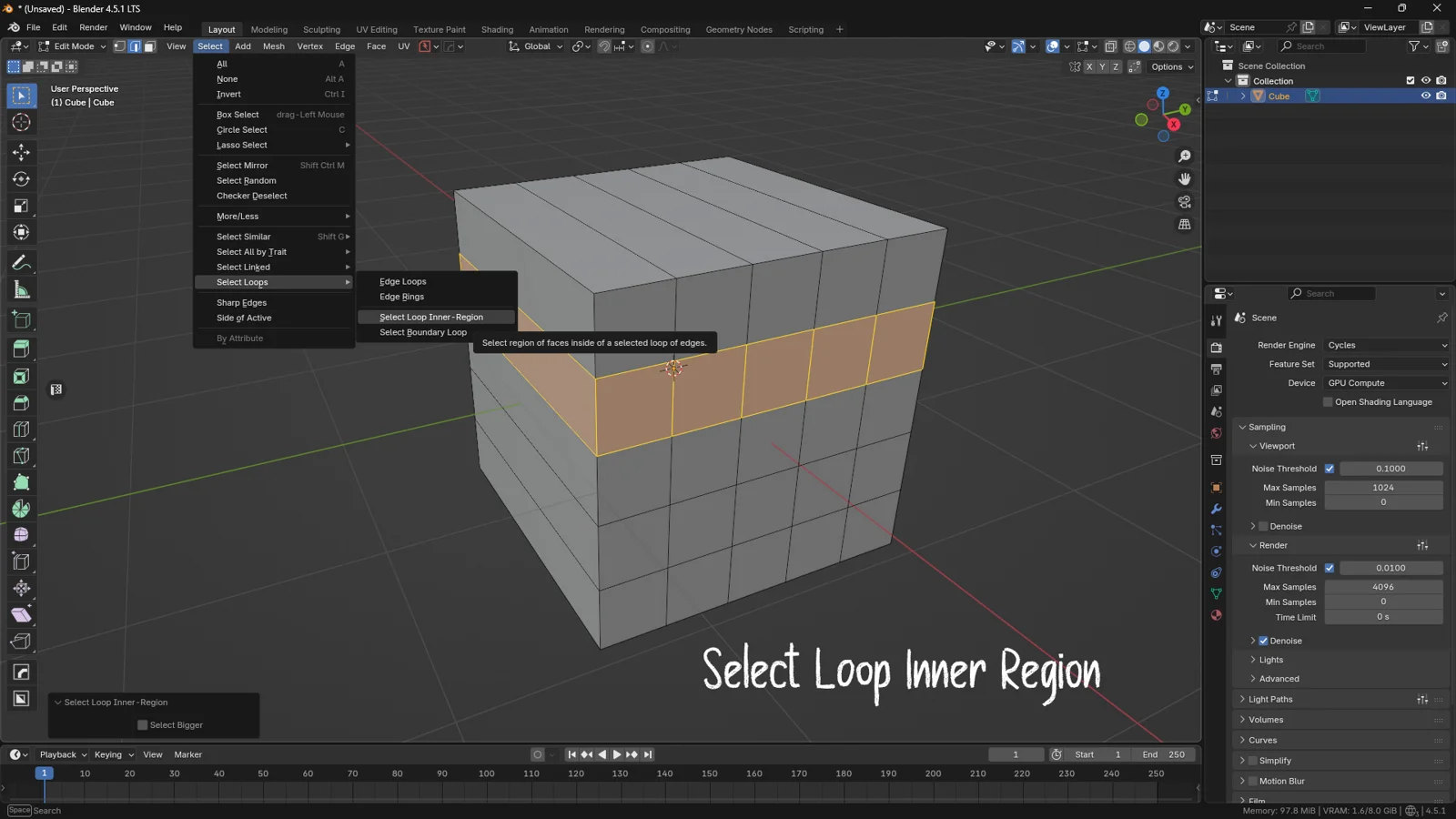
🧱 Loop Inner Region
Select → Select Loops → Select Loop Inner Region
→ fills the space between loops — ideal for deleting panels or isolating mesh sections
💡 3DSkillUp Pro Tip
Before beveling a structural edge, use Ctrl + + once to include supporting geometry — you’ll get smoother, production-quality results.
Final Thoughts
Before learning sculpting, UVs, shaders, or even modifiers — master selection.
Your modeling speed is directly tied to how intentionally and precisely you select.
With these tools you can:
✔ Cut modeling time in half
✔ Manipulate meshes with confidence
✔ Work like a professional production artist
You might also like Normals in 3D: the Invisible Detail That Decides Whether Your Model Actually Works