
At some point, every serious 3D artist runs into the same frustrating situation.
A model looks geometrically correct, the materials are fine, the lighting seems okay — yet something feels off. Shading looks broken, highlights behave strangely, surfaces appear warped for no obvious reason.
In most cases, the issue is not the material or the light.
The real culprit is almost always normals.
Normals are one of those topics many artists skip at the beginning because everything seems to work without fully understanding them. But as soon as you start producing real assets — for games, rendering, realtime engines, or stock marketplaces — normals become impossible to ignore.
They are invisible, but they control how light interacts with your model. And once you understand them, a huge number of shading problems suddenly make sense.
What Normals Really Are (No Math Required)
A normal is simply a direction in 3D space.
It is not geometry.
It has no thickness.
You will never see it in a final render.
A normal is just information that tells the software:
“This surface is facing this direction.”
Whenever light hits a surface, Blender (and any other 3D engine) checks the direction of the normals to decide how bright or dark that surface should be. The more a surface faces the light, the brighter it becomes. The more it faces away, the darker it gets.
That single concept is the foundation of all shading in 3D.
Face Normals: Understanding Inside and Outside
Every polygon face has two sides: an inside and an outside.
Only one of those sides is considered valid for lighting calculations.
The valid side is defined by the face normal.
Those blue lines represent the direction each face is pointing. If a face normal points toward a light source, that face will receive light. If it points away, it will appear darker — or may not render correctly at all.
This inside/outside distinction becomes especially important when working with:
-
hollow objects
-
tunnels and interiors
-
architectural assets
-
game-ready meshes
A surprisingly large number of shading issues come down to faces simply pointing the wrong way.
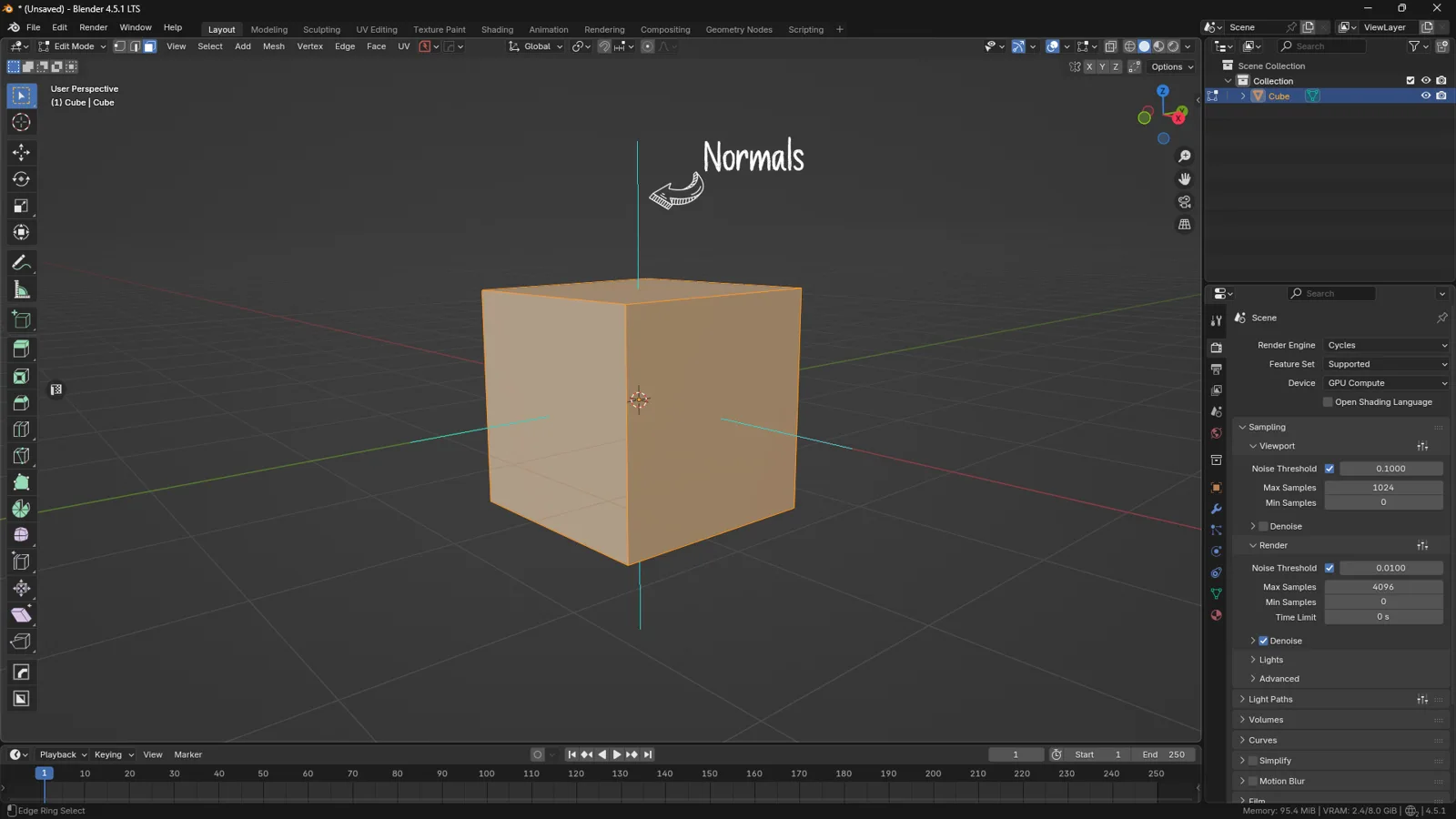
Face normals displayed on a cube in Blender, illustrating how surface direction affects lighting, shading, and normal-based calculations.
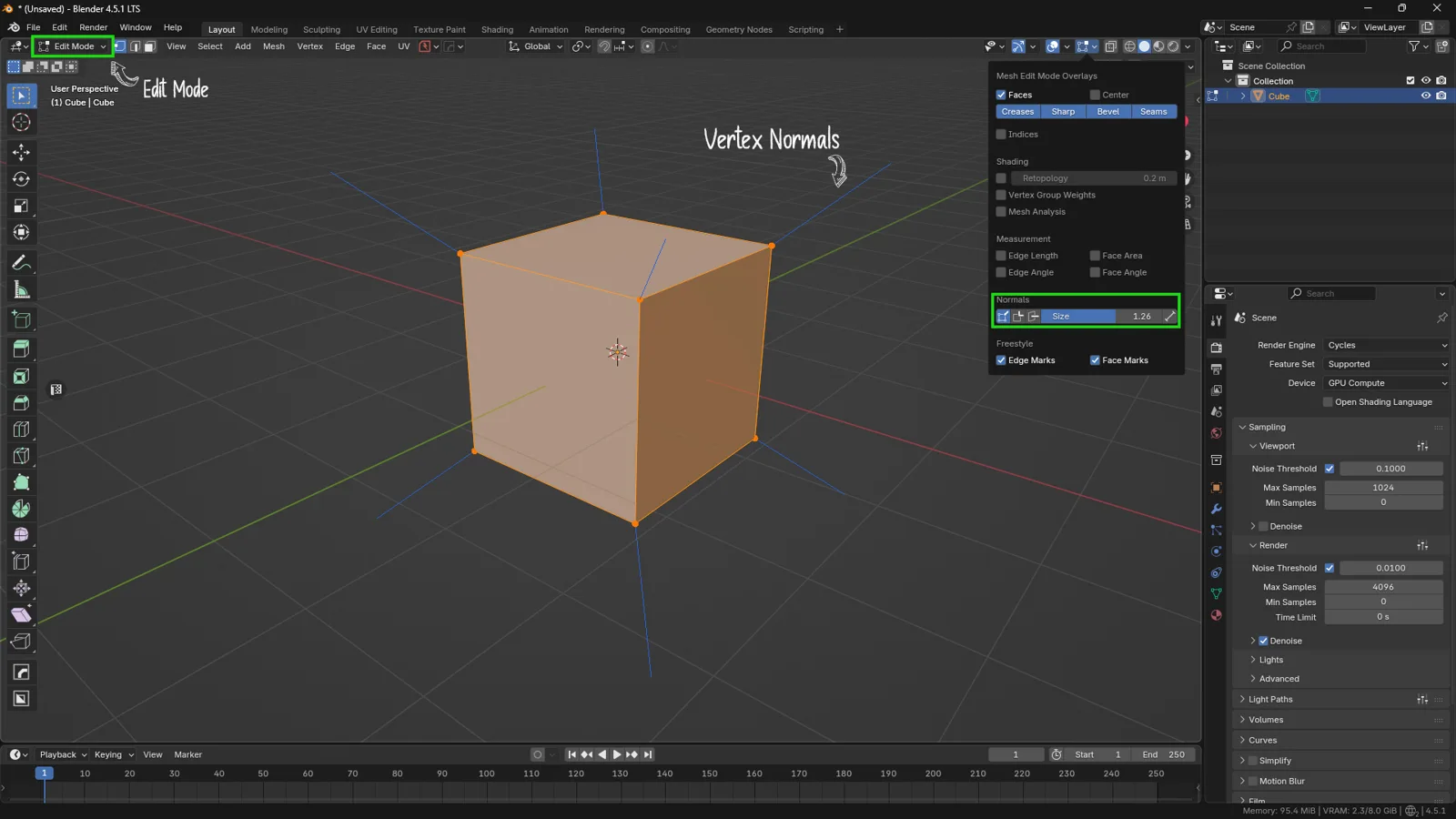
Vertex normals displayed on a cube in Blender Edit Mode.
Vertex Normals: Why Surfaces Can Look Smooth
Face normals are easy to understand, but vertex normals are where things get interesting.
A vertex belongs to multiple faces at once. Its normal is calculated as an average of the surrounding face normals. Instead of pointing in just one direction, it represents a blended direction between its neighboring faces.
Imagine a 90-degree corner: one face points upward, the other points sideways. The shared vertex ends up pointing somewhere in between.
This averaging is what allows smooth shading to exist. Without vertex normals, every model would look faceted and harsh. With them, light transitions smoothly across surfaces, even on low-poly geometry.
The important thing to remember is this:
The geometry does not change. Only the way light is interpreted does.
Flat Shading vs Smooth Shading
With flat shading, each face is shaded using a single normal. The entire face receives the same brightness value, resulting in a sharp, faceted look.
With smooth shading, lighting is interpolated between vertex normals across each face. Different parts of the same face can have slightly different brightness values, creating the illusion of a curved surface.
This principle is essential for modern 3D assets, especially in realtime rendering and games.
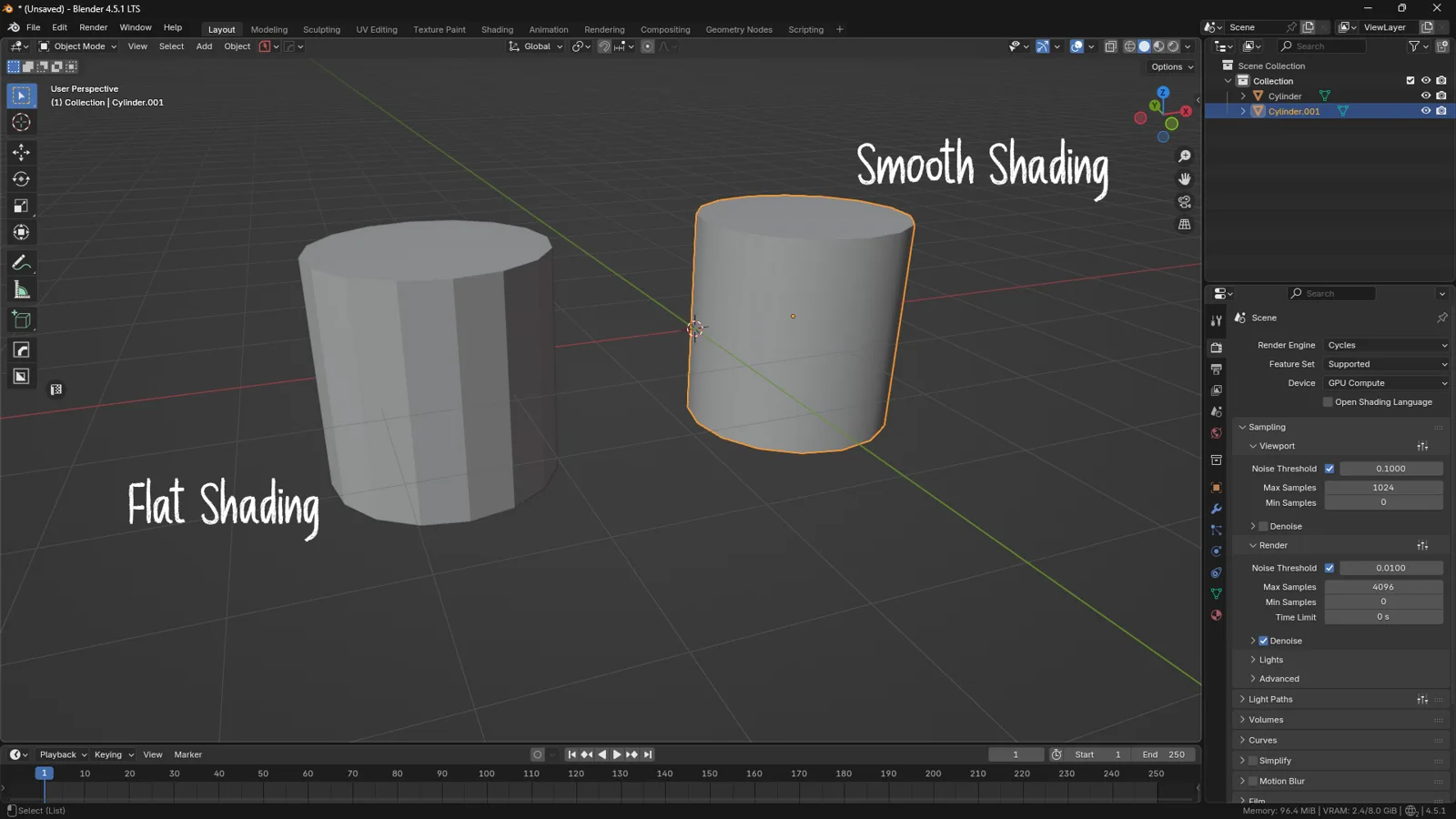
Comparison between flat shading and smooth shading on a low-poly cylinder in Blender, demonstrating how normals influence lighting and surface smoothness.
When Things Go Wrong: Flipped Normals
One of the most common problems in 3D modeling is inconsistent normals — some faces point outward, others inward.
This often happens after:
-
mirroring geometry
-
boolean operations
-
manual face creation
-
importing meshes from other software
The result is broken shading: dark patches, strange highlights, or visible seams that should not exist.
The reason is simple. Vertex normals are calculated from face normals. If some faces point in the opposite direction, the averaging process breaks, and lighting becomes unpredictable.
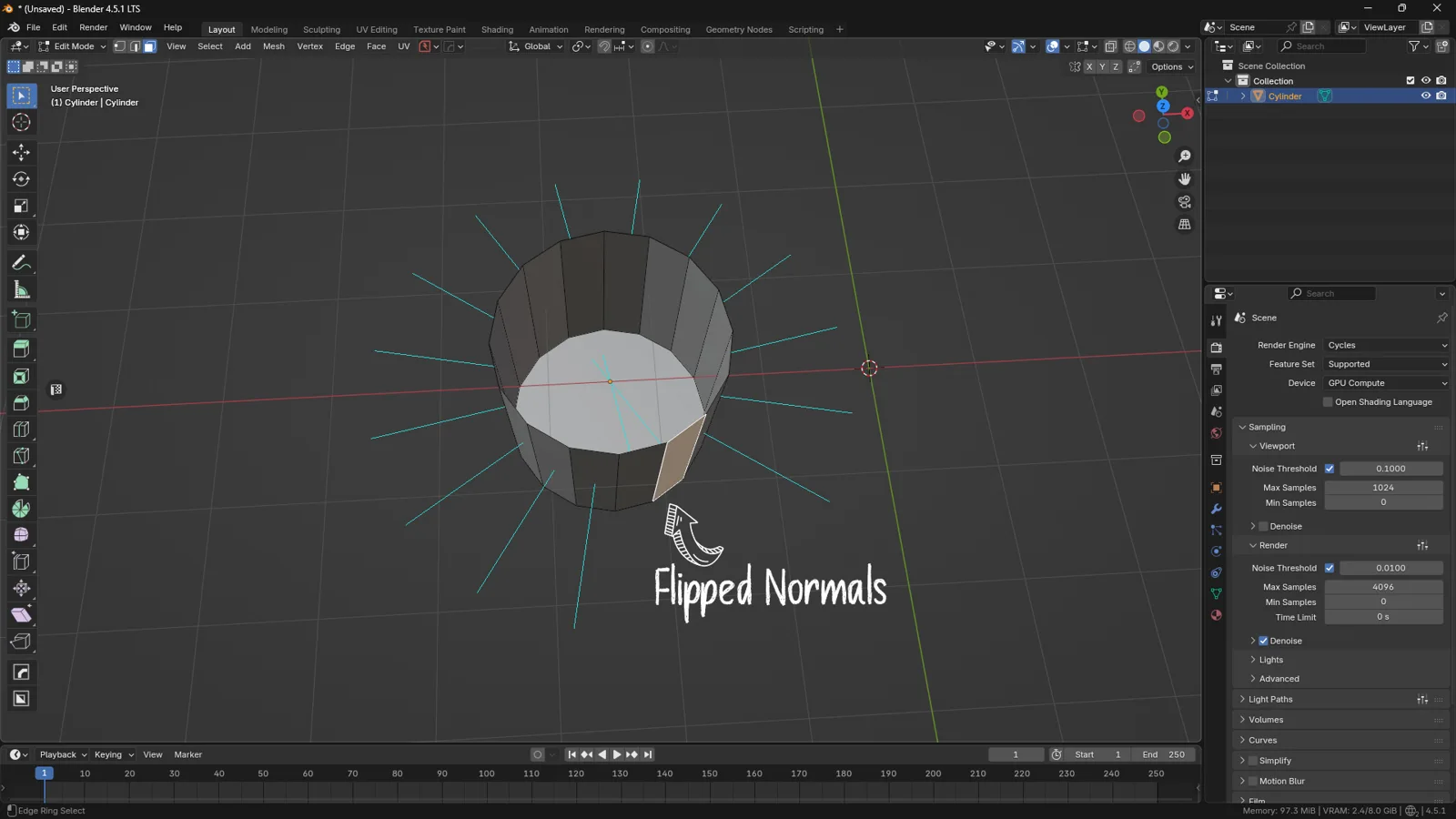
Example of flipped normals on a cylinder in Blender.
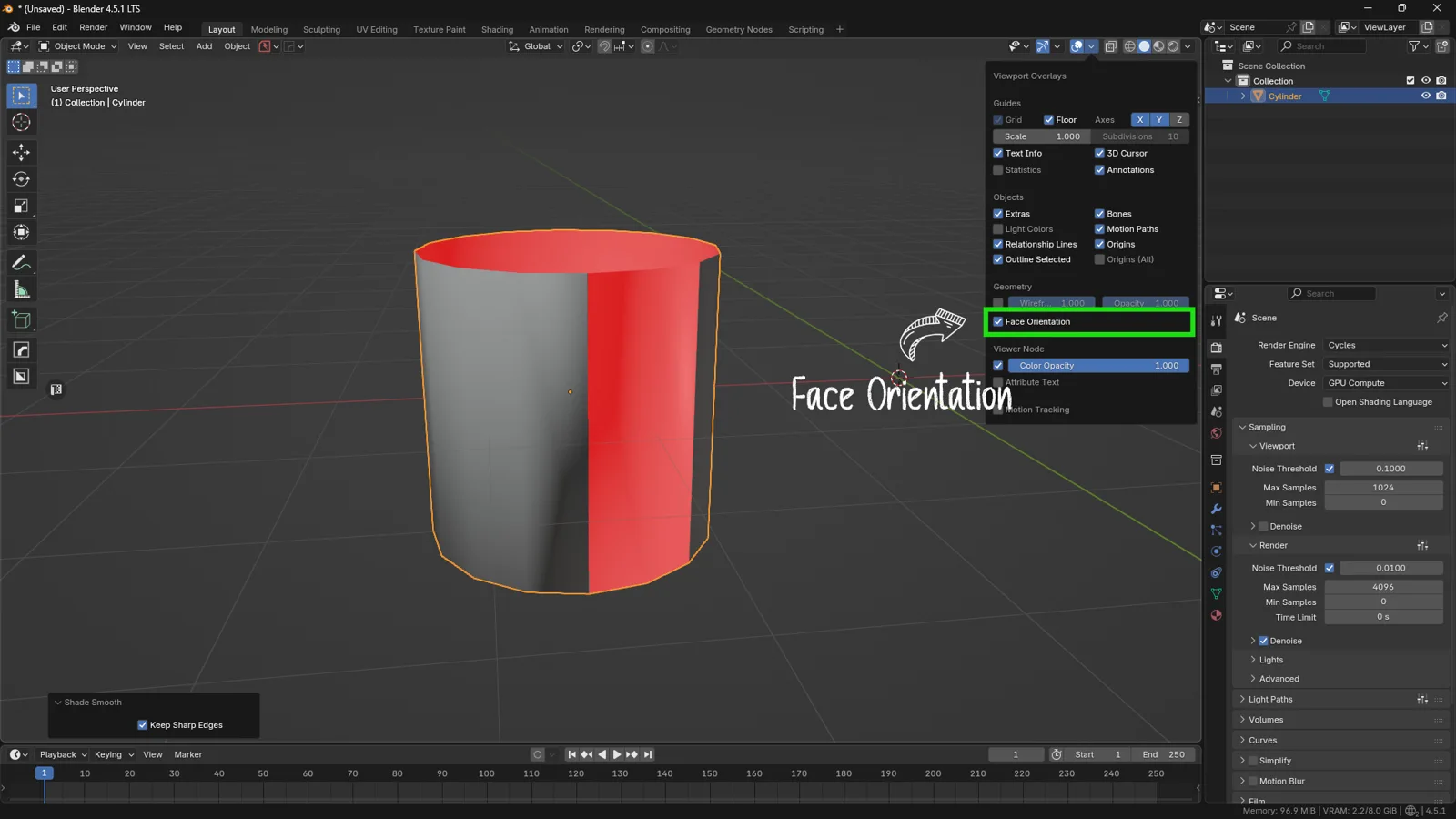
Using Blender’s Face Orientation overlay to visualize correct and incorrect normals, with red faces indicating inverted normals that can cause shading and lighting issues.
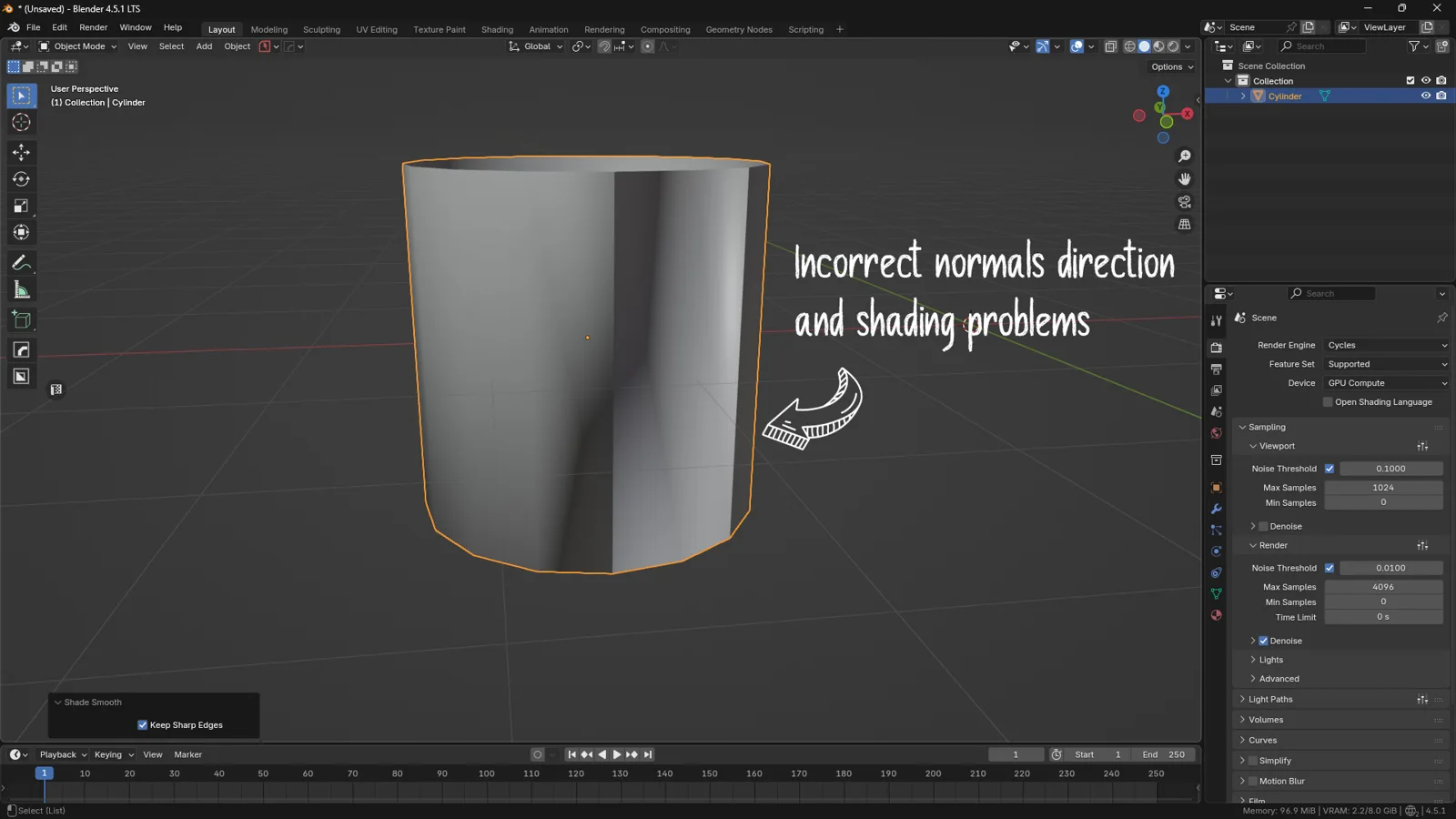
Example of a smooth shaded cylinder in Blender with incorrect normals direction, producing visible shading artifacts and uneven light distribution on the surface.
If correcting face direction does not solve the problem, continue with a mesh shading diagnosis to check smoothing and topology as well.
The One Shortcut That Fixes Most Issues
In most cases, fixing flipped or inconsistent normals takes only a second.
In Edit Mode:
-
Select all faces
-
Press Shift + N (Recalculate Normals)
Blender automatically determines the outside of the mesh and aligns all face normals consistently.
Personal note:
In my own production workflow, if I see even a small shading issue, recalculating normals is always the first thing I try — before touching materials or lights.
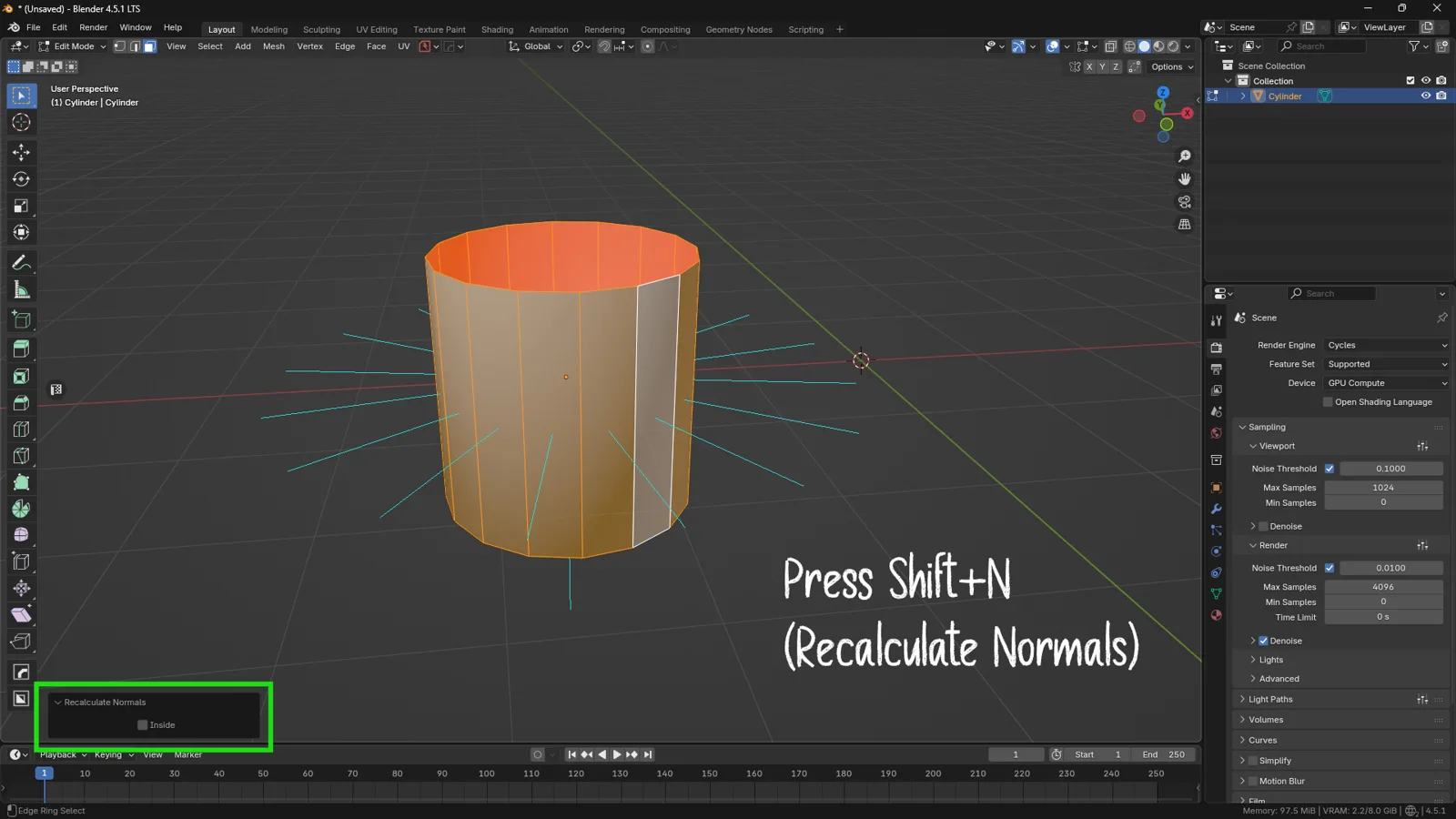
Recalculating normals in Blender using Shift + N to automatically fix flipped normals and restore correct shading and lighting on the model.
Normals and Normal Maps: A Critical Relationship
Normals become even more important when using normal maps.
Normal maps work relative to the underlying face normals. If the face normals are flipped, the normal map reacts incorrectly: raised details appear inverted, and lighting feels wrong.
This is one of the main reasons why checking normals is mandatory before exporting assets for game engines or marketplaces.
Normals Beyond Shading
Normals are not used only for lighting. Blender relies on them for several other features, including:
-
moving geometry along its normal direction
-
particle emission direction
-
certain modifiers and simulations
They are a core piece of data that Blender uses in many different contexts.
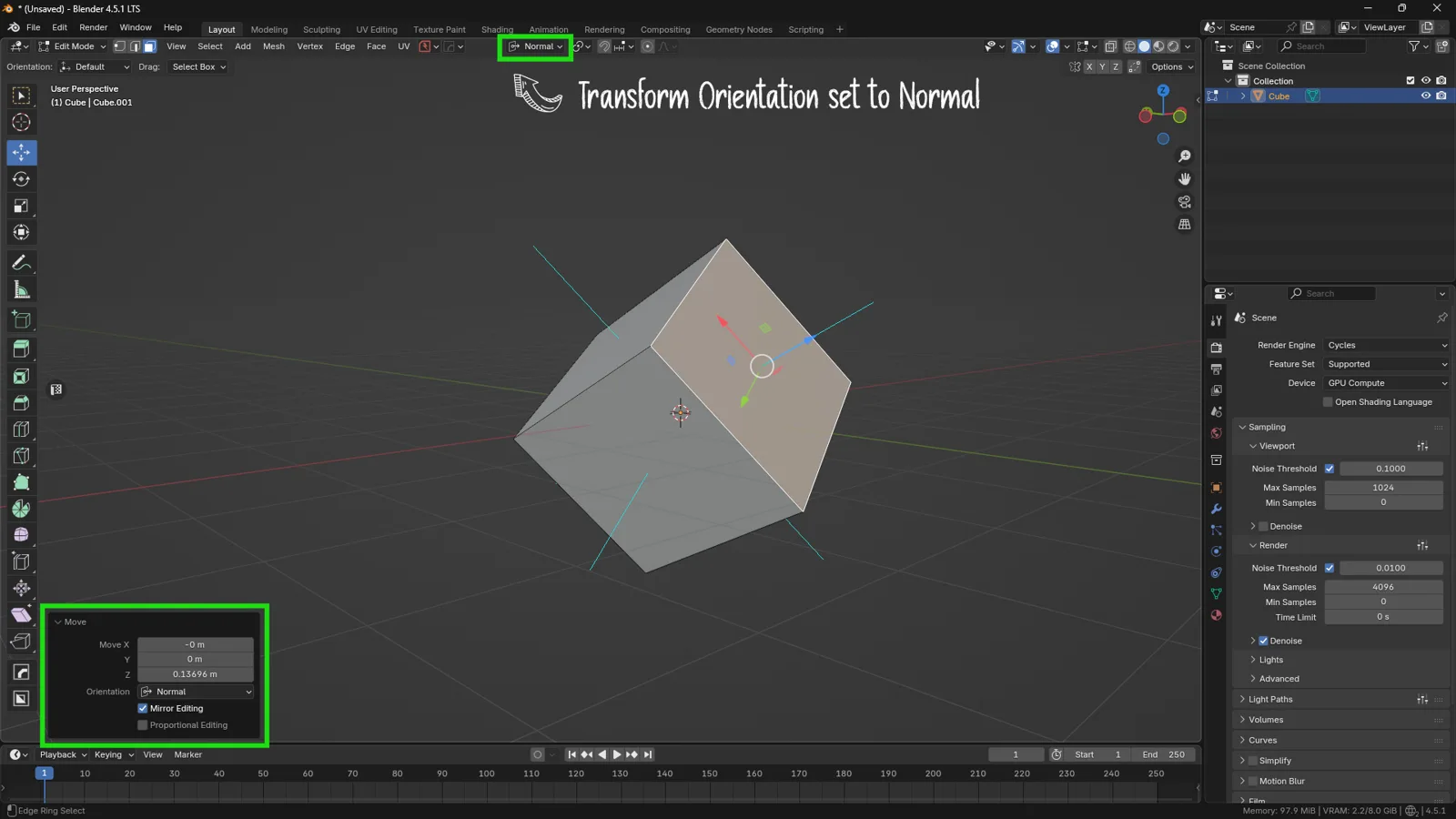
Using the Normal transform orientation in Blender to move selected faces along their own normal direction instead of the global axes.
A clean reference mesh can also supply custom normals through the Data Transfer Modifier, which copies selected data without rebuilding the target shape.
Final Thoughts: Why Normals Matter More Than You Think
Normals are invisible, but they decide whether your model looks correct or broken.
Understanding them does not require advanced math. It simply means knowing:
-
what to check when shading looks wrong
-
how to prevent problems before export
-
why light behaves the way it does on your model
If you create assets for game engines or stock marketplaces, mastering normals is one of those skills that instantly raises your professional level — even when working with simple geometry.
You might also like What Is a Mesh in 3D Modeling?