The Mesh Cache Modifier in Blender is one of those tools that often stays hidden in the modifier list until you actually need it. It is not as visually exciting as a Subdivision Surface modifier, and it is not as commonly used as an Armature or Mirror modifier. However, in technical animation workflows, it can be extremely useful.
This modifier allows you to import and play back vertex-based animation from external cache files, such as MDD or PC2. In practical terms, this means you can reproduce complex mesh deformations without relying on a rig, bones, keyframes, or shape keys.
This is especially useful when working with baked simulations, cloth animation, character deformation exported from another 3D package, or any workflow where the final movement has already been calculated somewhere else.
By the end of this article, you will understand what the Mesh Cache Modifier does, when to use it, how to set it up, and why certain technical details — especially vertex order and topology — are so important.
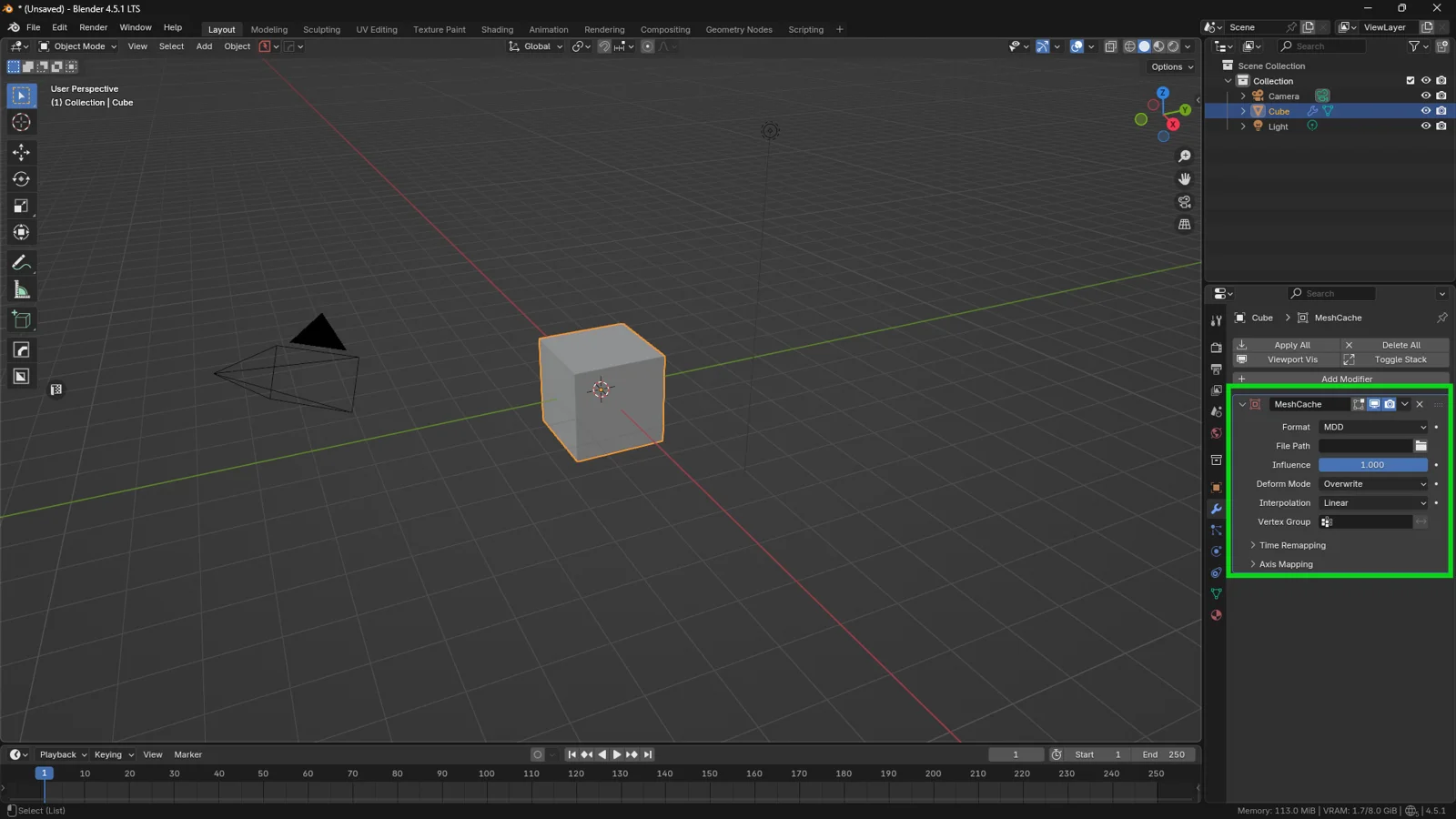
What Is the Mesh Cache Modifier in Blender?
The Mesh Cache Modifier reads a sequence of vertex positions from an external file and applies that data to an existing mesh inside Blender.
A simple way to understand it is this: instead of telling Blender to animate an object with bones or keyframes, you give Blender a file that says:
“At frame 1, these vertices are here.
At frame 2, these vertices move here.
At frame 3, they move again.”
Blender then uses that information to deform the mesh over time.
The important thing to understand is that the Mesh Cache Modifier does not primarily animate the object as a whole. It is not mainly designed to move, rotate, or scale an object through the scene. Its purpose is to animate the internal shape of the mesh, meaning the position of its vertices.
That makes it very different from a standard object animation. You are not animating the transform of the object. You are playing back a baked deformation.
When Should You Use the Mesh Cache Modifier?
The Mesh Cache Modifier is useful when you need to import or reproduce a complex deformation that has already been calculated.
For example, you might use it for cloth simulations created in another software, cached character animation, vertex animation workflows, deformation exported from a simulation system, or pipeline exchange between Blender and other 3D applications.
The main advantage is accuracy. If the cache file is correct and the mesh matches it properly, Blender can reproduce the deformation exactly as it was saved. You do not need to rebuild the rig, recreate constraints, recalculate the simulation, or reconstruct a complicated setup.
This is why the Mesh Cache Modifier is often more useful in technical pipelines than in traditional manual animation. It is a playback system for baked vertex data.
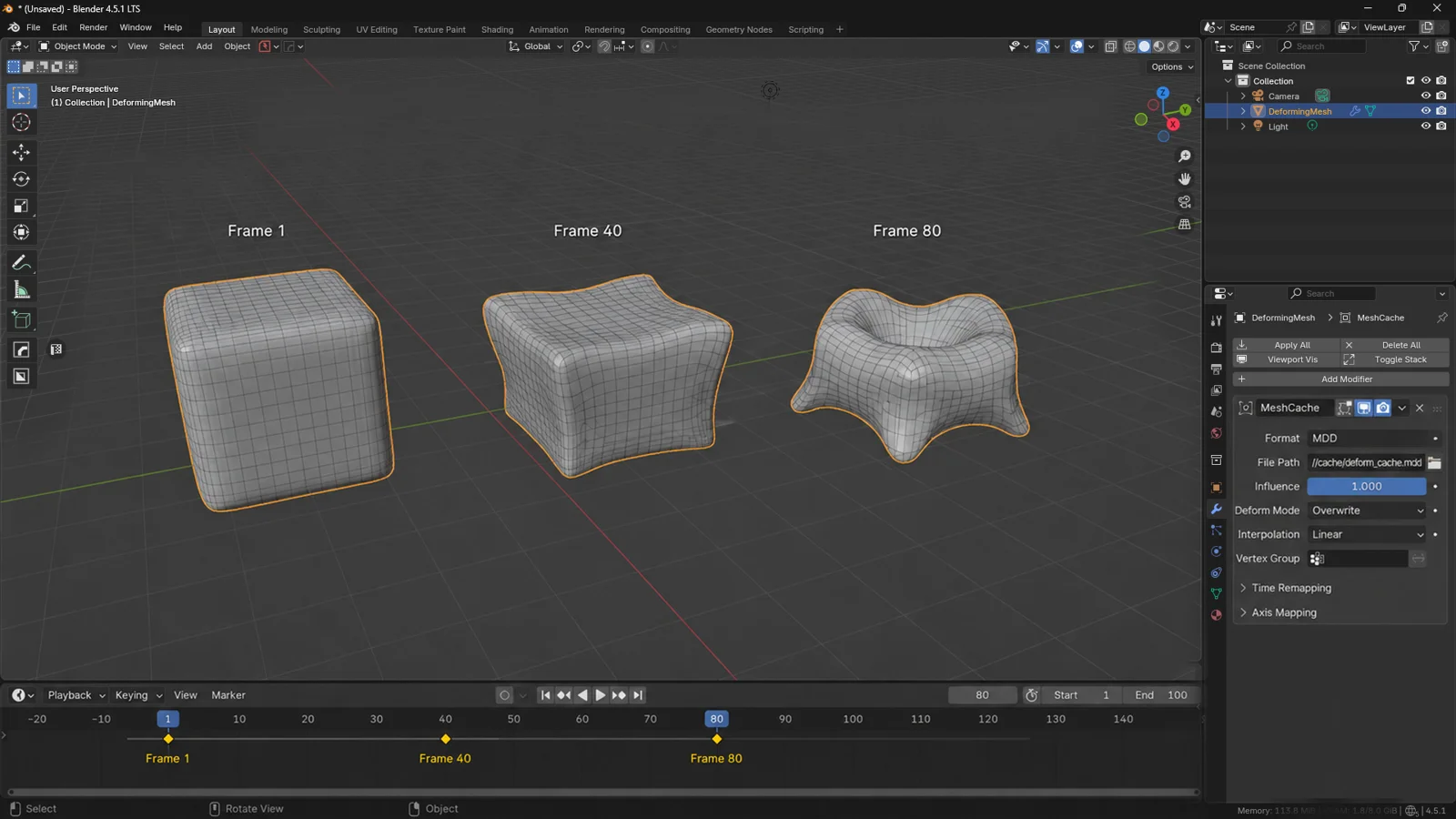
Mesh Cache vs Rig vs Shape Keys
It is important to understand when the Mesh Cache Modifier is the right tool and when it is not.
A rig is ideal when you want the animation to remain editable. With a rig, you can adjust bones, refine poses, change timing, and reuse animation on similar characters.
Shape keys are useful for controlled morph targets, facial expressions, corrective deformations, or specific mesh variations.
The Mesh Cache Modifier works differently. It is closer to a final baked result. You are no longer concerned with how the deformation was created. You simply want Blender to reproduce it correctly.
In other words:
- A rig preserves control.
- Shape keys preserve editable morphs.
- Mesh cache preserves a baked deformation result.
So, if you still need to animate, direct, or heavily modify the movement, the Mesh Cache Modifier is probably not the best choice. But if the deformation is already approved, simulated, exported, or finalized, it can be a very efficient solution.
The Most Important Rule: Same Topology, Same Vertex Order
This is the key concept behind the entire modifier.
The Mesh Cache Modifier only works correctly when the mesh in Blender matches the mesh used to generate the cache file.
That means the mesh must preserve the same:
- vertex count;
- vertex order;
- topology;
- scale and orientation;
- animation frame range.
This is where many problems happen.
A mesh cache file does not contain an intelligent deformation system that Blender can reinterpret freely. It contains positional data connected to specific vertices. If the cache says, “Move vertex number 245 to this position,” Blender needs to find that exact vertex in the mesh.
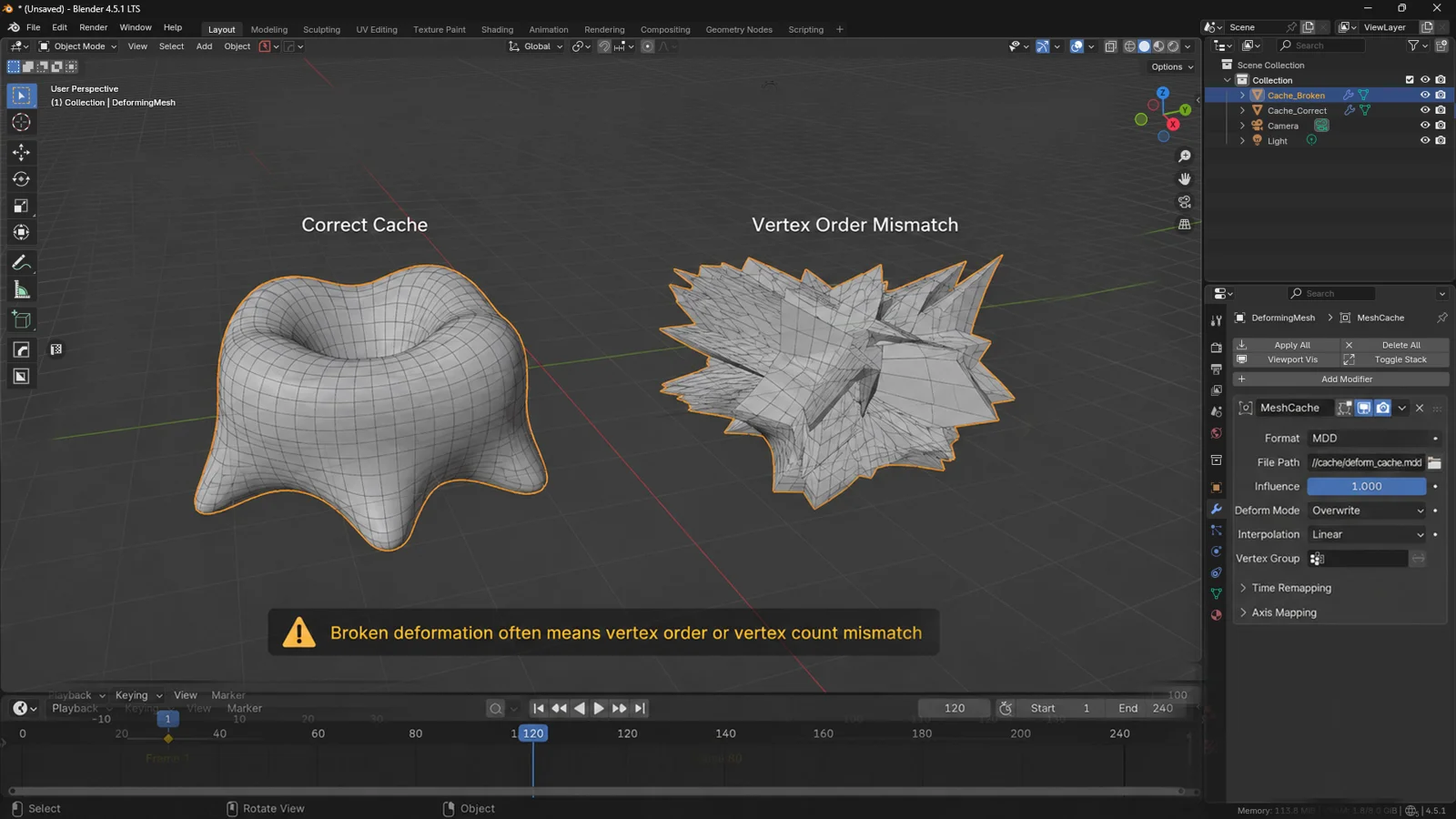
If vertex 245 does not exist, or if the vertex order has changed, the deformation will break. The result may look twisted, exploded, offset, or completely chaotic.
This is why workflows based on OBJ/MDD or OBJ/PC2 require special care. You must preserve the vertex order from export to import. Even a small destructive change to the mesh can make the cache unusable.
What Are MDD and PC2 Files?
The Mesh Cache Modifier works with cache formats that store vertex animation data over time. Two common formats are MDD and PC2.
MDD
MDD is a vertex animation cache format often used to transfer baked mesh deformations between different 3D applications. It stores the changing positions of vertices frame by frame.
PC2
PC2, also known as Point Cache 2, is another vertex-based cache format. It has historically been used in pipelines involving applications such as 3ds Max.
Both formats follow the same general idea: the mesh keeps the same topology, while the external cache file stores where each vertex should be at each frame.
This is why the base mesh and the cache must match perfectly.
Step 1: Prepare the Correct Base Mesh
Before adding the modifier, make sure you are working with the correct mesh.
You should not apply a mesh cache to a random object. You need to apply it to the same base mesh that was used to generate the cache, or to a mesh with identical topology and identical vertex order.
This matters because the Mesh Cache Modifier does not automatically adapt the cache to a new object. If you try to apply a character cache to a cube, Blender has no meaningful way to transfer that deformation correctly.
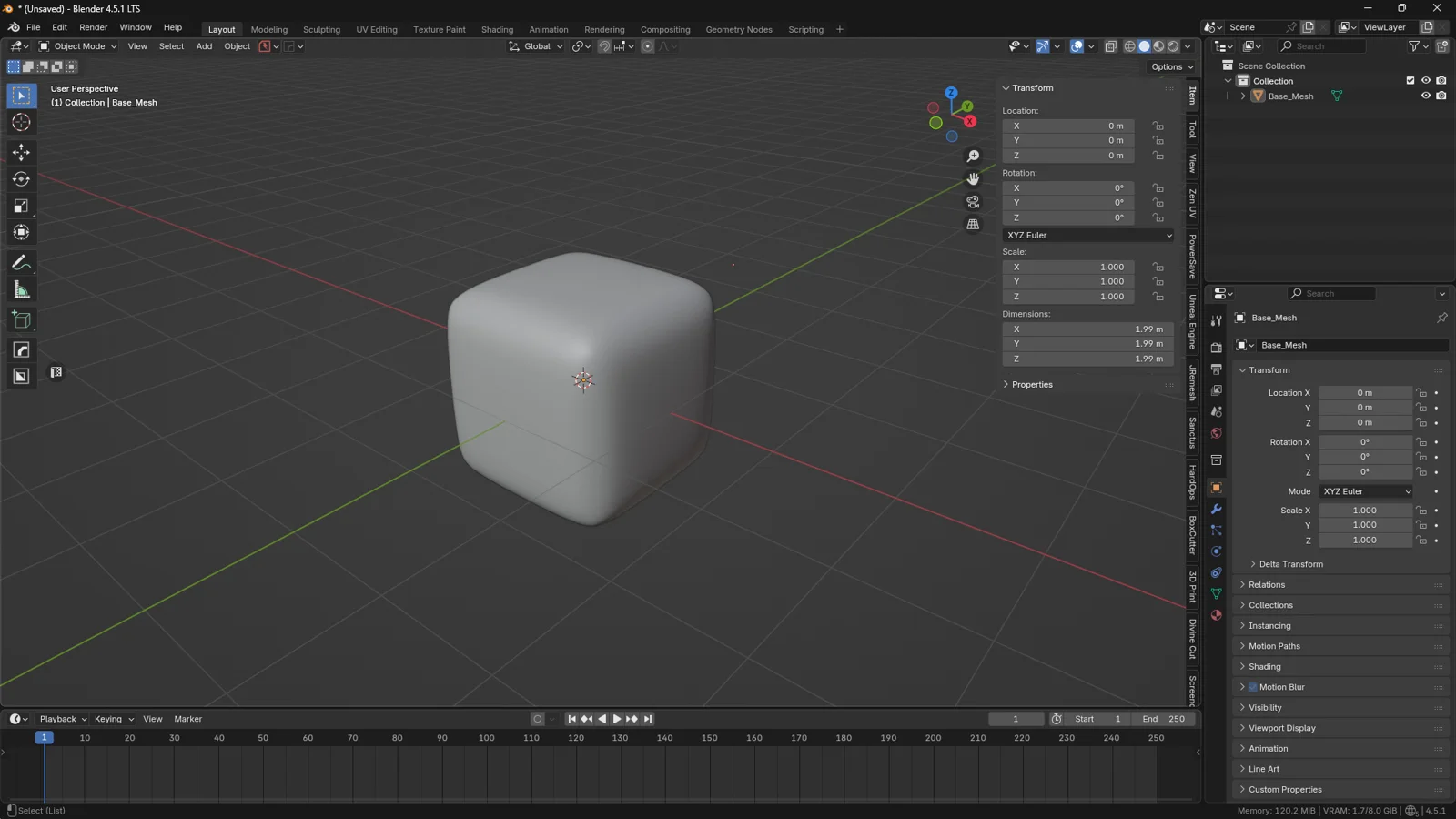
A clean workflow starts with the original mesh. Import it carefully, check its scale and orientation, and avoid destructive topology changes before applying the cache.
If you need to experiment, duplicate the object first. Keep one untouched version as your safe source mesh.
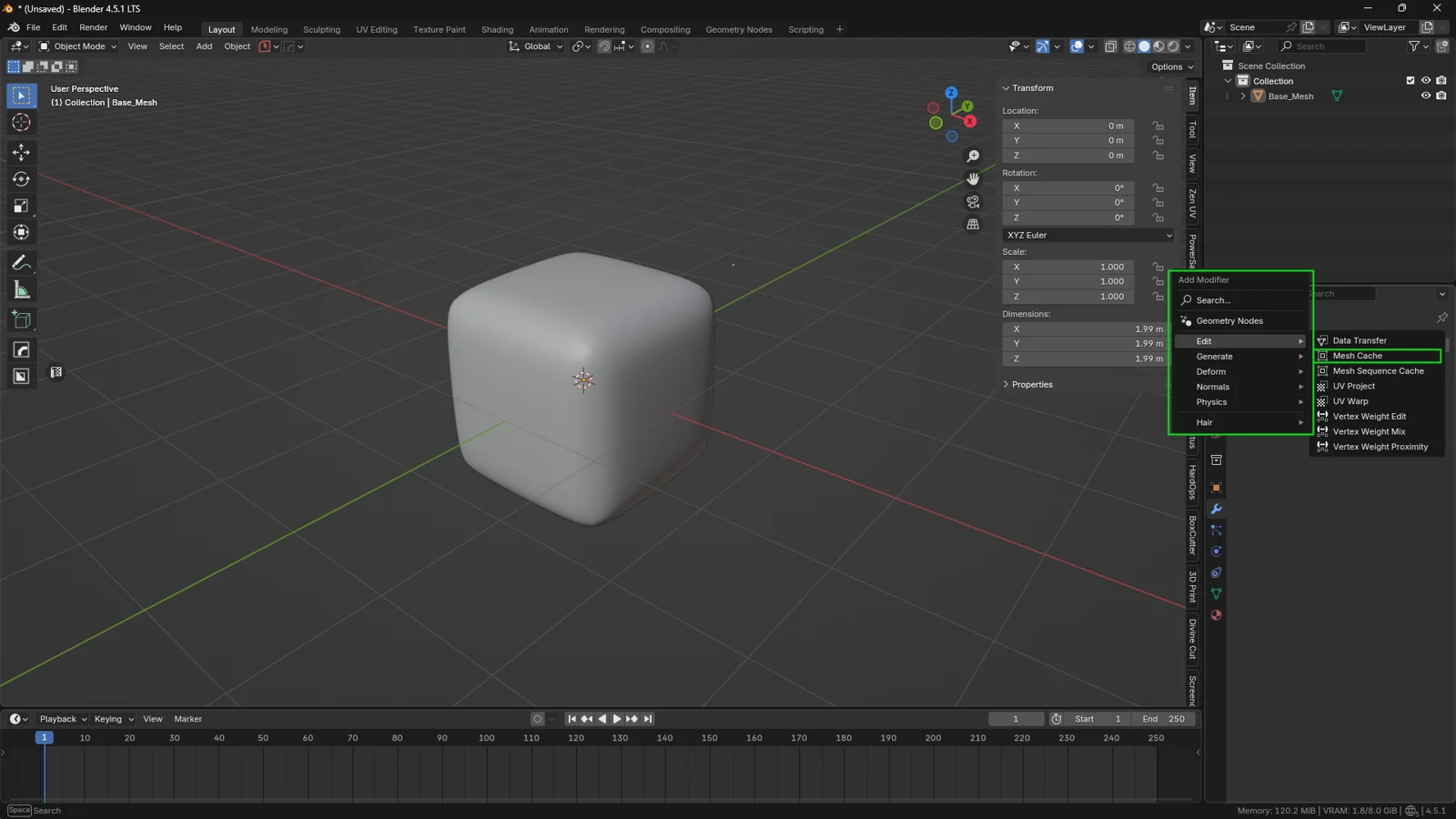
Step 2: Add the Mesh Cache Modifier
Select your object, then go to:
Properties > Modifiers > Add Modifier > Edit > Mesh Cache
Once added, the modifier allows you to load an external cache file.
The idea is simple: the mesh stays in the Blender scene, while the deformation is driven by an external file. This can help keep your workflow organized because you can separate the base geometry, baked animation, materials, lighting, camera setup, and final render scene.
This separation is one of the reasons mesh cache workflows are useful in production. You can receive a finished simulation from another tool and integrate it into Blender without recreating the entire simulation setup.
Step 3: Load the MDD or PC2 Cache File
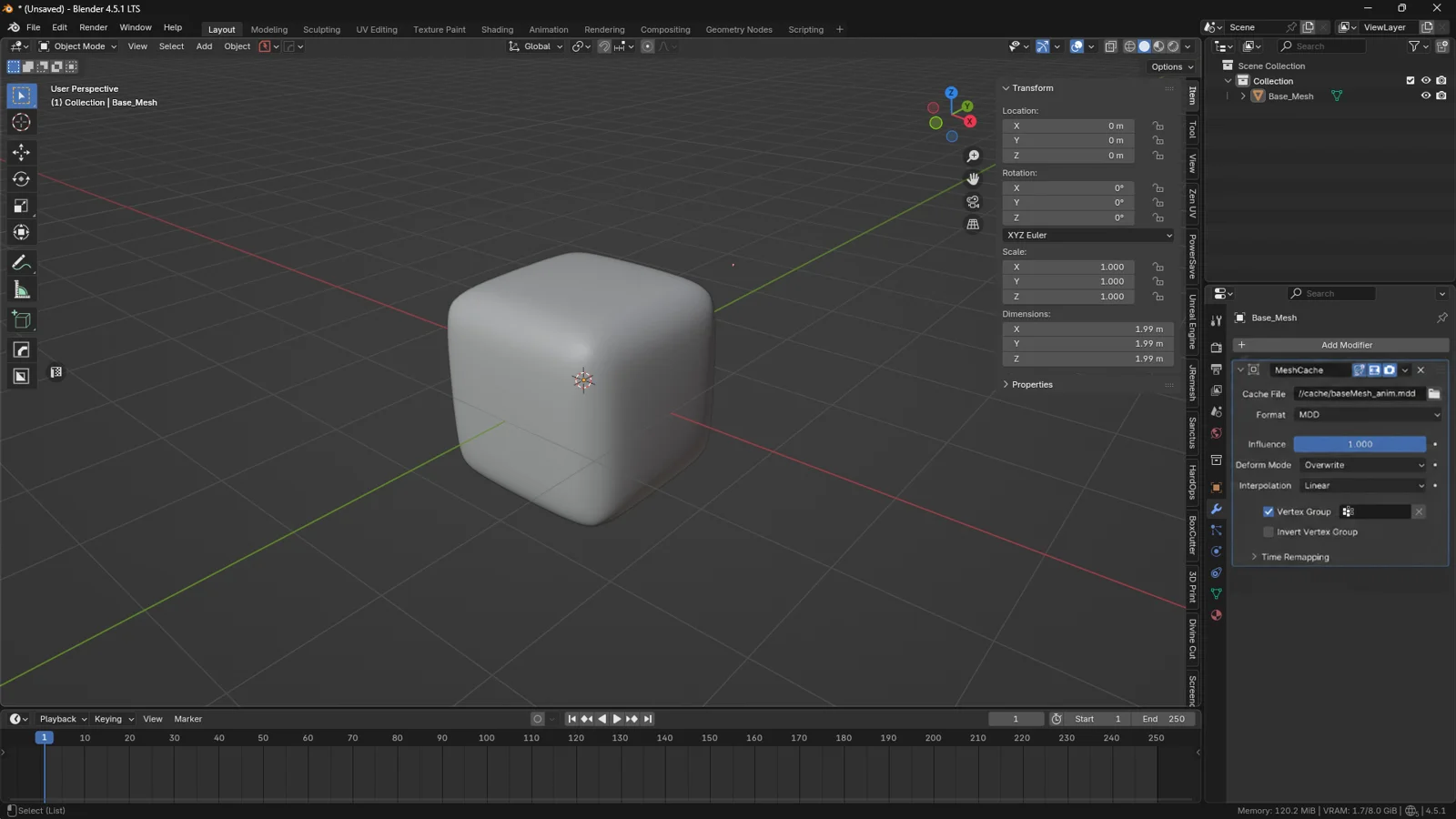
In the modifier settings, choose your external .mdd or .pc2 file.
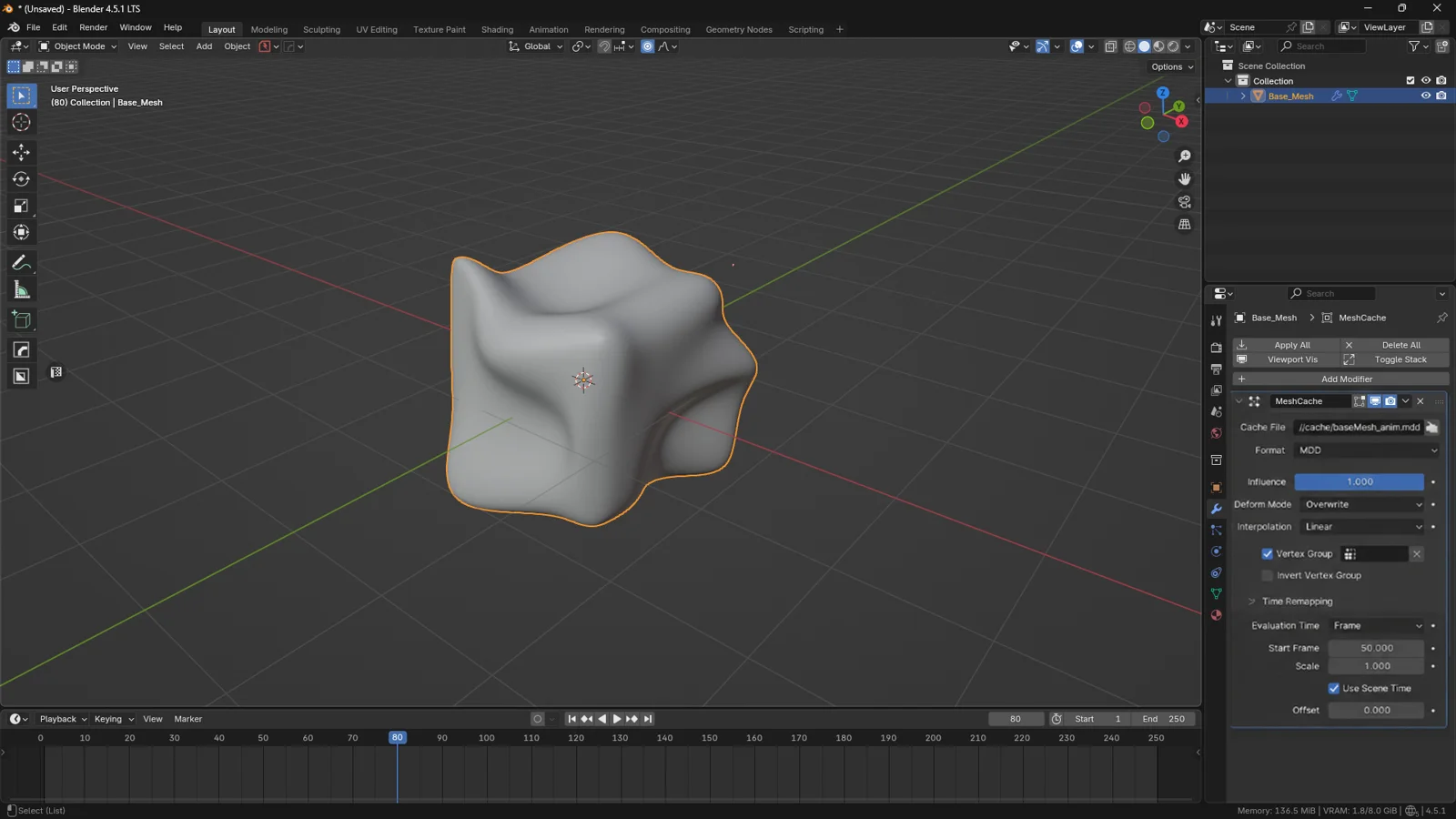
After loading the file, move through the timeline and press Play. If everything is set up correctly, the mesh should start deforming according to the cached animation.
If nothing happens, do not immediately assume that the modifier is broken. In most cases, the issue is related to the timeline, frame range, scale, axis conversion, vertex order, or the wrong mesh being used.
This is why troubleshooting mesh caches requires a methodical approach. You need to check both the file and the mesh relationship.
Step 4: Check Time Evaluation and Frame Range
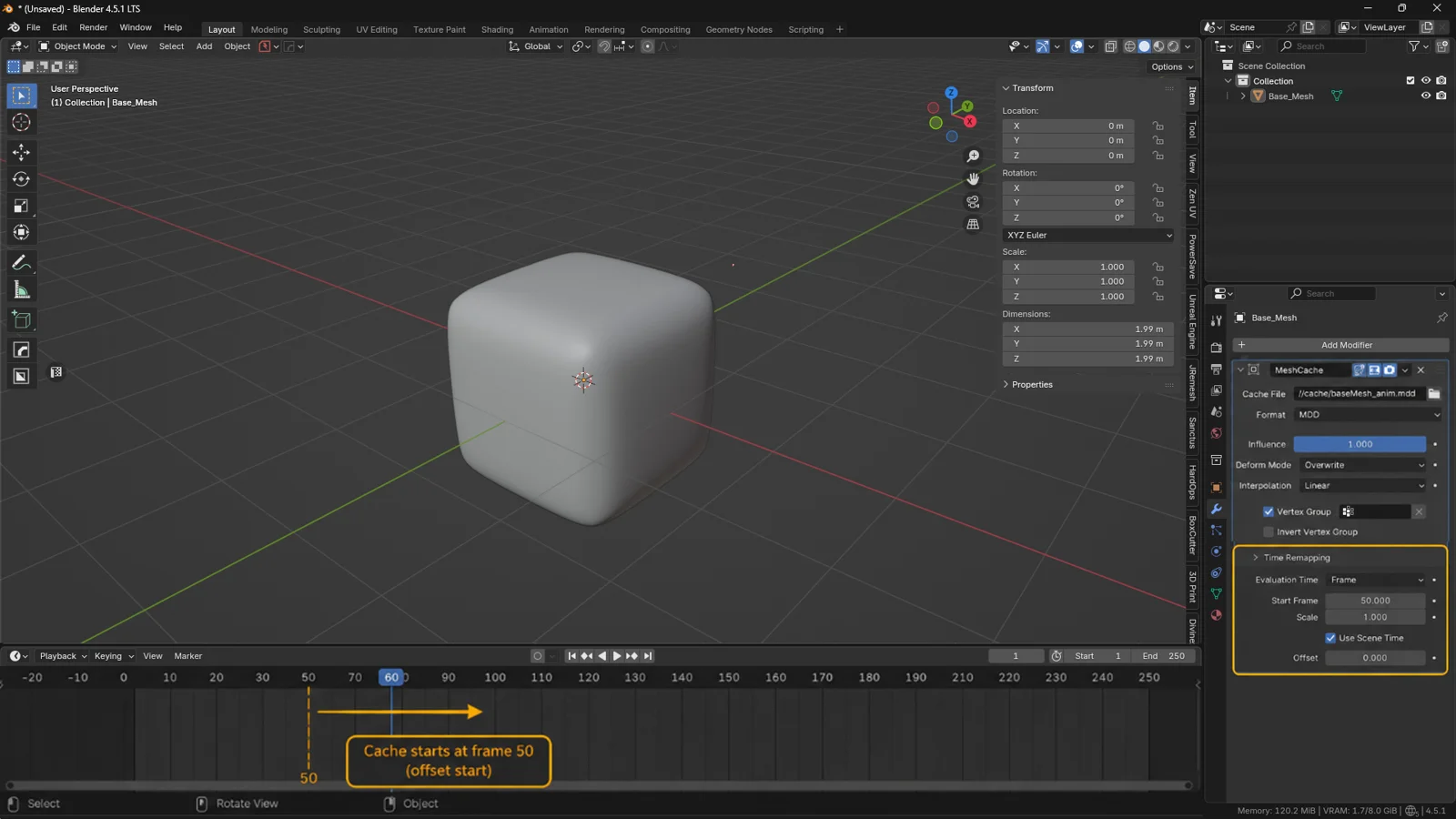
The Mesh Cache Modifier needs to know which part of the cache to read at each point in the Blender timeline.
Depending on your file and modifier settings, you can control how Blender interprets the timing of the cache. This is useful when you need to synchronize the deformation with the rest of your scene.
For example, you may want the cached animation to start at frame 1, delay it until frame 50, slow it down, speed it up, freeze it on a specific frame, or use only a certain section of the original cache.
This is common in real projects. A simulation may have been exported starting from frame 0, while your Blender scene starts at frame 100. Or maybe you only need the second half of the cached movement.
Before editing the mesh or re-exporting the cache, always check whether the issue is simply a timing mismatch.
Step 5: Check Axis, Scale, and Orientation
Another common issue happens when a cache comes from another 3D application.
The mesh may deform correctly, but appear rotated, too large, too small, flipped, or moving in an unexpected direction. Sometimes it may even look like it is exploding through space.
This usually happens because different 3D software can use different axis conventions, unit systems, and orientation settings.
Blender uses Z as the vertical axis, while other software may use a different up axis. When moving cache data between applications, you need to make sure the axis conversion is consistent.
If your mesh looks correct in shape but wrong in direction or scale, the problem may not be the cache itself. It may simply be a mismatch between export and import settings.
Step 6: Pay Attention to Modifier Order
The Mesh Cache Modifier exists inside Blender’s modifier stack. Its position relative to other modifiers can change the final result.
The key question is:
Should the cache deform the mesh before or after the other modifiers?
For example, if you place a Subdivision Surface modifier before or after the Mesh Cache Modifier, the result may change. If you use a Mirror Modifier before the cache, you may break the vertex correspondence. Any modifier that changes topology can prevent the cache from working correctly.
As a general rule, avoid placing topology-changing modifiers before the Mesh Cache Modifier.
Modifiers that affect shading or normals are usually less risky, but you should still test the result carefully.
3DSkillUp Pro Tip
When working with vertex-based caches, always keep a backup copy of the original mesh before experimenting.
You can use:
- Shift + D to duplicate the object;
- Alt + D to create a linked duplicate;
- Ctrl + A > Apply Scale only when you are sure the applied scale is consistent with the cache.
For a cleaner workflow, use clear object names such as:
Character_Base_CacheSourceCharacter_MeshCache_TestCharacter_Render_Final
This may sound like a small detail, but it becomes very useful when a project contains multiple cache files, test versions, and final render assets.
Materials, UVs, and Shading
The Mesh Cache Modifier changes vertex positions, but it does not replace your material setup.
In many cases, you can keep your existing materials, UV maps, PBR textures, normal maps, roughness maps, and shader networks. This is one of the advantages of the system: you can import a complex deformation while preserving the visual setup of the asset.
However, this only works properly if the mesh matches the cache. If the geometry is no longer aligned with the original cached data, UVs and shading may also look wrong.
In that case, the material is not necessarily broken. The real problem is that the geometry is being deformed incorrectly.
Common Mesh Cache Problems and How to Fix Them
The Mesh Explodes or Deforms Randomly
This is usually caused by a mismatch between the mesh and the cache.
The most likely causes are changed vertex order, incorrect vertex count, the wrong base mesh, or a topology-changing modifier placed before the Mesh Cache Modifier.
The best solution is to go back to the original source mesh and verify that the cache was generated from that exact geometry.
The Mesh Does Not Move
If the mesh does not move at all, check whether the cache file is loaded correctly, the timeline is inside the cache frame range, the modifier is enabled in the viewport, and the correct object is selected.
Also check the frame offset. Sometimes the cache is working, but the animation starts outside the visible section of your timeline.
The Mesh Is Deformed but the Scale Is Wrong
This is usually related to unit conversion or unapplied transforms.
Check the object scale, scene units, export settings from the source software, import settings in Blender, and axis orientation.
The Cache Works in the Viewport but Not in the Render
In this case, check whether the modifier is enabled for rendering. Blender modifiers have separate visibility controls for the viewport and final render.
Mesh Cache and Performance
A vertex cache can become heavy, especially when the mesh has many vertices, the animation is long, the cache file is stored on a slow drive, or the scene contains multiple cached objects.
The Mesh Cache Modifier can save time because it avoids recalculating simulations or complex rigs. However, that does not mean it is always lightweight. Blender still needs to update many vertex positions over time.
To improve performance, work with optimized meshes whenever possible. Use low-poly proxy versions during layout, reduce unnecessary frame ranges, and avoid stacking heavy modifiers after the cache while you are still blocking the scene.
For final rendering, you can switch back to the high-quality cached mesh.
3DSkillUp Pro Tip
For client presentations or final production renders, it is often useful to create two versions of the scene:
A WORK scene, lightweight and easy to navigate.
A RENDER scene, containing the final cache, materials, lights, and camera setup.
You can also organize your project with separate collections for cache sources, low-poly proxies, final meshes, test imports, and render assets.
This keeps the scene cleaner and reduces the risk of accidentally modifying the wrong object.
Mesh Cache vs Mesh Sequence Cache
Blender also includes a Mesh Sequence Cache Modifier, which is often used in workflows involving Alembic files.
The names are similar, but the use cases are different.
The Mesh Cache Modifier is mainly associated with formats such as MDD and PC2. The Mesh Sequence Cache Modifier is more commonly used for structured cache workflows, especially with Alembic.
A simple way to think about it is:
- Use Mesh Cache Modifier for MDD and PC2 vertex cache workflows.
- Use Mesh Sequence Cache Modifier for Alembic and more complex external cache pipelines.
This distinction matters because many users confuse the two modifiers. If you import an Alembic file, Blender may handle the cache in a different way compared to a simple MDD or PC2 point cache.
When Not to Use the Mesh Cache Modifier
The Mesh Cache Modifier is powerful, but it is not always the right choice.
Avoid it when you need to keep the animation highly editable, animate a character interactively, export a full rig to a game engine, retarget animation, or work with topology that changes over time.
In those cases, you may be better served by armatures, shape keys, Alembic, Geometry Nodes, native simulations, custom rigs, or FBX export with bones.
The Mesh Cache Modifier makes the most sense when the deformation is already defined and you simply need to reproduce it accurately.
Practical Workflow Example
Imagine receiving an approved cloth simulation from another software.
Instead of rebuilding the cloth setup in Blender, adjusting collision settings, recalculating physics, and trying to match the original result, you can import the base mesh, add the Mesh Cache Modifier, load the MDD or PC2 file, check the timeline, correct scale and axis issues if needed, apply materials, set up lighting, and render the final scene.
The value of this workflow is efficiency. You are not recreating the simulation. You are using Blender to render or integrate the final baked result.
Final Checklist Before Rendering
Before sending the scene to render, check that the cache starts at the correct frame, the timeline covers the full animation range, the mesh does not show artifacts, scale and orientation are correct, the modifier is active for rendering, materials and UVs still behave properly, no destructive modifier is breaking the topology before the cache, and the cache file path is still valid.
If you need to move the project to another computer, consider using relative paths and keeping the cache files organized inside the project folder.
Conclusion
The Mesh Cache Modifier in Blender is a technical but very useful tool for working with baked vertex-based animation. It does not replace rigs, shape keys, or editable animation systems. Its strength is different: it allows you to import and reproduce complex deformations that have already been calculated elsewhere.
The most important rule is simple: the mesh and the cache must speak the same language.
That means same topology, same vertex order, coherent scale, correct orientation, and a matching frame range.
Once you understand that principle, the Mesh Cache Modifier becomes much less mysterious. It becomes a practical tool for simulations, external pipelines, baked character deformations, and final animation playback inside Blender.
For artists working with technical assets, simulations, or cross-software workflows, it is one of those modifiers that may not be needed every day — but when you need it, it can save a huge amount of time.