1. Introduction
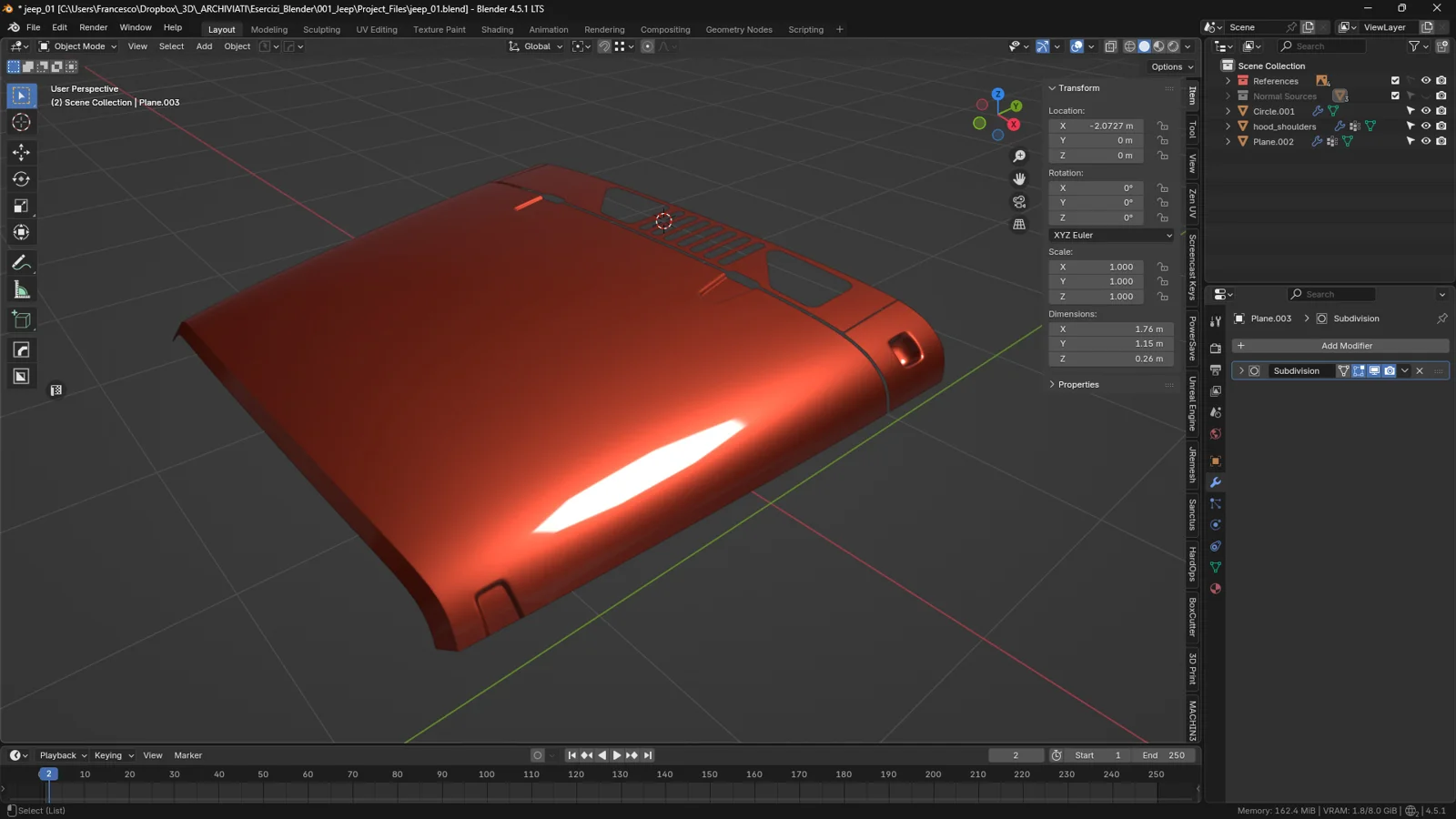
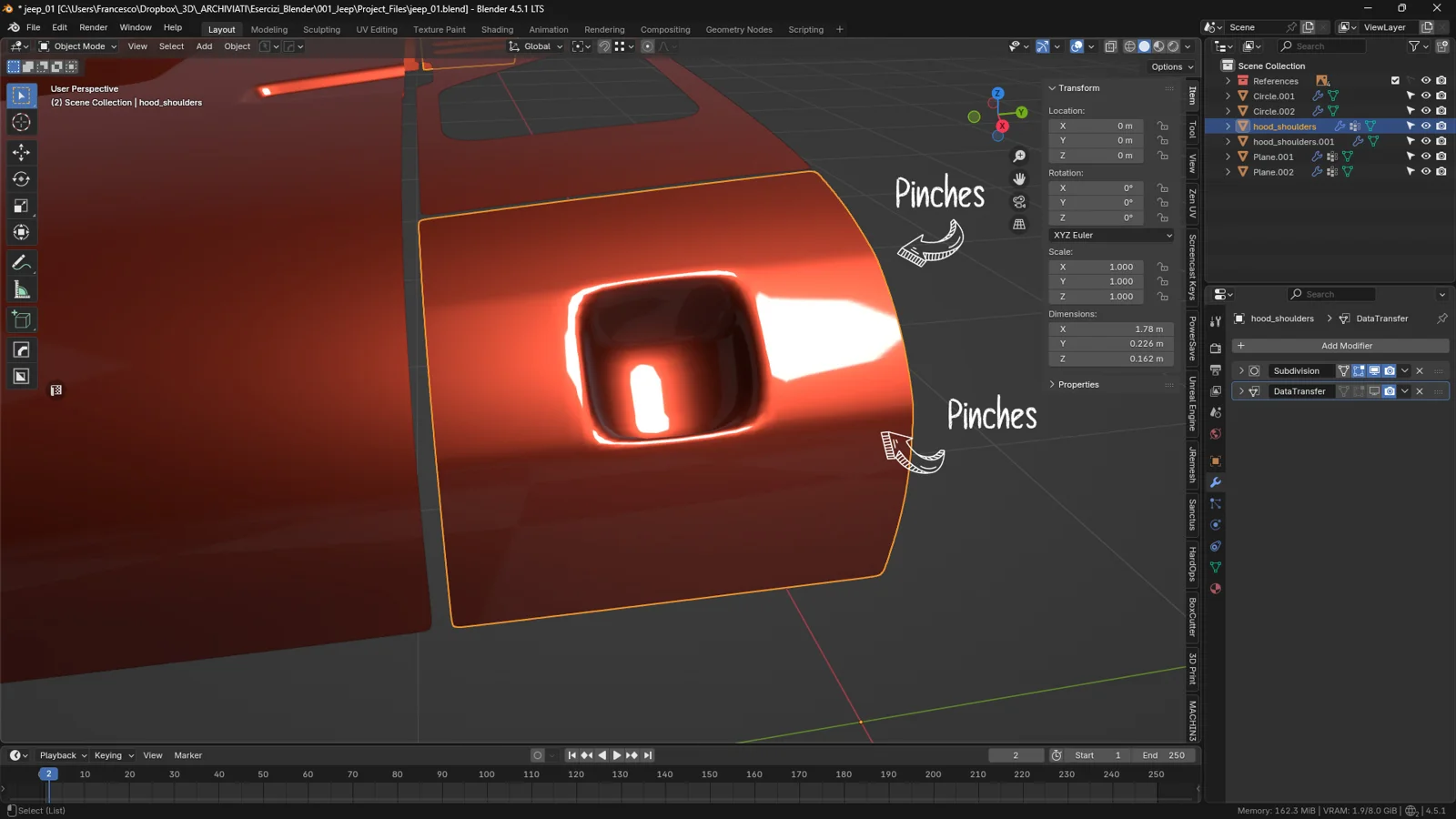
When working on curved surfaces—like a car hood, a fender, or any smoothly contoured panel—cutting a hole can quickly turn into a shading nightmare. A simple inset or boolean operation is often enough to produce those harsh lines around the opening, commonly known as pinches: tiny light distortions that appear where geometry becomes too tight and the normals can no longer follow the surface curvature smoothly.
This issue is extremely common in hard-surface modeling and becomes even more noticeable on automotive shapes, where clean reflections are essential. Even if the hole is modeled correctly, the lighting often appears “broken” in that area: distorted highlights, overly bright spots, uneven gradients… basically everything you don’t want to see on a smooth, reflective car body.
These artifacts don’t appear because the mesh is wrong, but because cutting a hole disrupts the flow of the normals. As long as the surface is continuous, Blender interprets the curvature smoothly; the moment you introduce an opening, the normals are interrupted and the surface loses its visual harmony.
In this tutorial, we’ll explore a highly effective method to fix these shading issues without rebuilding the mesh: duplicating the original surface and using the Data Transfer modifier to copy pristine normals from the intact model onto the version with the hole. It’s a powerful, non-destructive technique ideal for automotive modeling and high-end hard surface workflows.
This technique is especially useful for:
-
automotive artists who need showroom-clean surfaces with zero artifacts,
-
hard-surface modelers working on complex panels,
-
game artists who require clean shading even with a limited polygon budget.
Whether you’re creating a hood scoop for a Jeep or an opening for a headlight, the principle remains the same: normal quality is what separates a professional model from one that looks “crumpled.”
2. Why Shading Breaks When We Create a Hole
To understand why a simple opening can completely ruin the shading on a curved surface, we need to take a step back and talk about a fundamental concept in 3D graphics: normals.
Every vertex in a mesh has a direction called its normal, which tells the render engine how light should behave on that point. Normals don’t define the actual geometry, but they describe its illumination—how smooth a surface appears, how it reflects light, and where transitions should look sharp or soft.
In simple terms, they are the “mental map” Blender uses to interpret a surface.
When a surface is continuous—like an untouched car hood—the normals form a natural, uninterrupted flow. They follow the curvature smoothly: each normal blends into the next, allowing reflections to glide seamlessly across the surface.
But the moment we cut a hole, this balance collapses.
Adding an opening introduces a sudden topological disruption: loops that once flowed along the surface now get redirected, stacked, compressed, or forced to converge.
This congestion of loop cuts is one of the main causes of pinches, especially in automotive modeling where holes often create dense edge loops packed tightly together.
As a result:
-
normals change direction too abruptly,
-
reflections break apart,
-
harsh highlights and pinches appear,
-
and the whole asset starts looking less “automotive” and more “dented.”
It’s not the hole itself that causes the problem—it’s the loss of continuity.
A curved surface wants to maintain a steady, harmonious flow. When we force it to “bend around” a hole while also compressing multiple edge loops in a tight area, Blender no longer knows how to interpolate the light smoothly.
This is where the Data Transfer modifier becomes invaluable.
In simple terms, it lets you borrow normals from a perfect surface—a duplicate without any openings—and apply them to the version with the hole. This gives you the best of both worlds:
-
the geometry stays exactly as modeled, hole included,
-
but the shading continues to follow the original curvature,
-
restoring a smooth, clean, artifact-free look.
It’s like telling Blender:
“I know the geometry here is complicated now, but please use the normals from the intact hood… those were the correct ones.”
The result is impressively clean—especially on automotive surfaces where even tiny imperfections become extremely visible.
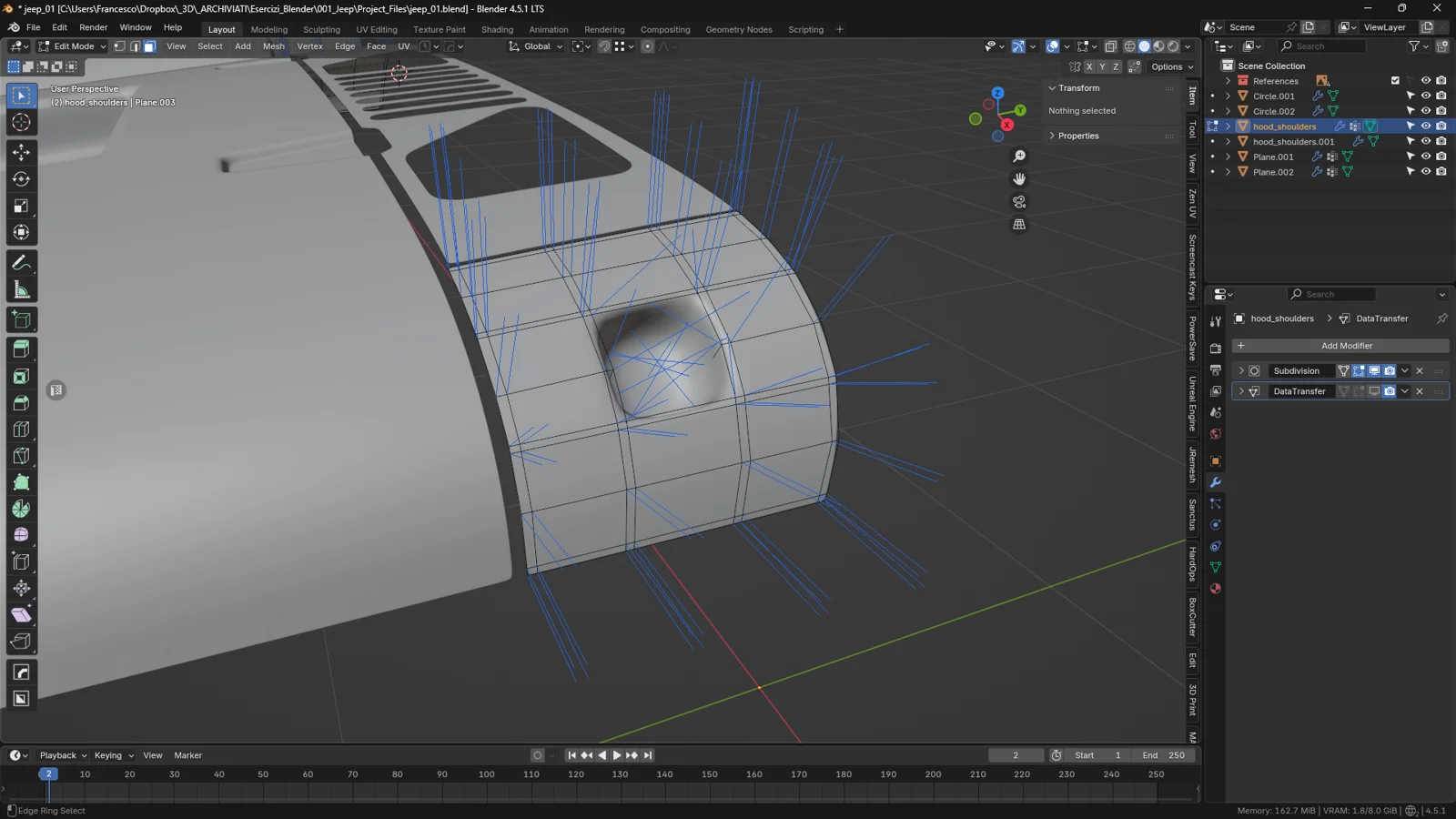
The distinction between face direction and interpolated vertex normals makes this shading change easier to understand.
3. Preparation: Create the Intact Hood Version (Critical Step!)
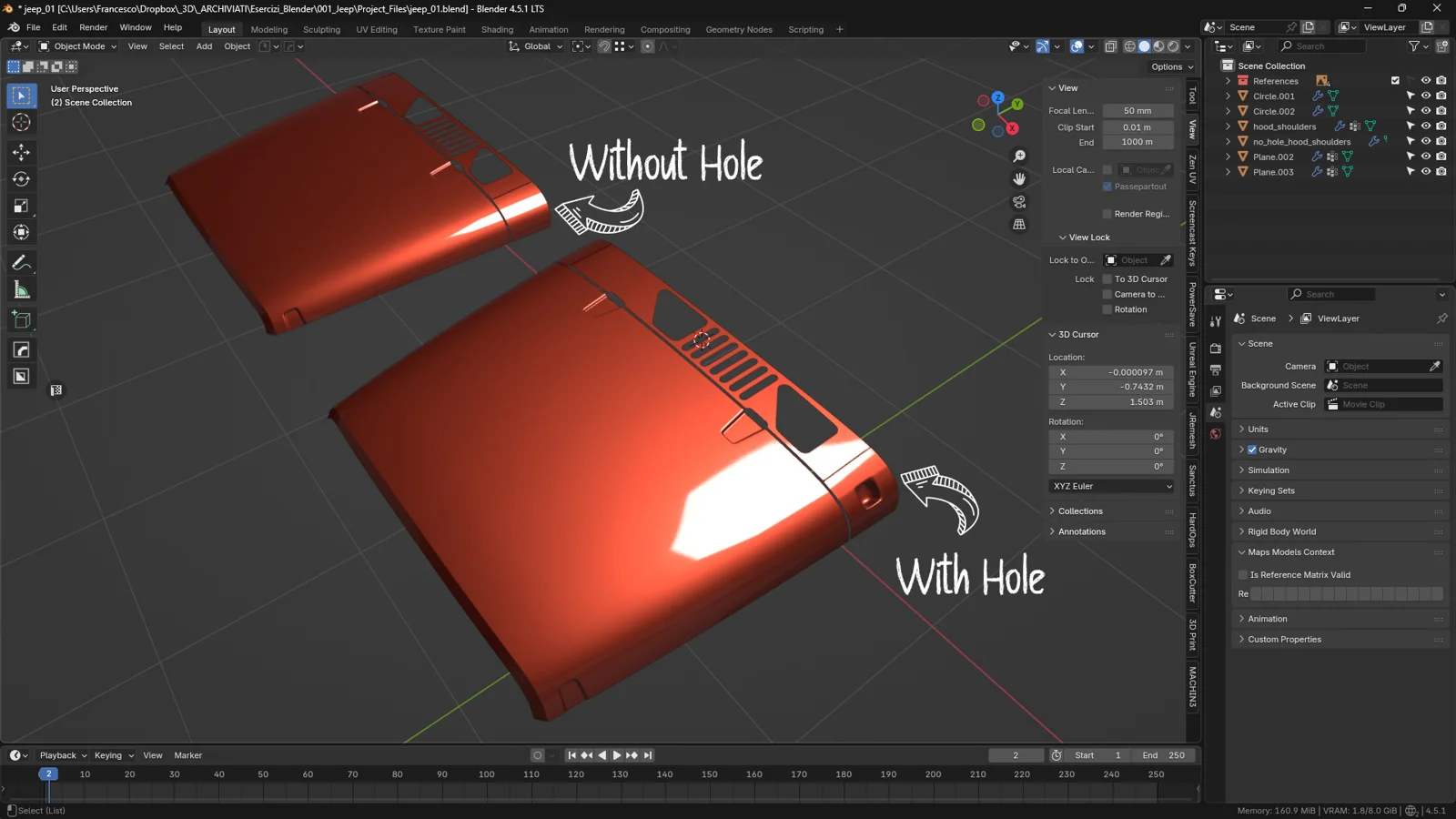
Before adding holes, vents, or openings to the car body, it’s essential to prepare a clean, untouched reference mesh. This is the surface from which we’ll copy the correct normals using the Data Transfer modifier.
It may seem like a minor detail, but it’s actually the core of the entire workflow:
if your reference mesh is clean, your final shading will be flawless.
3.1 Duplicate the Hood Before Making Any Holes
As soon as you finalize the shape of the hood—before performing any destructive operation—create a duplicate:
Shift + D → confirm → move it slightly aside.
This duplicate will be your reference mesh, the perfect surface from which you’ll later transfer normals. It must remain untouched:
-
no holes
-
no insets
-
no booleans
-
no additional edits
It must stay pure.
This copy is essential because:
-
it preserves the original, uninterrupted curvature,
-
its loop flow is stable and clean,
-
it represents exactly how light should behave on the surface,
-
it gives you a permanent fallback without rebuilding anything.
📌 Tip: Move the duplicated mesh into a separate collection named “References” or “Normals Source” to keep it safe.
3.2 Why a “Safe Mesh” Is a Must-Have Habit in Hard Surface Modeling
In automotive modeling, reflections are everything.
Even the slightest shading issue can make a surface look:
-
wavy,
-
stretched,
-
crumpled,
-
or simply not real.
Keeping a second, untouched version of the mesh acts like an insurance policy: you can cut, experiment, test booleans, and create complex openings on the main model knowing you always have a perfectly clean reference to rely on.
3.3 Create Holes Only on the Main Model
From this point on:
-
The duplicate remains intact.
-
All destructive operations happen only on the original mesh.
This includes:
-
booleans
-
extrusions
-
insets
-
knife cuts
-
any topological change
When the modified mesh starts showing artifacts (pinches, shading breaks, strange gradients), you’ll already have the solution ready: transfer the normals from the clean duplicate.
4. Preparing the Mesh With the Hole for Data Transfer
Now that you have:
-
the main hood mesh with the hole, and
-
the intact duplicate safely stored as your reference mesh,
you can start setting up the Data Transfer modifier.
But before applying it, it’s important to create a Vertex Group to control exactly where the modifier will take effect. This allows you to influence only the areas that truly need correction and prevents unwanted interference around the edge of the hole or nearby details.
4.1 Select the Area That Needs Correction
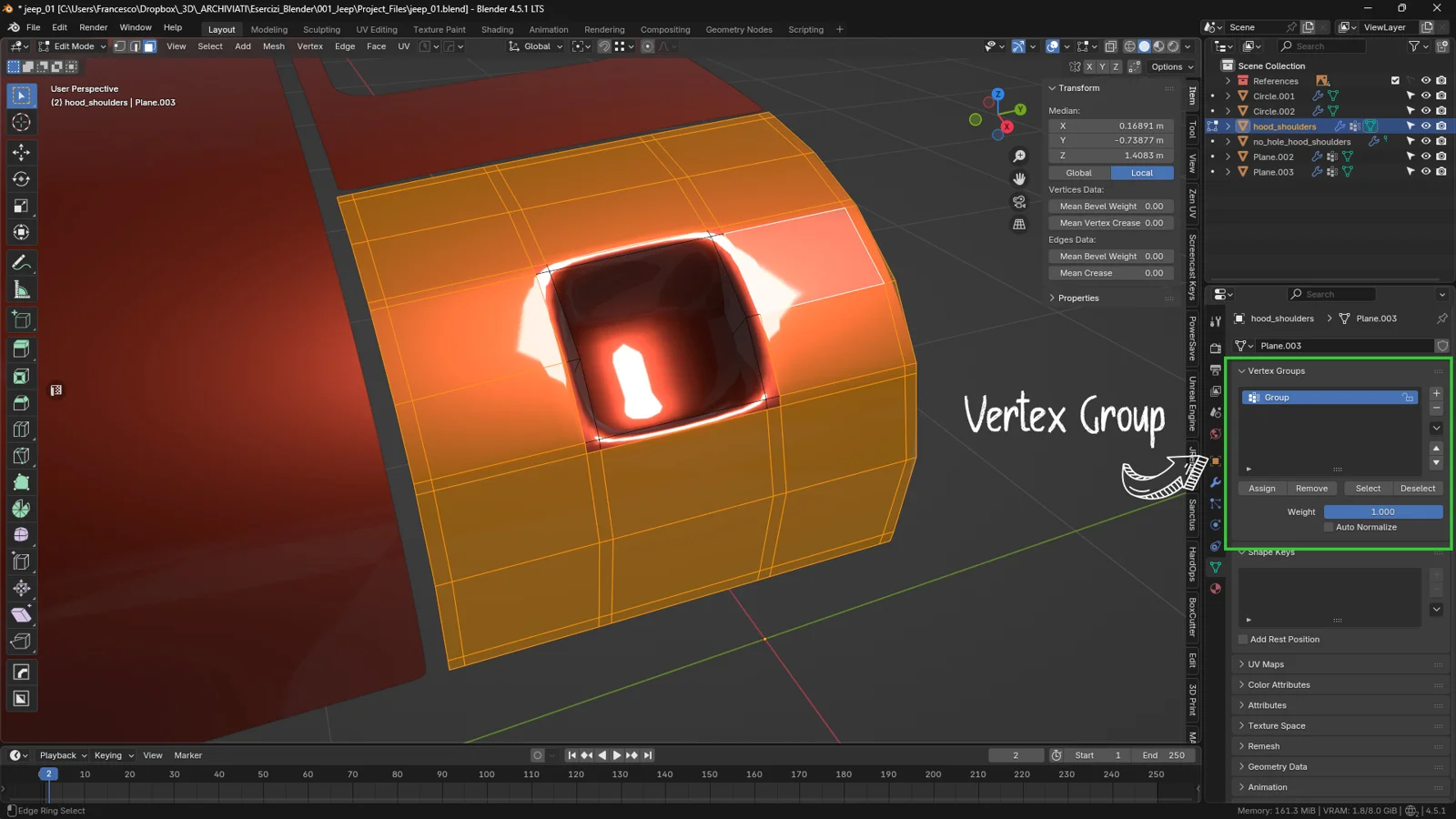
Switch to Edit Mode on the mesh with the hole and select the vertices that form the inner edge loop of the opening. This ring is the most sensitive area: it’s where pinches, shading creases, and other artifacts appear due to the congested topology.
Once the edge of the hole is selected:
Invert the selection → Ctrl + I
Why is this step essential?
-
If you keep only the inner loop selected, the Data Transfer will act too locally.
-
The area around the hole—the region that actually generates pinches—would keep its distorted normals.
-
Blender would try to interpolate between two different shading regions, creating more artifacts.
By inverting the selection, you’re telling Blender:
“Apply the clean normals to the rest of the surface, but leave the hole’s edge untouched.”
This allows the inner ring to retain its local structure while the main surface receives perfect normals from the reference mesh.
📌 Note: Leaving the hole’s edge unmodified helps preserve the modeled form and ensures a smoother shading transition.
4.2 Create a Dedicated Vertex Group
Now that the selection is inverted:
-
Open Object Data Properties → Vertex Groups
-
Click + to create a new group
-
Press Assign to add the current selection to the group
-
Rename it as you prefer (e.g., ShadingFix or NormalsArea)
This Vertex Group will tell the Data Transfer modifier where to apply the normals.
📝 Practical tip:
If you plan to work on multiple holes or panels, create a separate Vertex Group for each area. Blender lets you manage shading corrections with precise, per-zone control.
4.3 Why Use a Vertex Group?
A Vertex Group prevents two common issues:
1. Excessive influence of the Data Transfer
Without a group, the modifier may overwrite shading on areas you intentionally want to keep untouched.
2. Harsh shading transitions near the hole
If the inner edge is treated together with the wider surface, the shading around the hole can look inconsistent or noisy.
With a dedicated group, you apply the correction exactly where it matters:
the curved surface surrounding the hole, where pinches and shading distortions typically occur.
5. Setting Up the Data Transfer Modifier
Once you’ve created the Vertex Group on the mesh with the hole, you’re ready to configure the Data Transfer modifier.
This is the core of the technique: here you tell Blender to take the perfect shading from the intact hood mesh and apply it to the version with the hole, restoring clean reflections and smooth curvature.
Let’s go through the setup step by step.
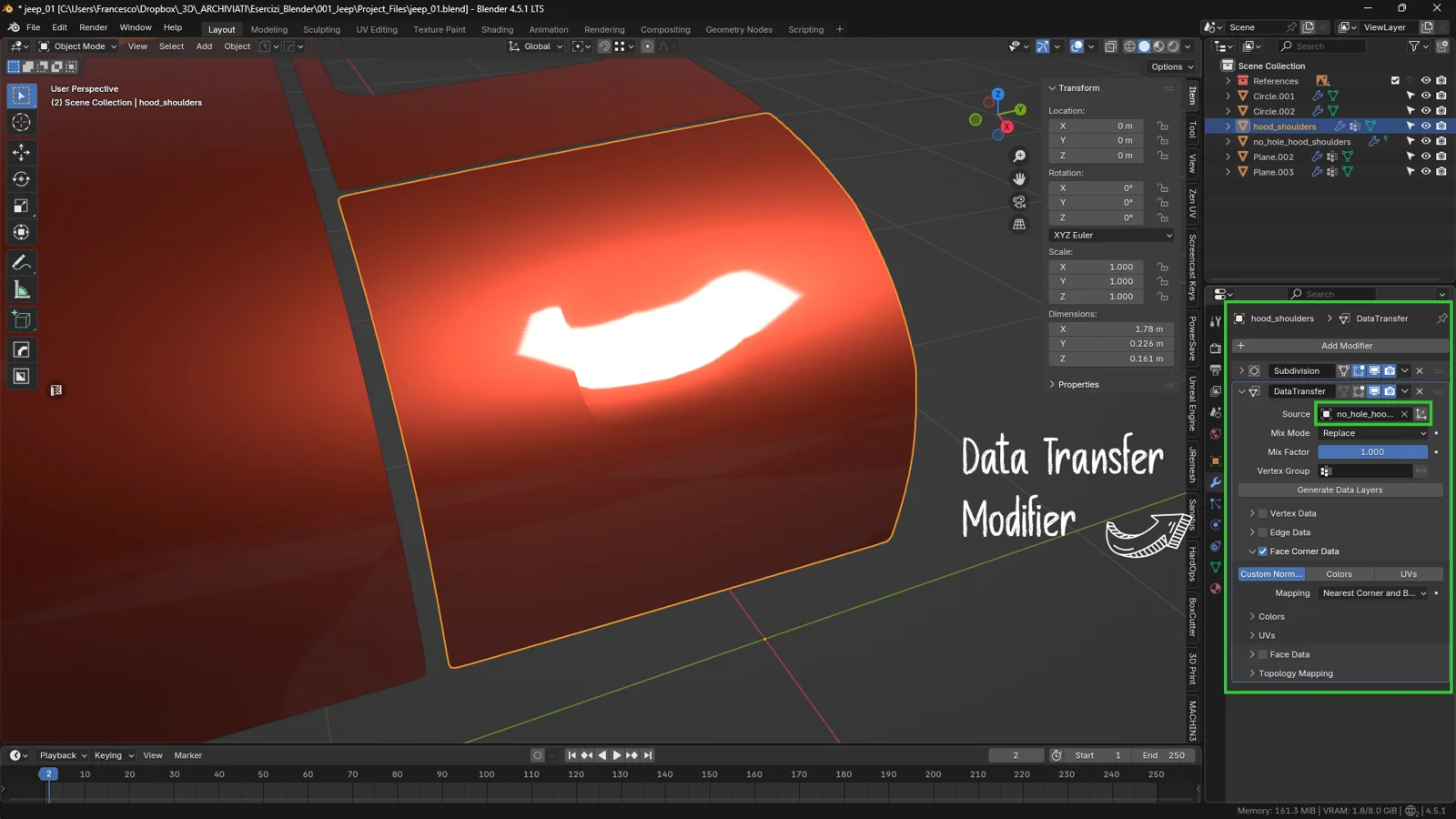
5.1 Add the Modifier
Select the mesh with the hole, then navigate to:
Modifiers → Add Modifier → Data Transfer
Under the Source section, set the Target to the intact hood duplicate (your reference mesh).
5.2 Choose the Data Type to Transfer
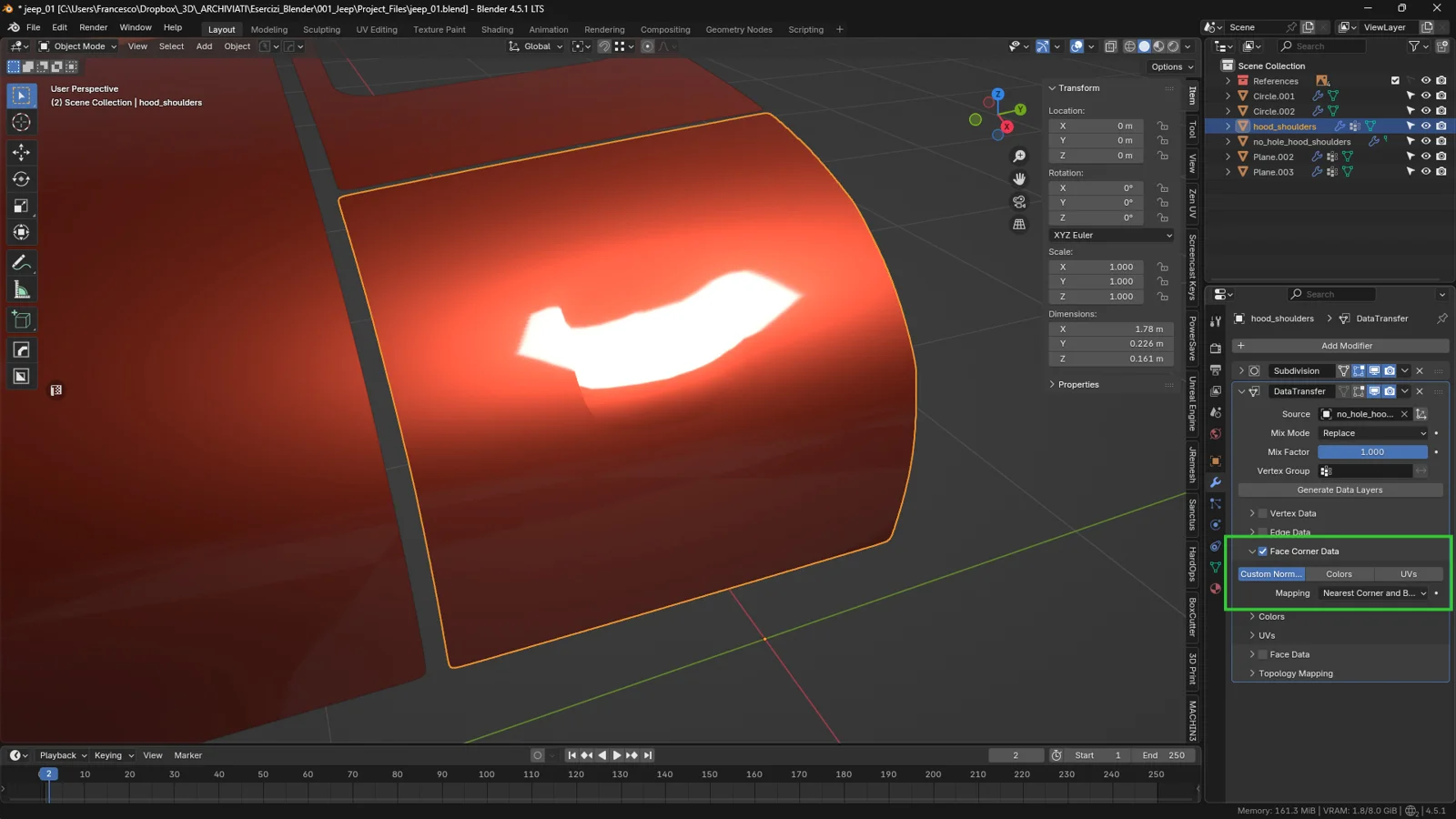
Scroll down to the Face Corner Data section.
Enable:
Custom Normals
This tells Blender: “Transfer the normals from the intact mesh to the modified one.”
It’s crucial that the target (the mesh without the hole) has Auto Smooth enabled—otherwise, it won’t generate custom normals for Blender to transfer.
If needed, enable it here:
Object Data Properties → Normals → Auto Smooth
5.3 Assign the Vertex Group
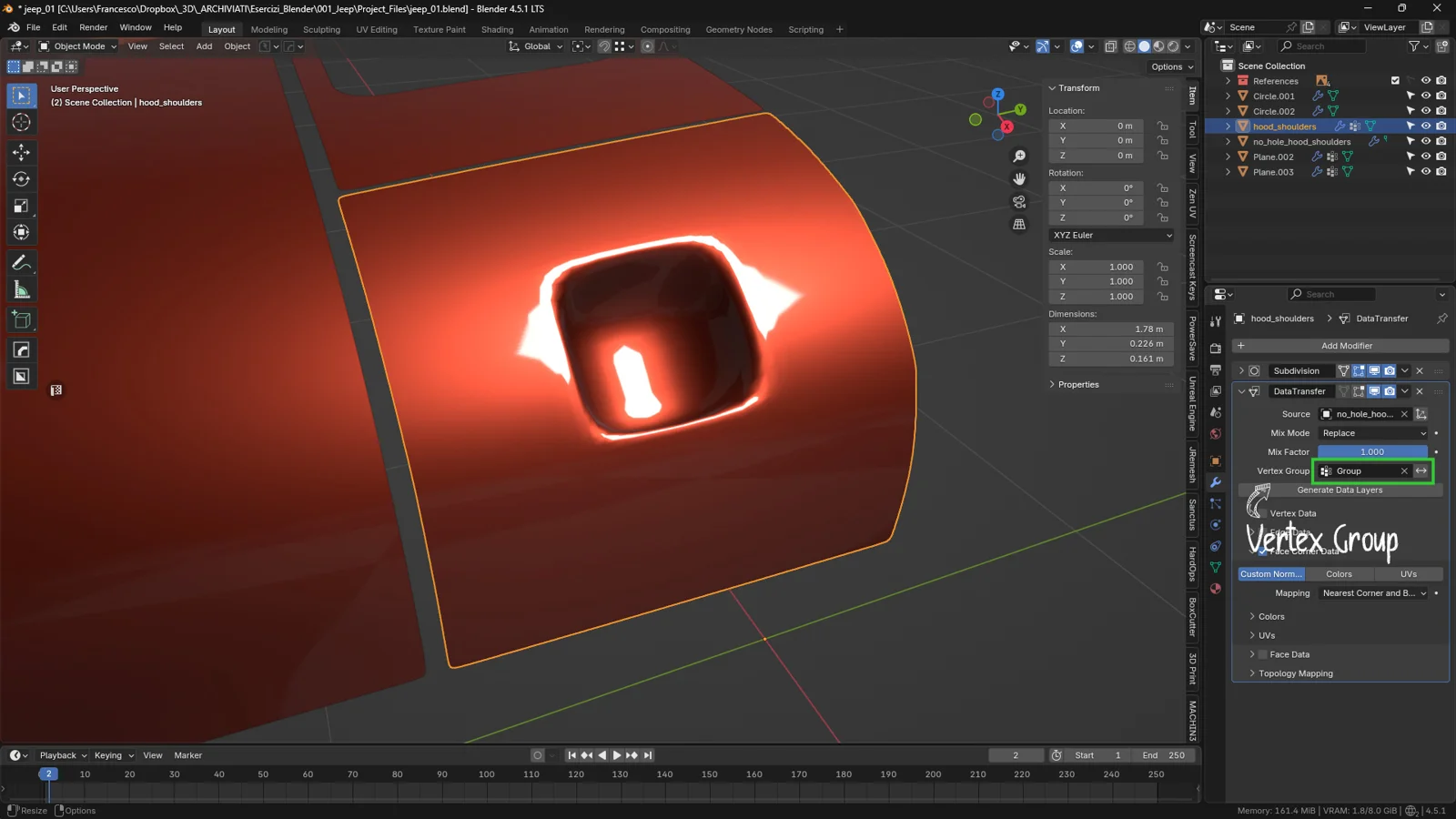
In the Vertex Group field, select the group you created earlier (e.g., ShadingFix).
This ensures the Data Transfer affects only the intended surface area and avoids altering delicate shading around the inner edge of the hole.
📌 Tip:
If the shading transition looks too sharp, slightly expand the Vertex Group to soften the blending.
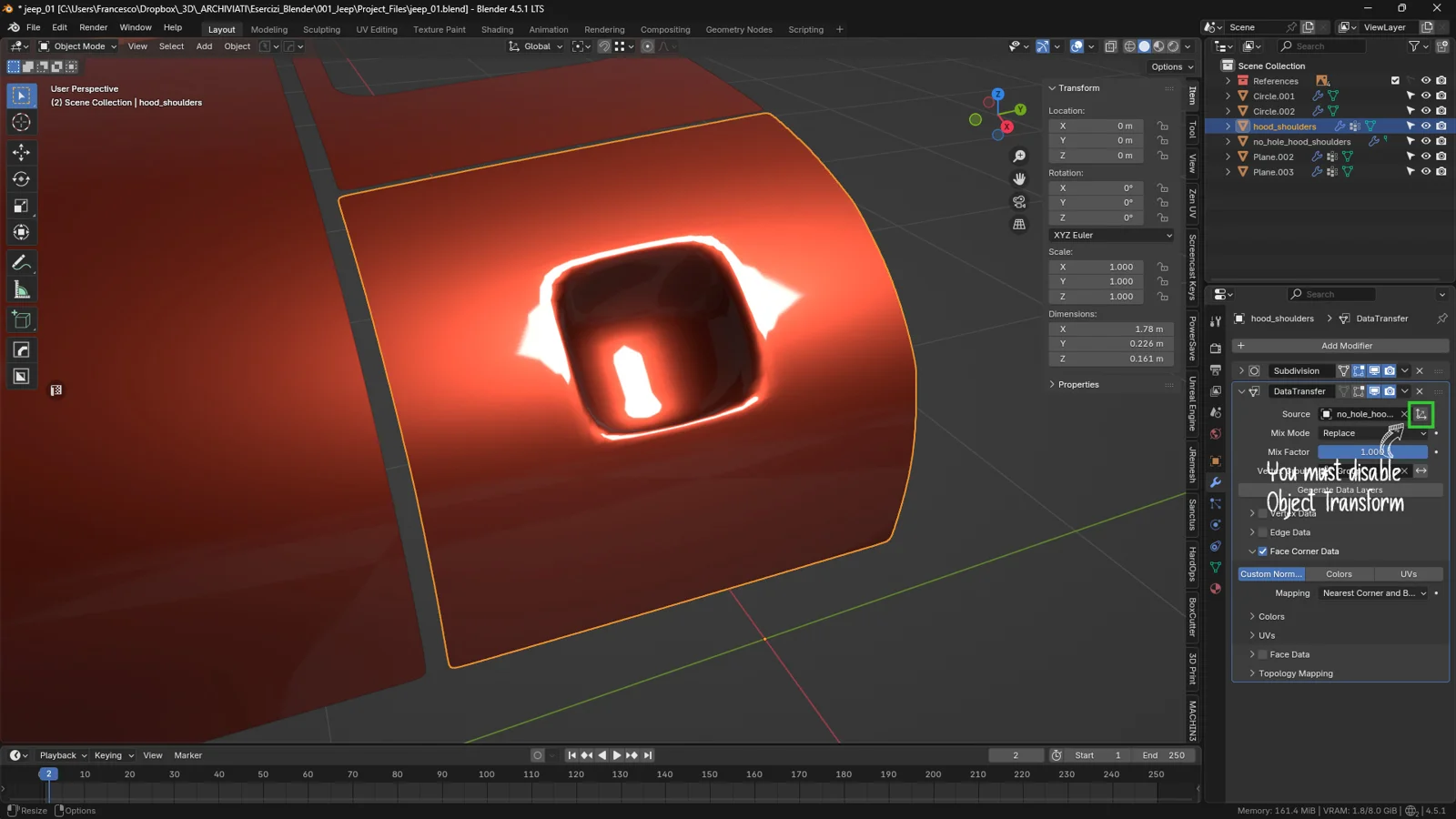
5.4 Critical Step: Disable “Object Transform”
This is the step responsible for 80% of shading errors when using Data Transfer.
The Object Transform toggle (the gray icon above the option list) tells Blender whether to consider global object positions during transfer.
-
If it’s enabled: Blender expects both meshes to be in the exact same world-space location.
-
Since your duplicate has been moved aside (as required by this workflow), Blender will attempt to map normals as if the objects were overlapping → resulting in completely broken shading.
👉 You must disable Object Transform.
This makes Blender compare only the local geometry, ignoring any difference in world-space position.
5.5 If the Result Is Not Perfect Yet: Increase Subdivision on the Intact Mesh
This is one of the most powerful—and least known—tips.
The Data Transfer modifier does not require both meshes to have the same density.
If you add a Subdivision Surface modifier only to the intact mesh, you’ll get:
-
even smoother normals
-
more accurate curvature
-
perfect shading even in challenging areas
The mesh with the hole can remain low-density: Blender will still transfer high-quality normals without increasing the final polycount.
📌 Tip:
You don’t need a high level of subdivision.
Even 4–5 levels dramatically improve the shading quality.
6. Evaluating the Result
Once the Data Transfer modifier is configured, it’s time to check whether the shading correction worked.
This step is crucial—especially in automotive modeling, where reflections are the first thing that reveal issues in topology or normals.
Let’s see how to verify quickly and reliably whether the result is truly “body-shop quality.”
6.1 Toggle the Modifier On and Off to See the Difference
The fastest way to judge whether the Data Transfer is working is simply:
click the eye icon on the modifier → ON / OFF
Observe how the surface behaves:
-
Do the reflections follow a natural curve?
-
Do the areas around the hole look smooth?
-
Do the highlight lines stop bending or warping?
If switching from OFF → ON makes the surface more even and fluid, the Data Transfer is doing its job.
6.2 Inspect Reflections Using MatCap or an HDRI Studio Environment
To detect even subtle imperfections:
-
enable a glossy MatCap,
-
or use an HDRI with sharp reflections,
-
and watch how the highlight lines travel across the hood.
On automotive surfaces, reflection curves are the most reliable diagnostic tool:
-
If they wobble → there are still pinches or hard transitions.
-
If they flow smoothly → the normals are correct.
-
If they bend around the hole → your Vertex Group is too small.
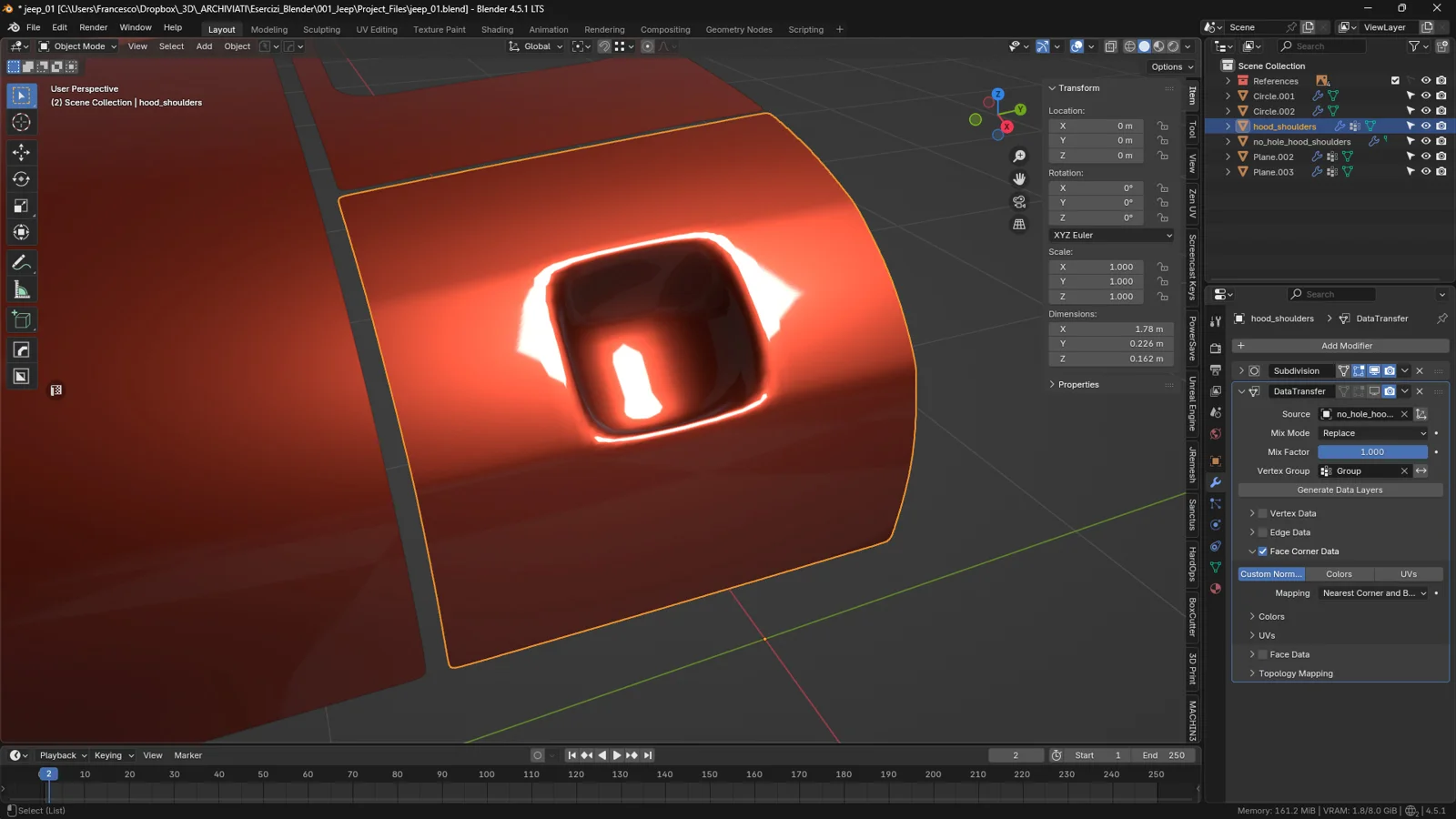
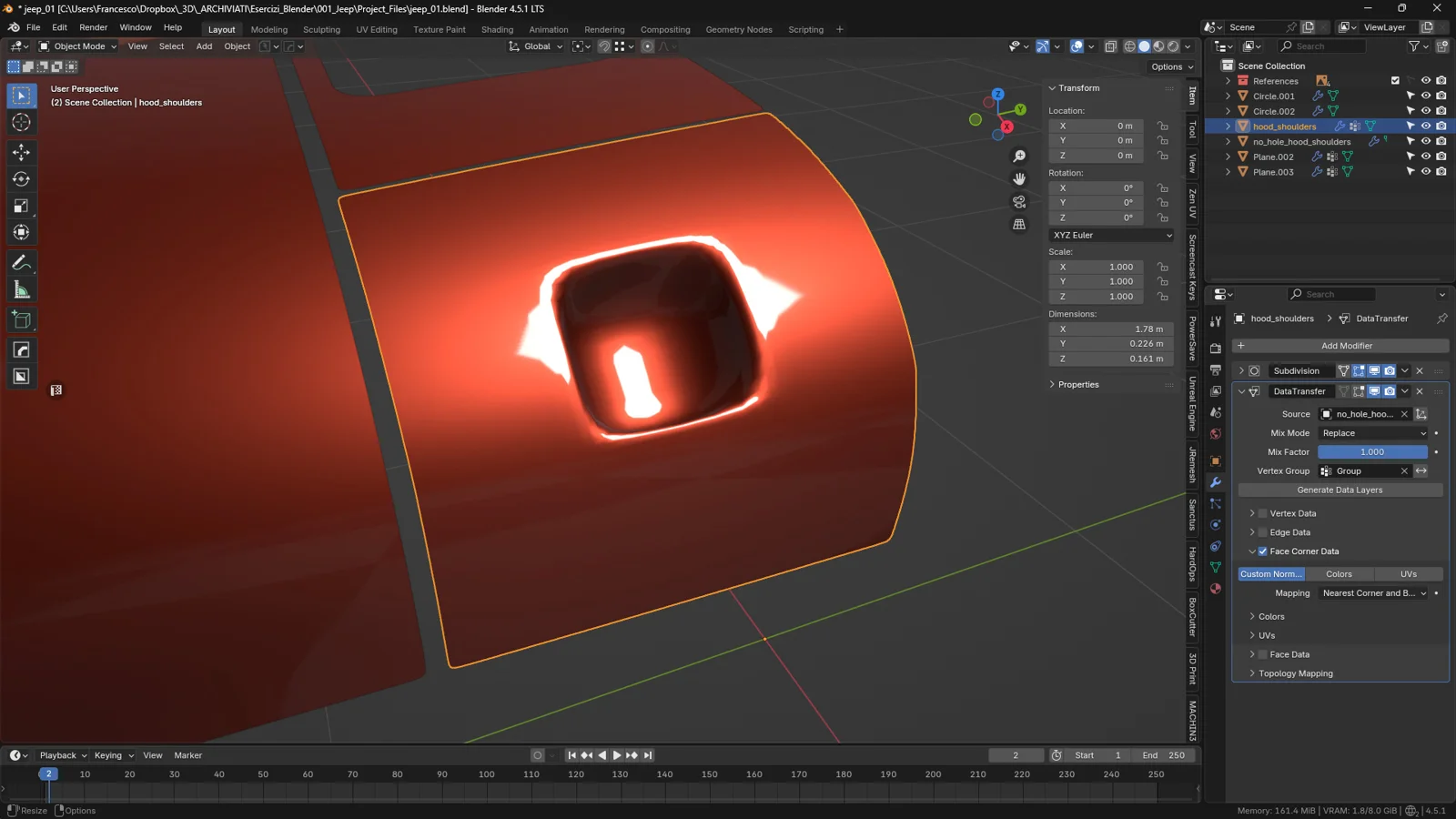
A repeatable HDRI test scene in Blender helps compare reflection continuity before and after transferring normals.
6.3 When Is the Result Considered “Perfect”?
In automotive modeling, a surface is considered perfect when:
-
reflections flow like on a real car panel,
-
there are no sudden bright spots,
-
no strange gradients appear around the opening,
-
transitions are smooth and invisible,
-
the inner edge of the hole remains stable without flickering shadows.
If the surface still looks “pulled” or “crumpled” in specific regions, the issue is topology, not normals: this indicates structural pinches that require shape correction.
(But the Data Transfer will still resolve 80–90% of the shading issues.)
Conclusion
Cutting a hole into a curved surface is one of the most delicate tasks in hard-surface modeling—especially when working on automotive components like a hood panel. Even with correct topology, the opening disrupts the natural flow of the normals and creates shading artifacts — the notorious pinches — that make the surface look less realistic and more “rigid.”
Thanks to the Data Transfer modifier, however, you can restore perfect lighting by copying the normals from the original, untouched mesh. This gives you the best of both worlds: the freedom to model your panel however you need, and a final result that is clean, professional, and ready even for high-end rendering.
As we’ve seen, the secret lies entirely in the preparation:
-
duplicate the mesh before cutting any holes,
-
create a Vertex Group to control the influence area,
-
disable Object Transform if the duplicate has been moved,
-
enable Custom Normals,
-
and, if necessary, increase the subdivision level of the intact mesh to generate even smoother normals.
The final surface retains its modified shape while recovering the original shading quality — the perfect combination for automotive workflows, industrial design, and advanced hard-surface modeling.
Ultimately, this technique isn’t just about fixing errors: it allows you to work with more freedom and confidence, knowing you always have a clean reference to rely on.
Whether you’re creating vents, scoops, cutouts, or complex details on a car body, the Data Transfer modifier will quickly become an essential tool for achieving flawless surfaces.