Adding ornamental details can completely change the visual impact of a 3D model. A simple metal helmet can become a regal artifact, a plain wooden chest can feel handcrafted, and an ordinary architectural element can suddenly look historic, ceremonial, or luxurious. In Blender, mastering decorative surface work is one of the fastest ways to make your models feel richer and more valuable for games, cinematics, collectibles, and concept art.
Whether you are working on fantasy armor, antique furniture, gothic arches, or sci-fi props, the core challenge remains the same: how do you add fine decorative detail without wasting hours sculpting every single motif from scratch?
In this guide, we will explore how to add ornamental details to 3D models in Blender efficiently, cleanly, and in a way that supports both your artistic vision and your production deadlines.
Why Ornamental Details Matter in 3D Modeling
Decorative elements do much more than simply fill empty surfaces; they are visual storytelling tools. They help define the style, era, craftsmanship, and hierarchy of an object. For instance, incorporating Baroque or Victorian ornaments instantly adds a layer of elegance and complexity, while Gothic motifs bring drama and a sacred atmosphere to the scene. On the other hand, sharp geometric patterns or sci-fi paneling can make a surface feel highly engineered and advanced.
These surface details are especially effective on focal assets like helmets, shields, carved cabinets, picture frames, and ceremonial reliquaries. When used thoughtfully, ornament guides the viewer’s eye, reinforces the lore behind the object, and makes the overall model feel incredibly premium.
The Trap of Manual Sculpting
Many artists, especially beginners, try to build every decorative detail entirely by hand. While this approach can work beautifully for a unique hero asset, it quickly becomes a bottleneck in a standard production pipeline.
The problem goes beyond just time consumption. Manual ornament sculpting often leads to inconsistent styles across multiple assets within the same scene. It can result in uneven depth and spacing, making the final piece look messy rather than masterful. Furthermore, spending too much time on repetitive decoration takes your focus away from what truly matters: iterating on the core design and silhouette of your model. If your goal is to create polished decorative assets efficiently, combining manual sculpting with reusable, smart ornament tools is the way to go.
Best Workflows for Adding Ornament in Blender
There is no single method that works for every project. The best approach depends on your model’s topology, the required level of detail, and its final destination (e.g., close-up cinematic renders vs. optimized game engines). Here are the most practical workflows.
1. Sculpting with Brushes for Organic Freedom
Blender’s Sculpt Mode is the most direct way to add decorative detail, allowing you to build raised patterns, engravings, and layered motifs directly onto the mesh. This method shines when working on organic, curved surfaces where the ornament needs to follow complex, flowing forms, and where artistic freedom takes priority over perfect symmetry.
To keep this process efficient, only increase your mesh density where the details will actually live. Use masking heavily to isolate decorative zones, and always work from large ornamental shapes down to the smaller accents. Avoid the temptation to over-detail too early in the sculpt.
2. VDM Brushes and Alphas for High-Speed Detailing
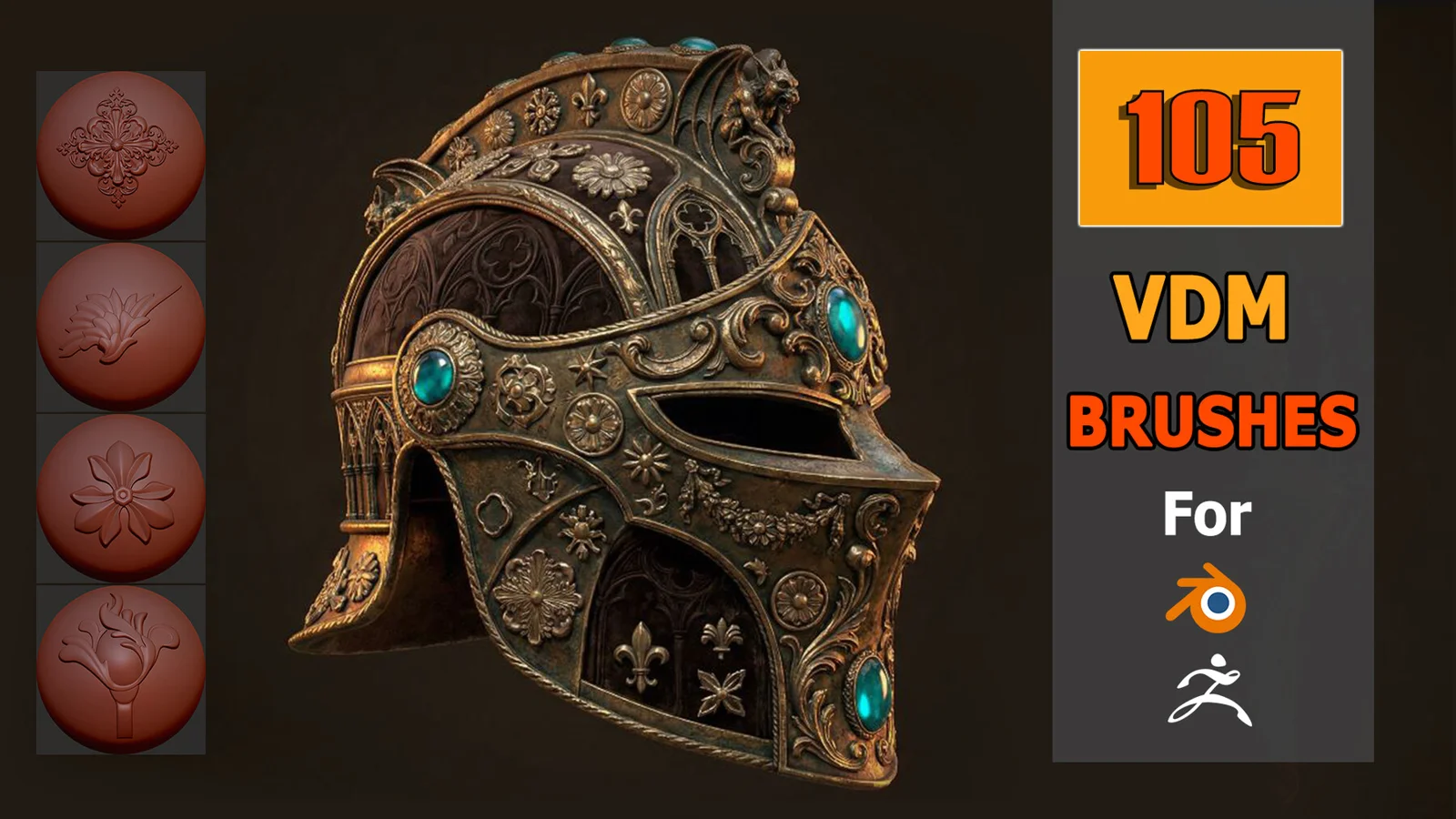
One of the most efficient ways to add ornate detail in Blender is by stamping decorative forms using high-detail VDM (Vector Displacement Mesh) or alpha brushes. Instead of sculpting every swirl line by line, you can place intricate forms—like scrollwork, floral carvings, or symmetrical filigree—directly onto the mesh, then blend and customize them.
This is where a professional, ready-made brush library becomes a game-changer. Rather than spending days building a custom ornament set, using a polished toolkit can drastically speed up your workflow. For example, a dedicated pack like the Ornament VDM Brush Pack provides artists with natively rebuilt setups for both Blender and ZBrush. Because a high-quality pack covers various styles seamlessly, it allows you to maintain stylistic cohesion across your entire 3D project without the burnout of manual sculpting.
3. Geometry Nodes for Procedural Control
For hard-surface models or repeatable architectural designs, Blender’s Geometry Nodes offer incredible flexibility. Instead of stamping one ornament at a time, you can procedurally distribute decorative elements along curves, frame borders, or arch trims.
This system allows you to repeat a motif along a specific path, controlling spacing and rotation with mathematical precision. If you are using a brush pack that already includes a drag-and-drop Blender file with a Geometry Nodes preset, ornament work shifts from a tedious sculpting task into a highly flexible, non-destructive design system.
The Golden Rule: Clean Base Modeling First
Decorative detail only works when the base model is strong; a weak silhouette cannot be saved by complex surface noise. Before you even think about adding filigree, ensure your model has a clear primary shape, readable secondary forms, and intentional focal areas.
When detailing a piece of furniture or a knight’s helmet, do not cover every single panel with carvings. Leave enough empty space for the details to breathe. The most reliable workflow is to block the base model, define your main planes, and then carefully identify specific decorative zones. Use ornament to emphasize structure, not hide it.
Strategic Placement: Where to Add Detail
Knowing how to add ornament is only half the battle; knowing where to place it is what makes a design believable.
-
Armor and Weapons: Focus on brow lines, cheek guards, chest edges, and weapon hilts. Use ornament to reinforce the character’s rank or faction identity.
-
Furniture and Architecture: Draw the eye to structural junctions. Detail the drawer fronts, leg joints, keystone corners on arches, and column caps to create rhythm without flattening the design.
-
Ceremonial Props: Objects like reliquaries benefit from layered ornament around the central icon area, support pedestals, and decorative halos, usually relying on controlled, sacred symmetry.
Best Practices for Game-Ready Assets
If your goal is to create a game-ready model, your detailing strategy must support an efficient baking pipeline. Adding details is easy, but keeping them clean requires discipline.
Always respect visual scale: tiny details on a large object will turn into a blurry mess in-game. Avoid visual noise by reserving the densest ornaments for your focal points, and ensure your styling remains consistent.
The standard workflow involves adding your rich, high-poly details via sculpting or VDM brushes first. Next, you retopologize the base mesh, preserving the silhouette while optimizing the geometry. Finally, you bake the normals, ambient occlusion, and curvature from the detailed high-poly model onto the optimized low-poly mesh. During the texturing phase in software like Substance Painter, you can use roughness and edge wear to further enhance the illusion of carved depth.
Final Thoughts
Adding ornamental details in Blender is one of the best ways to elevate a 3D model from purely functional to highly memorable. The key is to treat decoration as a deliberate part of the design process, starting with a strong base silhouette and choosing meaningful placements.
There is a point in every artist’s journey where building every single element from scratch stops being a learning exercise and starts becoming a production roadblock. If you are designing themed collections, working under strict deadlines, or simply want to focus more on composition than tedious repetition, equipping yourself with the right tools is essential.
If you are looking for a reliable shortcut, checking out a comprehensive library like the Ornament VDM Brush Pack (105 High-Detail Brushes) is a smart investment. Having a drag-and-drop library of high-fidelity forms ready for Blender and ZBrush allows you to instantly add rich, professional surfaces to your models—giving you back the time to focus on what you do best: creating stunning 3D art.
Affiliate disclaimer: This article contains an affiliate link. If you purchase through it, I may earn a commission at no extra cost to you. I only recommend tools and resources that I believe can be genuinely useful for 3D artists.