
Introduction
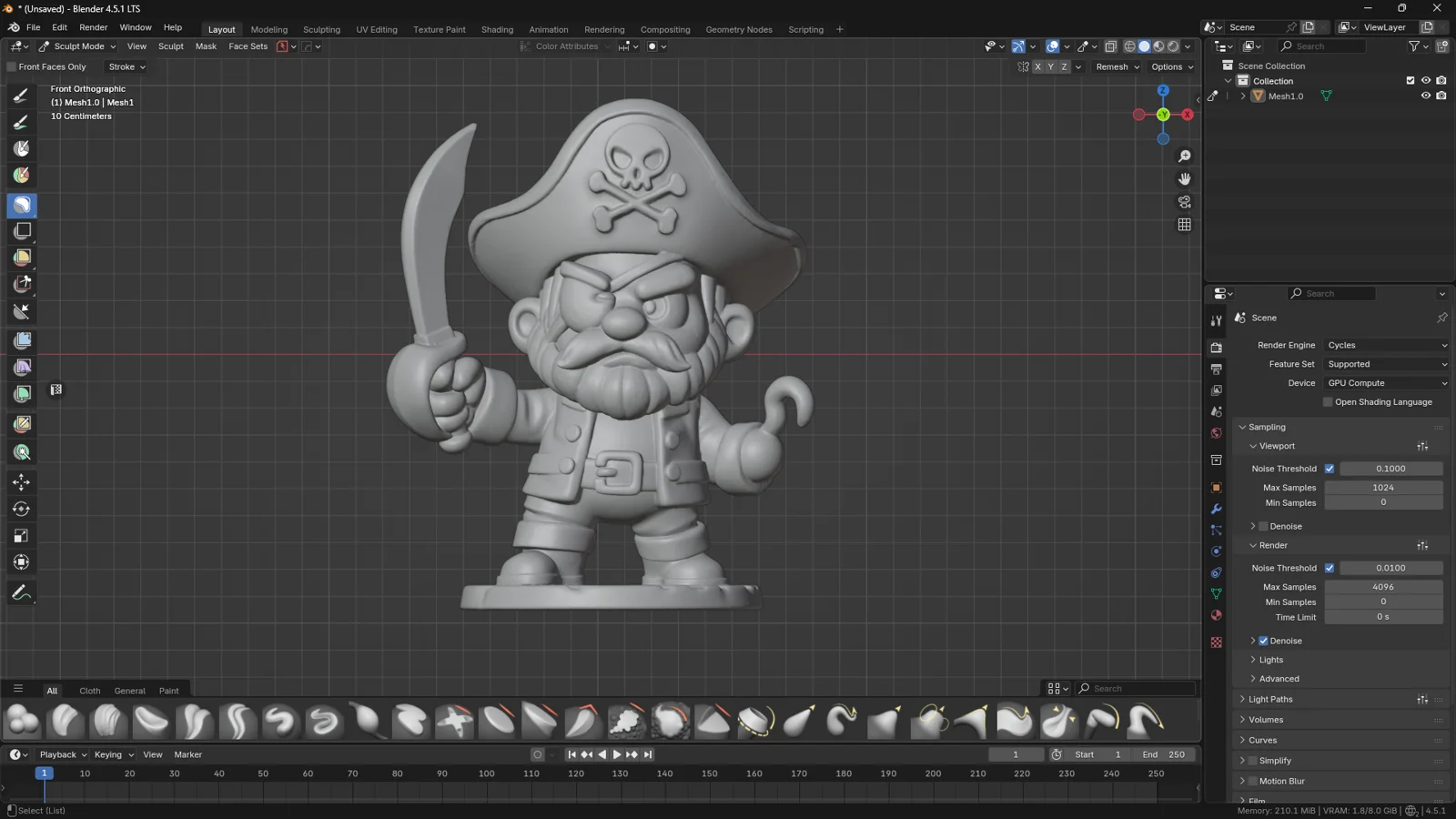
Cutting a model in Sculpt Mode in Blender is one of the most powerful techniques for artists who want to work fluidly and creatively on the shape of an object. It allows you to separate parts of your sculpture — for example, a head from a bust, or an arm from a body — without switching back to Edit Mode or manually adjusting the topology.
This workflow is perfect for sculptors who are still defining the primary forms and don’t want to break their creative flow. With just a few clicks, you can split the mesh, keep sculpting each part independently, and get perfectly filled surfaces ready for refinement.
The process is simpler than it looks: just create a mask over the area you want to cut and use the Mask Slice to New Object command. However, there are a few key details that make all the difference — such as cleaning the mask, using Voxel Remesh, and smoothing the edges — which we’ll cover step by step in this guide.
2. Preparing the Mask
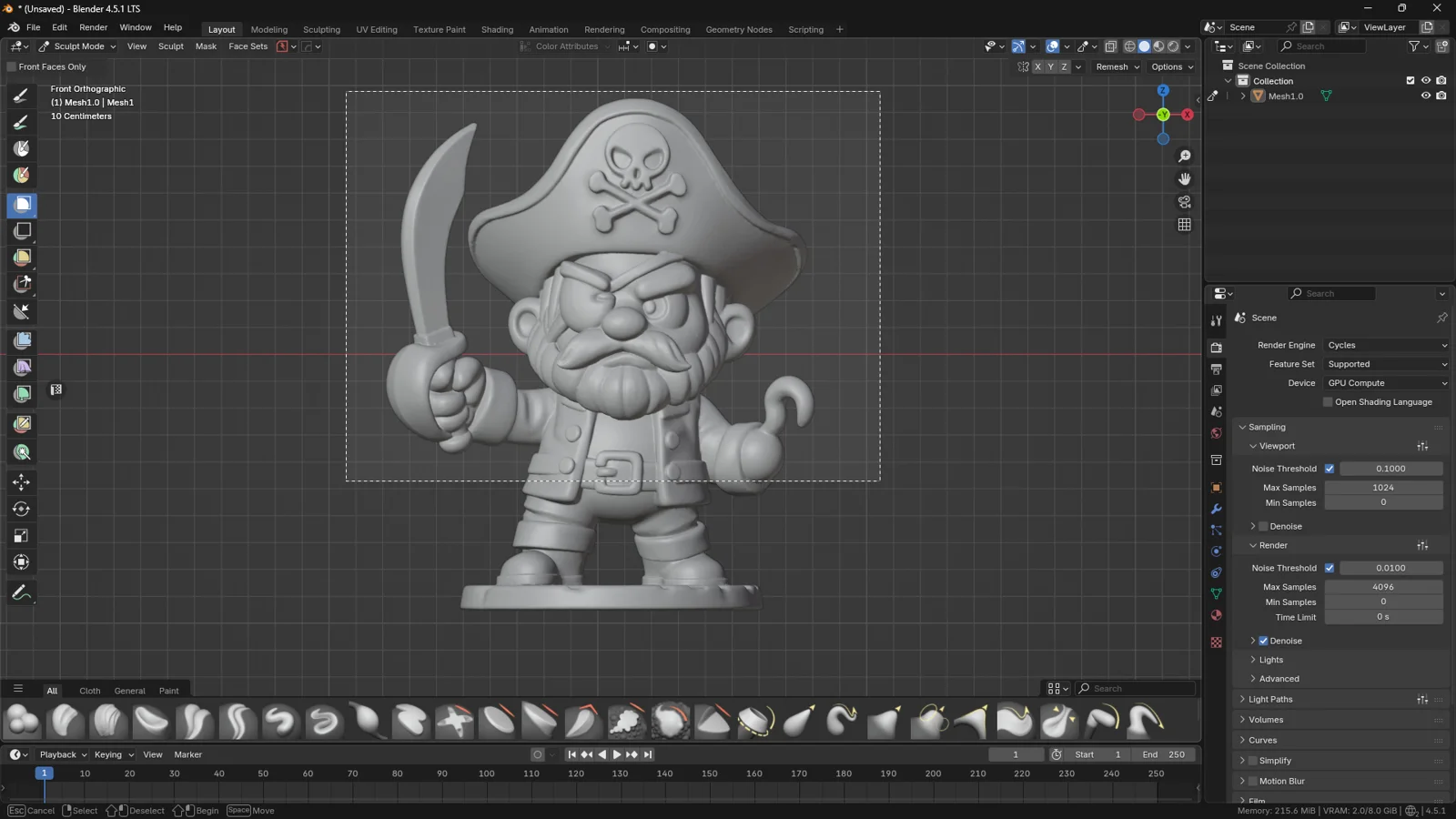
Before cutting a model in Sculpt Mode, you first need to isolate the area you want to work on.
In Blender, this is done through masking — the process of creating a mask that blocks or protects certain parts of the sculpture, allowing you to edit only the visible or selected areas.
You can think of the mask as a protective film: the dark areas won’t be affected, while the light ones remain editable.
This gives you surgical precision over where the cut will happen and how clean the result will be.
Main Masking Tools
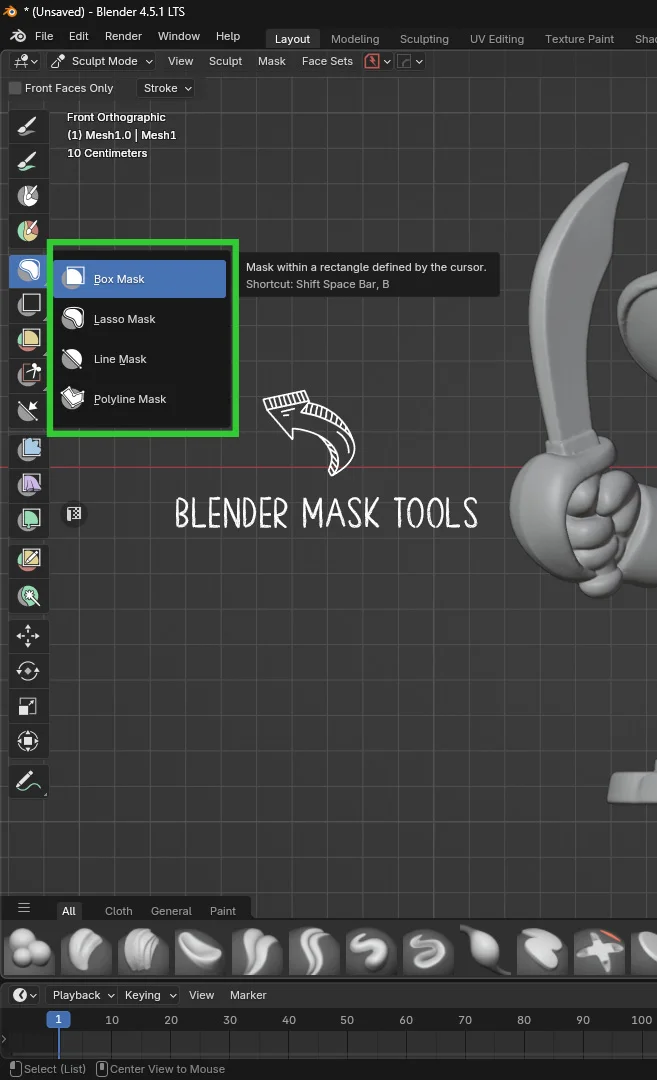
Blender provides several masking tools in Sculpt Mode, each designed for different types of selections and workflows.
▪ Box Mask Tool
Perfect for quick and geometric selections.
It lets you draw a rectangular area to mask specific regions of the model — ideal for isolating flat bases or cutting across horizontal sections.
▪ Lasso Mask Tool
Best for organic or irregular shapes.
You can freely draw a selection with your mouse, tracing curves or contours by hand.
This tool is particularly useful for separating anatomical parts or following the natural flow of a sculpture.
▪ Line Mask Tool
My personal favorite when I need a clean, precise cut.
By dragging a line with the left mouse button, Blender creates a perfectly aligned mask along that edge.
-
Press F to flip the direction of the mask (which side of the line will be protected).
-
Hold Spacebar to reposition the line before confirming.
This tool is ideal for splitting a bust, dividing a rock, or separating symmetrical mechanical parts.
💡 Practical Tip
While drawing a mask, you can use these shortcuts:
-
Shift → Add to the existing selection
-
Ctrl → Subtract from the selection
By combining them, you can build complex masks in seconds, perfect for cutting intricate shapes or detailed surfaces.
3. Performing the Cut
At this point, your mask is ready — you’ve isolated the area to separate and precisely defined where the cut should happen. Now comes the most exciting part: actually splitting the model into two distinct objects.
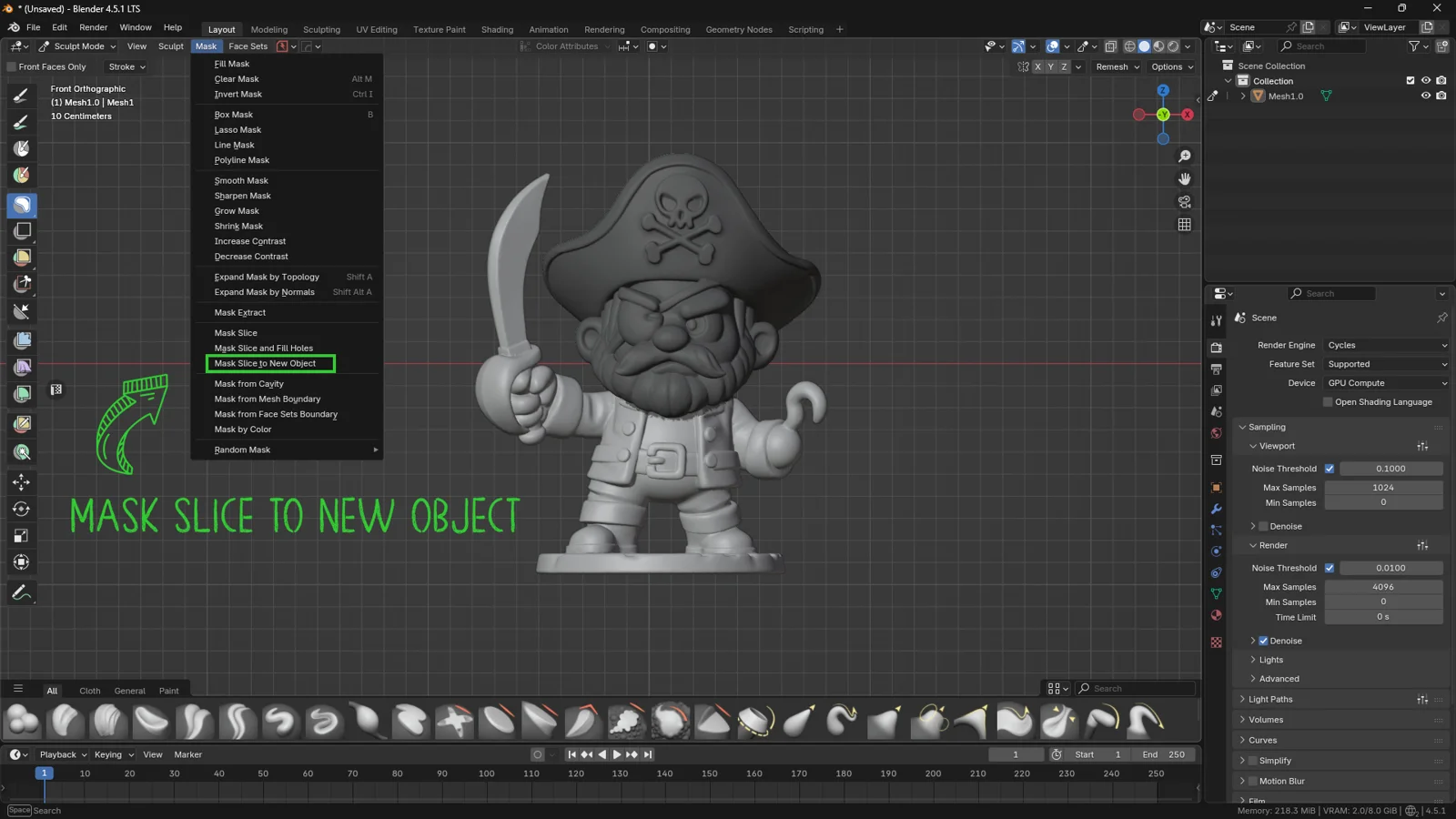
You’ll find the command in the Sculpt Mode top menu.
Go to Mask → Mask Slice to New Object.
In an instant, Blender analyzes the masked area and slices the mesh along that line or region.
The masked and unmasked parts become two independent, fully closed, solid objects.
This technique is especially useful when you want to work freely on specific sections of a model — for instance, sculpting the arms separately from the torso, or creating different variations of a head without duplicating the entire mesh manually.
What Happens After the Cut
When you perform Mask Slice to New Object, Blender automatically creates Face Sets for the new fill surfaces generated by the cut.
Face Sets help you identify different regions of your sculpture (great for applying filters or partial masks), but in this case, they can be unnecessary.
If you prefer a cleaner, more uniform topology, you can remove them easily:
go to Face Sets → Face Set from Visible.
This command merges all visible faces into a single Face Set, removing the automatic divisions created during the slice.
💡 Practical Tip
After cutting, always check your Outliner — you’ll notice two separate objects in the scene.
Rename them right away (for example, “Bust” and “Head”) to stay organized.
This small habit helps you avoid confusion, especially when sculpting complex characters with multiple parts.
Also, if you see slight discontinuities or rough edges along the cut, don’t worry — in the next section we’ll cover how to smooth and unify the geometry using Voxel Remesh, achieving a natural, cohesive surface.
4. Fixing Geometry with Voxel Remesh
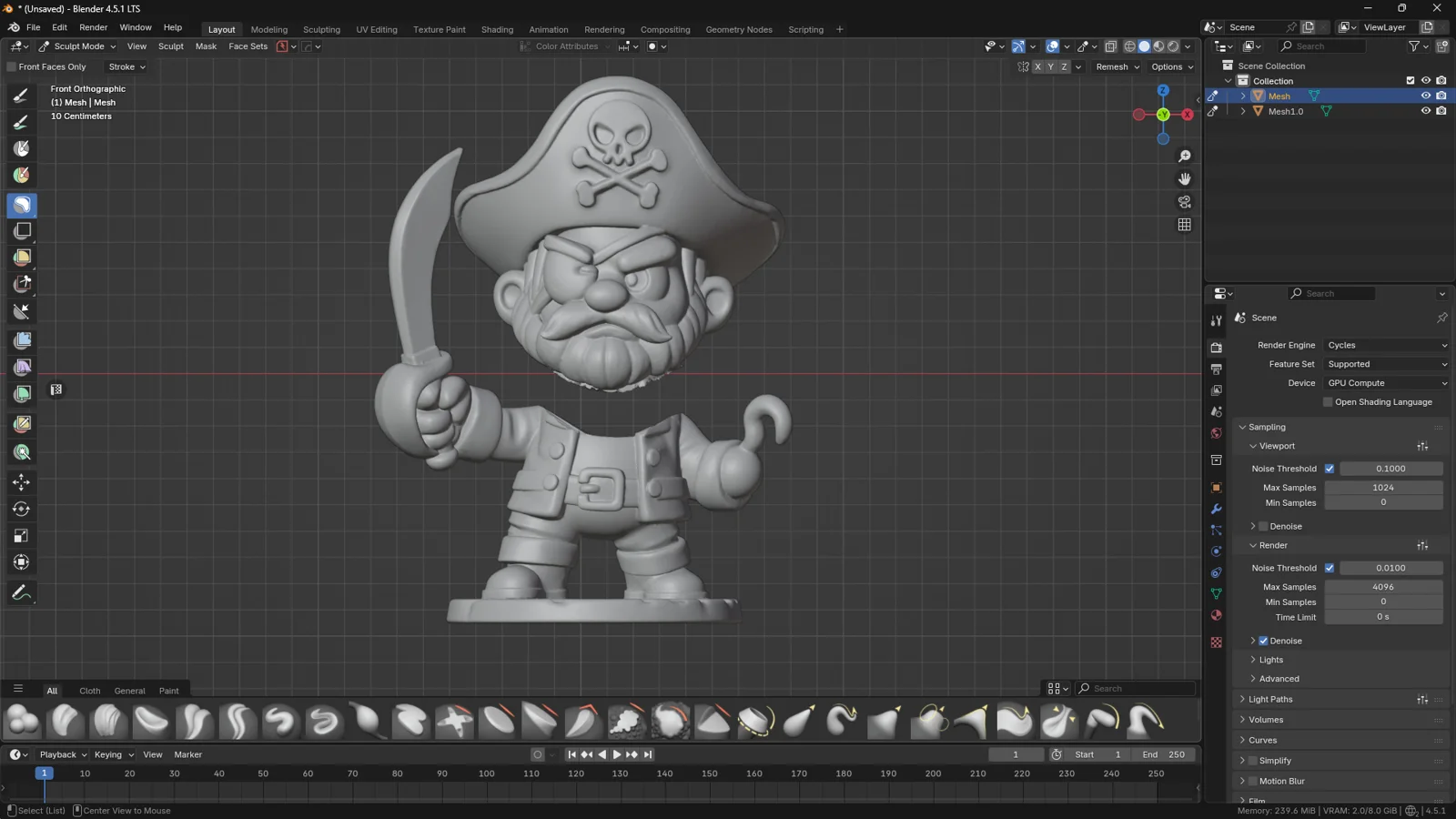
After cutting your model, you’ll likely notice small imperfections or fragmented surfaces.
This happens because slicing generates new faces and edges that don’t always blend perfectly with the existing topology — especially when the sculpture has uneven polygon density.
To fix these issues and restore a clean, uniform mesh, Blender provides a powerful tool: Voxel Remesh.
Why Voxel Remesh Matters
Voxel Remesh essentially rebuilds your model’s geometry, creating a consistent, artifact-free topology.
Think of it as Blender “kneading” your mesh into a smooth, even structure with constant resolution, ensuring perfect continuity between the cut parts.
It’s an essential step in Sculpt Mode, allowing you to remove holes, overlapping surfaces, and stretched triangles — all elements that can cause problems when adding fine details later.
How to Apply Voxel Remesh
The process is simple:
-
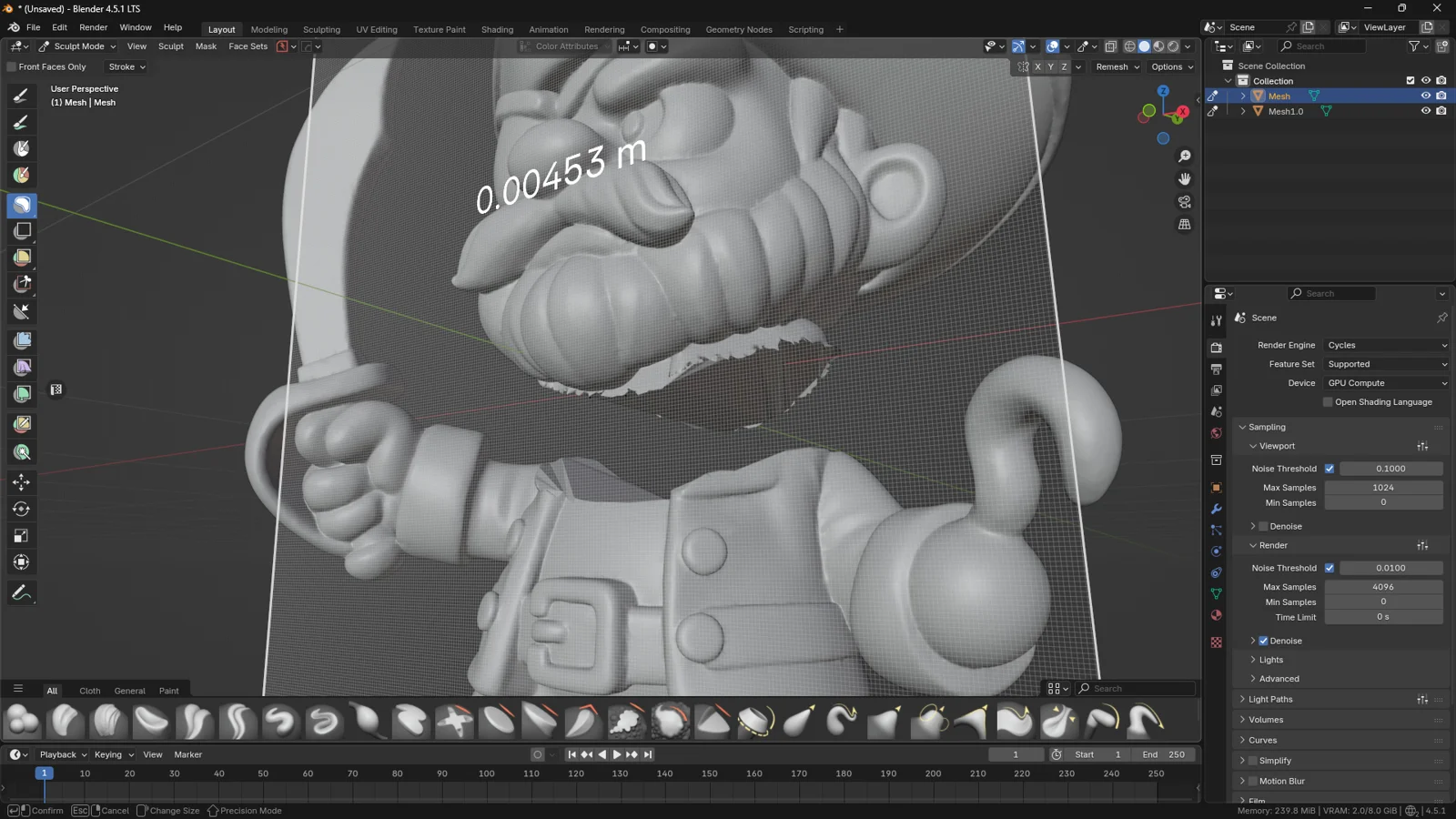
Press Shift + R (only R for Blender new versions) to preview the remesh density.
Blender will display a voxel grid overlay, helping you visualize the resolution you’re about to apply. -
If the grid looks too coarse or too fine, adjust the Voxel Size in the sidebar.
-
Once you’re satisfied, press Ctrl + R to apply the remesh.
In just a few seconds, Blender reconstructs your geometry with a uniform, clean surface.
Practical Example
Imagine you’ve separated the head from the torso to sculpt facial features more easily.
After slicing, you might notice a slightly uneven border or small fragments along the edge.
With a single Voxel Remesh, Blender seamlessly merges the surface, giving you a clean, solid model ready for further sculpting.
This workflow is especially useful for complex models — such as creatures, armor, or rock formations — where slicing can introduce subtle visual discontinuities.
⚠️ Important Warning
Voxel Remesh is incredibly useful, but it should be used with care.
When applied, Blender rebuilds the entire topology, meaning you’ll lose fine sculpted details from the previous version.
For that reason, it’s best to use it only when you’re sure of your cut — before moving on to the detail refinement phase.
A solid workflow is:
Cut → Remesh → Main Sculpting → Final Details
A uniform sculpting mesh and purpose-driven production topology serve different needs; review the final use before treating the remeshed result as finished geometry.
5. Avoiding Common Mistakes
Even though the mask workflow in Sculpt Mode is quite intuitive, there are a few recurring mistakes that can lead to unexpected results or confusion in your scene.
One of the most common issues is forgetting an active mask after performing an operation.
The Problem
When you execute a cut or apply a remesh, Blender keeps the existing mask active until you manually clear it.
This means that if you start drawing a new mask without first removing the previous one, you may overlap or mix selections, creating unwanted geometry fragments or incorrect cuts.
It’s a small oversight, but it can easily affect the accuracy of your sculpting, especially if you’re performing multiple slices in a row or experimenting with different cutting points.
The Solution
To avoid any leftover mask data, simply clear the mask completely before creating a new one.
The shortcut is very straightforward:
Alt + M in Sculpt Mode
With this simple command, Blender instantly removes all active masks and restores your mesh to a neutral, ready state for the next operation.
Think of it as a quick “maintenance gesture” between actions — like cleaning your brush before switching colors.
💡 Expert Tip
“Get used to clearing your mask between each cut — it’s a simple habit that prevents a lot of confusion in your scene.”
If you often forget this step, consider adding it to your regular sculpting routine:
Slice → Clear Mask (Alt + M) → New Selection
Over time, it’ll become second nature, saving you both time and frustration.
6. Refining and Smoothing the Edges
After performing the cut, you might notice that your model’s edges look too sharp or artificial.
That’s perfectly normal — the Mask Slice to New Object command creates a clean, precise separation, but visually the result can feel a bit “harsh.”
To restore a more natural, soft, and cohesive look to your sculpture, you can perform a quick but highly effective touch-up.
The Right Tool: Mesh Filter → Smooth
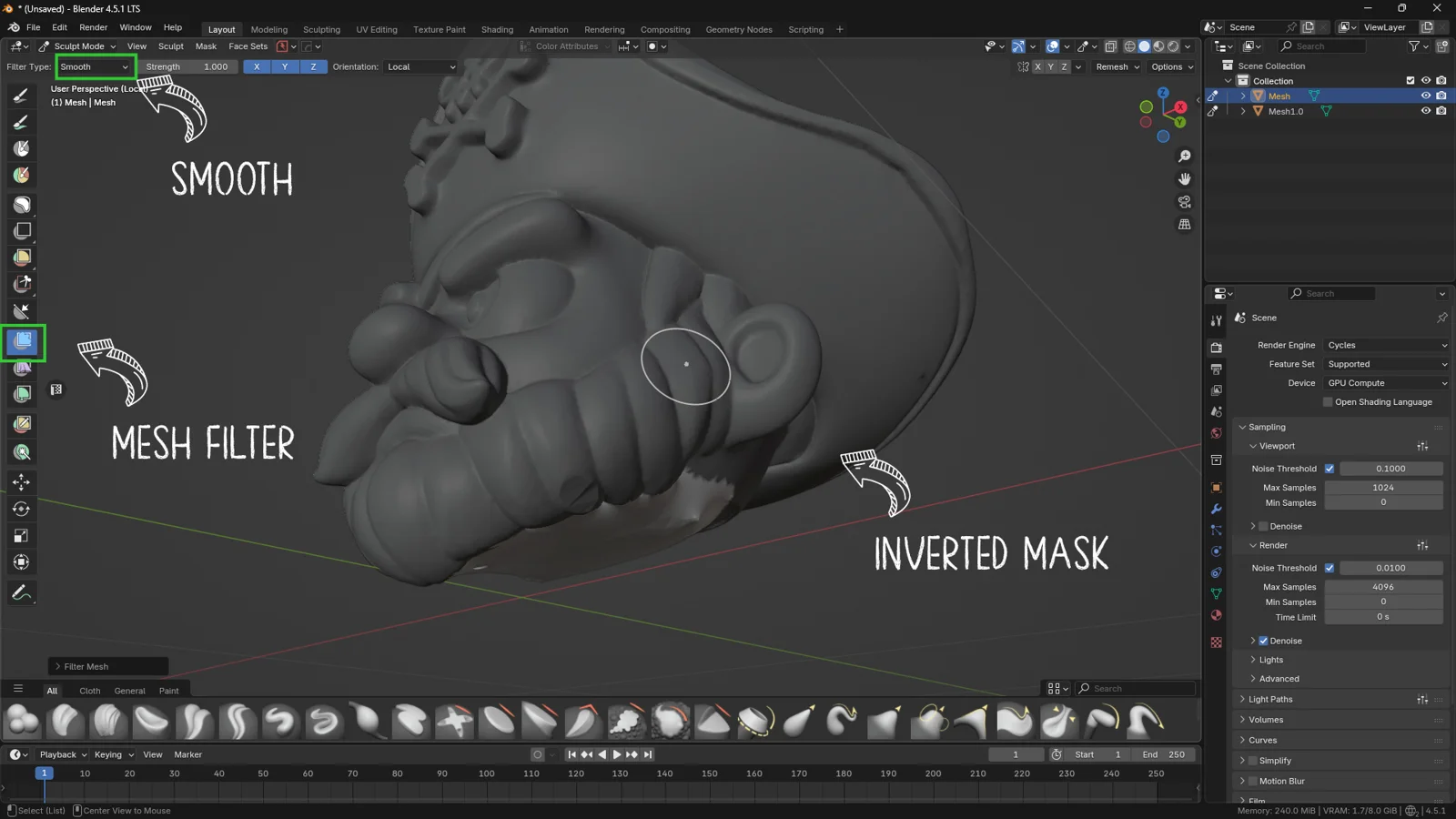
Blender provides a dedicated tool to smooth geometry in a controlled way: the Mesh Filter.
Among its available modes, the one we need is Smooth, ideal for softening hard edges or overly visible transitions.
How to use it:
-
Enter Sculpt Mode on the newly cut object.
-
From the tool menu, select Mesh Filter (cube-shaped icon).
-
In the top bar, set the filter type to Smooth.
-
Click and drag your mouse over the desired area to apply a progressive smoothing effect.
In just a few strokes, you’ll see the cut edges blend naturally with the surrounding surface, creating a smoother and more realistic transition.
🖌️ Artistic Tip
Avoid applying the Smooth filter across the entire model — focus only on the cut or junction areas.
Using it globally may flatten sculpted details and make the surface look less interesting.
For even more control, you can:
-
Create a Face Set around the cut edge and apply the Smooth filter only there.
-
Or manually mask the areas you want to preserve, so the effect only influences the targeted zone.
“A light touch of Smooth on the right edge can turn a mechanical cut into an organic, believable sculpture.”
This small adjustment adds character and realism to your model — keeping technical precision while preserving the natural flow of forms.
7. Conclusion & Further Exploration
Cutting a model in Sculpt Mode is one of those operations that, once discovered, can truly change the way you work in Blender.
With just a few steps — mask, cut, remesh, and refine — you gain full control over your model’s shape without breaking your creative flow or switching back to Edit Mode.
The complete workflow we’ve explored in this tutorial is simple yet powerful:
-
Create a mask over the area you want to separate.
-
Cut the model using Mask → Mask Slice to New Object.
-
Clean up the topology with a Voxel Remesh for a uniform surface.
-
Clear any leftover masks with Alt + M to avoid confusion.
-
Smooth the edges using Mesh Filter → Smooth for a natural finish.
This process is especially useful during the blocking or early sculpting phase, when you’re still shaping the main forms and want the flexibility to split or rejoin parts at will.
🎯 Final Tip
“Use cutting not just as a technical operation — but as part of your creative process.”
Try experimenting with Mask Slice to create different variations of the same sculpture — for example, multiple versions of a face or creature — or to extract specific elements (like horns, accessories, or ornamental details) to reuse in other projects.
Upgrade Your Asset Library Stop wasting time searching for low-quality resources. Speed up your workflow with our exclusive collection of HDRis, PBR Textures, and Game Props. 👉 Visit the 3DSkillUp Store on Superhive
For a game asset, continue from the sculpt through a high-poly to low-poly workflow before baking and engine validation.