
Introduction
In the 3D world, bevels are one of those deceptively simple details that dramatically influence the quality and realism of a model. When we look at real-world objects—furniture, smartphones, metal handles, even bricks—we notice that none of their edges are perfectly sharp. Everything, even what appears angular, has a subtle rounding that catches light, softens transitions, and makes the object feel more believable.
The same rule applies in digital modeling: razor-sharp edges look artificial, no matter how good the textures are. Bevels help surfaces interact with light more naturally, turning a flat, mechanical model into something that feels physically grounded and professionally crafted.
Why beginners often struggle with bevels
New Blender users frequently end up with bevels that look odd: too wide, too narrow, uneven, or barely noticeable. This usually happens because:
-
the mesh contains messy geometry (ngons, inconsistent triangles, unapplied scale);
-
bevels are applied uniformly without considering edge angles;
-
only manual bevels (Ctrl+B) are used, without leveraging the Bevel Modifier;
-
there’s no clear distinction between macro bevels (visible chamfers) and micro-bevels (tiny light-catching edges);
-
normals and shading aren’t managed properly.
The result is a model that instantly reveals its “CG look” even with solid texturing.
What you’ll learn in this article
This guide explores multiple ways to create clean, consistent, and production-ready bevels in Blender—starting from simple techniques and moving toward more advanced workflows. You’ll learn:
-
when to use large bevels vs. subtle micro-bevels;
-
how to sculpt edge transitions with Ctrl+B;
-
how to achieve non-destructive, predictable results with the Bevel Modifier;
-
how combining multiple bevels can mimic real-world materials;
-
extra tricks such as custom normal transfer and shader-based beveling.
By the end, you’ll have a practical mini-workflow you can apply immediately to improve your shading, reflections, and overall model quality.
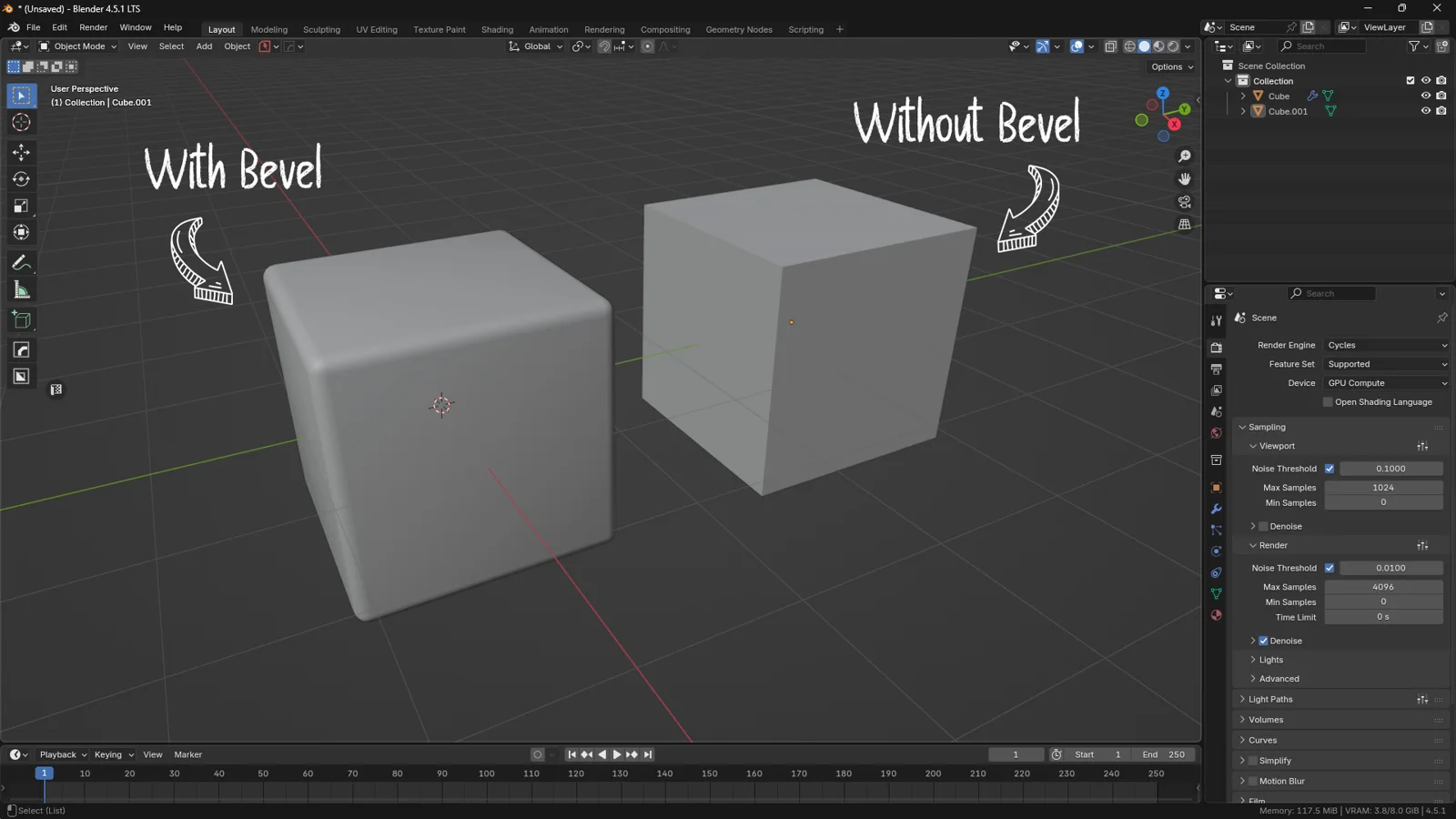
A side-by-side comparison in Blender showing a cube with bevels versus one without, highlighting how edge smoothing enhances realism.
When to Use “Large Bevels” and When to Use “Micro-Bevels”
One of the most common challenges in Blender is understanding how big a bevel should be. How wide should it look? When should it affect the shape? When should it be barely noticeable? The answer depends on the type of object you’re modeling and the final look you want to achieve.
To simplify the process, we can distinguish between two categories: large bevels and micro-bevels. They serve very different purposes, and understanding how to combine them is essential for producing realistic models.
Large Bevels: Shape-Defining Chamfers
Large bevels are clearly visible smoothed edges that influence the silhouette of the model. They are not applied arbitrarily—they are used only when the real object actually has rounded or softened edges.
Realistic examples where a large bevel is appropriate include:
-
rounded plastic components (furniture, appliances, molded objects);
-
soft-edged electronics and accessories (mice, controllers, modern devices);
-
parts designed to be held, gripped, or touched;
-
design-oriented objects where the beveled edge is part of their identity.
These bevels exist because the real object has that shape. They should not be used just to “make the model look nicer.”
If the real model has hard industrial edges (steel parts, machined pieces), a large bevel would be inaccurate.
Micro-Bevels: Improving Shading, Not Shape
Micro-bevels are extremely small chamfers that barely affect the silhouette. Their job is not to change the geometry but to improve how light behaves on the surface.
In the real world, perfectly sharp edges do not exist. Even machine-cut metal has a tiny radius that catches a thin highlight. Without this, 3D objects develop harsh, unrealistic reflections or no highlight at all—instantly giving them a CG look.
A micro-bevel:
-
softens shading transitions;
-
creates smooth, natural reflections;
-
removes razor-thin, unnatural highlights;
-
enhances realism even with simple materials.
It’s a detail that often goes unnoticed consciously, but the eye immediately recognizes when it’s missing.
Important Note on Low-Poly Models: No Real Bevels, Only Baking
Low-poly models for games do not include real bevels in the mesh.
Instead, the correct workflow is:
-
High-poly model with real bevels (large and micro-bevels).
-
Clean low-poly model with sharp edges.
-
Bake normal maps to transfer the bevel information to the low-poly.
-
The game engine reproduces the bevel visually through shading.
Thus, in realtime assets, micro-bevels are normal-map information, not actual geometry.
Why You Often Need Both
Realistic models typically combine bevels of different sizes, just like real objects:
-
the large bevel represents the physical curvature and ergonomics;
-
the micro-bevel refines the way light transitions across the surface.
Together, they produce a result that looks right in both form and shading.
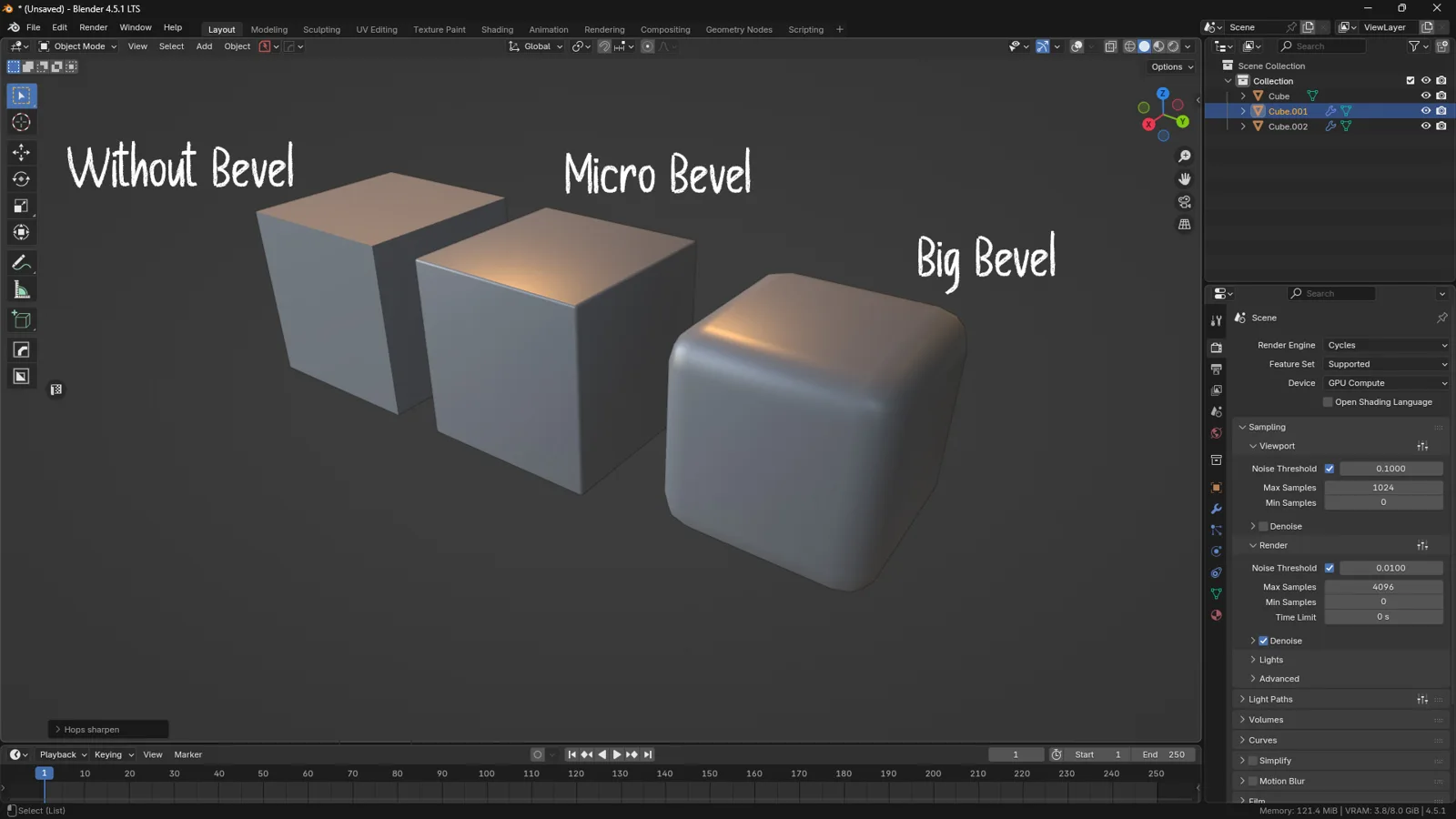
A visual comparison in Blender showing how no bevel, a micro bevel, and a large bevel affect shading, reflections, and overall realism.
Method 1 – Manual Beveling with Ctrl+B
Manual beveling is often the first tool a 3D artist learns in Blender: select an edge, press Ctrl+B, move the mouse… and a chamfer appears.
Despite its simplicity, this tool offers a surprising amount of control and can be extremely precise when used correctly.
In this section, we’ll explore how manual beveling really works, when it’s the best choice, and which mistakes to avoid for clean, predictable bevels.
When to Use Manual Beveling
The Ctrl+B command is ideal when you need to:
-
add bevels to very specific areas, not the entire model;
-
make quick artistic adjustments to the curvature of an edge;
-
refine small elements like buttons, secondary details, or localized features;
-
work quickly during the blockout or concept stage.
It’s a more “sculptural” approach, shaping the mesh directly and choosing exactly which edges should be rounded.
How the Manual Bevel Tool Works (Ctrl+B)
-
Select one or more edges in Edit Mode.
-
Press Ctrl+B to activate the bevel tool.
-
Move the mouse to set the bevel width.
-
Use the mouse wheel to increase or decrease the number of segments.
-
Confirm with a left click.
While beveling, Blender displays additional parameters in the bottom bar, such as width, profile and segmentation, which can be adjusted on the fly.
Segments and Profile: Two Essential Parameters
-
Segments: More segments = smoother curvature.
-
Profile: Controls the shape of the bevel (0 = concave, 0.5 = default, 1 = convex).
For hard-surface modeling, most manual bevels use 1 to 3 segments, unless you’re intentionally creating very soft or organic shapes.
Practical Tips for Clean Manual Bevels
1. Always Apply Scale (Ctrl+A → Scale)
If the object’s scale is non-uniform, the bevel will also be non-uniform.
This is one of the most common causes of “weird” bevels.
2. Avoid Large Bevels Unless They Exist on the Real Object
Oversized bevels can distort the silhouette or introduce unnecessary geometry.
A manual bevel should reflect the real-world design, not replace it.
3. Clean Up the Mesh Before Beveling
Ngons, stray triangles, and messy edge loops produce irregular bevels.
A clean mesh = predictable bevels.
4. Enable “Clamp Overlap” When Working with Dense Meshes
This prevents the bevel from collapsing into itself or intersecting nearby geometry.
5. Treat Manual Bevels as Local Adjustments
For global smoothing, micro-bevels, or consistent bevels across an entire asset, the Bevel Modifier is a better and more controllable solution (covered in the next section).
When to Avoid Manual Bevels
Although powerful, Ctrl+B is NOT always the right tool. Avoid manual beveling when:
-
you need a uniform bevel across the entire object → use the Bevel Modifier;
-
you want a fully non-destructive workflow;
-
you’re preparing a high-poly model for baking → bevel everything in the high-poly mesh;
-
you’ll be controlling edges via Edge Weight or angle-based beveling.
In summary: Ctrl+B is perfect for targeted, artistic edits, but not ideal for managing the bevel structure of a complex asset.
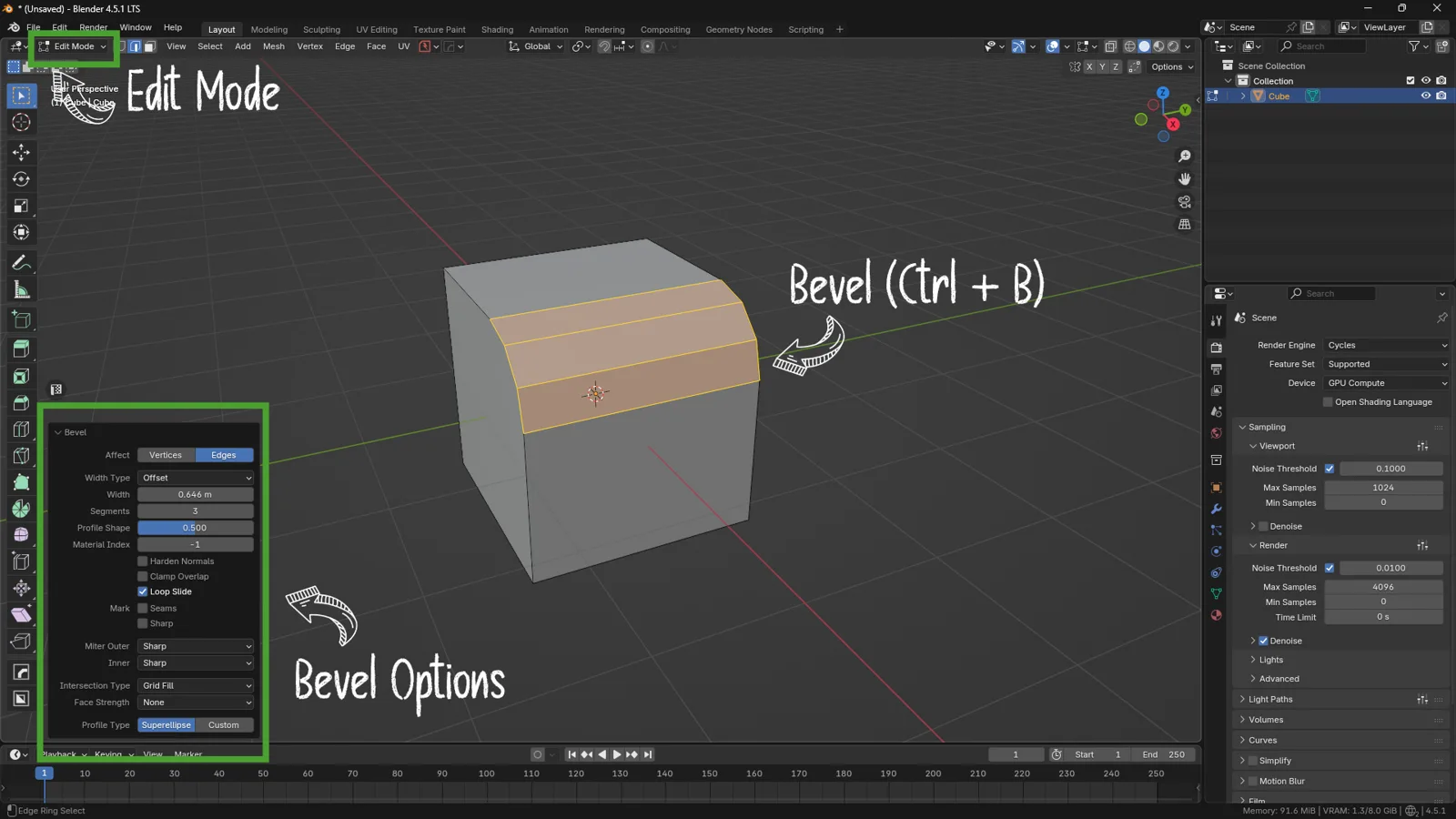
Manual beveling in Blender: an example of selected edges in Edit Mode using Ctrl+B, with the bevel options panel displayed for precise control over width, segments and profile.
Method 2 – The Bevel Modifier for Small and Consistent Bevels
The Bevel Modifier is one of the most important tools in hard-surface modeling. Unlike manual bevels, this method is non-destructive, offers more precise control, and keeps your geometry flexible throughout the entire modeling process.
In this section, we explore why it’s so essential and how to configure it correctly to achieve clean, consistent, and realistic bevels.
Why This Method Is Fundamental
1. It does not destroy the mesh
The Bevel Modifier doesn’t permanently alter the geometry: you can enable, disable, tweak, or remove it at any time.
This is crucial when working on complex models or assets that may evolve over time.
That adjustability is the central advantage of a non-destructive modeling workflow when proportions or edge treatments change later.
2. You can control edge hardness at any stage of the modeling process
As long as the modifier stays active, any change you make to the mesh—new loop cuts, extrusions, added details—updates automatically while preserving consistent bevels.
This allows you to:
-
keep bevels uniform across the model;
-
avoid duplicate or overlapping bevels;
-
work cleanly and efficiently;
-
add micro-bevels as a final pass without touching the mesh.
Key Bevel Modifier Settings
The modifier panel includes many options, but a few of them are essential for producing high-quality bevels.
● Limit Method: Angle
This setting determines which edges receive the bevel.
-
Angle bevels all edges that exceed a specific angle threshold (default: 30°).
-
Works well for clean hard-surface geometry with clear corner transitions.
Use Angle when:
-
you want fast, automatic beveling;
-
your mesh has well-defined hard edges.
Avoid Angle when:
-
edge angles are similar but serve different design functions;
-
you need manual, artistic control (in that case, Edge Weight is better).
● Width Mode: Offset, Width, Percent
Defines how Blender calculates the bevel width.
-
Offset (default): expands the bevel outward from the edge.
-
Width: sets the actual width of the beveled surface.
-
Percent: scales the bevel proportionally to the length of the edge.
Pro tip:
For most hard-surface assets, Offset is the most stable and predictable option.
● Segments
Controls how smooth the bevel is.
-
1–2 segments → hard chamfers, ideal for machined metal parts
-
3–4 segments → softer curves, good for plastics or ergonomic objects
-
Micro-bevels → 1 segment is enough (the goal is only to soften shading)
More segments = smoother result, but heavier geometry.
● Harden Normals
One of the most important options—and one you should enable almost every time.
It ensures:
-
consistent shading across beveled edges;
-
no overly soft or overly sharp shading transitions;
-
correct blending when using Auto Smooth.
Note: Auto Smooth must also be enabled in the object’s mesh settings.
Edge Weight & Vertex Weight
Sometimes Angle isn’t enough. You may want to bevel specific edges—even if they don’t exceed the angle threshold—or avoid bevels where Angle would normally apply them.
This is where Edge Weight and Vertex Weight come into play.
● Edge Weight
Allows you to manually mark which edges should receive the bevel.
How to use it:
-
Select an edge.
-
Press Ctrl+E → Edge Bevel Weight.
-
Assign a value between 0 and 1.
-
In the modifier, set “Limit Method: Weight”.
Use Edge Weight instead of Angle when:
-
you need full artistic control;
-
your mesh has similar angles but different functional edges;
-
you’re modeling mechanical parts or complex hard-surface shapes.
● Vertex Weight
Used less frequently, but helpful when controlling bevels via vertex groups, especially in highly complex models.
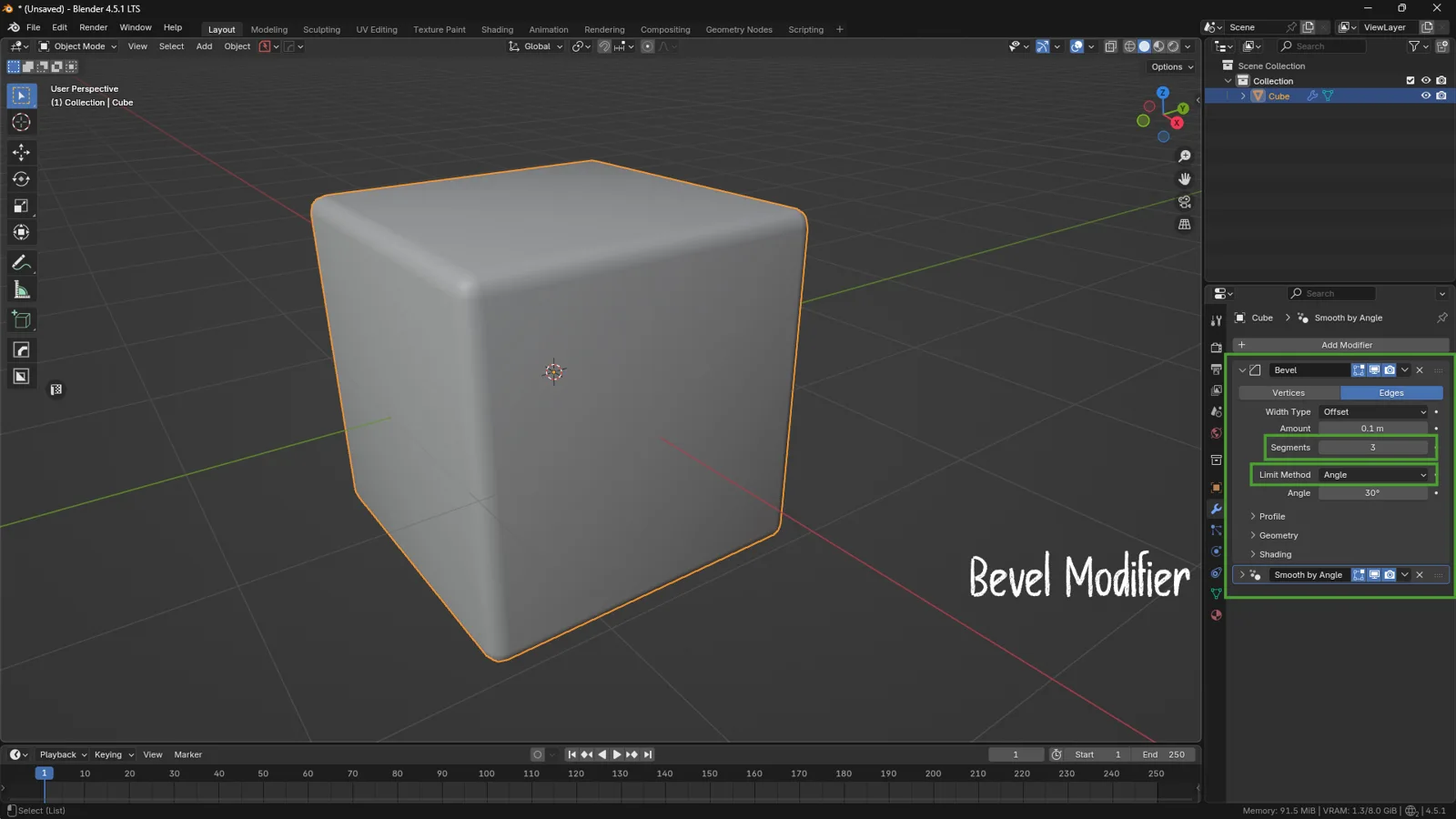
Example of the Bevel Modifier in Blender applied to a cube, with key settings such as Offset width, Segments, and Angle limit method highlighted for clean edge beveling.
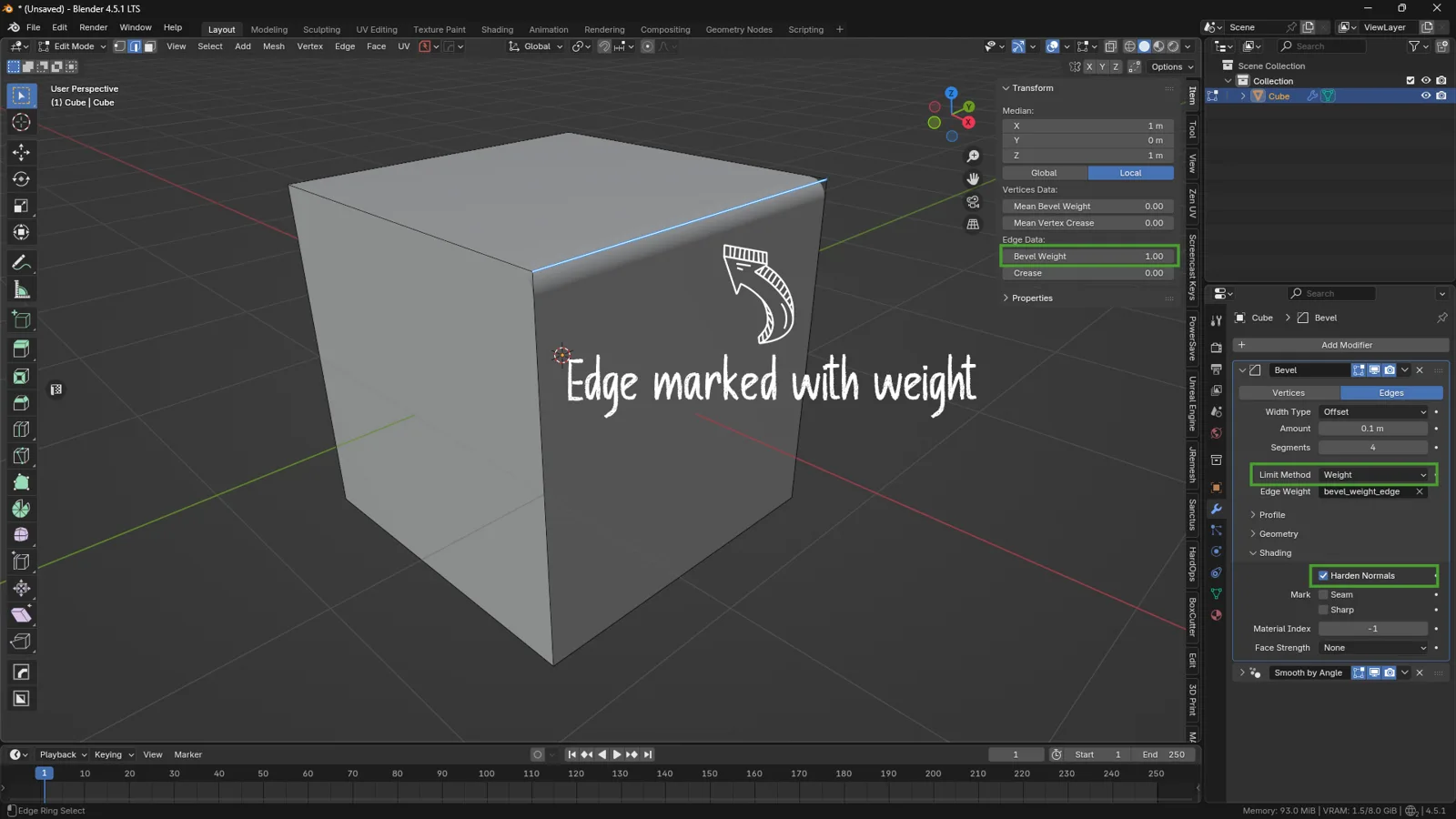
Example of using Bevel Weight in Blender: a single edge marked with weight and the Bevel Modifier configured to the Weight limit method for precise, targeted beveling.
Method 3 – Micro-Bevel Through Shader (Cycles)
You don’t always need to add geometry to soften edges.
Cycles, Blender’s physically based render engine, includes a Bevel node that allows you to simulate micro-bevels directly in the shader, without modifying the mesh at all.
This method is extremely useful in certain scenarios, but it comes with important limitations you should understand before adopting it.
When to Use It
Great for static renders
Shader-based micro-bevels are ideal when:
-
you want smoother reflections on edges;
-
you need micro-rounding without increasing geometry;
-
you’re producing still images or product renders;
-
you want to quickly improve shading without touching the mesh.
Its main strength is that it affects only the shading, keeping the geometry lightweight.
Not recommended for animation or realtime assets
Avoid this method when working on:
-
animations (can cause shimmering or artifacts);
-
videogame or realtime assets (not supported in Eevee or game engines);
-
models that require perfect coherence between geometry and shading.
The reason is simple: shader bevels do not alter the mesh.
They modify surface normals, which can lead to instability or inconsistent highlights across frames.
How to Set It Up
Configuring a shader-based micro-bevel is straightforward. Here’s how to do it.
1. Open the Shader Editor → Select the material
Make sure you have a Principled BSDF connected to the Material Output.
2. Add a Bevel Node
Shift + A → Search → Bevel
This node simulates a bevel by adjusting the normals around the edges.
3. Connect the Bevel Node to the Principled BSDF Normal input
Bevel Node → Normal → Principled BSDF → Normal
Cycles will now start simulating softened edge shading.
4. Set a realistic Radius value
The Radius parameter controls the “size” of the simulated bevel.
Suggested ranges:
-
0.001 – 0.005 → subtle micro-bevel (metals, hard plastics)
-
0.01 – 0.02 → softer edge (consumer electronics, plastic casings)
Larger values become unrealistic and may visibly distort highlights.
Limitations of the Technique
It’s important to know what this method cannot do.
1. Works only in Cycles
The Bevel node is not supported in Eevee or game engines.
2. Can introduce noise
It increases shading complexity, so it may require:
-
more samples,
-
more denoising,
-
careful adjustments for clean results.
3. Does not replace real geometry
The effect is visual only.
A true bevel on the mesh always produces more accurate and stable reflections.
4. Limited compatibility
Certain node setups, especially those using normal maps or complex shader networks, can interfere with the Bevel node.
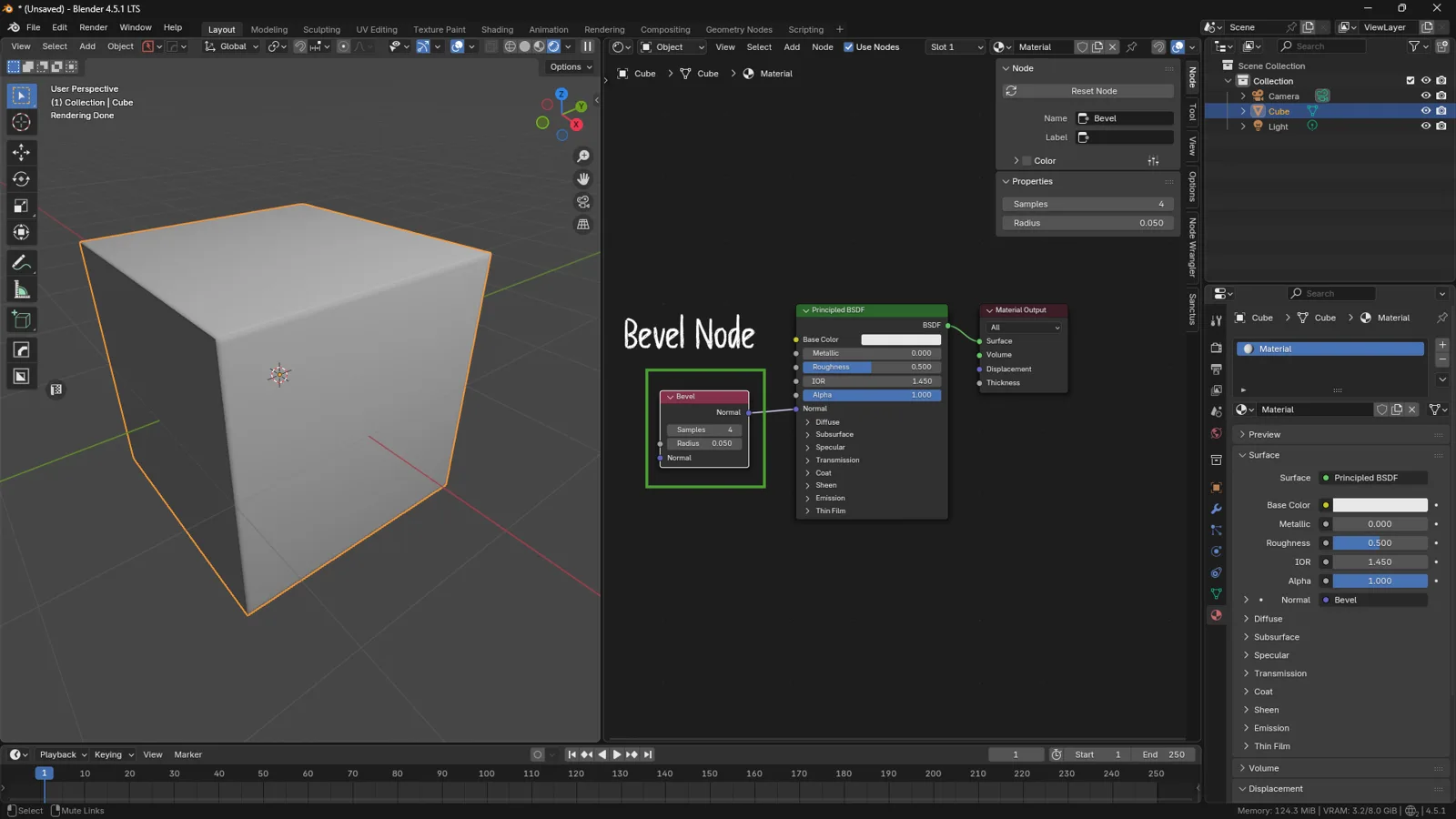
Material setup in Blender Cycles using the Bevel node connected to the Principled BSDF Normal input to create subtle micro-bevel shading without modifying geometry.
Common Mistakes to Avoid
Even with the right tools, bevels can cause problems if you’re not careful.
Here are the most frequent mistakes and how to avoid them.
1. Using bevels that are too large for the real-world scale
An oversized bevel on an object that should have sharp corners will look unrealistic and distort the silhouette.
Golden rule: always work in real-world scale and compare bevel values with real measurements.
2. Beveling before cleaning the mesh
Ngons, uneven triangles, and messy edge loops lead to unpredictable bevels:
-
shading artifacts,
-
collapsed bevels,
-
distorted surfaces.
Before adding bevels, make sure your geometry is clean.
3. Not applying object scale (Ctrl + A → Scale)
If an object has uneven scale (e.g., 1, 1, 3), the bevel will stretch and behave inconsistently.
This is one of the most common beginner mistakes, and it’s easily fixed by applying the scale.
4. Using manual bevels everywhere
Ctrl+B is useful, but overusing it creates:
-
messy and hard-to-edit meshes,
-
duplicated edges,
-
bevels that break easily when editing,
-
limited flexibility later in the workflow.
Manual bevels should be considered local adjustments, not a global solution.
5. Relying only on Angle in the Bevel Modifier
Angle is convenient, but it’s not always reliable:
-
bevels may appear where you don’t want them,
-
missing bevels where they’re needed,
-
issues in complex topology.
In these cases, Edge Weight is often the better choice.
6. Underestimating the importance of micro-bevels
Micro-bevels are not optional — they are essential for realistic shading.
Without them, models tend to look:
-
overly digital,
-
lacking coherent highlights,
-
less believable in renders.
7. Using the Bevel Shader as a replacement for real geometry
The shader bevel is great for still images, but:
-
it doesn’t work in Eevee,
-
it doesn’t work in game engines,
-
it may introduce noise and artifacts,
-
and it cannot replace real bevel geometry.
Use it wisely and only in the right context.
Conclusions
Bevels are far more than a minor geometric detail —
they are a fundamental component of realism in 3D modeling.
Every real object features edges with different types of rounding.
For this reason, a believable digital model must combine:
-
macro-bevels to define the physical shape,
-
micro-bevels to control how light interacts with the surface,
-
Edge Weight or Angle to manage which edges receive bevels,
-
Bevel Modifier for non-destructive workflows,
-
and shader-based micro-bevels when rendering static images in Cycles.
No single method is “the best.”
Each one has its purpose within a complete bevel workflow.
Mastering how to combine them is what separates a basic model from a professional one.
By now you should have:
-
a complete understanding of all major bevel techniques;
-
the ability to choose the right method for each project;
-
a cleaner, faster, and more realistic modeling workflow;
-
a better sense of how light interacts with geometry.
Apply these techniques to your next asset and you’ll immediately notice improvements in reflections, shading smoothness, and overall realism.