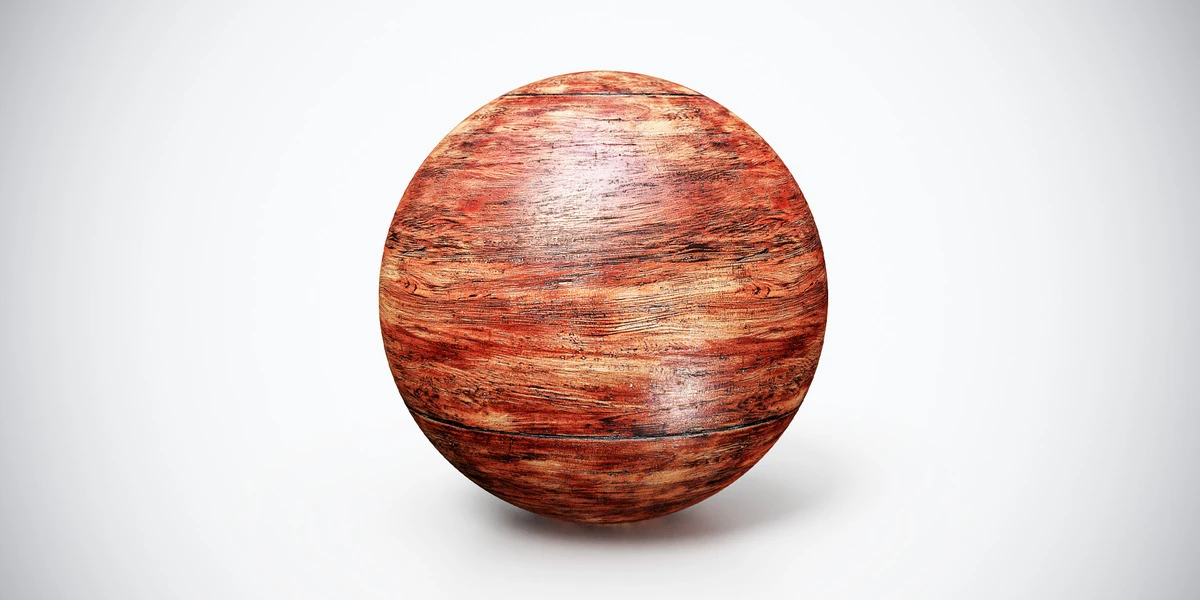
Aged Red Wood PBR Texture — Broad Grain
Aged Red Wood PBR Texture — Broad Grain. Explore seamless 4K maps, surface details and practical uses, with related materials and Blender workflow guides.
View assetSwitch the tangent-space Y convention by inverting the green channel. Keep the red, blue and alpha channels, and download a full-resolution PNG.
Your image is processed entirely in your browser and is never uploaded to 3DSkillUp.
Previews fit within 512 pixels. Downloads keep the original dimensions. PNG channels are read without color correction; JPEG and WebP use their decoded pixels. Lossy inputs may already contain compression artifacts.
This tool switches a tangent-space normal map between OpenGL (+Y) and DirectX (-Y) conventions. It applies G = 255 − G for 8-bit samples, or G = 65535 − G for 16-bit PNG samples. R, B and A stay unchanged. It does not generate a normal map from a photo or height map, flip the image vertically, or repair the mesh.
The labels describe opposite signs for the tangent-space Y component stored in green. A map exported for one convention may shade incorrectly when interpreted as the other. Confirm the export preset, material setup and importer settings for your actual workflow; an application name alone is not enough.
Learn how these maps fit alongside base color and roughness in the PBR material workflow. For mesh-related problems, read 3D normals explained.
Changing direction clears the old download. Conversion always starts from the selected original file, so switching directions does not accidentally flip an already converted result twice.
Green encodes the Y direction of a tangent-space normal. Inverting its 8-bit values changes that sign: 0 becomes 255, 127 becomes 128, and 255 becomes 0. Doing the operation twice restores the original values. The small change from 128 to 127 is expected in this integer representation.
A green-channel flip addresses a convention mismatch. It cannot fix a bad bake, mirrored tangent problems, incorrect UVs or a color-space error. Follow the inverted normal-map troubleshooting guide before changing several settings at once.
The selected image stays in browser memory. There is no upload endpoint, account, image analytics or localStorage cache. The site may load its own processing code; that request contains no image or filename. Reset releases previews, download URLs and the active worker. Download saves the result to your device.
Read the Privacy Policy and tool terms for details about local processing and your files.
No. The output retains the decoded width and height. Only the displayed previews are reduced to fit within 512 pixels. Output is lossless RGBA PNG: 16-bit for 16-bit PNG input, and 8-bit for other supported inputs. Display previews use 8-bit samples; the downloadable file retains full precision. It does not recover information already lost in a JPEG or lossy WebP.
The absolute limit is 8192 pixels per side, 64 Mi pixels in total and 75 MiB per input file. Detected high-memory desktop browsers with workers can use that limit. Mobile and browsers with unknown or lower memory use 16 Mi pixels; the fallback without the worker path uses 4 Mi pixels. 16-bit PNG has half the total pixel allowance to keep sample memory within the same budget. Your browser’s limits for both depths appear above the file input. Available memory may still prevent a conversion.
PNG with 8-bit or 16-bit samples (including lower-depth grayscale and indexed PNG), RGB or grayscale JPEG, and static WebP. PNG transparency is preserved, including color data beneath transparent pixels. WebP uses a local decoder to preserve its decoded alpha and color channels. Animated PNG/WebP and other formats are rejected. Without the worker path, use PNG or JPEG within the displayed pixel limit.
The output is a data texture: no color profile, gamma adjustment, EXIF rotation, sharpening or renormalization is applied. PNG samples are read directly. JPEG metadata that could rotate or recolor the image is removed before browser decoding; decoded JPEG pixels can vary slightly between browser implementations. The exported PNG does not carry the input’s metadata.
Check whether the destination importer already flips green, and ensure the map is connected as normal data. A second flip cancels the first. If the issue appears only at seams or on certain faces, inspect UVs, tangents and the bake rather than repeatedly converting the texture.
No. File validation, decoding, channel conversion and PNG creation all happen locally. You can use the tool without buying an asset.
Explore existing material sets and check each listing for included maps and export options. Convert a normal map only when your destination needs the other Y convention.
Aged Red Wood PBR Texture — Broad Grain. Explore seamless 4K maps, surface details and practical uses, with related materials and Blender workflow guides.
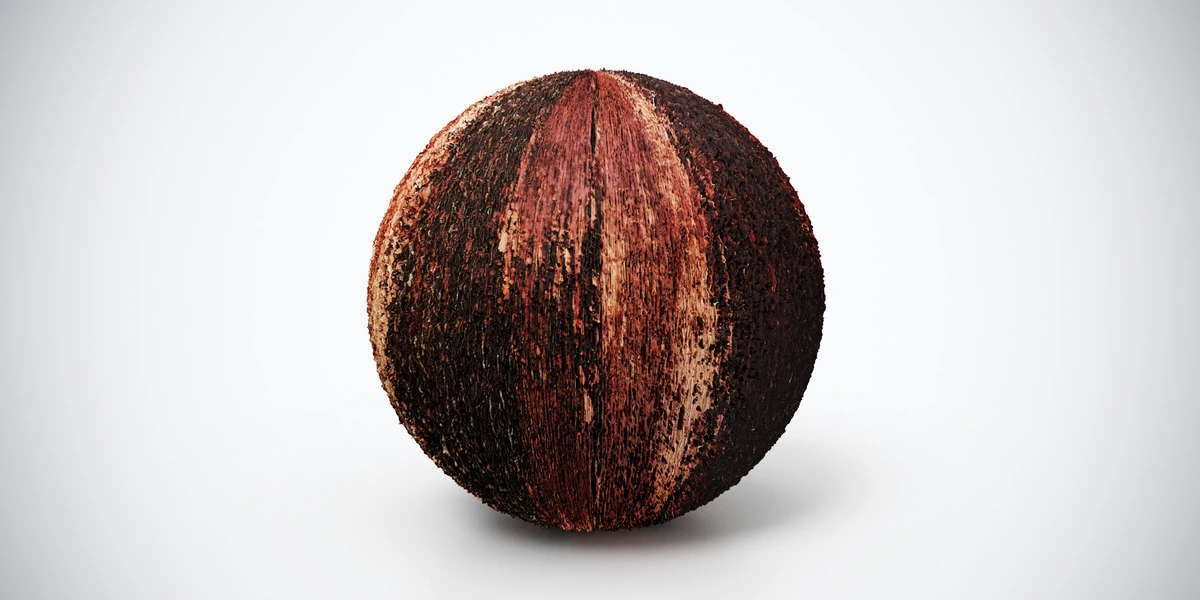
View assetAged Red Wood PBR Texture — Dark Streaks. Explore seamless 4K maps, surface details and practical uses, with related materials and Blender workflow guides.
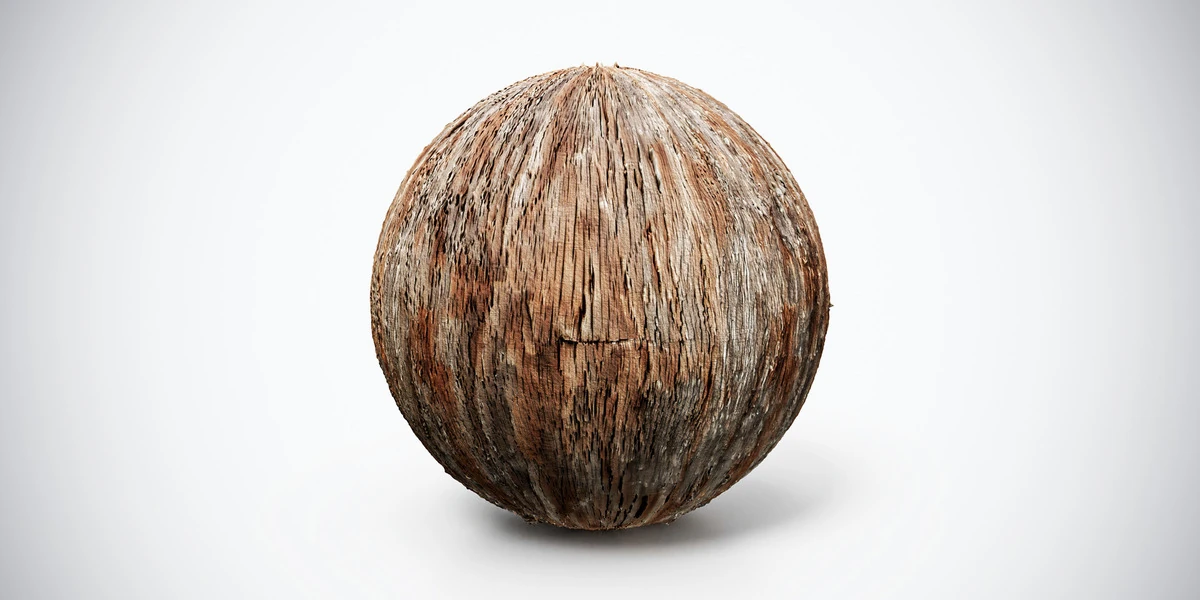
View assetAged Wood PBR Texture — Split Fibers: seamless 4K, 2K and 1K PNG maps, practical scene uses, surface setup tips and related materials for your 3D projects.
View asset