HDRI Lighting in Blender: A Practical Product Render Workflow
Set up HDRI lighting in Blender, rotate the environment, balance exposure, and check PBR materials with a practical workflow for clearer product renders.
Read article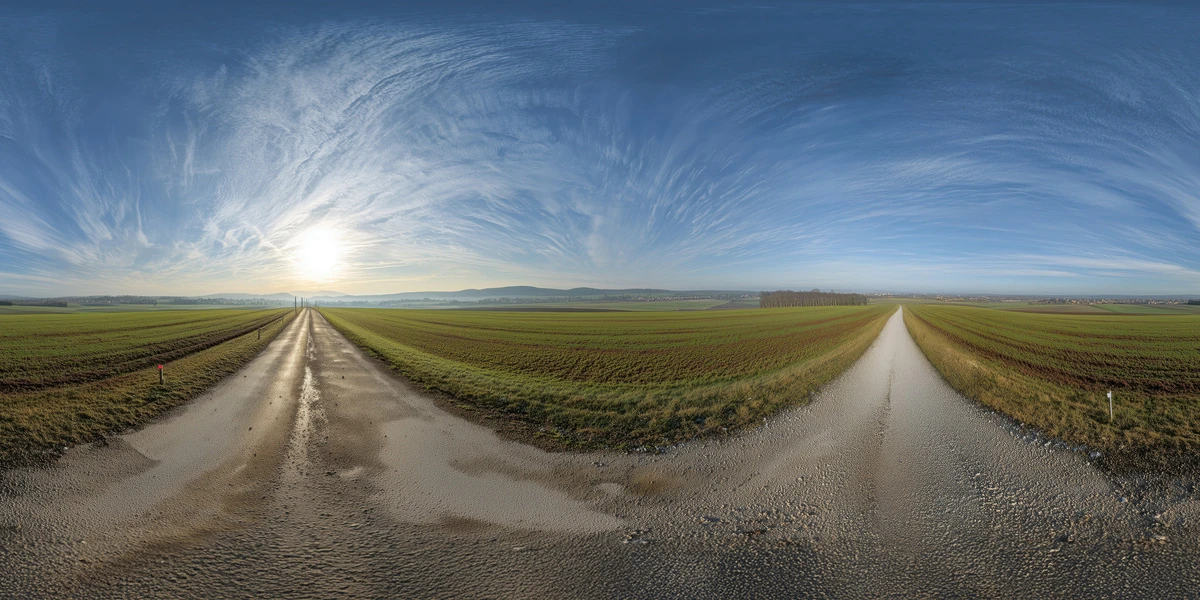
Open the image to explore the details.
Explore a country road HDRI with diverging tracks, green farmland and streaked clouds. Compare 12K to 2K unclipped maps for rural vehicle and prop lighting.
See current pricing, available files and license details on the marketplace.
Pale country tracks diverge across flat green farmland beneath a bright sun and long, wispy cloud patterns.
Try it for vehicle and farm-prop presentations where an open sky and clear ground direction help establish the scene.
Choose the camera angle before adding a foreground road. Matching the visible track direction will usually matter more than adding fine ground texture at the start.
The Superhive product description lists a 360° unclipped 32-bit HDR environment in 12K, 8K, 4K and 2K resolutions. Use the downloaded environment map for lighting; the image above is a web preview, not HDR lighting data.
Choose a resolution for the detail that will actually appear in your final reflections or background. The unclipped specification describes the listed product; it does not prescribe an exposure value for every scene.
Learn how to match HDRI lighting to a ground plane. Start with a fixed camera and a simple subject, test environment rotation, then adjust intensity separately. The Blender HDRI setup workflow explains the World lighting setup.
Compare this scene with Rural Dirt Road Field HDRI to see how a different horizon and surrounding surfaces change the same object. Browse the HDRI collection for more environments and combine the lighting and scene filters.
AI-Assisted, Human-Refined. The creator describes AI-assisted generation followed by manual refinement. Use these environments primarily for illumination and reflections, and inspect landscape details before relying on a large visible backdrop.
Set up HDRI lighting in Blender, rotate the environment, balance exposure, and check PBR materials with a practical workflow for clearer product renders.
Read articleGround your 3D subject under HDRI lighting in Blender. Match contact, sun direction and camera perspective, then choose a visible plane or shadow catcher.
Read articleYou can model a clean asset, unwrap it properly, bake a solid normal map, and still end up with a material that feels wrong.
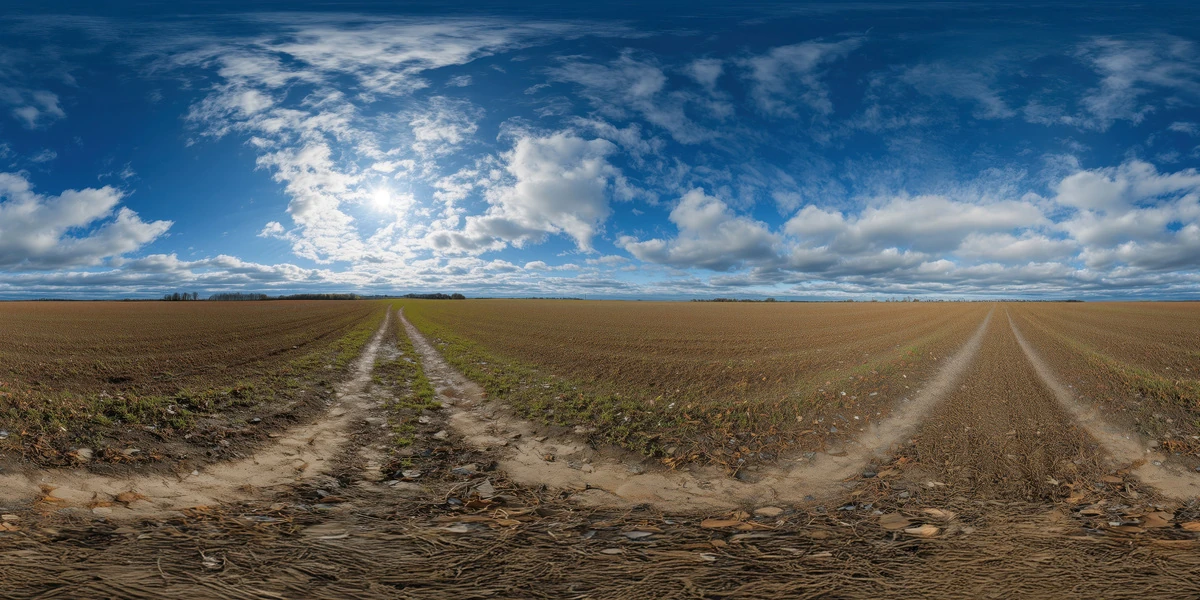
Read articleExplore a rural dirt road HDRI with cultivated fields and a cloud-patterned sky. Compare 12K to 2K options for farm scenes, vehicle lighting and reflections.
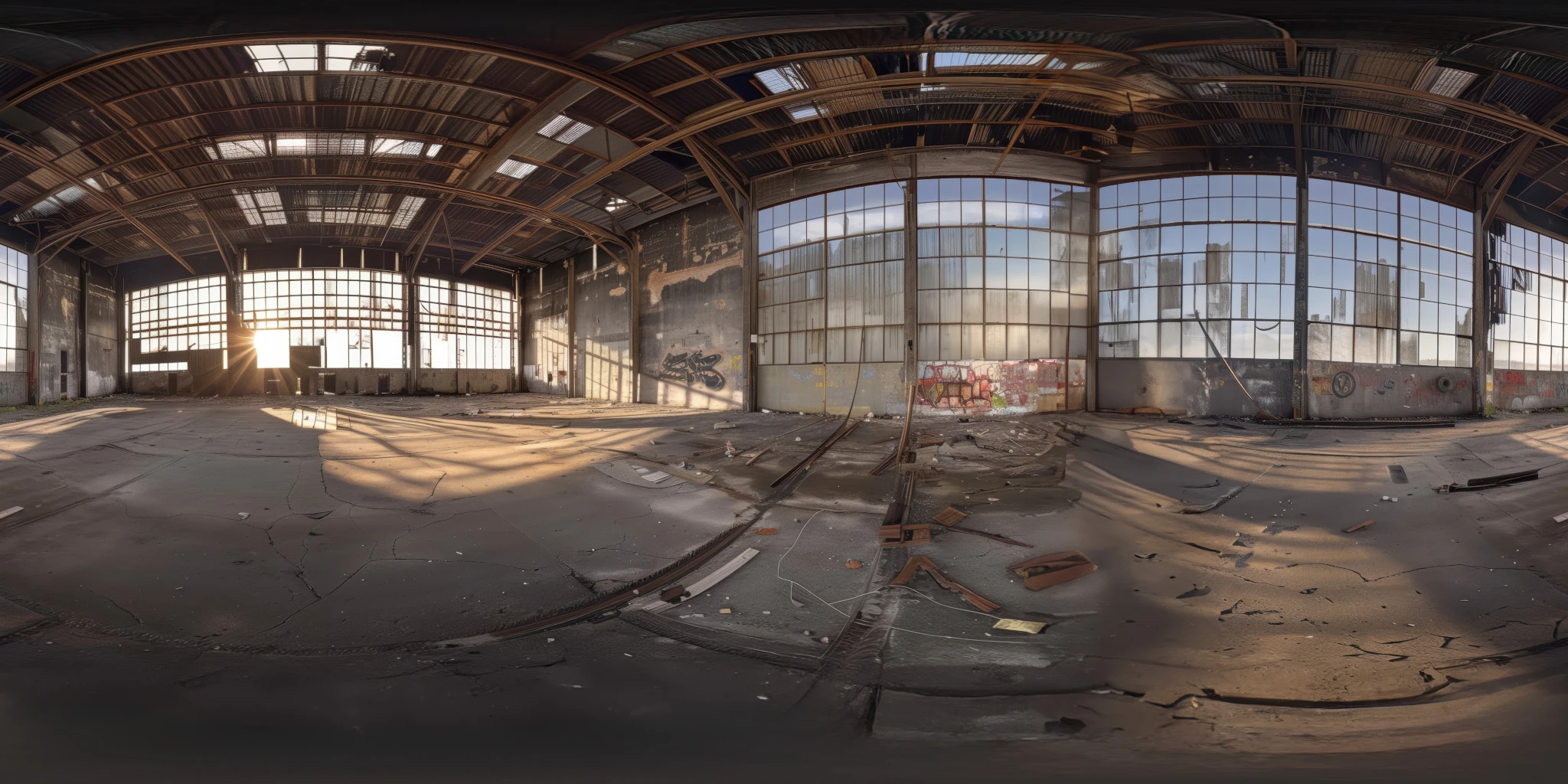
View assetExplore an abandoned warehouse HDRI with window light, roof trusses and worn concrete. Choose 12K to 2K unclipped maps for industrial props and reflections.
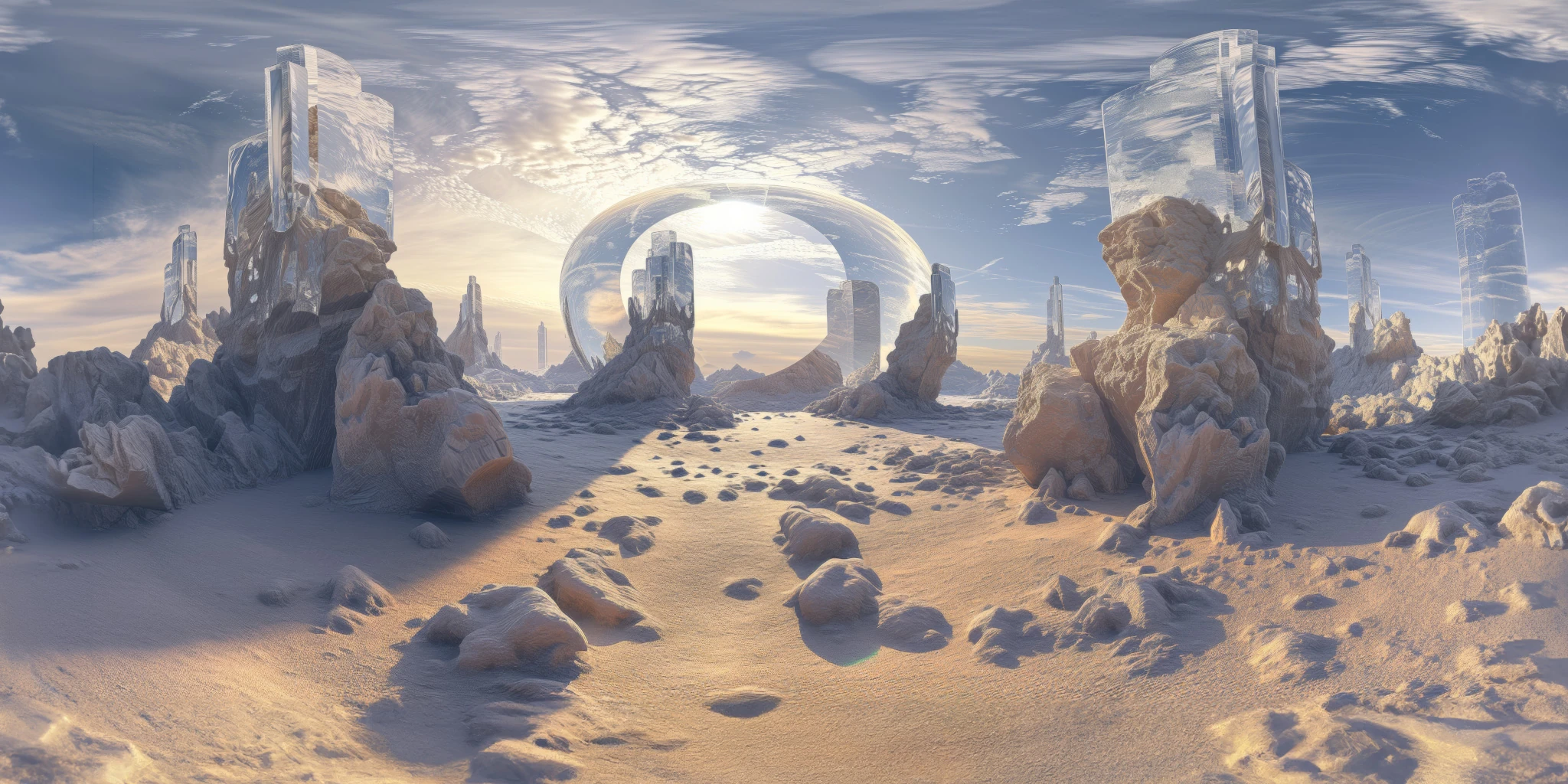
View assetExplore a crystal valley HDRI with pale formations, sandy terrain and a monumental arch. Choose 12K to 2K maps for bright sci-fi lighting and reflections.
View asset