HDRI Lighting in Blender: A Practical Product Render Workflow
Set up HDRI lighting in Blender, rotate the environment, balance exposure, and check PBR materials with a practical workflow for clearer product renders.
Read article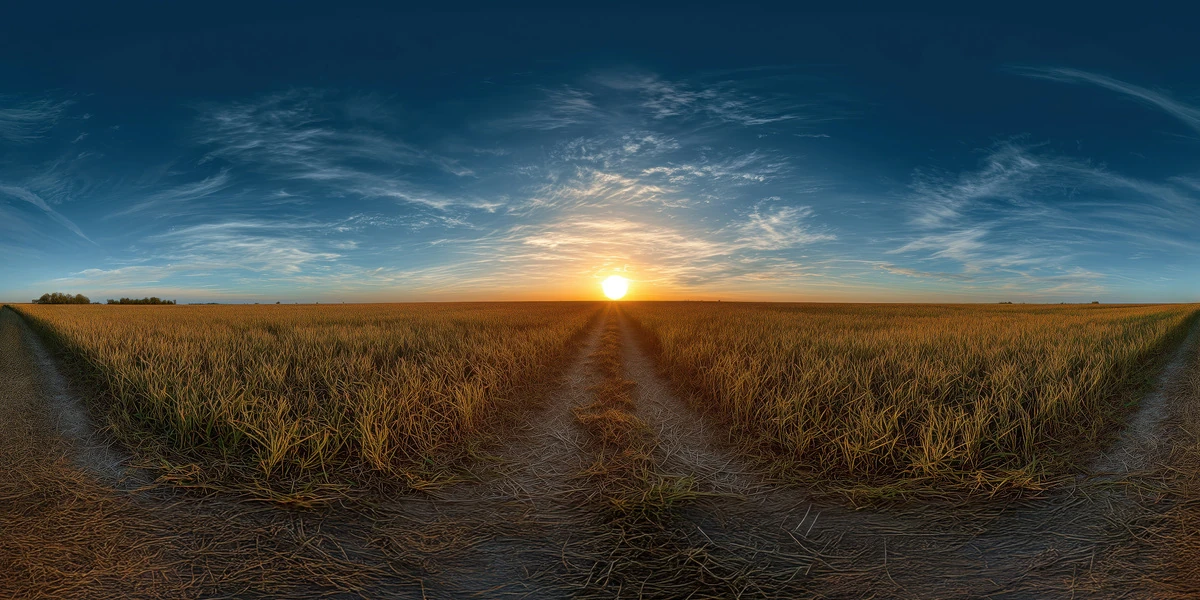
Open the image to explore the details.
Explore a golden wheat field sunset HDRI with a low sun and warm countryside reflections. Compare 12K to 2K options and practical tips for outdoor 3D scenes.
See current pricing, available files and license details on the marketplace.
Golden wheat surrounds a narrow track leading toward the low sun, with fine clouds spread across the sky.
Use it to explore warm sunset reflections on outdoor products and countryside vehicle scenes.
Rotate the panorama to place the warm horizon where it helps reveal the subject rather than aiming the sun straight at the camera by default.
The Superhive listing specifies a 360° unclipped 32-bit HDR environment, supplied in 12K, 8K, 4K and 2K versions. The image on this page is a web preview. Use the original downloadable HDR environment for lighting rather than the JPEG or WebP preview.
Choose a map size by the detail visible in the final render, particularly in reflections and the background. Pixel resolution alone does not describe the brightness range stored in the file, and an unclipped product label is not a calibrated exposure measurement for your scene.
Follow the guide to choose outdoor HDRI lighting for a focused comparison. Keep your camera and subject fixed while testing environment rotation, then adjust brightness as a separate decision.
The Blender HDRI lighting workflow covers World setup and a repeatable material test. Use local geometry wherever a subject needs contact, shadow reception or nearby scene interaction.
Compare Rural Field Sunset HDRI — Barn for a different arrangement of sky and surroundings. Select by the light and reflections that explain your subject, then browse the HDRI collection to combine environment, lighting and scene filters.
AI-Assisted, Human-Refined. The creator describes AI-assisted generation followed by manual refinement. These environments are intended primarily for illumination and reflections; inspect visible landscape details before choosing one as a prominent photographic-style backdrop.
Set up HDRI lighting in Blender, rotate the environment, balance exposure, and check PBR materials with a practical workflow for clearer product renders.
Read articleChoose an outdoor HDRI by sun direction, cloud coverage and reflected surroundings. Compare winter, rural and sunset lighting in a controlled Blender scene.
Read articleYou can model a clean asset, unwrap it properly, bake a solid normal map, and still end up with a material that feels wrong.
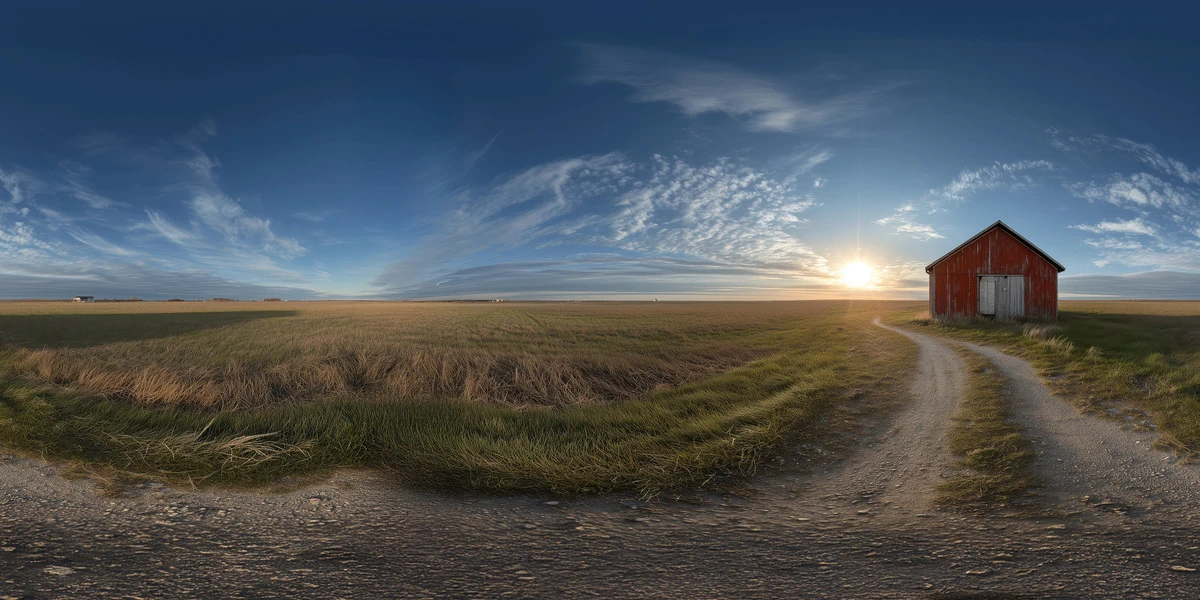
Read articleExplore a rural field sunset HDRI with a red barn, dirt track and warm low sun. Compare 12K to 2K options for countryside scenes and reflective outdoor props.
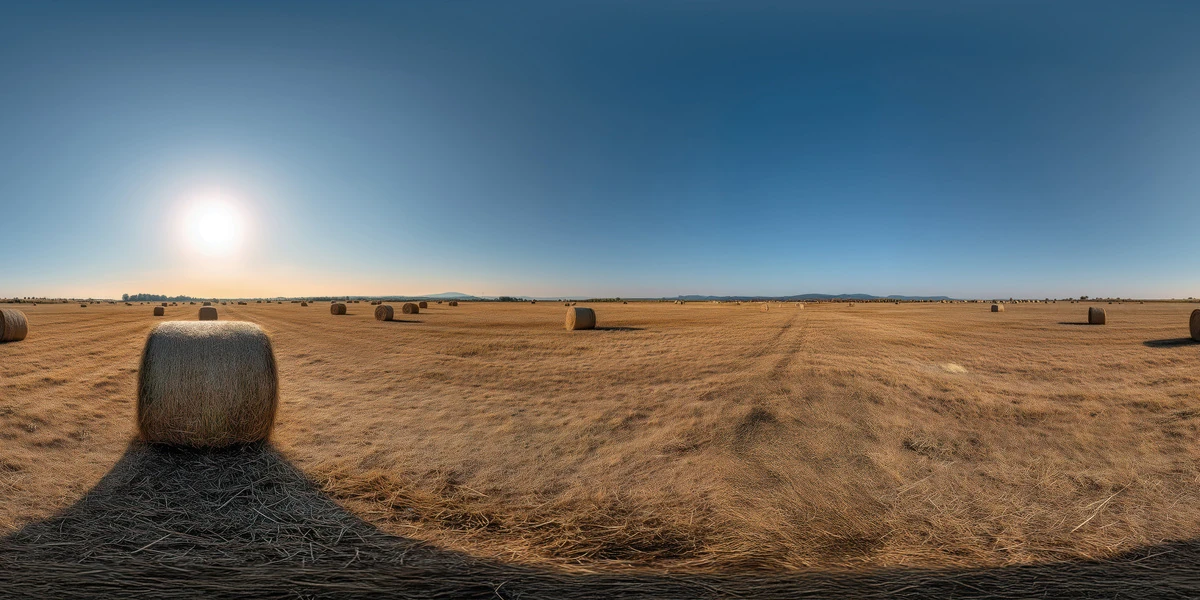
View assetExplore a golden hayfield sunrise HDRI with hay bales, low sun and long shadows. Compare 12K to 2K options for machinery, rural vehicles and outdoor lighting.
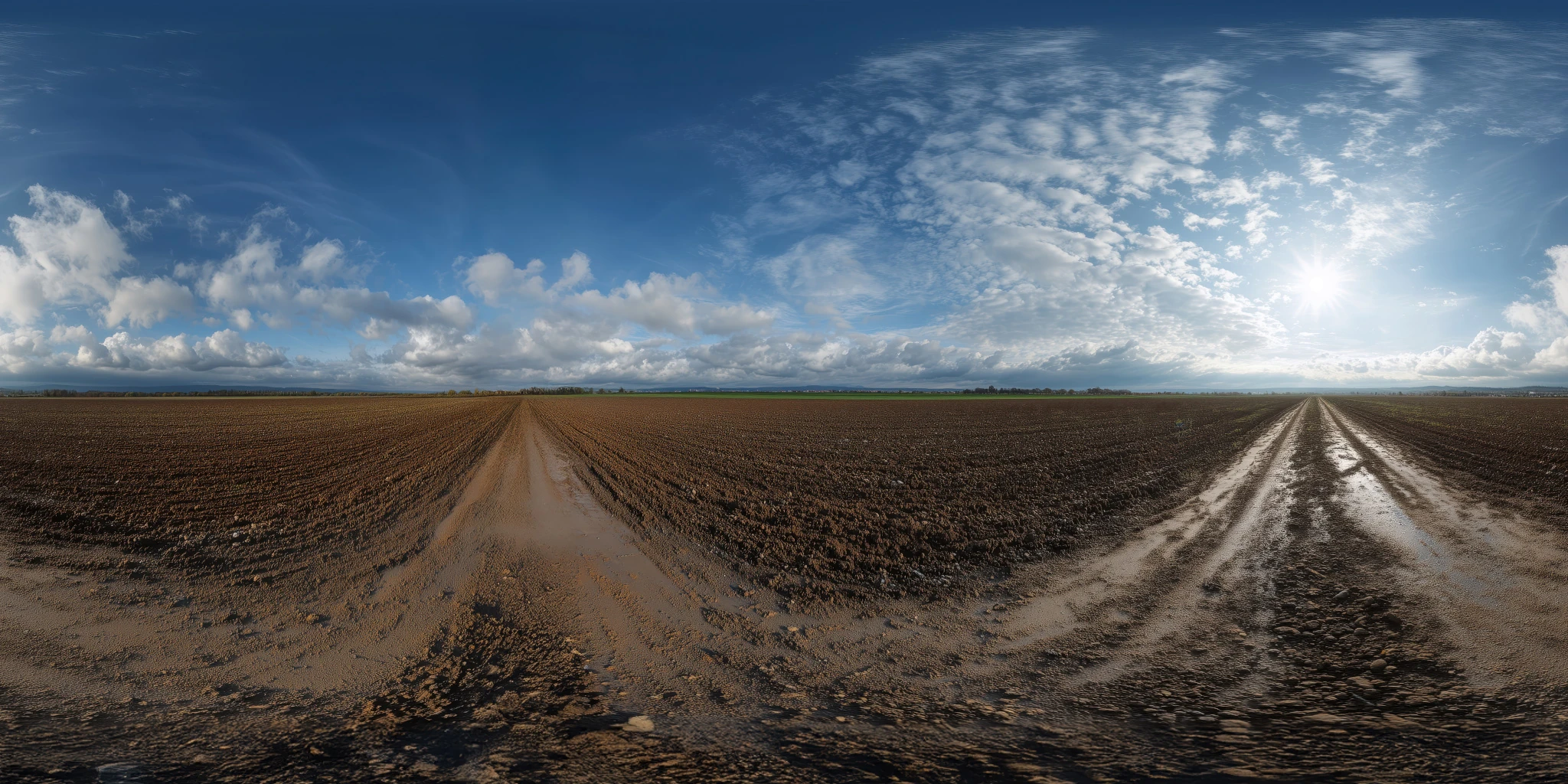
View assetExplore a muddy farmland road HDRI with tire tracks, dark soil and broken clouds. Compare 12K to 2K options for rural vehicle lighting and ground-plane setup.
View asset