HDRI Lighting in Blender: A Practical Product Render Workflow
Set up HDRI lighting in Blender, rotate the environment, balance exposure, and check PBR materials with a practical workflow for clearer product renders.
Read article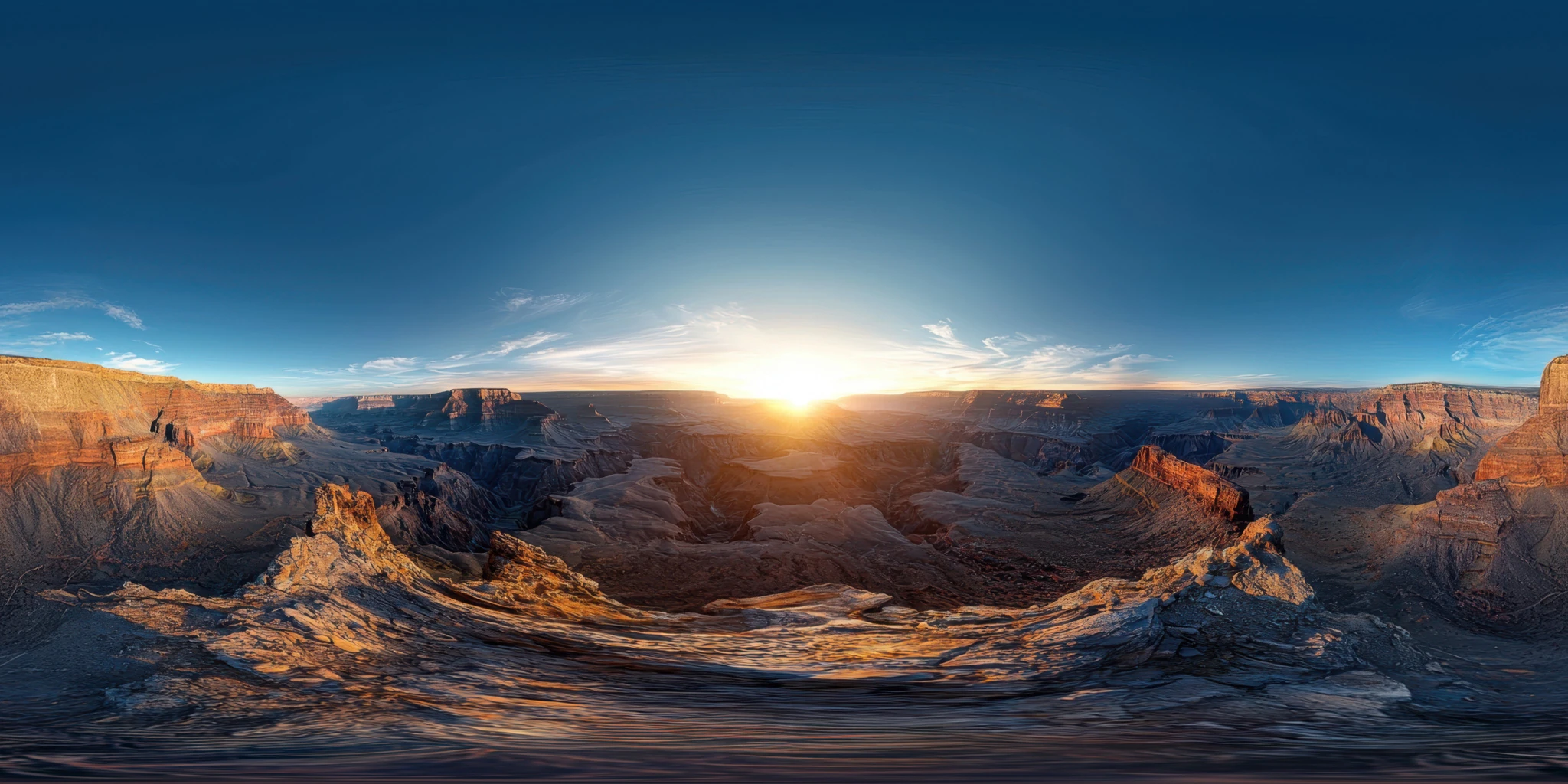
Open the image to explore the details.
Explore a Grand Canyon sunrise HDRI with layered cliffs and a low golden sun. Choose 8K, 4K and 2K unclipped maps for canyon lighting and outdoor render studies.
See current pricing, available files and license details on the marketplace.
A low golden sun shines across layered canyon cliffs and deep shaded valleys beneath a clear blue sky.
Use this canyon-inspired environment for elevated landscape concepts and outdoor equipment presentations. The distant layers create a different reflection structure from close boulders or a flat plain.
Match the camera viewpoint to the elevated rim before setting the object position. Treat the named location as the subject of an AI-assisted environment, not a surveyed or photographic record.
The creator lists this unclipped environment in 8K, 4K, 2K, with 32-bit HDR specified on the product page. The listed file format is .hdr. The image above is a compressed web preview; use the purchased HDR file to light your scene.
Choose resolution for the background and reflected detail visible in the final camera framing. Preview brightness alone cannot establish dynamic range or the exposure required by a particular scene.
Learn how to choose an outdoor HDRI by lighting and scene. The Blender HDRI lighting workflow explains the practical setup for loading and rotating an environment.
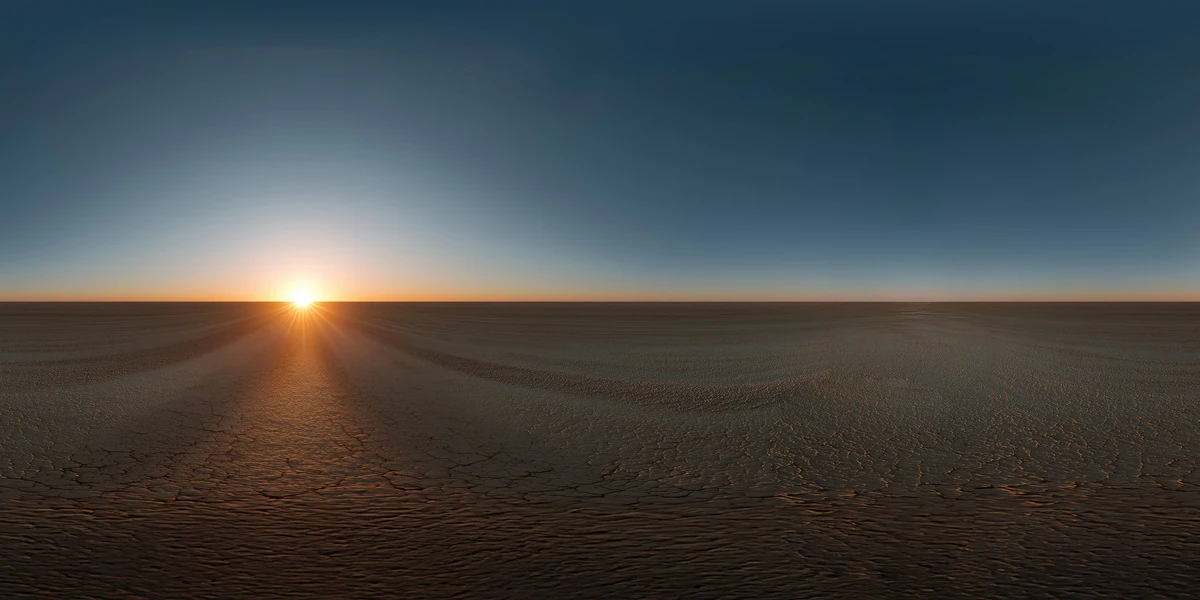
Use Desert Sunrise HDRI to compare an open desert dawn with the layered shadows and cliff silhouettes of a canyon. Keep the material and camera fixed so that the environment is the main variable.
Browse the HDRI lighting collection to compare more environments using the lighting and scene filters.
AI-Assisted, Human-Refined. The creator describes AI generation followed by manual refinement. Review fine details when the panorama will be a visible backdrop; use its lighting and reflections as the starting point for your scene.
Set up HDRI lighting in Blender, rotate the environment, balance exposure, and check PBR materials with a practical workflow for clearer product renders.
Read articleChoose an outdoor HDRI by sun direction, cloud coverage and reflected surroundings. Compare winter, rural and sunset lighting in a controlled Blender scene.
Read articleYou can model a clean asset, unwrap it properly, bake a solid normal map, and still end up with a material that feels wrong.
Read articleExplore a desert sunrise HDRI with cracked ground, a low sun and a minimal horizon. Compare 12K to 2K unclipped maps for product lighting and concept scenes.
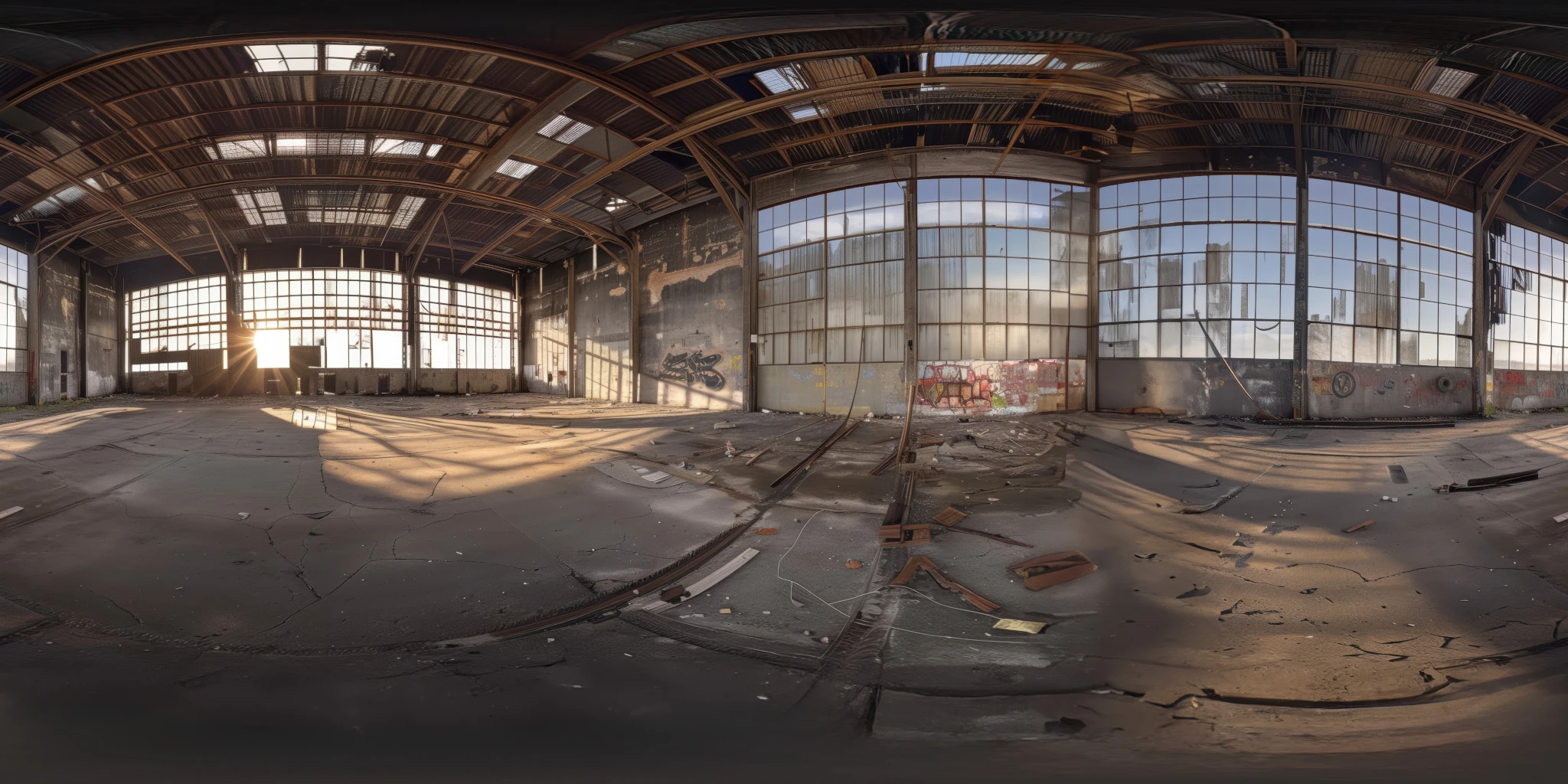
View assetExplore an abandoned warehouse HDRI with window light, roof trusses and worn concrete. Choose 12K to 2K unclipped maps for industrial props and reflections.
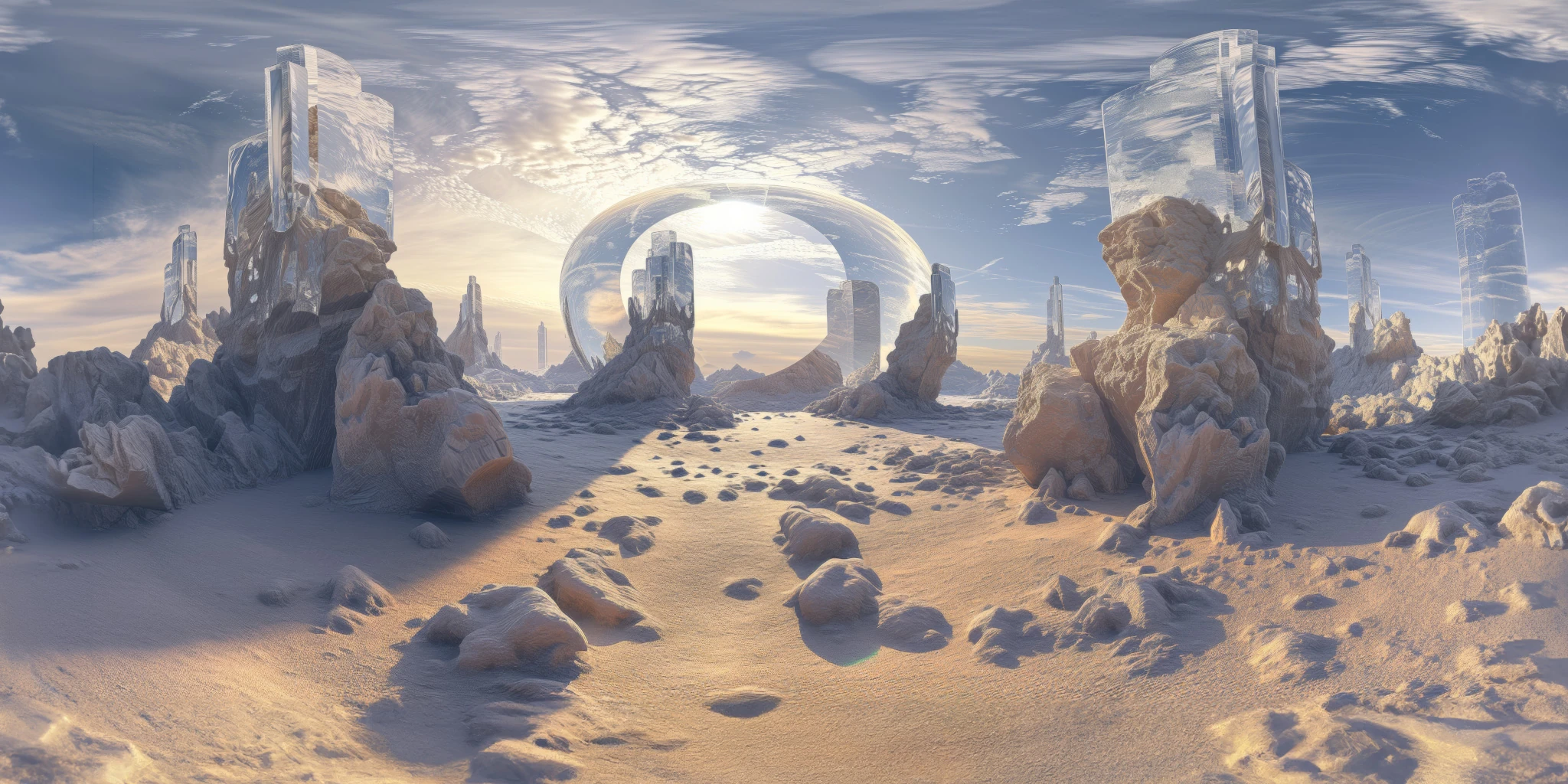
View assetExplore a crystal valley HDRI with pale formations, sandy terrain and a monumental arch. Choose 12K to 2K maps for bright sci-fi lighting and reflections.
View asset