
Intro: The Art of “Giving Volume” to Your Ideas
If you had to choose just one tool to take with you to a digital desert island, it would undoubtedly be Extrusion. It is the hammer and chisel of every 3D Artist, the function that transforms a simple 2D plane into complex architecture, characters, and props.
But be warned: many beginners think extruding just means “stretching a face.” In reality, there is a world of vector math and topology management behind that single key press.
In this article, we won’t just look at what happens when you press “E”. We will dissect the behavior of Normals, explore advanced modes for curved surfaces, and—most importantly—I will reveal an invisible technical trap that creates geometric nightmares for those who don’t know it exists.
Ready to clean up your workflow? Let’s get started.
1. The Basics: Understanding Direction (Normals & Axes)
When you are in Edit Mode and select a face on your cube, pressing E (Extrude) creates new geometry. Blender takes your selection and extends it, connecting it to the original position with new side faces.
But have you noticed where the face goes? By default, it follows the Normals. Simply put, the “Normal” is an invisible line pointing perpendicularly out from the surface of the face. It is the “front” of the polygon. That’s why, if you extrude a side face, it moves perfectly sideways.
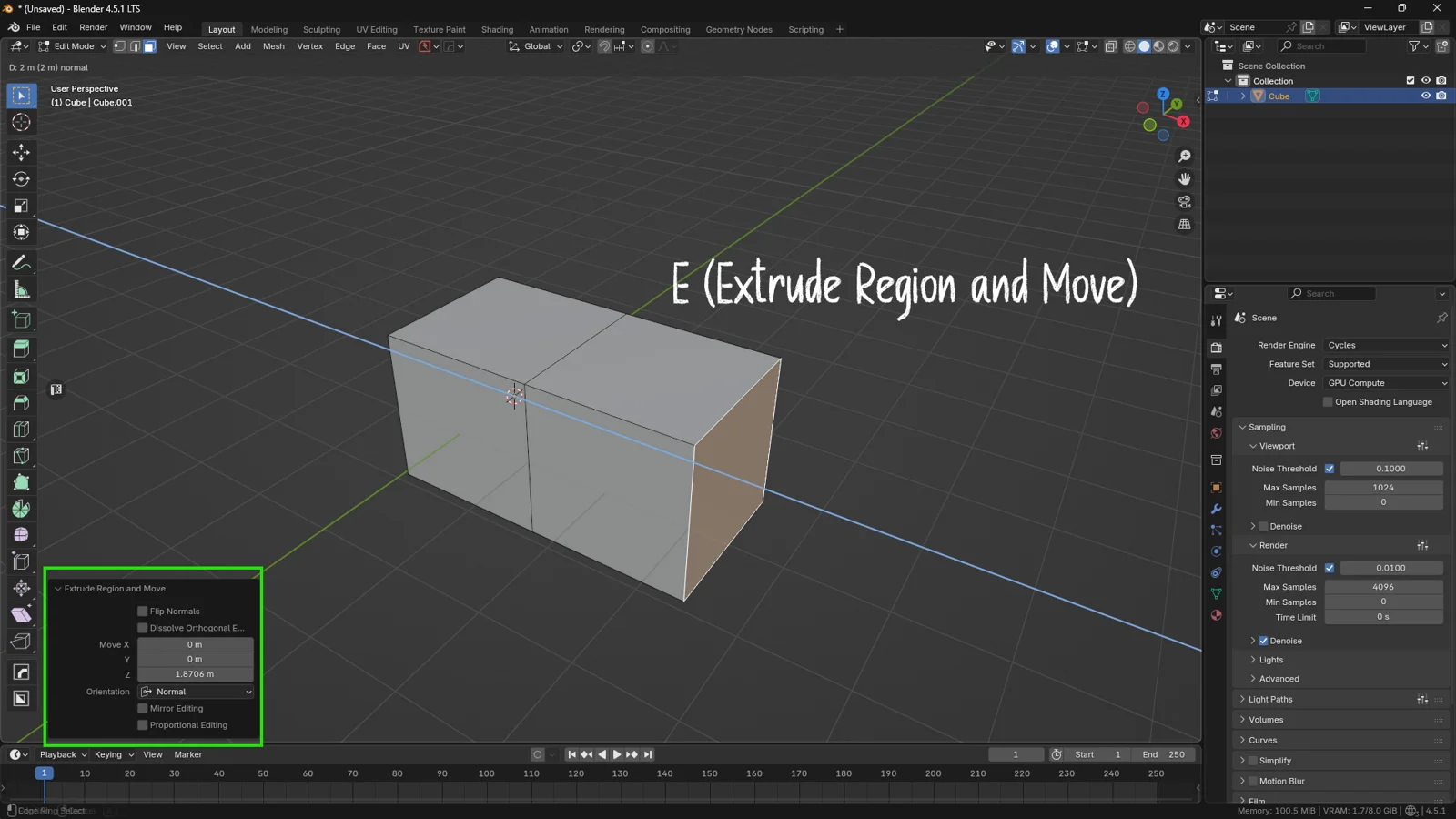
Breaking the Rules: Locking Axes
Sometimes, however, you don’t want to follow the normal. You might want to go straight up globally or move freely in 3D space.
-
To lock to a global axis: Press the axis key (X, Y, or Z) after pressing E.
-
To move freely: Press the axis key twice (or press Z twice to switch from local to global, then unlock).
💡 3DSkillUp Pro Tip: Extrusion isn’t just for faces! You can select a single Vertex and press E to “draw” in 3D space. This is a powerful technique for creating profile moldings (like crown molding or baseboards). Start with a vertex, draw the silhouette, and then extrude the entire profile!
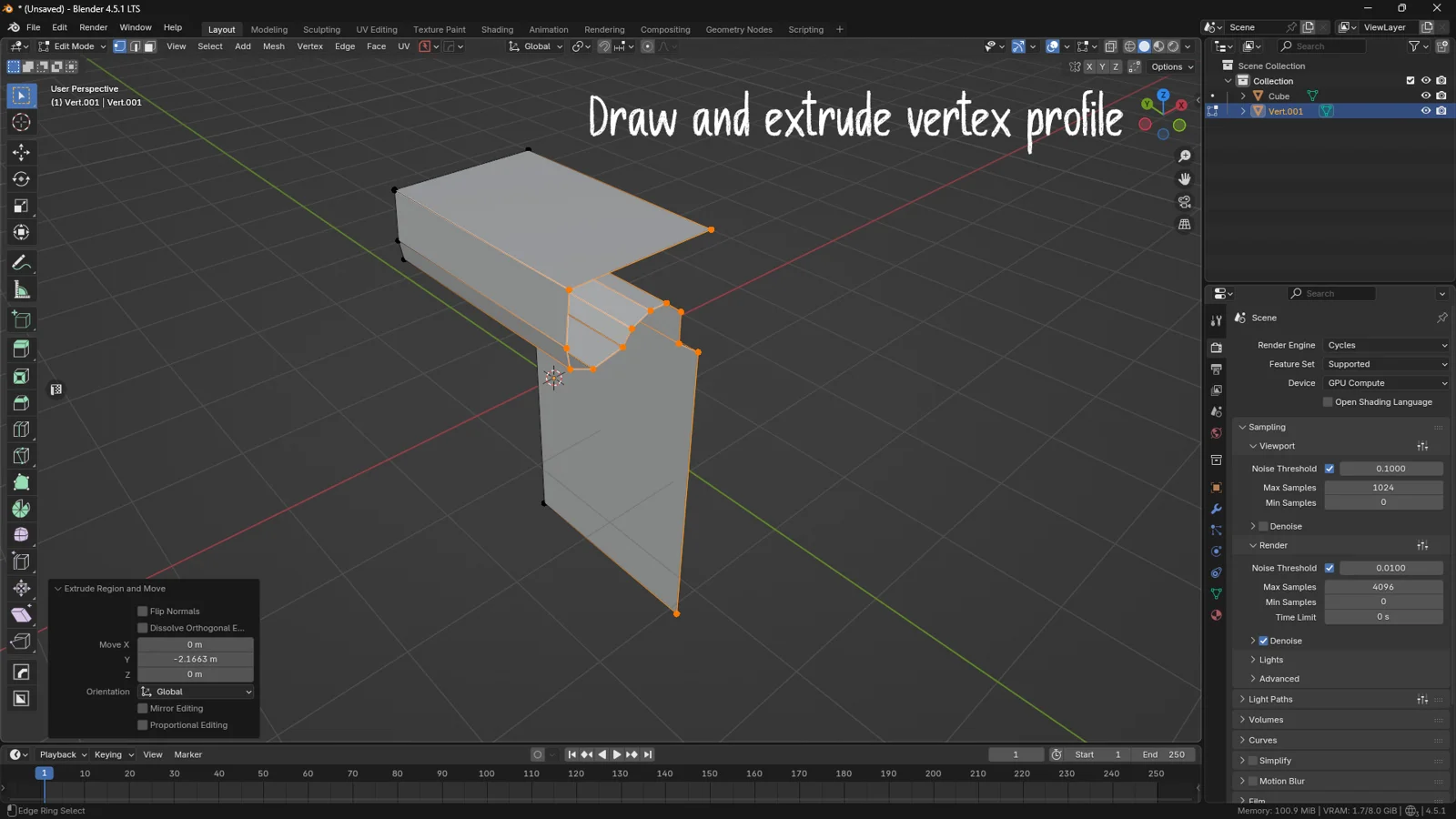
2. When Standard Extrusion Fails: Advanced Modes
Imagine you’ve subdivided your cube (Right Click > Subdivide) and you want to extrude the top face and the side face simultaneously. If you just press E, Blender gets confused. Or rather, it does a mathematical average: it tries to push everything in a diagonal direction that is the average of the selected normals. The result? Skewed, unusable geometry.
To solve this, we need to tell Blender to treat each face (or group of faces) intelligently.
Extrude Along Normals
This option (accessible from the Mesh > Extrude menu) tells Blender: “Don’t average this out. Push each face in its own specific direction.”
-
Top faces go up.
-
Side faces go sideways.
-
Corner faces expand evenly. This is essential for thickening objects or creating details on curved surfaces.
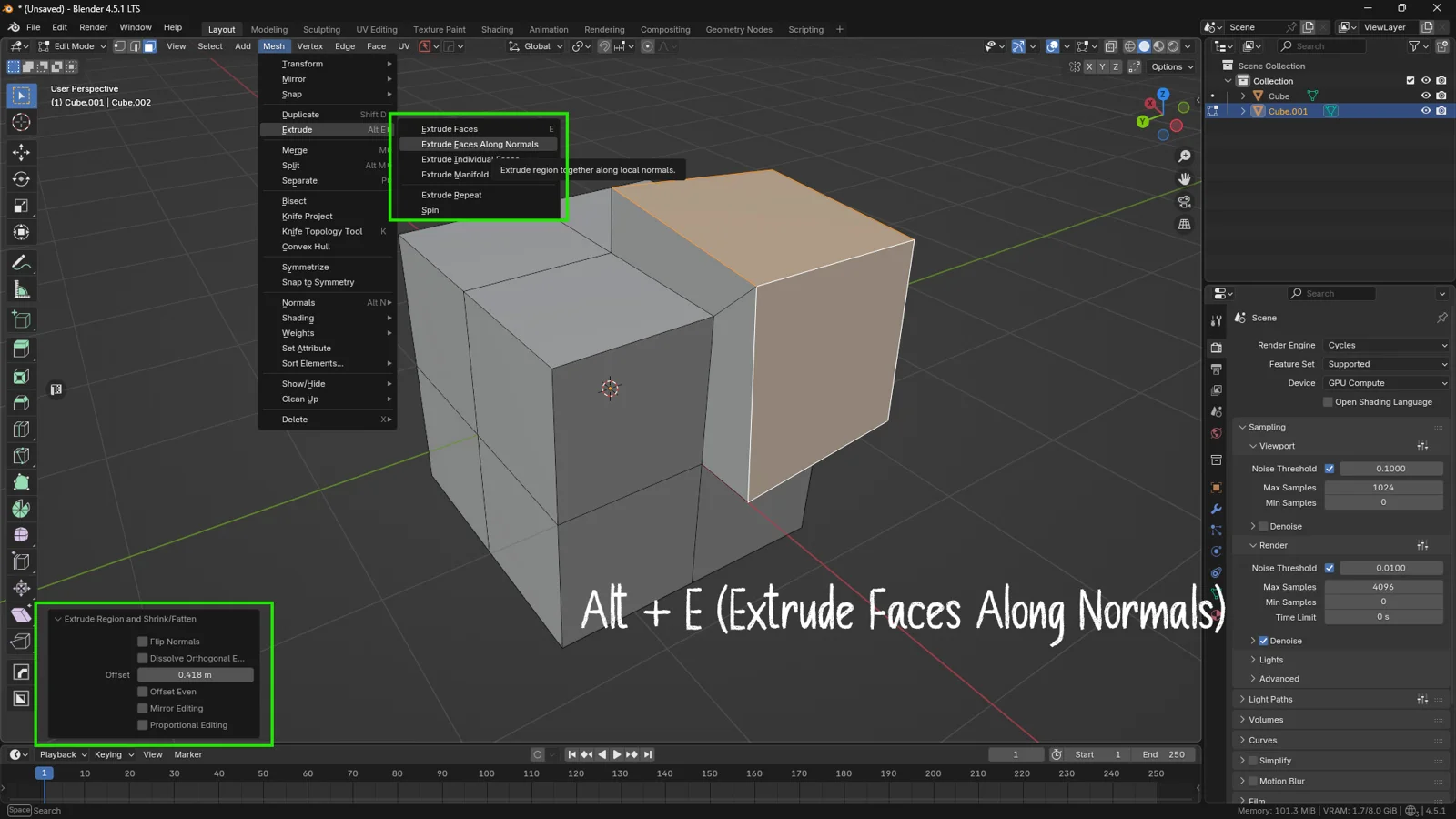
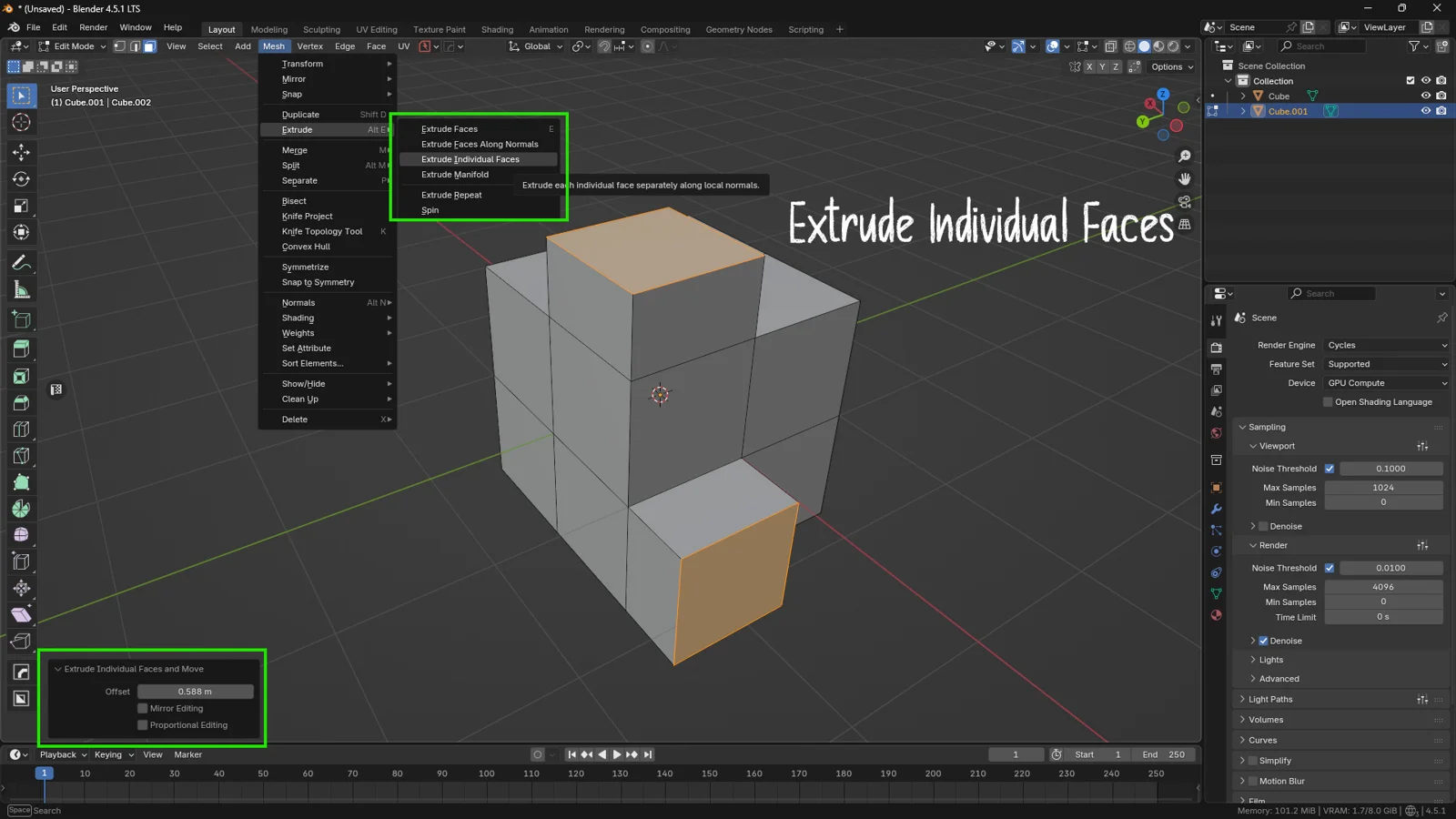
Extrude Individual Faces
If you want each single face to become an independent “tower,” use this option. Instead of keeping the edges connected, Blender will separate every polygon, allowing you to create “skyscraper” details or physical procedural textures.
💡 3DSkillUp Pro Tip: Forget the top menu! Use the pro shortcut: ALT + E. This instantly opens the Extrusion Pie Menu where you can choose Extrude Faces Along Normals or Individual Faces in a split second.
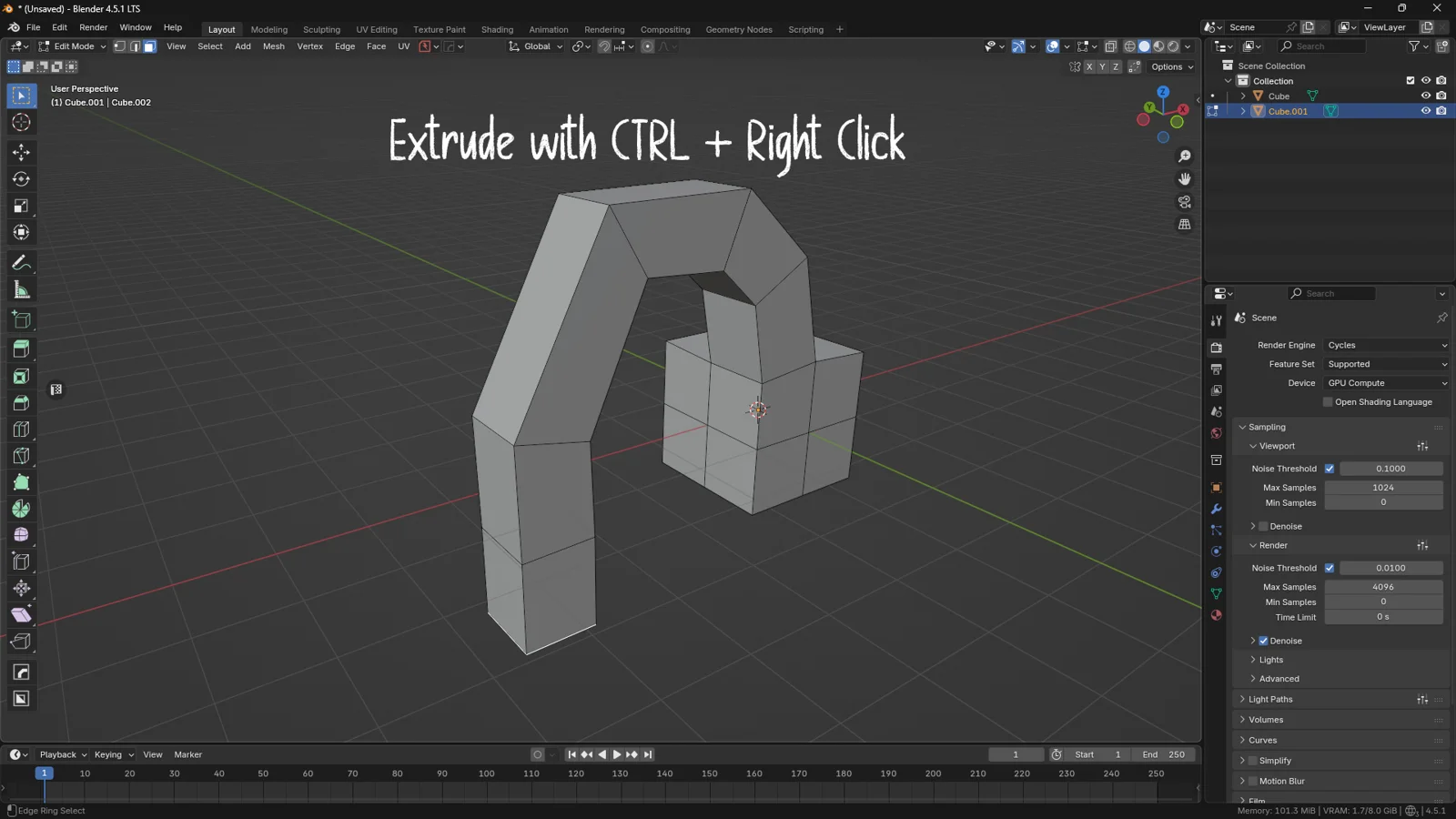
3. The Secret Technique: Cursor Extrusion
There is a way of modeling that feels like black magic and is perfect for organic shapes (like tentacles, trees, or pipes).
-
Select a face or vertex.
-
Hold CTRL and Right Click where you want the geometry to go.
Blender will extrude the selection to the point where you clicked, and it does something amazing: it automatically rotates the geometry to follow the curve of the path you are creating. It is the fastest way to block out complex shapes.
Conclusion: Less Clicks, More Logic
Extrusion isn’t just about adding polygons; it’s about understanding how light and the structure of your model will react to that new shape.
Now it’s your turn: open Blender, add a cube, and try modeling something using only the Ctrl + Right Click technique. You’ll see how liberating it can be to model by “drawing.”
Happy Blending!
You might also like Blender Workflow: How to Separate and Join Meshes
Upgrade Your Asset Library Stop wasting time searching for low-quality resources. Speed up your workflow with our exclusive collection of HDRis, PBR Textures, and Game Props. 👉 Visit the 3DSkillUp Store on Superhive
After establishing volume, loop cuts and vertex connections help add or redirect the structure where the shape needs more control.