
Intro: Solid Basics Make the Difference
Hello and welcome back to 3DSkillUp! If there is one thing that distinguishes an amateur 3D modeler from a professional, it isn’t (just) the complexity of the shaders or the final render. It is the cleanliness and speed with which they manage topology.
Today, we aren’t talking about abstract concepts. We are getting our hands dirty “under the hood” of Blender. We will learn how to stitch vertices, auto-fill faces, and most importantly, how to cut geometry with surgical precision.
Why? Because understanding the why behind shortcuts like F, J, and Ctrl+R will allow you to model at the speed of thought, avoiding those structural errors that cause nightmares during texturing or animation.
Ready to supercharge your workflow? Open Blender and let’s get started.
1. The “F” Key: The Universal Builder
Let’s start with the basics, but with a twist you might not know. We already know that extruding is useful, but we often find ourselves with “orphan” vertices that need to be connected.
The F key (Fill/Make Edge/Face) is your best friend here.
-
Create an Edge: Select two vertices and press
F. Blender creates a direct link between them. -
Create a Face: Select 3 or 4 vertices and press
F. Voilà, you have a polygon.
The Magic of Auto-Fill
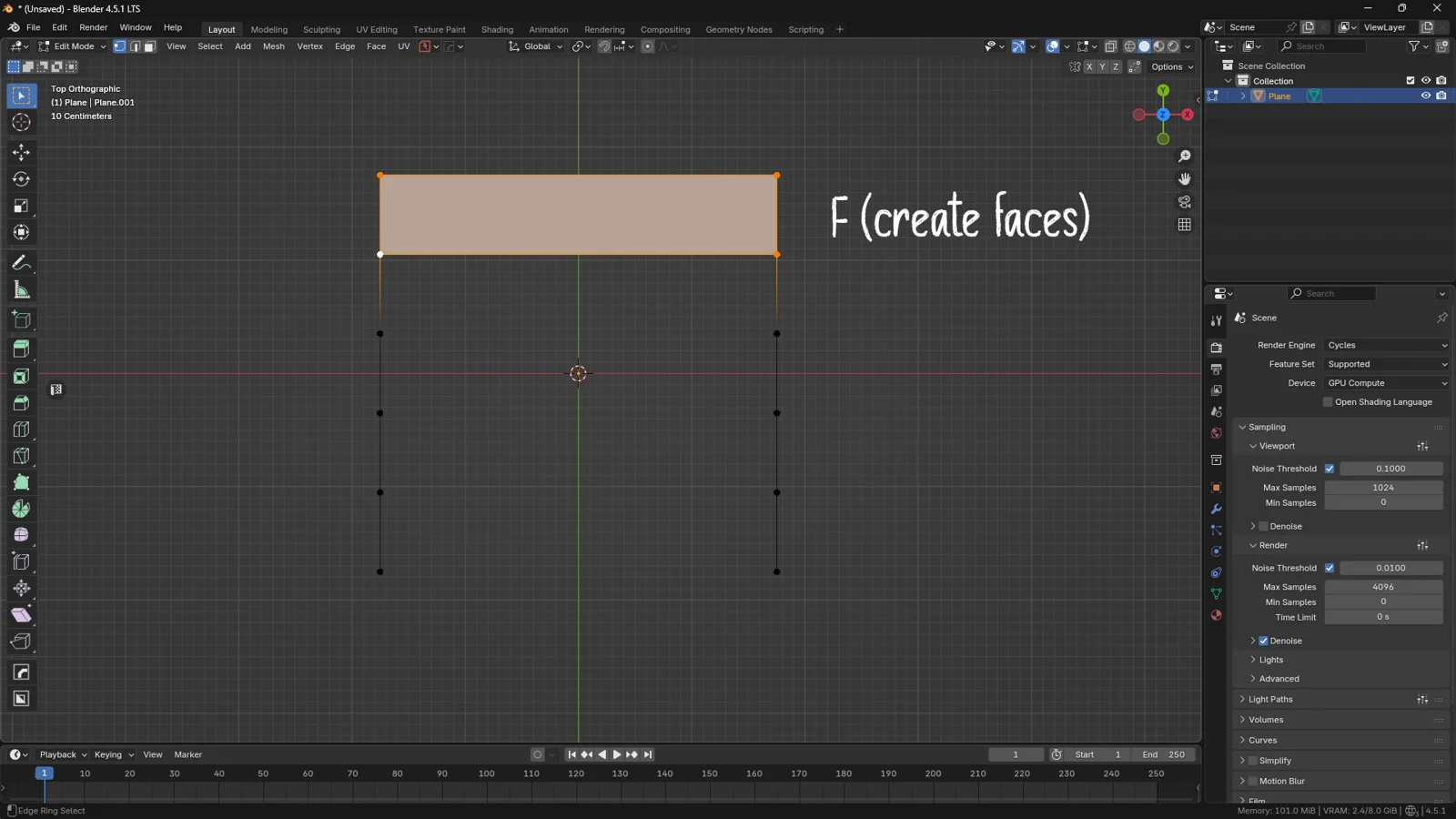
Here comes the interesting part. Imagine having two parallel edges of vertices and needing to close the gap between them. Many beginners create one face at a time. Don’t do that!
If you select the first two opposite vertices and hold down F, Blender is smart enough to analyze the surrounding geometry. It will continue to create quad faces automatically until the end of the chain.
💡 3DSkillUp Pro Tip: Use this function to quickly close “holes” in your mesh, but always check that Blender hasn’t created unwanted triangles if the geometry isn’t perfectly aligned.
2. Loop Cut: Adding Detail Where It Matters
Often, we find ourselves with geometry that is too simple, and we need more resolution to add details. This is where the Loop Cut comes into play.
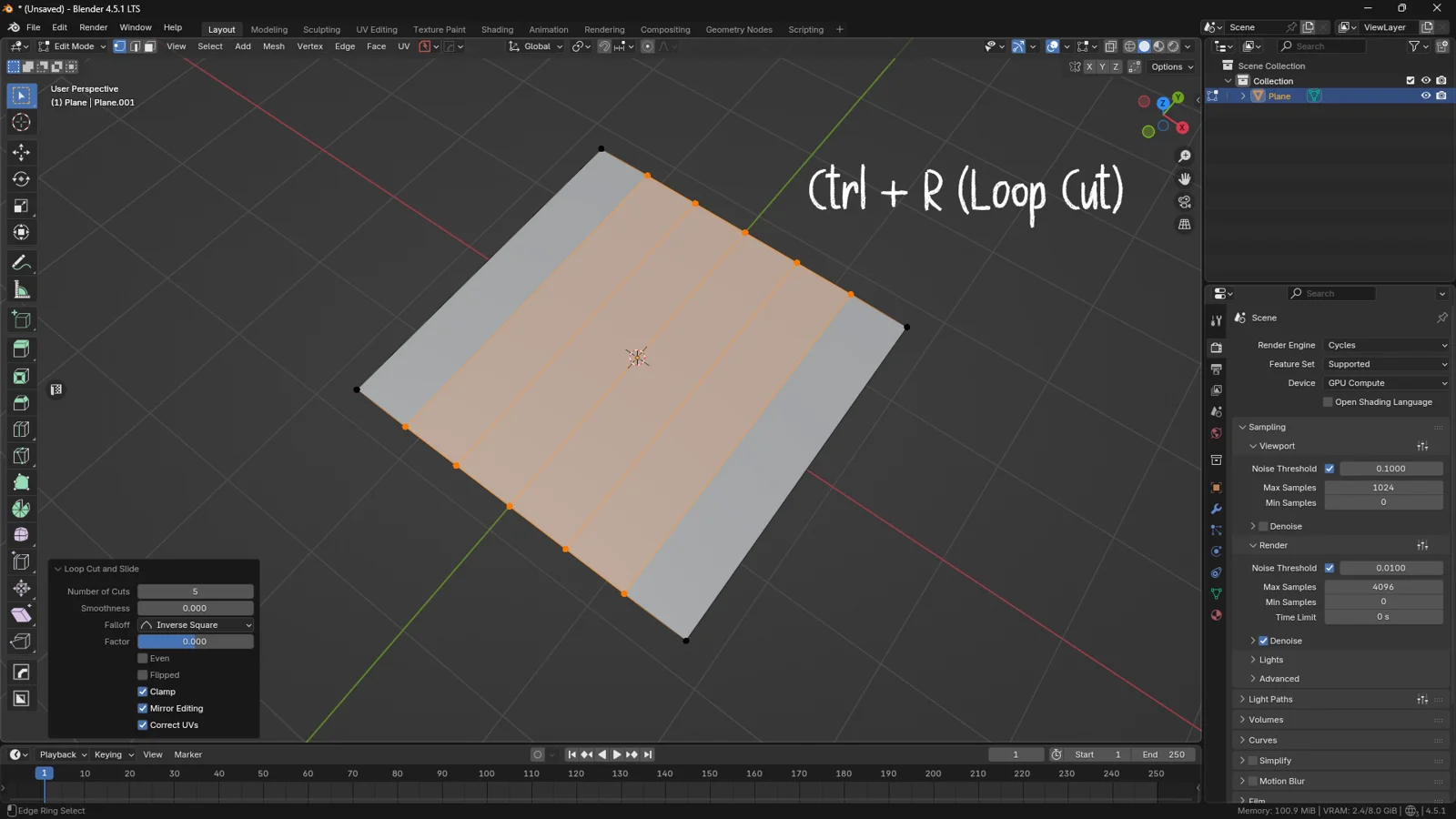
Activate it from the left-hand menu or, as a true pro would, use the shortcut Ctrl + R.
How it Works (Step-by-Step):
-
Hover: Move the mouse over the mesh. You will see a yellow line indicating where the cut will be made.
-
Scroll: Before clicking, rotate the mouse wheel. You can add 2, 5, or 10 cuts in a single go.
-
Left Click: Confirm the number of cuts.
-
Slide: You are now in “slide” mode. Move the mouse to position the cut where you prefer.
-
Right Click: If you want to cancel the movement and keep the cut perfectly centered, simply right-click.
3. Not Just Straight Lines: Smoothness & Falloff
You’ve placed your Loop Cuts, but did you know you can modify the shape of the mesh while you cut?
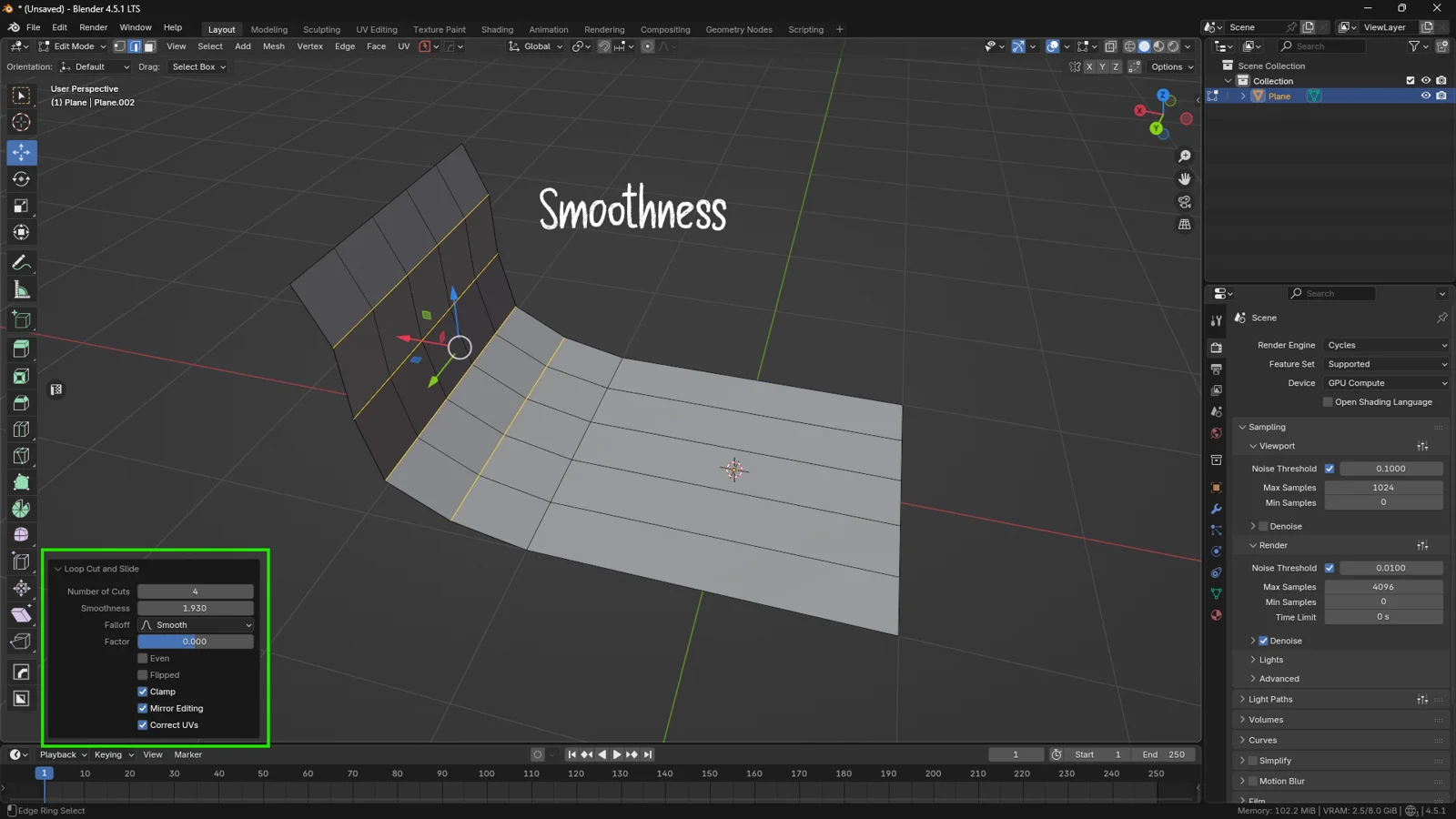
After confirming the cut, open the Operator Panel (bottom left). Here you will find the Smoothness parameter.
-
By increasing this value, Blender will try to “inflate” the new cuts following a logical curvature.
-
By changing the Falloff (e.g., from “Smooth” to “Sphere” or “Linear”), you can decide if the transition should be soft, spherical, or sharp.
This is incredibly useful for creating organic shapes or curved profiles without having to move vertices manually one by one.
💡 3DSkillUp Pro Tip: The Loop Cut (Ctrl + R) is also the fastest way to subdivide a single edge. If you point the cursor at an isolated edge, you will see a yellow dot appear. Click, and you will add a vertex exactly in the middle without opening any context menus.
4. J vs F: The Mistake Everyone Makes
We arrive at a crucial point that separates clean topology from a geometric nightmare.
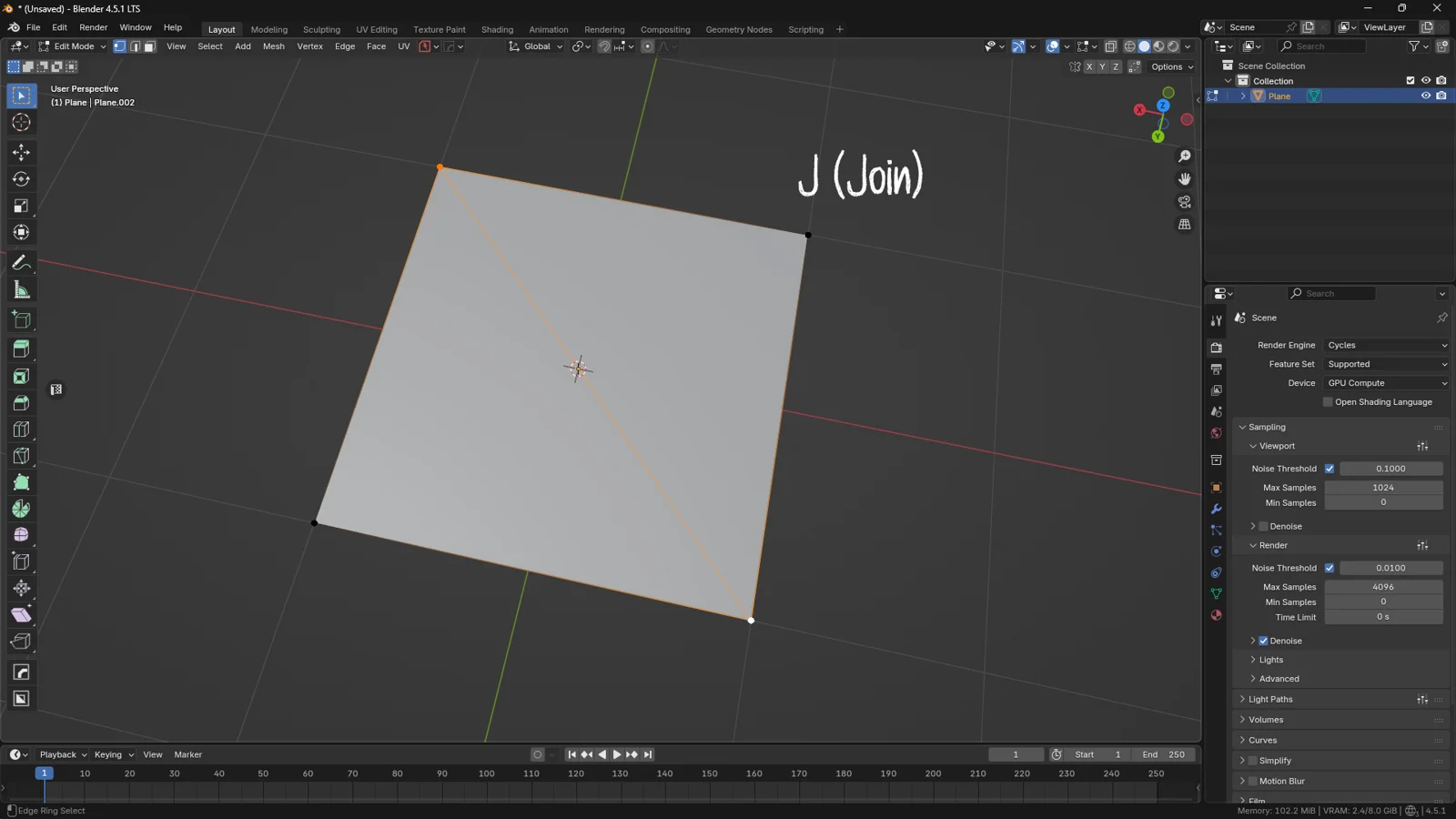
Imagine you have a square face (a quad) and you want to cut it into two triangles by connecting two opposite vertices. Your instinct might tell you to select them and press F. Stop right there.
-
Pressing F: Creates a new edge that floats on top of the existing face, but creates overlapping geometry. Result? Shading artifacts and render errors.
-
Pressing J (Join): Blender connects the vertices and physically cuts the underlying face, creating two clean and correct triangles.
The Power of “Connect Vertex Path”
The J command is powerful even over long distances. If you select two distant vertices separated by many faces and press J, Blender will trace a path through all the intermediate geometry, adding vertices and edges where necessary to keep everything “welded” together.
💡 3DSkillUp Pro Tip: Use J whenever you need to reorganize polygon flow (retopology) on a flat surface. It is much cleaner than using the Knife Tool if you already have the starting vertices.
For a different topology change, Rip and Split operations disconnect geometry instead of adding a connection across the existing surface.
Conclusion
We have seen how F builds, Ctrl + R adds detail, and J organizes structure. These aren’t just buttons; they are the foundation of your vocabulary in Blender.
My advice? Take a simple cube and spend the next 10 minutes experimenting only with these three commands. Get comfortable with J for cutting and Ctrl + R . You will see your modeling speed double.
See you in the next tutorial, and happy rendering!
You might also like Mastering Extrusion in Blender