HDRI Lighting in Blender: A Practical Product Render Workflow
Set up HDRI lighting in Blender, rotate the environment, balance exposure, and check PBR materials with a practical workflow for clearer product renders.
Read article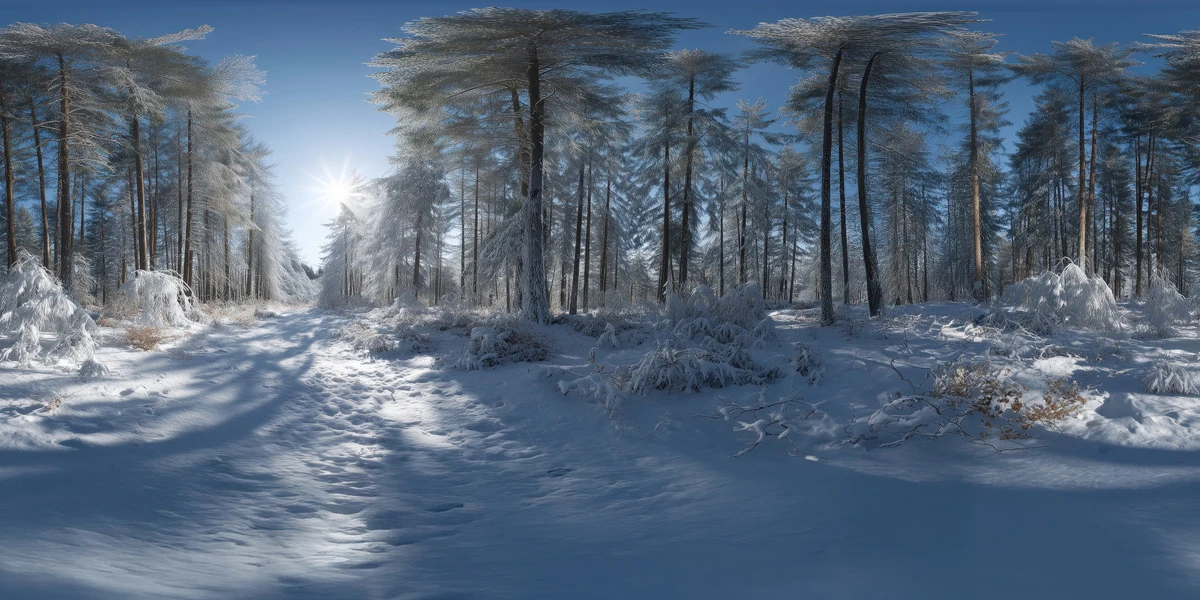
Open the image to explore the details.
Explore a snow forest HDRI with winter sunlight, frosted trees and long shadows. Choose 12K to 2K unclipped maps for winter props and outdoor character renders.
See current pricing, available files and license details on the marketplace.
A snowy track runs between tall frosted trees, with a bright low sun and blue-toned shadows stretching across the forest floor.
Try it for winter clothing, outdoor tools and character presentations. Tree-lined snow gives reflections both bright ground regions and darker vertical shapes.
Check white clothing and snow-colored props at the intended exposure so their forms remain readable. Match any modeled snow plane to the environment before adjusting the subject material.
The creator lists this unclipped HDR environment in 12K, 8K, 4K and 2K, with 32-bit HDR specified on the product listing. The listed file format is .hdr. The JPEG-derived image above is a web preview; use the purchased HDR environment file for lighting.
Start with a resolution suited to the visible background and reflections, then increase it if the final framing reveals a benefit. Preview brightness alone cannot establish the file’s dynamic range or the exposure needed for your scene.
Learn how to match an HDRI to a ground plane in Blender. The Blender HDRI lighting workflow provides a practical starting point for loading and rotating an environment.
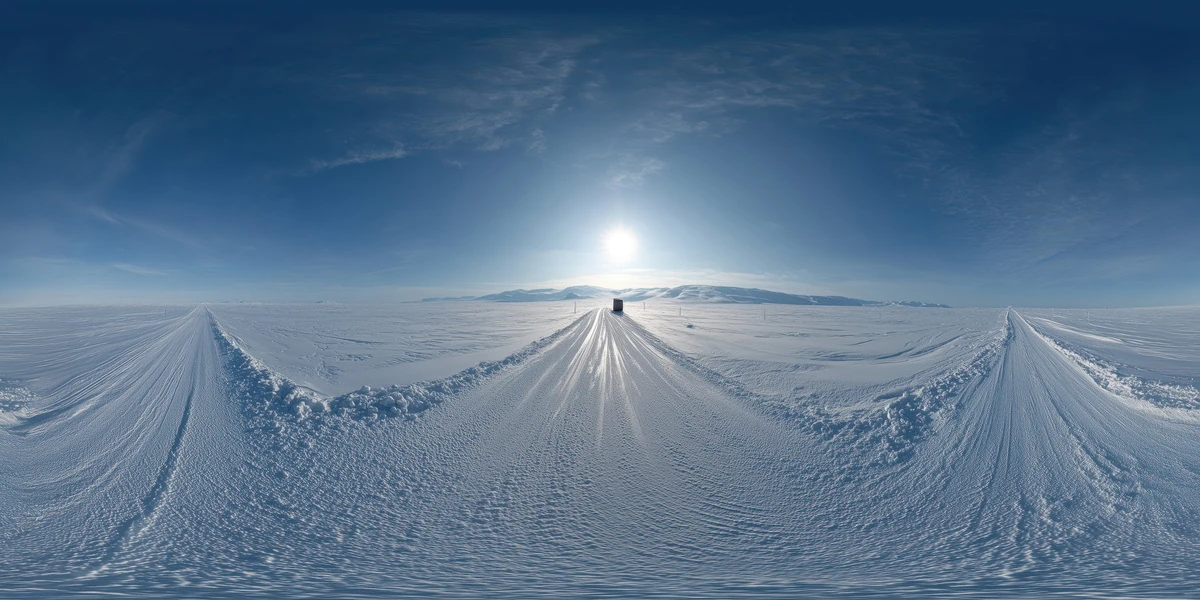
Use Snowy Arctic Road HDRI to compare open snowy-road lighting with a winter path enclosed by trees. Keep the camera and material fixed for a useful comparison.
Browse the HDRI lighting collection to compare other environments using the lighting and scene filters.
AI-Assisted, Human-Refined. The creator describes AI generation followed by manual refinement. Review fine details before using the environment as a prominent visible backdrop; lighting and reflections are its primary practical use.
Set up HDRI lighting in Blender, rotate the environment, balance exposure, and check PBR materials with a practical workflow for clearer product renders.
Read articleGround your 3D subject under HDRI lighting in Blender. Match contact, sun direction and camera perspective, then choose a visible plane or shadow catcher.
Read articleYou can model a clean asset, unwrap it properly, bake a solid normal map, and still end up with a material that feels wrong.
Read articleLight winter vehicle and equipment renders with a snowy arctic road HDRI. Explore 12K to 2K options, open-sky reflections and practical ground-plane tips.
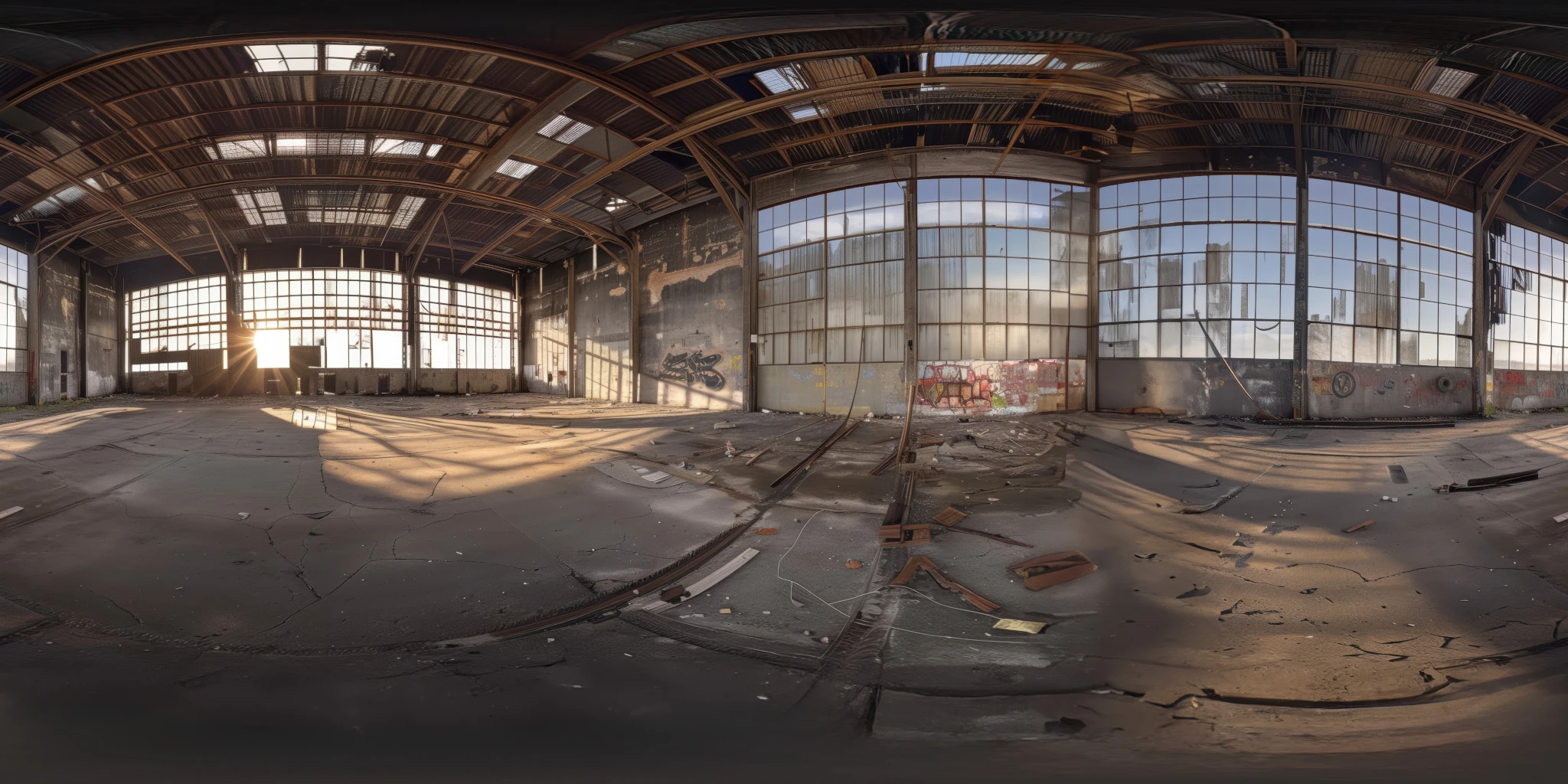
View assetExplore an abandoned warehouse HDRI with window light, roof trusses and worn concrete. Choose 12K to 2K unclipped maps for industrial props and reflections.
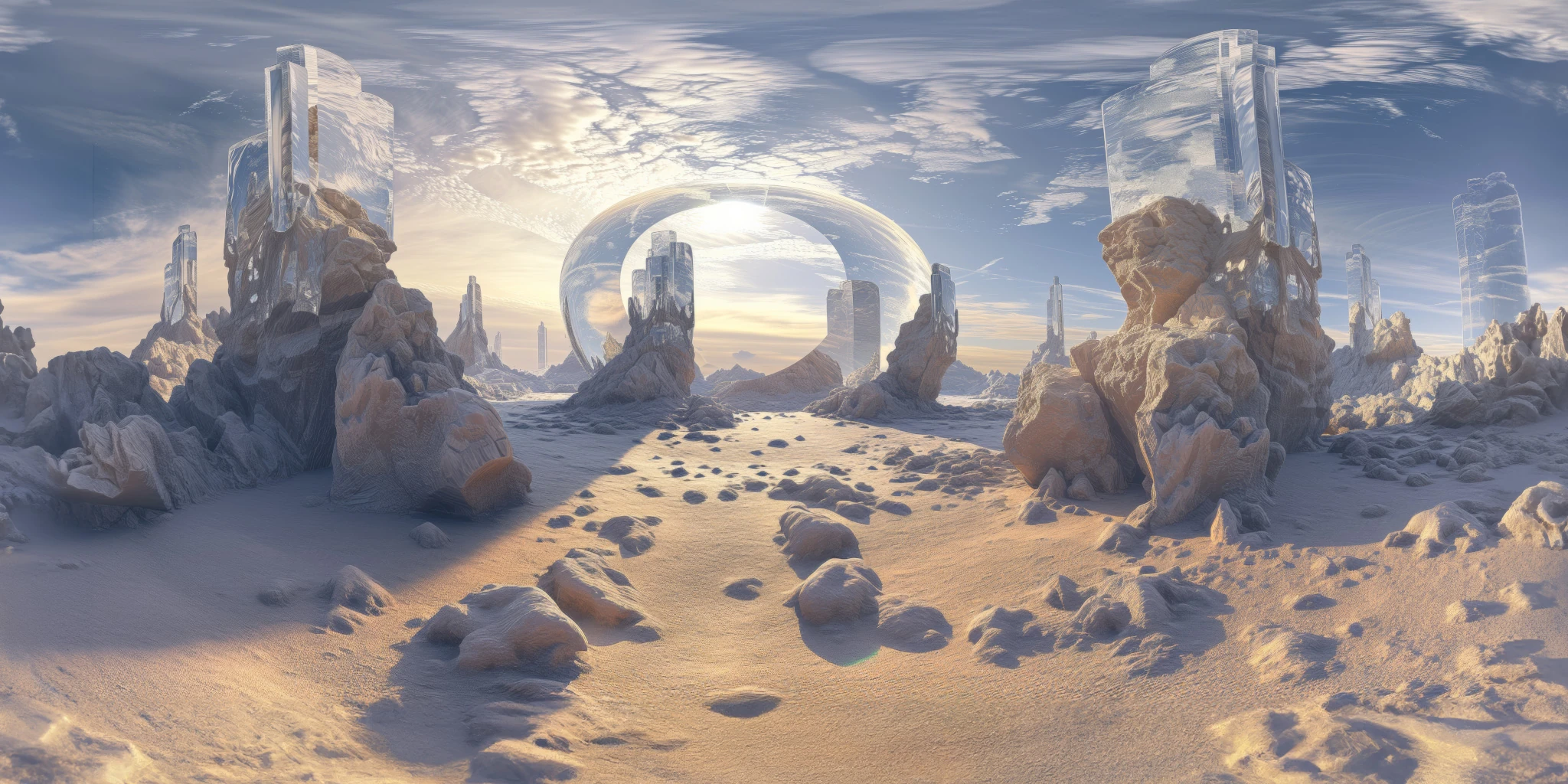
View assetExplore a crystal valley HDRI with pale formations, sandy terrain and a monumental arch. Choose 12K to 2K maps for bright sci-fi lighting and reflections.
View asset