HDRI Lighting in Blender: A Practical Product Render Workflow
Set up HDRI lighting in Blender, rotate the environment, balance exposure, and check PBR materials with a practical workflow for clearer product renders.
Read article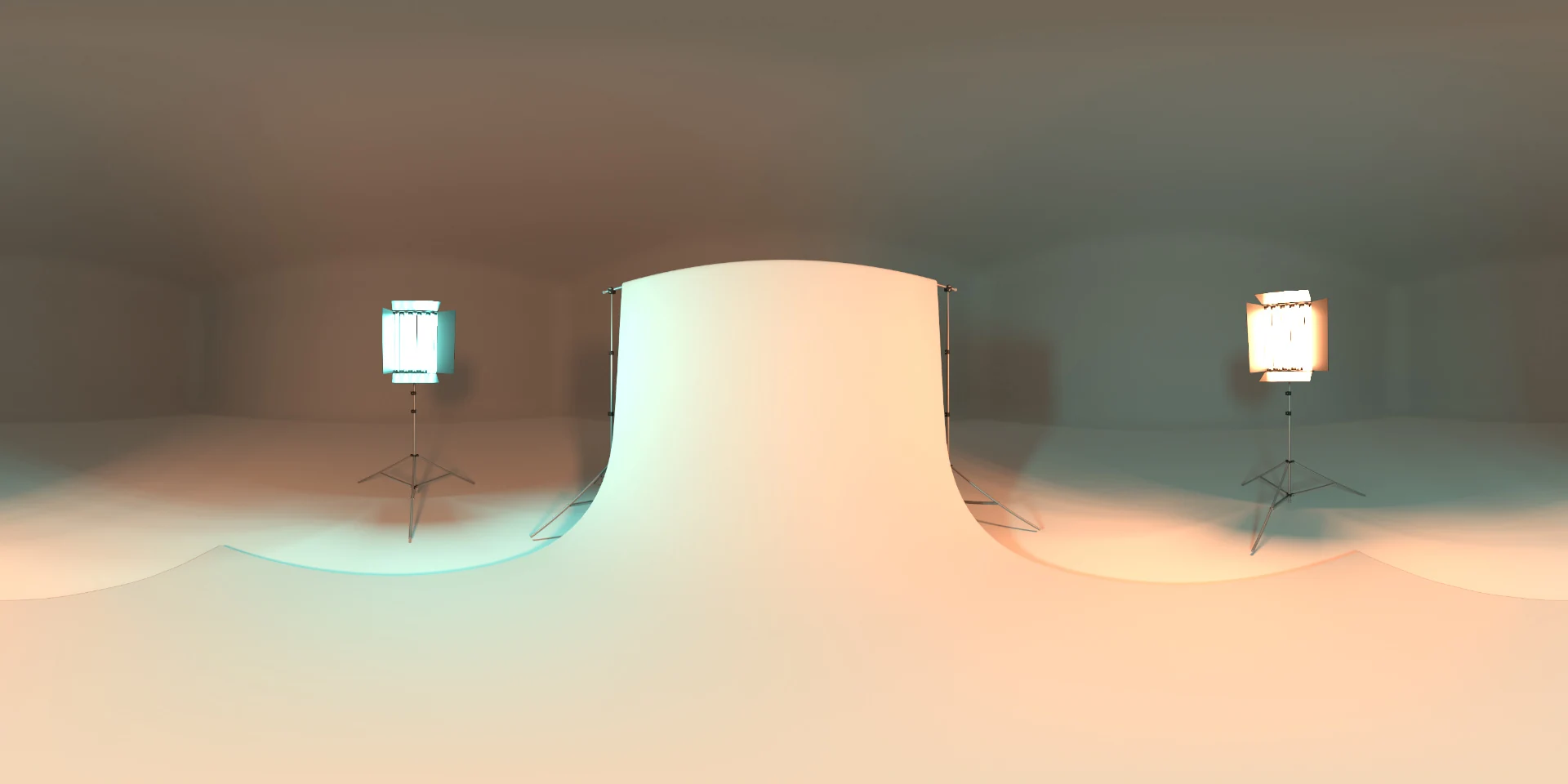
Open the image to explore the details.
Studio 002 HDRI pairs soft mint and peach lighting across a curved backdrop. Explore unclipped HDR maps up to 10K for product images and color comparisons.
See current pricing, available files and license details on the marketplace.
Studio 002 Mint and Peach HDRI pairs image-based lighting with this environment: two rectangular panels cast pale mint and peach light across a curved studio backdrop.
Try this gentler color pairing for a product image that needs visible hue separation without saturated neon tones. Place the mint and peach regions on different sides of a curved form. Keep a neutral lighting reference when checking the product base color.
The product listing specifies 10K, 6K, 3K, 1K files in .hdr format and identifies the map as unclipped. The web image is a compressed preview; load the purchased HDR file as your environment texture to use its lighting data. Choose the map resolution according to the detail visible in your background and reflections.
The creator reports 17 EVs of dynamic range. This is a product specification, not a measurement made from the JPEG preview.
Follow the Blender HDRI product lighting workflow to rotate the environment before changing exposure. If an edge still needs separation, compare HDRI and area lights before adding a local light.
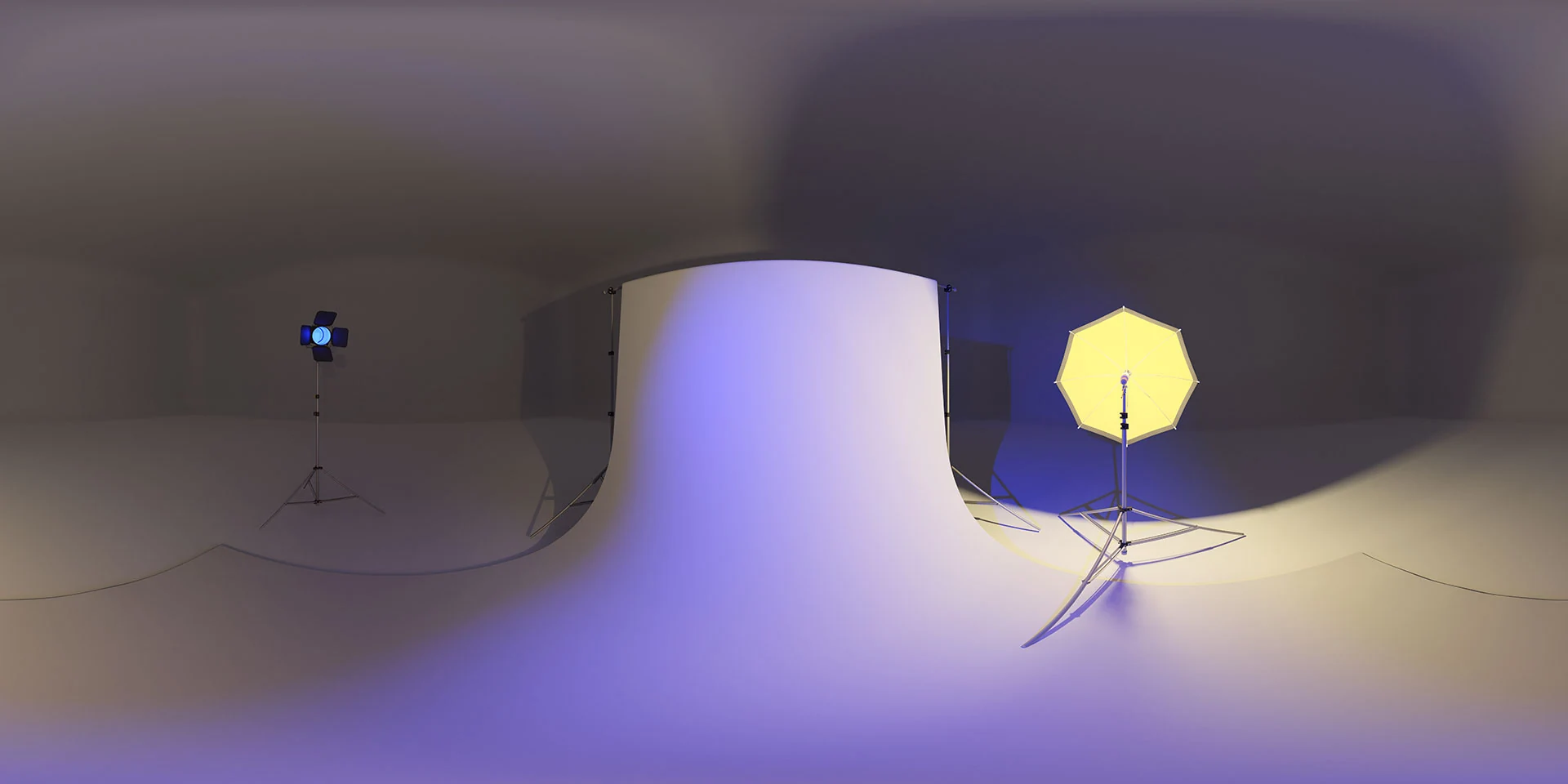
Compare Studio 011 Blue and Yellow HDRI with this environment to evaluate soft mint and peach reflections from two panel lights. Keep camera, material and exposure consistent while judging the difference.
Browse the HDRI lighting collection for other environments and combinable lighting filters.
The product page credits photo studio objects by nukkio under CC BY 3.0 for the lighting models used in creating the environment. Consult the original product listing for its source credits and asset licence.
Set up HDRI lighting in Blender, rotate the environment, balance exposure, and check PBR materials with a practical workflow for clearer product renders.
Read articleCompare HDRI and area lights in Blender. Learn how to control reflections, reveal product shape and combine light sources without flattening your render.
Read articleYou can model a clean asset, unwrap it properly, bake a solid normal map, and still end up with a material that feels wrong.
Read articleStudio 011 HDRI pairs blue and yellow light across a pale studio sweep. Explore unclipped HDR maps up to 10K for product lighting and color contrasts.
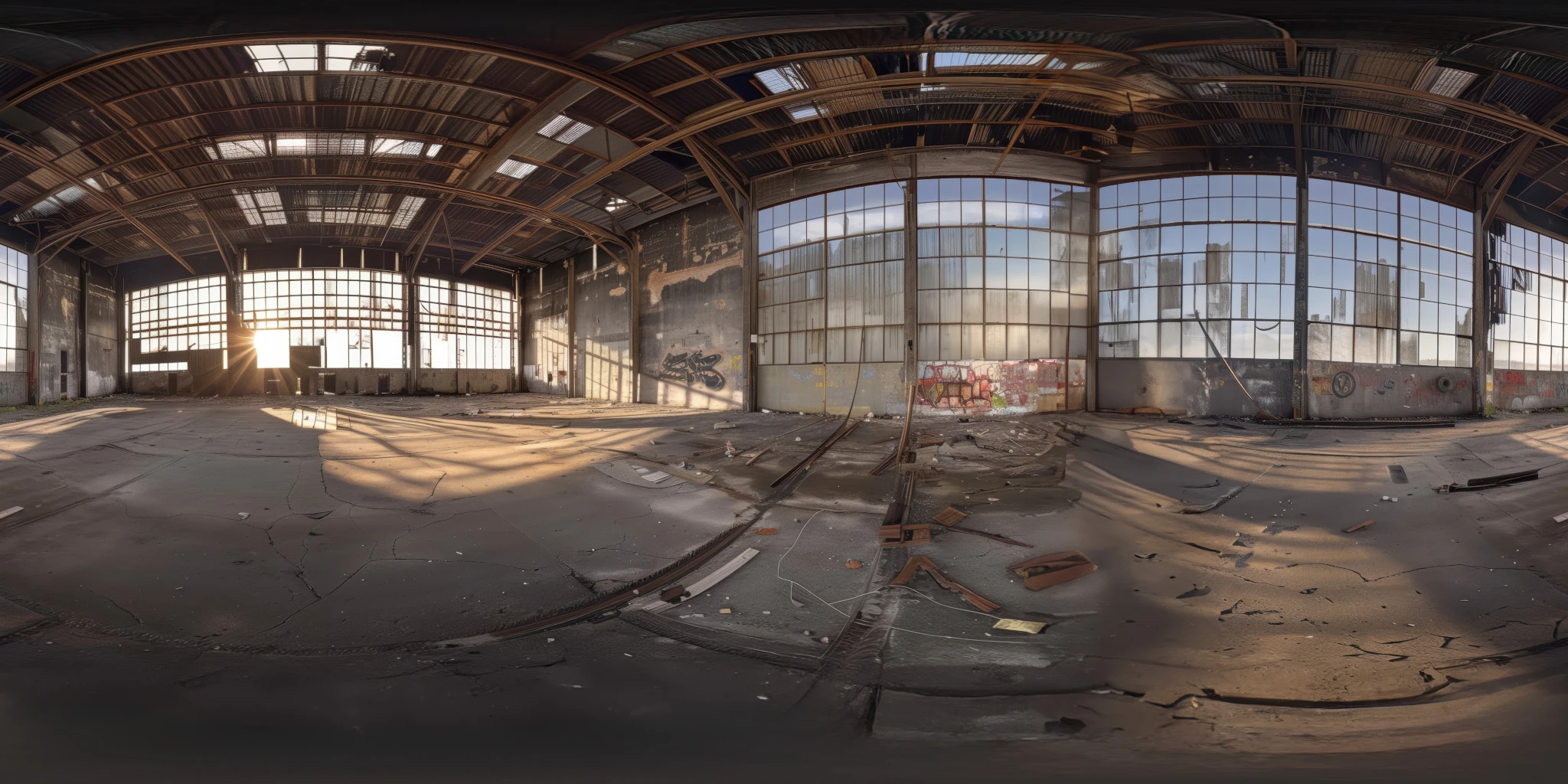
View assetExplore an abandoned warehouse HDRI with window light, roof trusses and worn concrete. Choose 12K to 2K unclipped maps for industrial props and reflections.
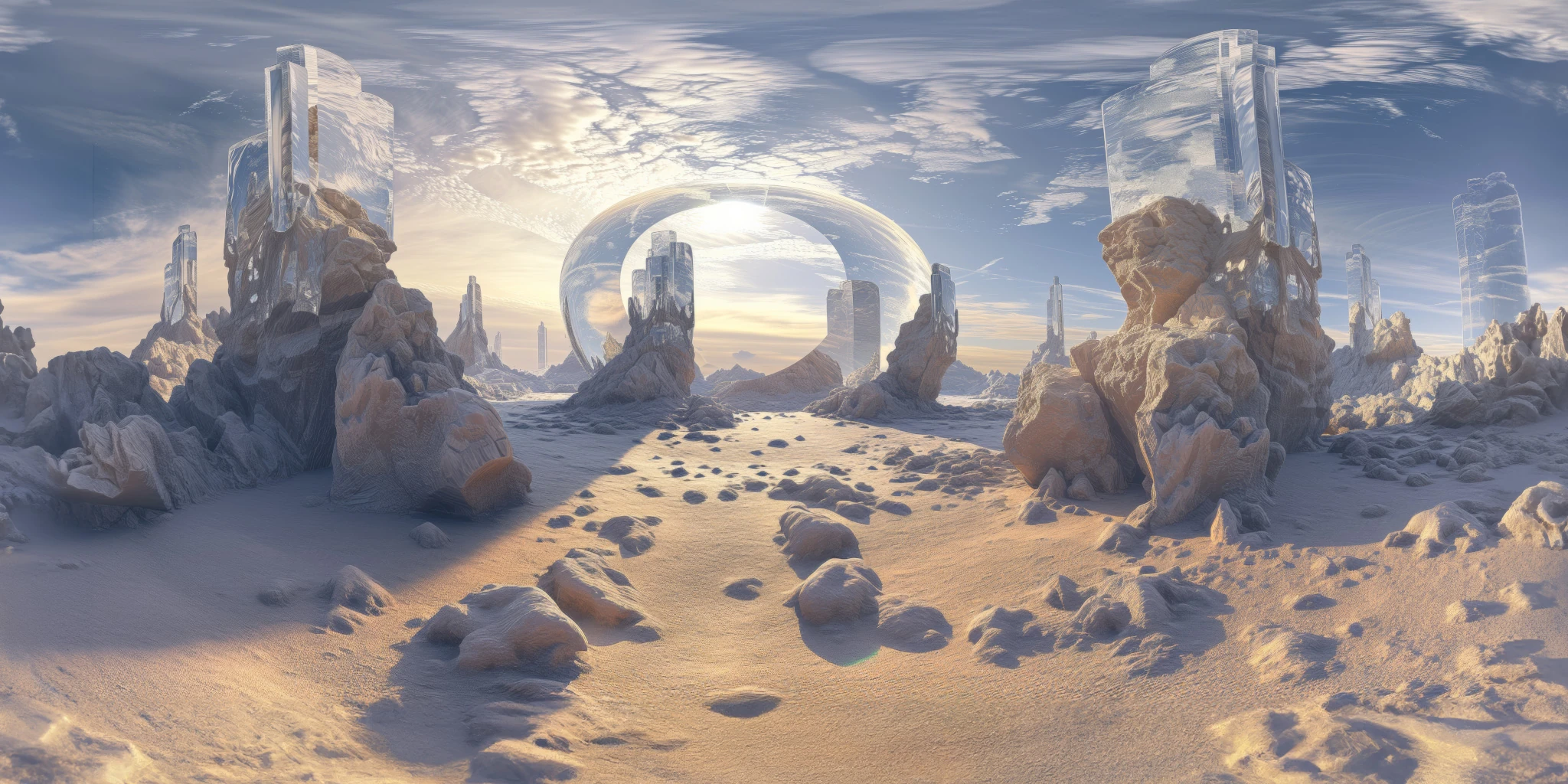
View assetExplore a crystal valley HDRI with pale formations, sandy terrain and a monumental arch. Choose 12K to 2K maps for bright sci-fi lighting and reflections.
View asset