
Welcome to the 3DSkillUp blog. In 3D modeling, one of the most frequent tasks is modifying existing topology without compromising the overall structure.
In this article, we will analyze essential tools within Blender’s Edit Mode: the Splitting and Ripping functions.
By the end of this read, you will understand how to create clean openings, generate new geometry in a controlled manner, and separate specific mesh portions. Understanding the technical logic behind each tool, and knowing why to prefer one over another in specific contexts, is essential for optimizing your 3D workflow and reducing modeling time.
1. Edge Split vs. Rip Tool: A Technical Comparison
When it is necessary to separate two contiguous edges—for example, to model the opening of a container—Blender offers two main approaches. Let’s analyze the technical differences to understand which one is best suited for an efficient workflow.
The Standard Method: Edge Split
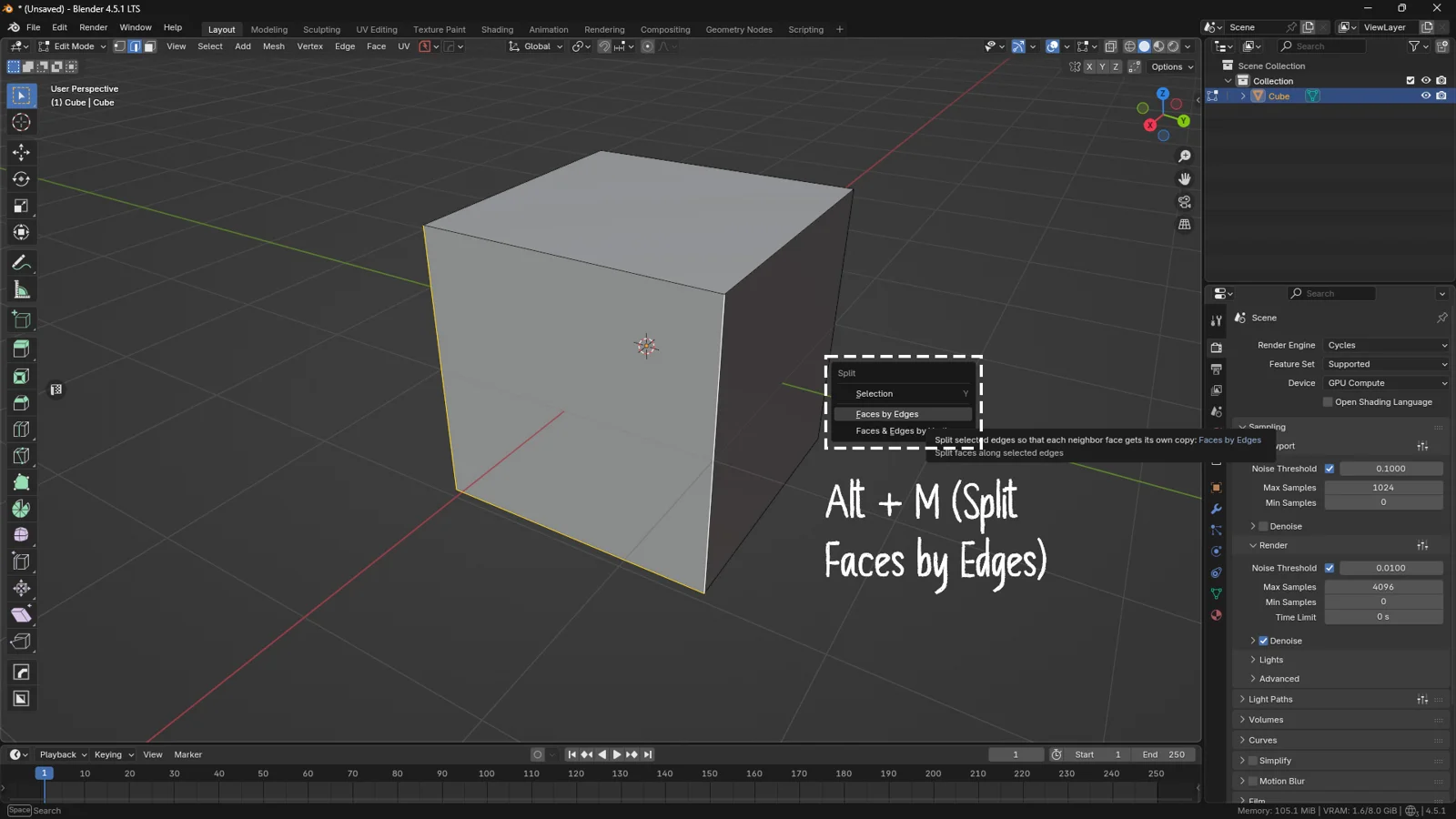
The Edge Split tool performs a clean, static division on the selected edges.
-
Select the edges of interest.
-
Activate the Faces by Edges Split command (Alt + M > Faces by Edges Split).
-
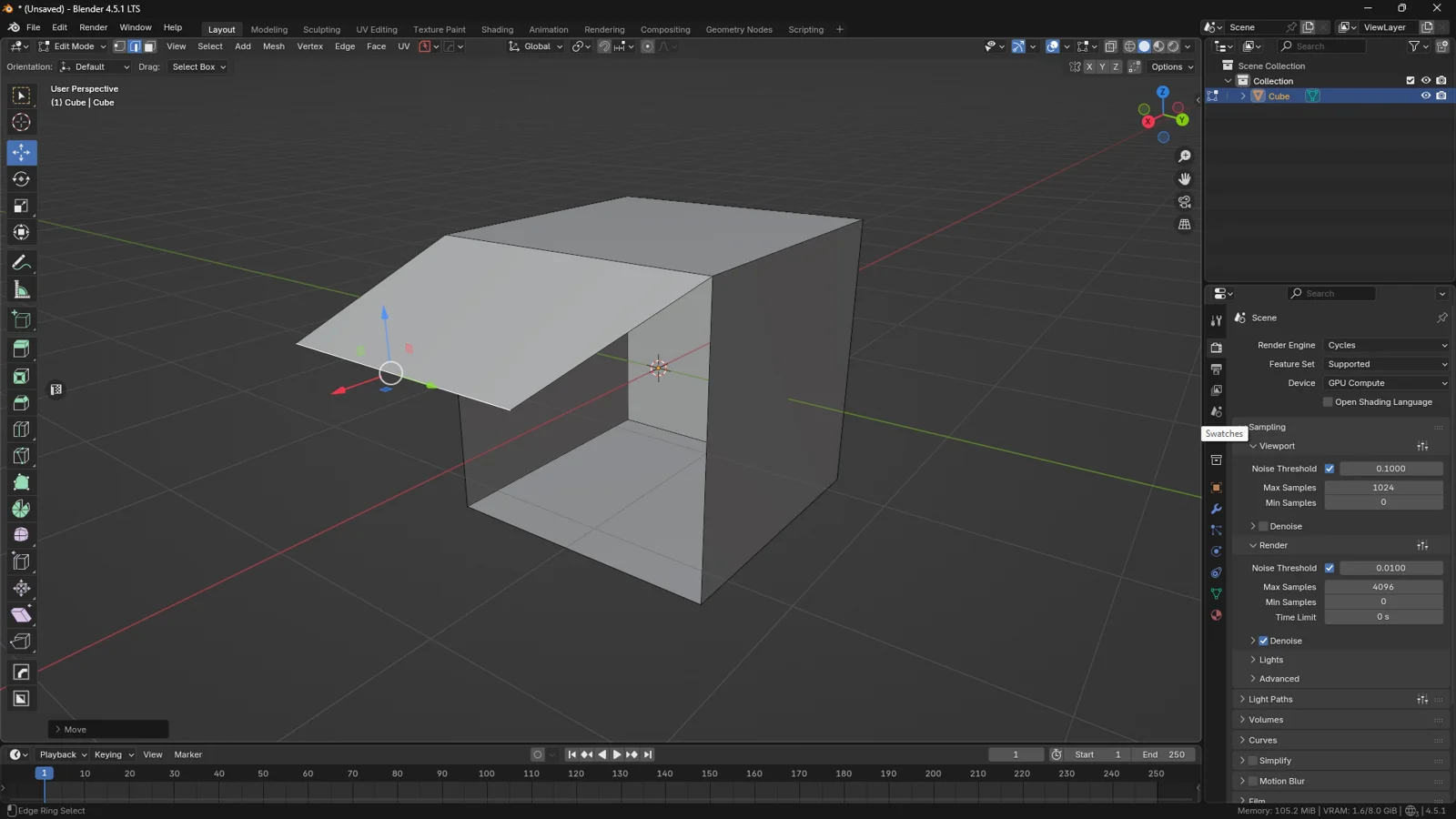
The edges are topologically separated, but the vertices remain overlapping in the exact same spatial coordinates. It is subsequently necessary to use the translation command (G) to physically distance the geometry.
The Optimized Approach: The Rip Tool
The Rip Tool is generally preferred by industry professionals because it consolidates two operations into one. This tool performs the cut and allows for the immediate translation of the geometry in a single fluid motion.
-
Select an edge or a single vertex.
-
Press the V key.
-
Move the cursor to distance the newly separated geometry.
💡 3DSkillUp Pro Tip: Cursor Influence The Rip Tool calculates the direction of the separation based on the mouse position before the V key is pressed. By positioning the cursor above the selected edge, the geometry will separate upwards; positioning it below will separate it downwards. Accounting for this behavior allows for immediate directional control without needing to adjust the axis later.
2. Rip Fill: Extending the Geometry
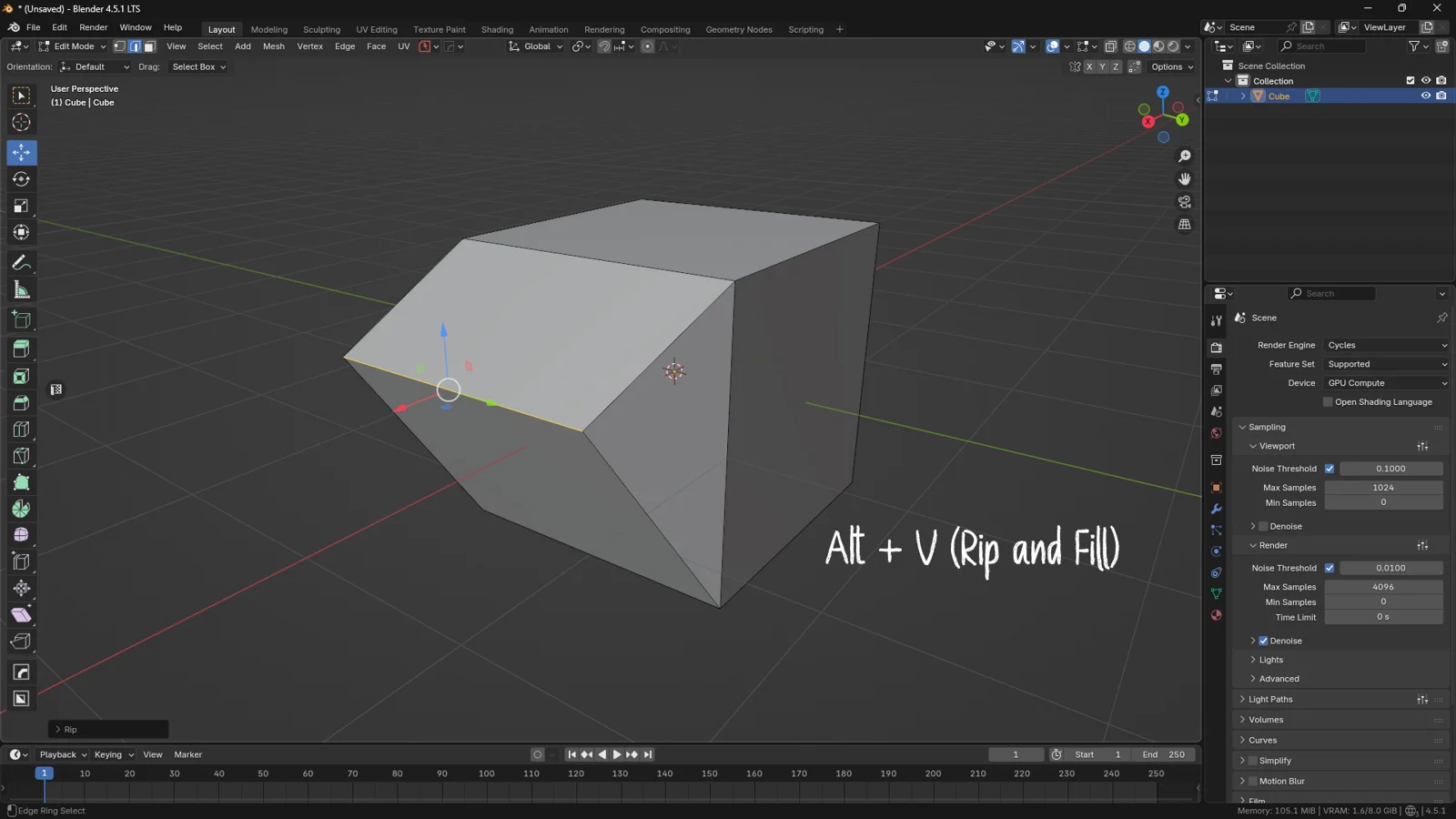
If the objective is not to create a gap but to expand the surface of the 3D model, the appropriate tool is the Rip Fill.
Unlike the standard Rip Tool, which leaves an empty space, the Rip Fill automatically generates new faces (typically quads) to connect the displaced edge back to the original mesh.
Why integrate it into your workflow:
-
It is an excellent method for extending geometry while maintaining structural continuity.
-
It proves particularly useful for widening sections of a mesh without altering the curvature or tension of adjacent surfaces.
💡 3DSkillUp Pro Tip: The Operational Shortcut To activate the Rip Fill, select the edge and use the shortcut Alt + V. This method offers cleaner, more predictable control compared to a standard extrusion (E), especially when operating on complex curved surfaces, as it prevents overlapping geometry if the operation is canceled mid-way.
3. Rip & Extend: Vertex Sliding for Retopology
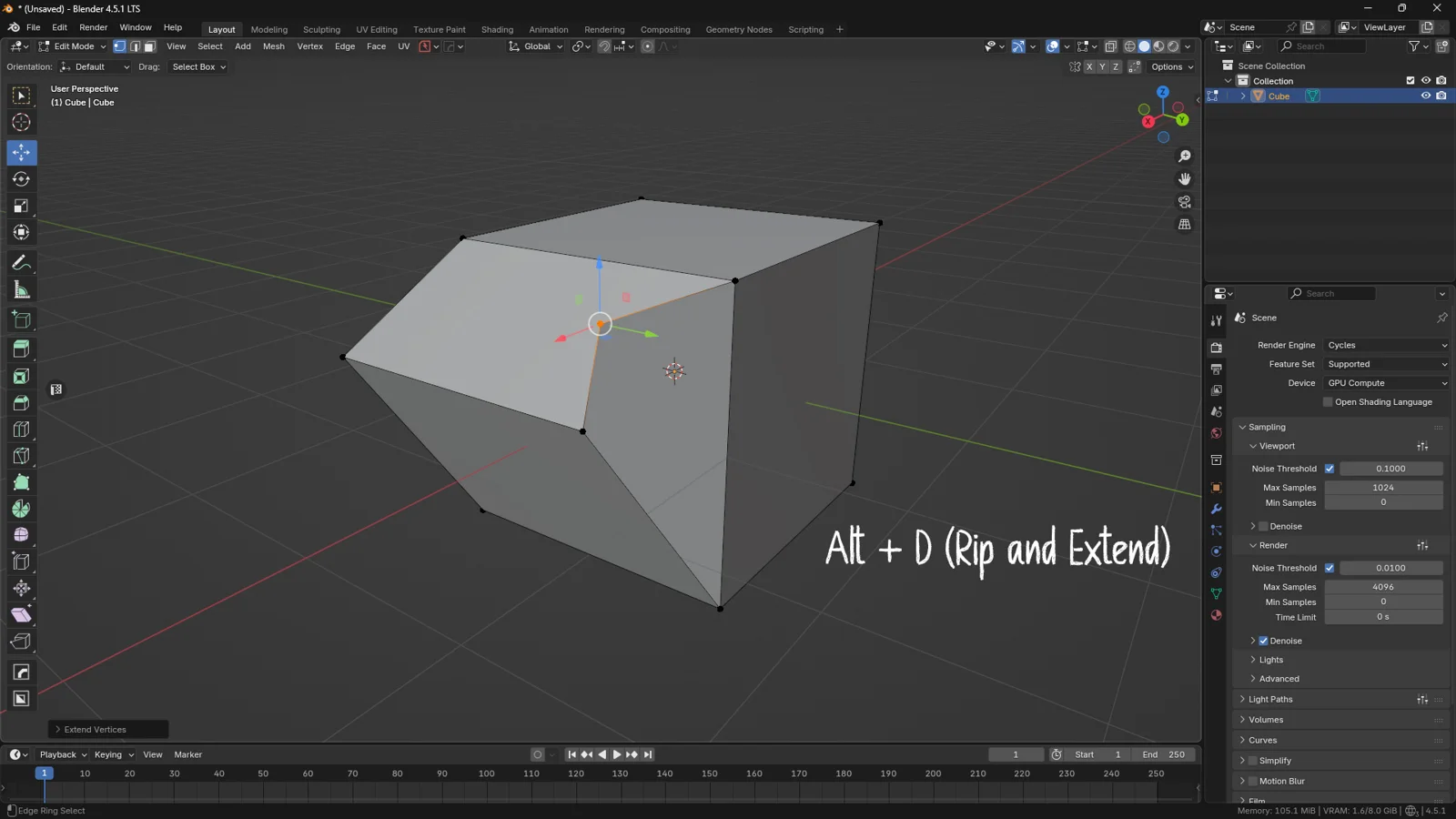
The Rip and Extend is a highly technical tool designed to duplicate an element and constrain its sliding along an adjacent edge.
This command is widely used for topological correction. A common use case is converting an undesirable triangle into a quadrilateral (quad) by strategically adding a support vertex.
-
Select the vertex that needs to be duplicated.
-
Position the mouse cursor in close proximity to the edge along which the new vertex should slide.
-
Press Alt + D.
-
Slide the vertex to the desired position and confirm with a click.
💡 3DSkillUp Pro Tip: The Importance of Shortcuts Although these tools are accessible via the top context menu (Vertex > Rip and Extend), using the keyboard shortcut is strictly recommended. The tool calculates the sliding direction based entirely on the cursor’s proximity to a specific edge. Moving the mouse away from the mesh to navigate interface menus invalidates this positional measurement, making the result unpredictable. Always rely on Alt + D.
4. Mesh Split: Isolating Mesh Components
While the previous tools operate at the micro-level of edges and vertices, the Mesh Split tool handles larger segments of geometry.
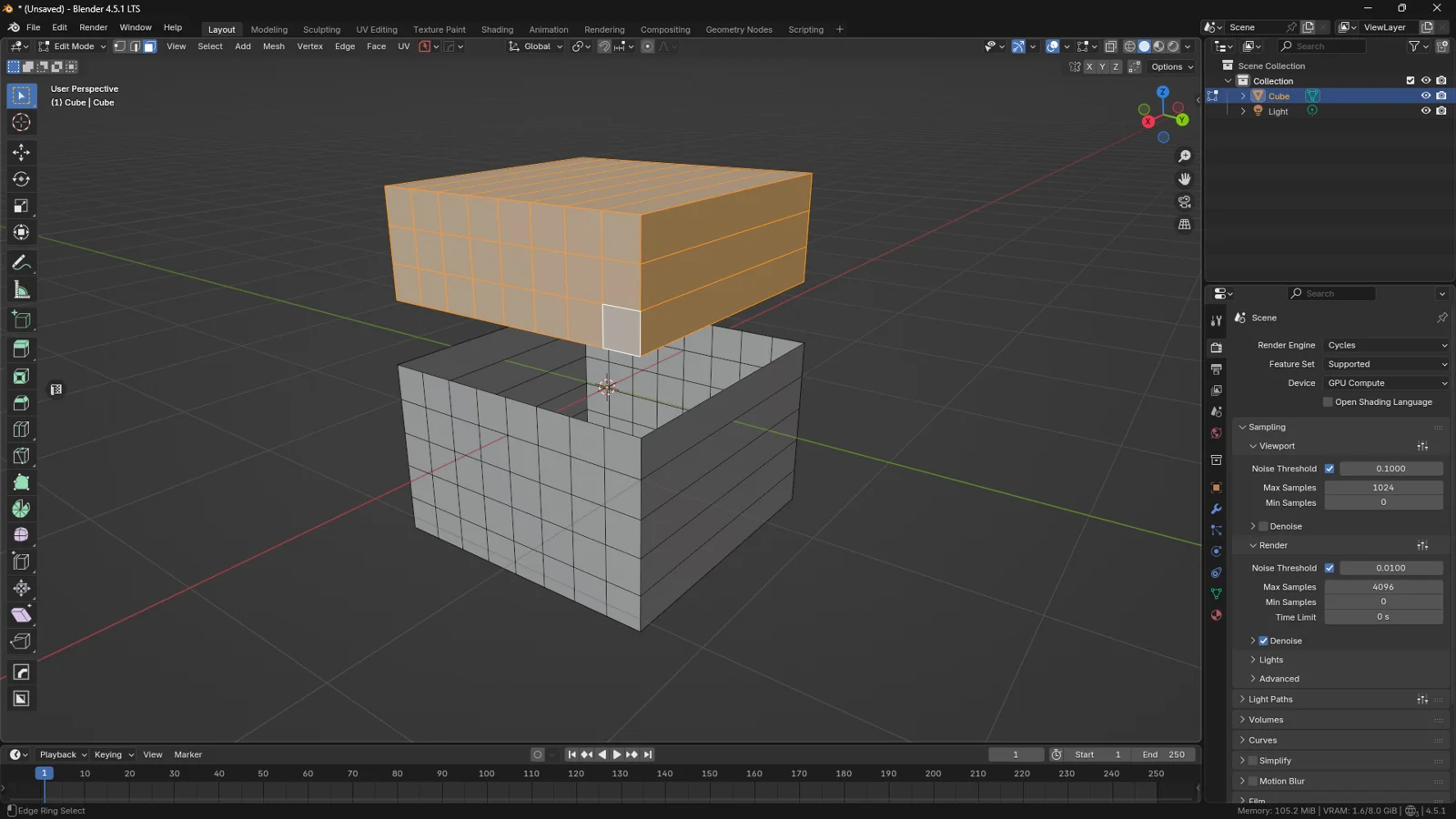
This function allows you to physically disconnect an entire selection of faces from the rest of the model’s topology, while keeping them housed within the same data object.
-
Select the area of faces to isolate.
-
Press the Y key.
-
Press G to translate the newly separated section.
💡 3DSkillUp Pro Tip: Split (Y) vs. Separate (P) It is crucial to distinguish the Split operation from the Separate operation.
By pressing Y (Split), the geometry is disconnected topographically but remains part of the same object in the Outliner.
By pressing P (Separate), the selected geometry is removed entirely and converted into a standalone 3D object. The Y command is indicated when you are detailing internal components that logically belong to the same asset.
Conclusion: Streamlining Your 3D Modeling Workflow
The conscious application of these splitting and ripping tools allows for a significant optimization of the modeling phase. By utilizing these targeted commands, you reduce the inefficient need to delete and manually reconstruct entire portions of topology. Transitioning from destructive modeling techniques to precise operations like Rip and Split marks a definitive step toward professional-level geometry management.
You might also like Mastering Faces, Edges, and Loop Cuts in Blender