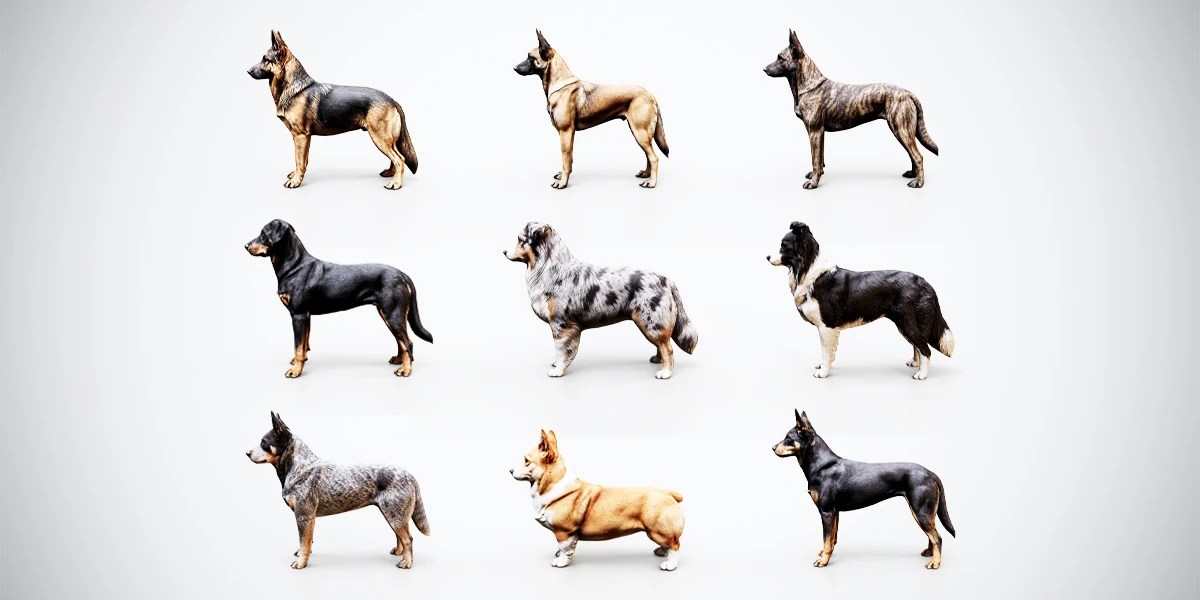
A rigged dog reaches Unity through a quadruped workflow: import the skeletal mesh, configure a Generic rig, rebuild or assign the materials, then test the movements your game needs. The first useful result is a character that looks correct and behaves predictably in a small evaluation scene.
This guide focuses on the decisions specific to a dog rather than repeating every static-prop import step. The Inspector terminology follows the Unity 6.0 documentation; use the matching manual if your editor presents different options. Keep the Blender source and an untouched copy of the supplied files available throughout the process.
Choose the rigged FBX and keep its textures together
Start by identifying the delivery intended for skeletal work. A static FBX and a rigged FBX may show the same animal in a preview, but they serve different purposes. Use the rigged file when you need skin deformation and authored animation.
The 10 Rigged Shepherd & Herding Dogs pack supplies static and rigged BLEND and FBX options, with PBR Metallic-Roughness textures up to 4K and presets for Blender, Unity and Unreal. Use the rigged FBX for this workflow and the supplied Unity texture resources when setting up materials. Walk, run and idle clips are not included; plan to author or source compatible motion for your character.
For a first test, the free rigged German Shepherd includes a rigged FBX alongside its static FBX and two BLEND versions. Its textures are 2K, with Blender and PBR Metallic-Roughness presets. Use the sample’s PBR maps to build the material for your project’s shader as described below.
Place the model, its textures and your Unity materials in clearly named folders for the chosen dog. Keeping the source resources together makes it easier to distinguish a missing map from an incorrect material assignment. If you need the broader folder and import sequence, follow the game-ready model import guide.
Unity’s model import documentation supports using FBX directly. Importing a native BLEND file depends on Blender being available for conversion, so the supplied FBX is a practical interchange starting point.
Configure the dog as a Generic rig
Select the FBX in the Project window and open its Rig tab. Set Animation Type to Generic. A dog has a non-human skeleton; Unity’s Humanoid mapping is designed for human-like structures.
For the model that establishes the skeleton, choose Avatar Definition → Create From This Model, then apply the settings. Unity’s Generic animation import guide describes this workflow and the separate-animation case.
If animation comes from another FBX exported from the same skeleton, Copy From Other Avatar can reuse its definition. This requires a matching bone hierarchy. Selecting Generic does not make unrelated quadruped skeletons automatically compatible, so do not assume a clip for one dog will transfer to every dog in a collection.
Select the root from the actual hierarchy
Review the available Root node and identify the bone intended for the character’s root motion setup. Avoid choosing a bone solely because its name resembles a familiar humanoid hip or pelvis control. Consult the source hierarchy and export setup when the purpose of a bone is unclear.
The root selection matters for how Unity relates bone movement to the character’s overall motion. Unity’s Rig tab reference explains the Root node and Avatar Definition fields. Keep the initial choice recorded so that you can compare it if a later animation test behaves unexpectedly.
Check placement before adding gameplay
Create a small scene with a floor, neutral lighting and a scale reference from your project. Place the dog beside that reference and inspect its orientation, body size and paw height. Keep the first scene free of movement scripts so you can see the imported result clearly.
Compare the whole character, including the skeleton, rather than correcting individual child objects independently. A mesh-only adjustment may disguise a mismatch that returns when animation plays. If the import differs from the source, investigate the export and importer settings before building a compensating hierarchy around the problem.
For persistent scale or orientation issues, the Blender FBX troubleshooting guide provides the next diagnostic steps. Keep the original supplied FBX intact while you test any re-export from Blender.
Rebuild the coat materials for your rendering pipeline
Choose a shader appropriate to your project’s render pipeline, then assign the texture resources it expects. A Unity-oriented texture preset is a useful starting point, but the material still needs to match the shader used in your scene.
Check the Base Color first. Compare the black, tan, white or patterned areas with the source under readable lighting, using one exposure for the entire animal. For ordinary non-HDR color maps, Unity’s sRGB (Color Texture) option should be enabled; data textures that require their stored numerical values should not receive that color conversion. The texture import reference documents this distinction.
Import a supplied normal map with Texture Type → Normal Map, then assign it to the material’s normal input. Unity’s normal map import instructions cover that setting.
For the remaining maps, follow the selected shader’s channel layout. Verify whether it expects roughness or smoothness and whether values are stored in separate maps or packed channels. A filename containing “Unity” does not by itself identify every setting required by your project’s shader.
Inspect the result from the intended camera distance. Start with the available resources, then evaluate texture resolution and compression against the visible result and target platform. The pack’s maximum texture resolution is an available source size, not a requirement for every dog in every scene.
Validate animation with a known source
If the imported FBX contains no animation clips, there is nothing for Unity to preview as a walk or idle. Rig configuration establishes how the skeleton is handled; it does not generate motion.
Begin with a short clip you have authored or obtained for a compatible skeleton. Before importing it, confirm the expected movement in the source application. For a pose check before animation authoring, use the Blender rigged dog posing workflow.
Compare the same clip in Unity and Blender from front, side and three-quarter views. Pay attention to paw contact, shoulder and hip volume, neck rotation and the tail base. If the source already shows a deformation problem, address it there; if the source looks correct and Unity differs, investigate the transfer and playback setup.
| What you observe | First comparison to make |
|---|---|
| No clips appear | Confirm that the selected FBX actually contains exported animation |
| Whole dog moves or faces an unexpected direction | Compare source motion, root selection and playback setup |
| A local joint collapses | Compare the same frame in the source and imported version |
| Coat looks glossy, flat or washed out | Review shader inputs, map channels and texture import settings |
| Paws slide during movement | Compare the authored clip with the motion applied to the character in the scene |
Record one change at a time and replay the same interval. A small test is more informative than judging the dog while several controller states and camera systems are active.
Save a prefab after the basic checks pass
Once scale, materials and the intended test motion are consistent, preserve the configured character using the Unity prefab workflow. Add the components required by your project in a deliberate sequence, checking the result after each addition.
Keep a short record of the Unity version, source FBX, rig settings, material shader and tested clips with the evaluation scene. That reference makes future asset updates easier to compare and gives you a stable foundation for building the dog’s behavior in the actual game.