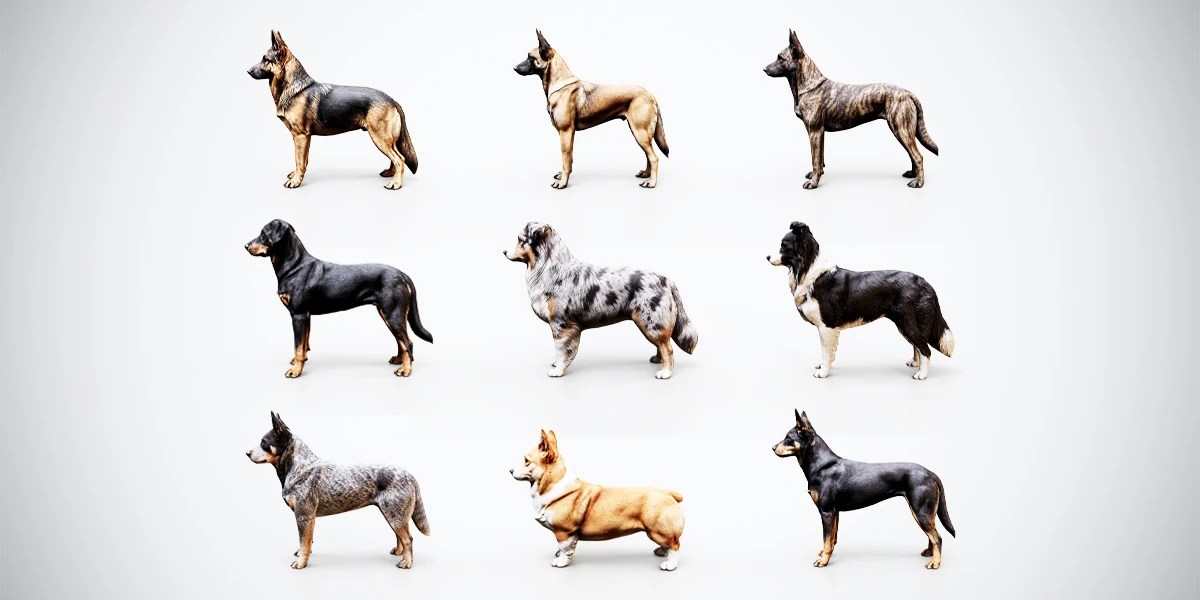
A convincing dog pose depends on a few connected decisions: where the paws meet the ground, how the body sits above them and where the head directs attention. Small, coordinated adjustments often communicate more clearly than a large bend applied to one part of the rig.
This workflow starts with an existing rigged dog in Blender and builds a restrained standing pose suitable for a scene or presentation render. It also gives you a repeatable way to inspect deformation before creating more demanding poses or animation. Control names and rig features vary, so use the controls supplied with your particular model.
Prepare a clean posing scene
Save a working copy of the source BLEND file. Add a simple ground plane and use lighting that makes the legs, chest and muzzle easy to read. Keep the floor visible in the camera: paw contact becomes difficult to judge when the background and ground merge into a featureless image.
Start with the rigged source rather than assuming a static mesh contains posing controls. In the Shepherd & Herding Dogs collection, each premium dog includes a rigged BLEND alongside static and FBX options. This gives you a native starting point for custom poses, with different body proportions to suit different scenes.
To begin with a free model, download the rigged German Shepherd and open its rigged BLEND file. Both its static and rigged BLEND files have packed textures, and the sample provides 2K resources with Blender and PBR Metallic-Roughness presets.
Pick one dog and one simple goal, such as “standing beside a gate and looking toward the approaching player.” Establish a camera for that shot and keep a side view available for checking ground contact. If you are still deciding which shape suits the composition, use the dog model selection guide first.
Identify the controls before moving the character
Select the armature and switch to Pose Mode using the viewport mode menu. Blender distinguishes object placement, mesh or armature editing, and posing; its interaction modes documentation explains which mode applies to each object type.
Inspect any supplied instructions, bone collections, visible control shapes and custom properties. Move one likely control a small amount, observe what follows and undo the change. This is a quick way to distinguish a whole-character control from a chest, head or limb control without leaving the model in an unknown state.
Use the intended animation controls when they are provided. A visible bone may be driven by a constraint or belong to the deformation skeleton, so forcing it to move can be the wrong operation. Likewise, do not assume that every dog rig has foot IK, a shared bone layout or the same switching properties.
Keep changes in Pose Mode for this exercise. Editing rest-pose bones or applying transforms to individual parts of an already rigged character is a separate task and can change the setup you are trying to evaluate.
Establish the standing support first
Before turning the head, make the body feel supported. View the animal from the side and front, then identify the paws intended to carry its weight. For this simple standing pose, begin with all four paws resting on the plane.
Adjust the body using the appropriate controls in small steps. After each change, check whether the feet stayed planted, lifted away from the ground or penetrated it. With an IK-enabled rig, paw controls may preserve contact while the body moves; with an FK setup, you may need to coordinate the limb rotations yourself.
Think of the chest and pelvis as connected masses above the supporting legs. A modest shift in the body can suggest attention without an exaggerated lean. Avoid stretching the legs to rescue a body position that has moved too far from the support.
Inspect contact from more than one view
A paw can look planted from the camera while floating slightly in a side view. Conversely, a contact shadow can hide a foot that penetrates the ground. Check the paw mesh against the plane directly, then return to the rendered view to judge the visual result.
For the gate-side example, leave enough separation between the legs for the pose to read from the shot camera. You can introduce slight asymmetry in the stance, provided the weight still looks supported. Symmetry is a useful starting reference, but it need not be the final presentation.
Direct attention with the head, neck and body
Place a temporary visual target near the gate to represent the approaching character. Turn the head toward it using the available controls, then consider whether a small adjustment in the neck or chest would make the gesture more coherent.
The aim is a connected pose. A large head turn on an otherwise rigid body may create an abrupt twist at the neck. Reduce the angle or distribute the gesture through the controls the rig supports, checking the silhouette after each adjustment.
Keep the ears and tail subordinate to the main action. If they have independent controls, make restrained changes and inspect them from the final camera. You do not need to move every available bone to communicate that the dog has noticed something.
For a more complex action, use appropriate animal reference and build from a stable pose. Sitting, crouching or lifting a paw introduces different support and deformation questions; validate those as separate tasks instead of pushing this standing setup into every action at once.
Review deformation before polishing the materials
Check the pose in a simple solid view as well as with the coat materials. Surface detail can disguise a compressed joint, while an untextured view can make volume changes easier to spot.
| Area | What to inspect | A useful first adjustment |
|---|---|---|
| Shoulders and chest | Pinching, lost volume or a leg intersecting the torso | Reduce the limb angle and coordinate the chest position |
| Hips and rear legs | Abrupt folds or an implausible bend | Rebalance the stance before increasing the rotation |
| Neck and muzzle | Twisting or collapsed volume below the jaw | Spread the gesture across supported neck and head controls |
| Paws | Floating, penetration or stretched toes | Recheck the ground plane from side and front views |
| Tail base | A sharp kink or contact with the body | Use a gentler curve across available tail controls |
If a problem remains in a reasonable pose, identify whether it comes from control use, skin weights or topology before editing. Save the pose and a screenshot of the affected area so you can compare a correction against the same conditions. This table describes checks to perform, not defects observed in the collection.
For the later engine stage, the rigged-character testing checklist explains how to separate deformation issues from import and playback problems. Its Humanoid mapping sections apply to humanoid characters; the scene and inspection principles also help with quadrupeds.
Save a reusable pose and prepare the next step
Save the posed working file with a descriptive name and keep the original source available. Record the camera, intended scale and any custom control settings that matter to the result. This gives you a reliable starting point for another render or a related pose.
Blender’s Clear Transform controls can reset selected pose-bone location, rotation and scale. They do not replace a saved original when custom properties or other scene settings have changed. Use the source copy when you need to compare the complete starting setup.
For a presentation image, inspect front, side and three-quarter views before committing to the final camera. The asset turntable workflow is useful for reviewing the silhouette around a posed model while keeping the presentation consistent.
For an animated game character, use the approved pose as a reference and create the required motion separately. A saved pose does not supply a walk cycle. When the character is ready for engine work, the rigged dog import guide for Unity continues with Generic rig settings and a controlled material check.